65.4.5 Switching Router without ETX
Master Control running on the ETX platform provide flexible video management and archive a full IT-based playout. With ETX, you can set/switch the input and output router while configuring the Master Control channels. Refer to the ETX Master Control configuration for more details.
Alternatively, when ETX is unavailable, you can still switch the routers in Master Control with the dedicated Etere Router Control utility.
The Etere Router Control can be Installed relying on Etere Update Module.
From the Master Control station, execute Etere Router Control to start switching the router.
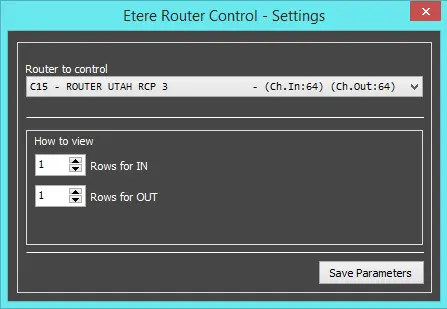
Etere Router Control - Settings
From the Router Control Panel , select the router you want to switch to and click the Save Parameters tile button to confirm router selection. For this instance, you had to switch to router “C15 – Router Utah RCP 3” in the Master Control panel. The program would try to activate the selected router.
Next, you can decide how the router view should be displayed. In the example above, the selected router would be displayed in 2 rows, 1 row displaying the source (input channels and channel name) and 1 row showing the routing destination (output channels and channel name).
Note: When launched, the utility would default present 2 rows of input channels and 2 rows of output channels.
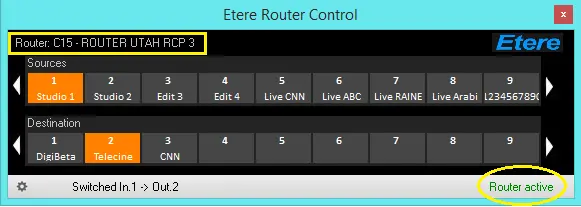
Etere Router Control
Now you can manage the router from the Router Control panel:
- The name of the select router is displayed at the top left corner
- In the bottom right corner, it indicates the router status, e.g. Router active
- Use the forward arrow Etere_Router_Forward to view the next channels
- Use the backward arrow Etere_Router_Backward to view previous channels
- Selected input/output channels are highlighted in orange, also indicated in the taskbar (e.g. Switched In 1 -> Out 2)
- Use the settings icon Etere_Router_View_Log to set parameters and view the log file
WARNING: Using Utah RCP 3 Router can only accept up to 6 active connections simultaneously.
 Etere_Router_Control
 Etere_Router_Control_-Settings