79.2.3 Configuring Feeds
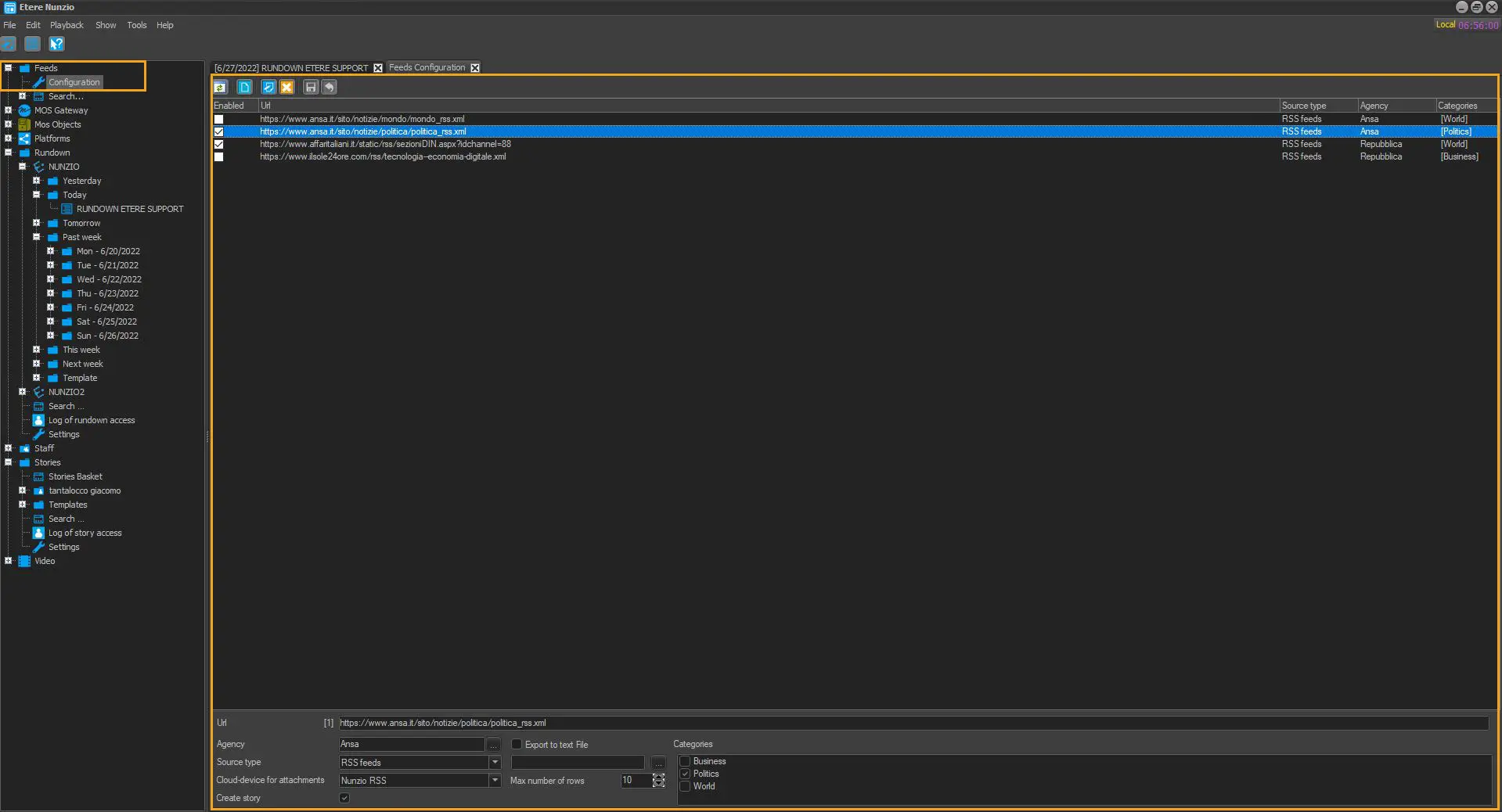
The Feeds can be configured for Feeds Agent on Feeds Configuration.
The supported feeds are described below.
RSS FeedsSample address / Notes: http://feeds.bbci.co.uk/news/world/rss.xml#
NewsML-G2
Sample address / Notes: http://iptc.org/std/NewsML-G2/2.15/examples
ATOM watchfolder
Sample address / Notes: UNC path for watchfolders to automatically import news feeds based in subscriptions.
AFP TXT watchfolder
Sample address / Notes: UNC path for watchfolders to automatically import news feeds based in subscriptions.
APTN AFP watchfolder
Sample address / Notes: UNC path for watchfolders to automatically import news feeds based in subscriptions.
APTN XML watchfolder
Sample address / Notes: Once the XML file is found in watchfolder it would be attached to the media file having the same OrderID in prefix.
Generic TXT watchfolder
Sample address / Notes: UNC path for watchfolders to automatically import news feeds based in subscriptions.
NewsML watchfolder
Sample address / Notes: UNC Path for watchfolders to automatically import NewsML feeds and create the related feed assets.
CONFIGURATION
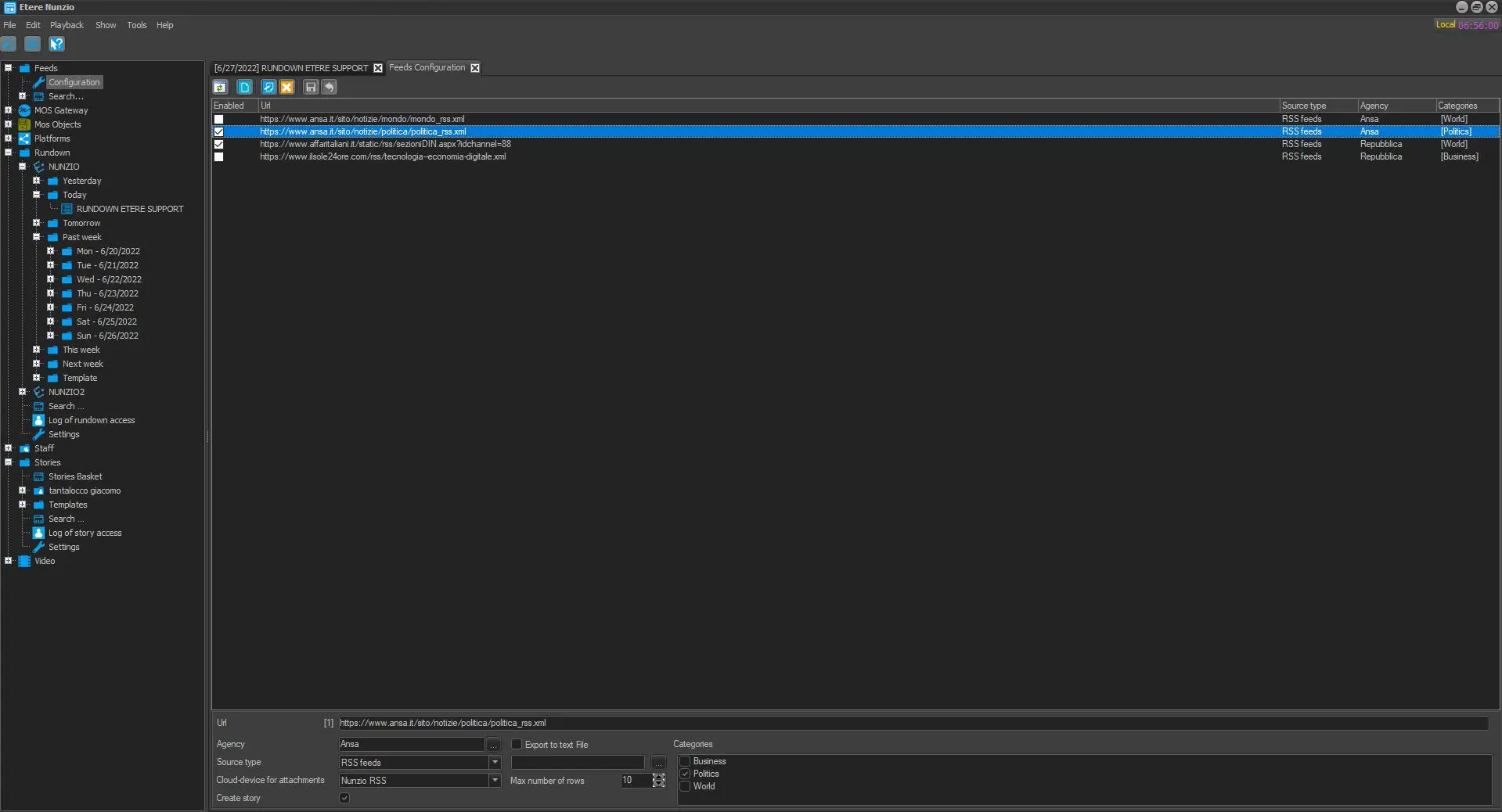
Display all the feeds available in the system (e.g. Reuters politics). Feeds can be added by pressing the [New] button and compiling the parameters:
nunzio_feed_config
URL - Enter the URL (HTTP for RSS and UNC for NewsML/Atom) from which feed is received.
Agency - Select the company to which the feed is related
Categories - Check the categories to which the feed is related (e.g. politics). Categories can be added/modified/deleted in Stories > Templates > List of categories section.
For story created by RSS Feeds, if the feeds has a category assigned, the category is transferred to the story. If the Feeds contains multiple categories, the story is created without category.
Note: Categories are used to organize story templates under the "Story" section.
Source type - Select the format in which the feed is received. See "Supported feeds" in this chapter.
Cloud-device for attachments - Select the cloud-device where received feeds are stored.
Create story - If this option is enabled, a related Nunzio Story would be automatically created for each RSS Feeds imported. This option is disabled by default.
Export to text file - Enable the “Export to text file” option to export the Feed received into a text file, and specify the path to store the exported text file. If the text file is crawling ticker, you can open the file in News Ticker (link to 39.11 News Ticker) and edit the text on the fly.
Max. number of rows - In the exported text file, specify the maximum number of rows allowed to be exported in the received Feed. Upon configured, if a ticker file is exported into the dedicated path, when you launch the Feed Agent the RSS Feeds would be loaded with the text file content and display the maximum rows of ticker text specified in the configuration file. The previous ticker text in Feed Agent would be removed.
Etere Nunzio Feed Agent
Moreover, making double-click on a particular feed allows modifying its parameters.
SEARCH
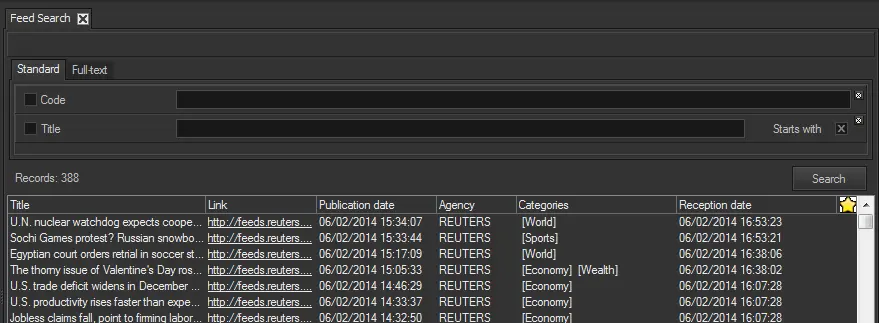
Display the search form that allows an accurate search and selection of feeds matching a given criterion (e.g. code, title, etc.).
STANDARD SEARCH
Standard_Search
Expanding the search item allows viewing feeds filtered by agency (e.g. Reuters, Ansa, etc.) and category (e.g. Politics, Sports, Science, etc.).
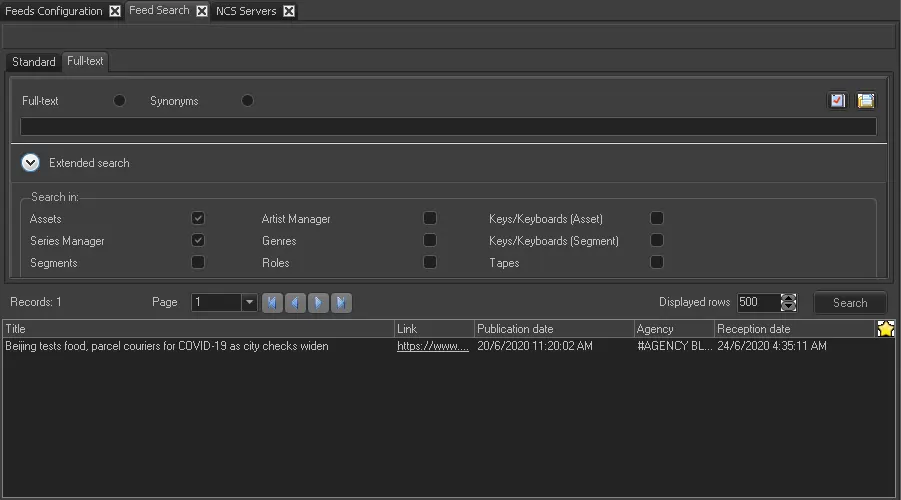
FULL-TEXT SEARCH
Feeds Search
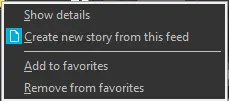
The Full-text search presents a google-like search where you can search for multiple words across all assets. Moreover, making right-click on a feed it will be possible to:
Show details - Displays feed's text, dates, agency, categories, tag, etc.
Create new story from this feed - Creates a new story (without video) based on the selected feed. When selecting a feed with videos present and right click on “Create new story from this feed”, the new story would be created with the “EDL Project” that contains all videos in the story.
Note: This function is only applicable to users assigned with Editor rights and Journalist rights set in the Staff Configuration panel (Nunzio > Using Nunzio > Tree View Menu > staff), it is prohibited to other users.
Add to favorites - Adds and displays a "favorite" mark (yellow start) to the feed.
Remove from favorites - Removes the "favorite" mark from the feed.
Create new story from this feeds
 Etere_Nunzio_Feed_Agent_
 Standard_Search
 Feeds_Search
 Create_new_story_from_this_feeds
 nunzio_feed_config
 feed_menu