72.7.6.8 Edit Subtitles Text
After downloaded the subtitles, you can edit the subtitles text in Live Subtitling before transmitting the subtitles to CC inserter.
On the Preview window, you can view the video input while editing the subtitles text and subtitles position, as described in the topic below.
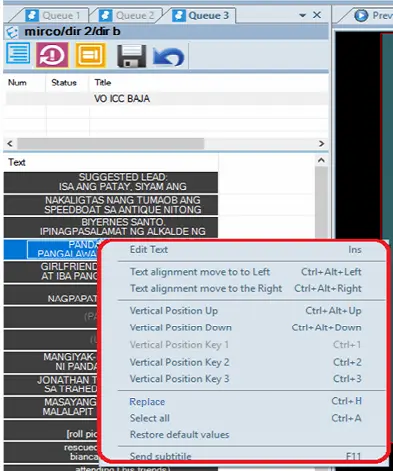
To modify subtitles simply right-click on selected subtitles line and select the appropriate edit function from the menu list.
mam_live_subtitling_edit.
Edit function - Edit Text (Ins)
Function description : Select the Edit function or press the “Ins” (insert) shortcut key to edit the subtitles text, and press the “Ins” key again to update the changes to subtitles text. To abort the changes, press the “Esc” key.
When editing subtitles text in subtitles line:
•If the subtitles text exceed the maximum words allowed, the subtitles text would be overflow to next subtitles line.
•If the next subtitles line reached the maximum words allowed, the subtitles text would be overflow to following subtitles line, so on and so forth.
•If the next subtitles does not exist, a 10 seconds buffer would be created to cater for the entered closed captions.
Edit function - Text alignment move to the Left (Ctrl + Alt + Left arrow)
Function description : This function move the selected subtitles text and take alignment from the left.
Edit function - Text alignment move to the Right (Ctrl + Alt + Right arrow)
Function description : This function move the selected subtitles text and take alignment from the left.
Edit function - Vertical Position Up (Ctrl + Alt + Up arrow)
Function description : This function move the selected subtitles text one position higher.
Edit function - Vertical Position Down (Ctrl + Alt + Down arrow)
Function description : This function move the selected subtitles text one position lower.
Edit function - Vertical Position Key 1 (Ctrl + 1)
Function description : This function move the selected subtitles to the relative vertical position. This is a programmable value to be used in programming settings.
Edit function - Vertical Position Key 2 (Ctrl + 2)
Function description : This function move the selected subtitles to the relative vertical position. This is a programmable value to be used in programming settings.
Edit function - Vertical Position Key 3 (Ctrl + 3)
Function description : This function move the selected subtitles to the relative vertical position. This is a programmable value to be used in programming settings.
Edit function - Replace (Ctrl + H)
Function description : Select this function to replace the subtitles text in the selected subtitles line.
Replace
•Enter the text to be searched in the “Find what” textbox. Noticed that subtitles text matched the entered value in all subtitles lines would be highlighted in orange color.
•Enter the replacement text in the “Replace with” textbox to replace the text found in subtitles lines.
•Now you can click the <Replace> button to replace the single subtitles line that matched the entered value. The single subtitles line with the text been replaced would be highlighted in dark orange color.
•You can click the <Find Next> button to go to next subtitles line that matched the “Find what” value and press the <Replace> button to replace the value in that subtitles line. Repeat the same steps to replace subtitles line one at a time.
•If you want to replace all subtitles lines that matched the “Find what” value, simply click the <Replace All> button to replace all subtitles lines with the new value.
To be precise, you can enable the “Match case” option to zoom-in those subtitles text that matched the exact value (e.g. UPPER case, lower case, or combination of both) and replace the subtitles.
Edit function - Select all (Ctrl + A) *
Function description : This function select all subtitles from the selected rundown.
Edit function - Restore default values
Function description : This function revert all changes performed in subtitles.
Edit function - Send subtitles (F11)
Function description : This function simply send the selected subtitles to CC inserter
NB: In the above functions, except for “Select all (Ctrl + A)”, are only applicable for editing selected single subtitles.
After modify the subtitles in Live Subtitling, the amended subtitles are visible in real-time in the Preview window.
Preview
For quick reference, if the vertical positions of the modified subtitles has been adjusted and different from the default positions, the modified values are indicated at the top left corner.
Edit and Preview subtitles on Etere Player
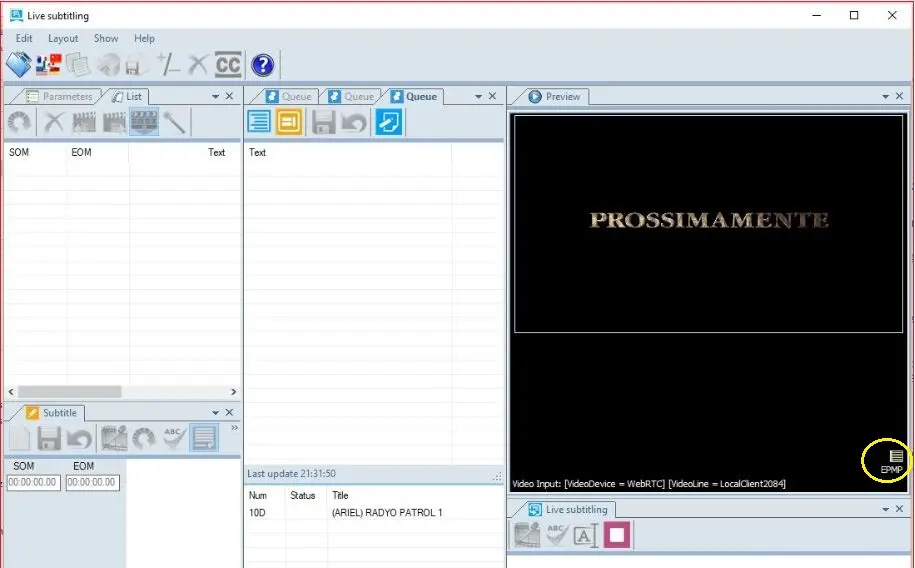
On Etere Player, you can preview the video input while editing the subtitles text and subtitles positions with the Etere Player / Media Player “EPMP” configuration button.
Etere Player
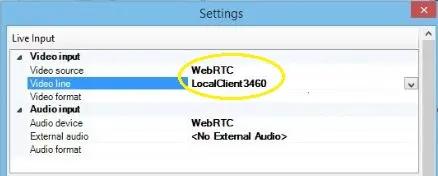
When Live Subtitling is initially launched, it present a black screen in Preview. You must click on the “EPMP” icon and define a video resource as Video Input and save the configuration.
Settings
The video input would appeared in Etere Player and you can preview the subtitles while editing the subtitles text. Subsequently, the video input would be present in the Etere Player Preview window when Live Subtitling is launched, whether it is from video clip or Live input.
Multiple User Editing
Live Subtitling allows multiple access to the various closed captions (by same user or different users) to perform editing at the same time without interfering the on-air schedule. For example, one user handle the submission of subtitles while another user can perform editing of subtitles before sending the subtitles on-air.
Livesubtitling_multi_edit
In the Live Subtitling, select the subtitles line you want to edit by right-click and select the "Edit Text" function and start changing the subtitles text or select other functions to realign the subtitles positions. On the other hand, submission of subtitles to CC inserter is progress without interference.
After the subtitles has been edited, click the "Save" icon to update the changes to database and proceed to edit other subtitles lines if necessary. To revert the changes made to selected subtitles line, simply click on the "Undo" icon to revert the changes.
When multiple users are accessing to Live Subtitling module, any changes to subtitles lines would be refreshed/updated automatically after specific time interval, based on the polling interval defined when you import subtitles from FTP Server.
Multiple User Active / Passive Mode
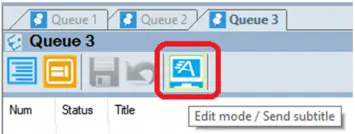
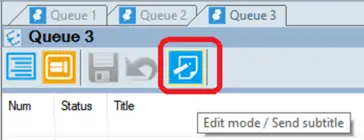
When multiple users are accessing the Live Subtitling module, it is crucial for all users working from their respective workstation to aware of the communication status to Closed Captions server while editing or transmitting subtitles. An icon “Edit Mode / Send Subtitles” is deployed on the toolbar to indicate its active / passive communication status to the Closed Captions server.
Passive Mode
Edit Mode
The established communication to Closed Captions server is now in Passive Mode, it indicate that transmission of subtitles to Closed Captions server is prohibited but users are allowed to edit the subtitles text.
Active Mode
Livesubtitling_active
The connection to Closed Captions server is currently in Active Mode, user can start transmitting subtitles to Closed Captions server while other users can continues to edit the subtitles text.
Change Subtitles Layout
While editing subtitles, the rundown are displayed on top panel while the story text for the selected rundown are displayed in the bottom panel, you can change the layout view by moving the rundown window.
Change_view
A “Change view” icon has been deployed in Live Subtitling to modify the layout by moving the rundown window, continually click on this icon would move the rundown window in clockwise directions to its desired positions.
The layout changed when this function is activated:
•1st click: Move rundown window to right
•2nd click: Move rundown window to bottom
•3rd click: Move rundown window to left
•4th click: Move rundown window back to its initial position
The following screenshot illustrate the change of layout:
Change of layout
Moreover, you can change the width and height of the Rundown and Story Text windows for each different layout.
 Livesubtitling_multi_edit
 Change_of_layout
 Livesubtitling_active
 Change_view
 Etere_Player
 Replace
 Edit_Mode
 Settings
 mam_live_subtitling_edit
 Preview