59.5.8.3 Daily Crowding
Report Description
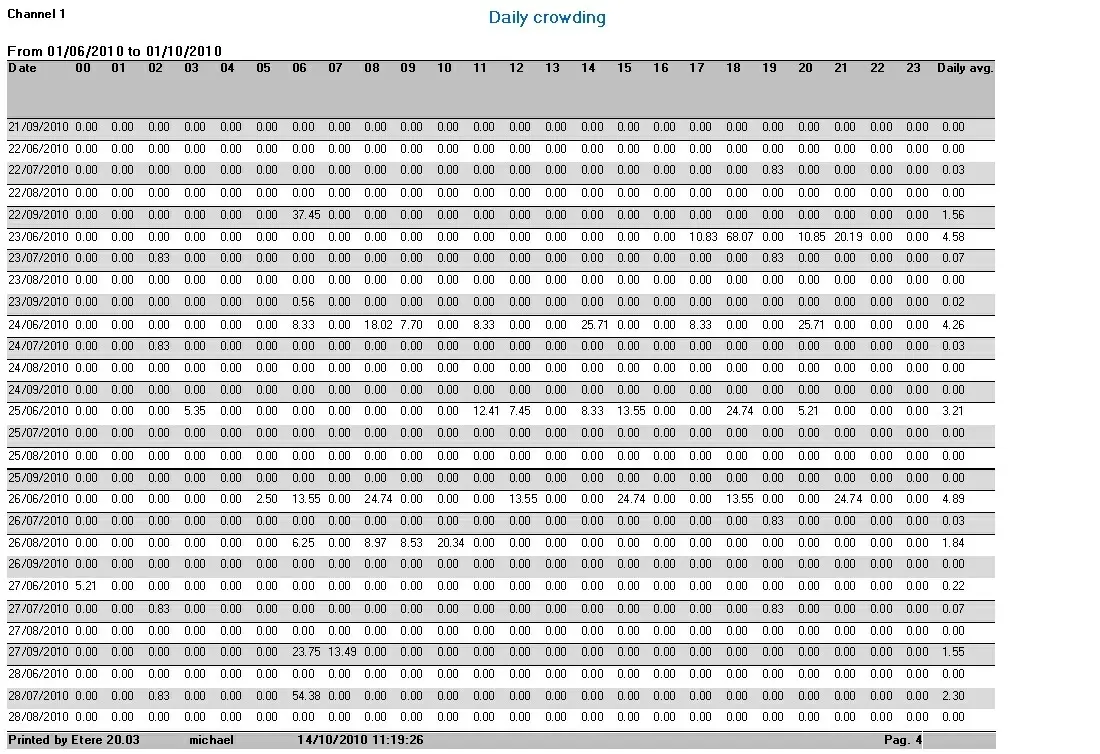
This report allows printing a report or generating a CSV/XML file containing all the crowding information related to a specific time interval. Crowding is provided as a percentage information for each hour and the daily average.
Report Filters
All the parameters that permit a detailed report generation have been distributed across seven different tabs to allow a more manageable configuration. By default, all filters are disabled (i.e., either blank or unselected); to enable them, it is enough to configure at least one parameter inside. Available filters include:
•Date
Indicate the time criteria to be used for filtering events; it is possible to define any of the following methods:
- Interval: It permits to specify if the days to be included will be taken from a given custom date or one of the standard filters (i.e., 'current day', 'this week', 'next week', 'current month', 'current year', 'today's month date', 'today's year day', 'previous month', 'previous year', 'last 30 days, 'following 30 days' or 'all dates'),
- Time: Indicate if the report will include the whole day scheduling or only a specific time interval.
•EPG data
Specify if only those events in which EPG data have been compiled will be included in the report or not by selecting one of the two following fields:
- Print only programs with EPG: Use this filter to include in the report only those programs with at least one EPG field under their related asset forms (i.e., 'EPG language 1', 'EPG language 2' or 'Story') compiled,
- Print all programs: As its name indicates, all programs scheduled meeting the selected filters will be included in the report if enabled.
•Object
Indicate the event type (s) that will be used to filter the events included in the report. Use the 'hide groups and system types' option to display only those types defined by the station and hide those created by default Etere.
•Properties
This tab permits the customization of the layout of the report by selecting the complementary information that will be displayed on it. You can also decide to include some standard info, such as:
- Print date: Enable it to display the date (and time) in each page footer,
- Pages Number: If active, a progressive number will be displayed in the footer on all pages across the report,
- Operator: It is the login name of the person who performs the report,
- Station name: The name of the station from which the report is being performed,
- Multiple lines text: Enable this option to continue printing a detail in another line instead of truncating it (as by default).
- Interline: Enable this option to increase the space between lines to 1.5 cm (one-and-one-half); by default -when disabled- this space is set to 1 cm (single).
- Columns: It permits to specify the database fields that will be included in the report. The column headers in the top part of the columns window will be displayed as shown in the report. It is possible to arrange them just by using drag and drop.
Display Active Filters
In the middle of the form, a summarizing list will be displayed containing all the filters enabled for the current report:
Report Preview
The [Settings] permits the configuration of the page layout of the outgoing document; once filters and settings have been set, it will be possible to select between displaying a preview using the related [Preview] button or printing the document directly using the [Report] button:
Please note that some reports permit the export of the generated document in the most common formats (pdf, CSV, doc, xls, XML, etc) just by using the [Export] button.
automation_daily_crowding
 automation_daily_crowding