9.2.4.2 Metadata
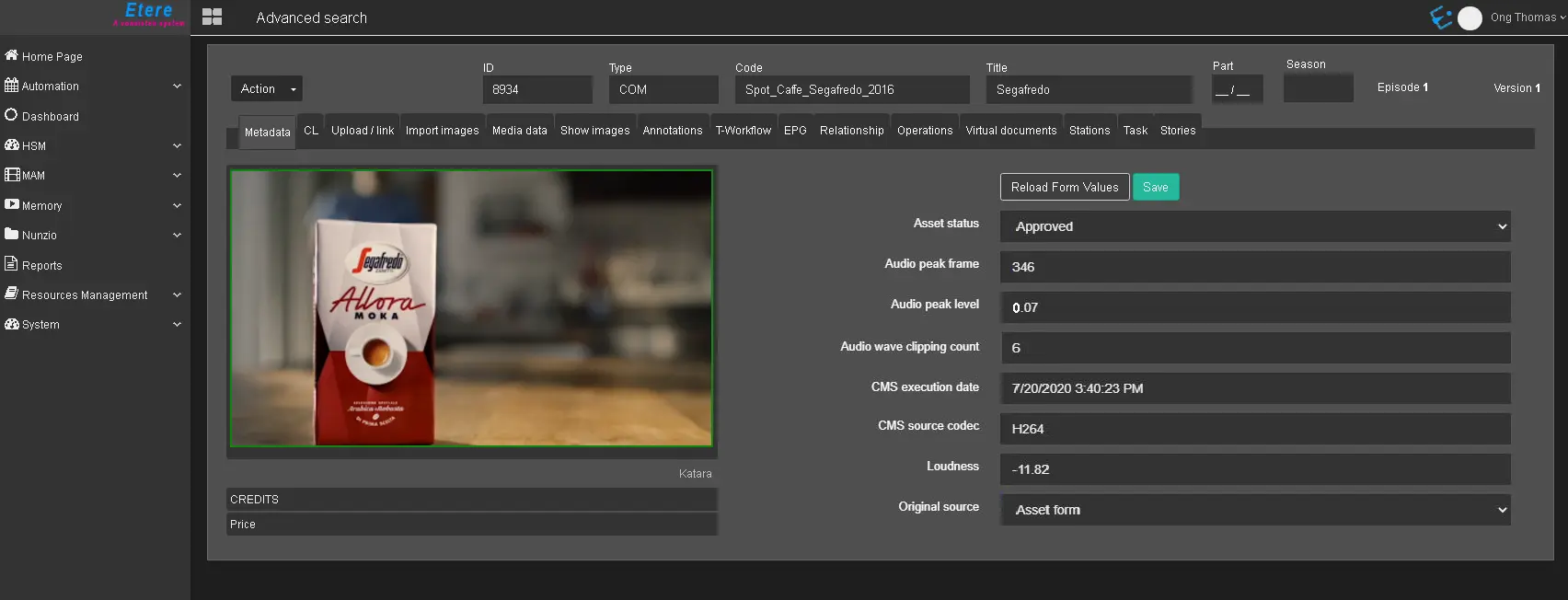
The Metadata TAB enables you to view the properties of the asset; the parameters in this tab are described in the table.
In the top panel, the asset code, asset ID and the type of material sheet (specified during asset creation, e.g. NEWTYPE) are displayed.
Metadata
- Asset status: It displays the current status of the asset;
- Audio peak frame: The frame where the audio peak level is detected in content check;
- Audio peak level: It displays the value (in dB) of the audio detected;
- Audio wave clipping count: It indicates the number of times when audio wave clipping has occurred;
- CMS execution date: The date and time when the last content check was performed for the asset;
- CMS source codec: The media codec used by the previous content check performed on the asset;
- Loudness: This is the decimal actual number (measured in dB) automatically calculated by the content check;
- Source: It indicates the source from which the asset has been acquired;
You can use the <Reload Form Values> function key to reset/revert all parameter settings to their original values, exit without making changes to the properties settings, or use the <Save> function key to confirm the changes made to properties settings.
If the string values contain extended information, you must enable the “Multiple Line Text” option in Flexi-metadata configuration settings; else, the string values would be displayed in one line with part of the metadata truncated.
If the metadata contains values in Sub Category PUB, you can narrow the search by selecting one value from the list.
On the left panel, if the asset has media files, you can click on the thumbnail to play the file; it would start with the first low-res file from the list of available media files. Moreover, you can control the media file playout via keyboard by using “Ctrl + spacebar” to start or stop the media file on the left panel while you enter the description field in the right panel. In addition, you can also insert a poster in JPG format, an Etere Logo or any NPC image as a thumbnail of the material sheet. The inserted thumbnail would be displayed in the asset’s General Data tab.
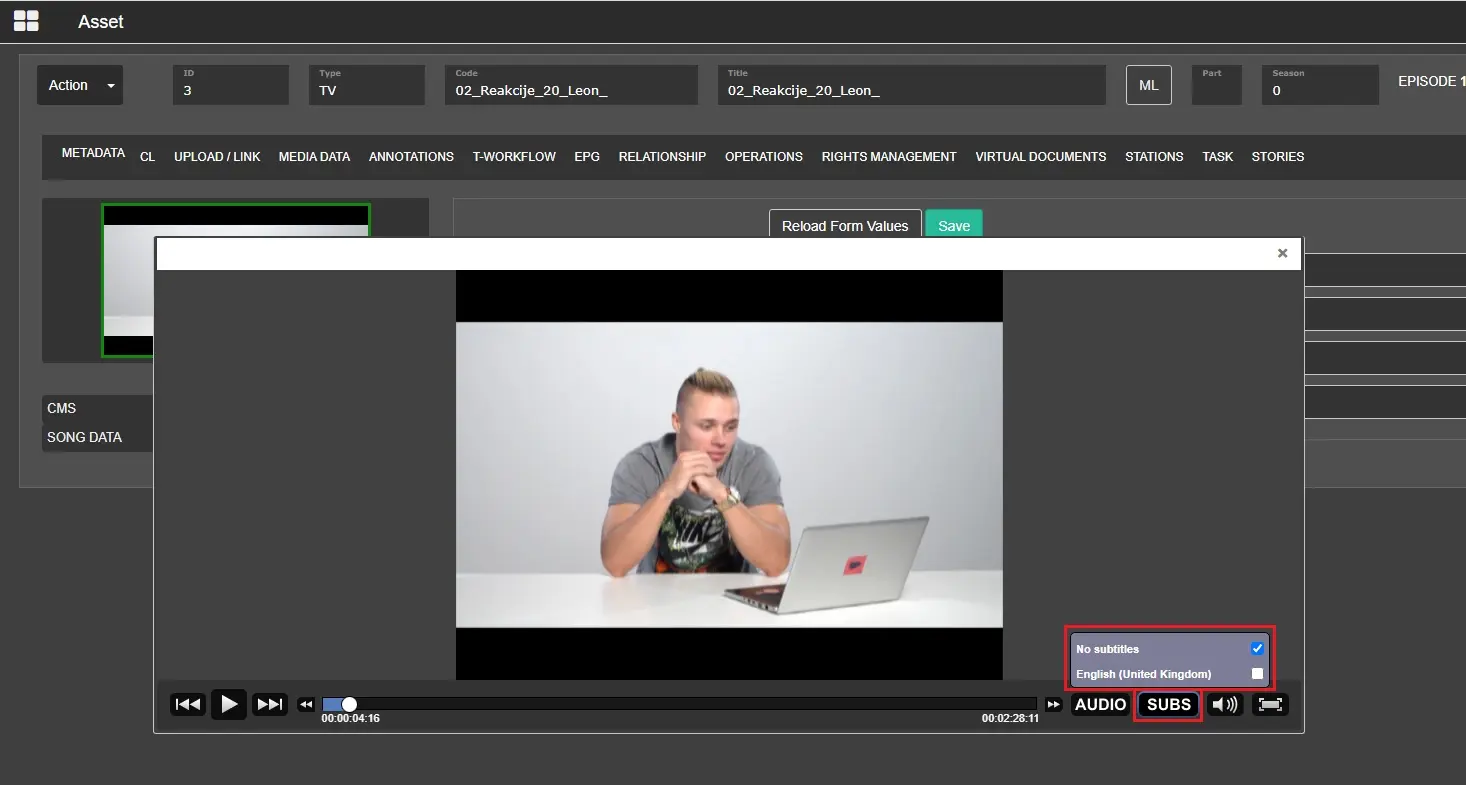
If the media file contains subtitles, you must have permission to the local Temp folder to view the subtitles file. You must select the SUBS button to display the subtitles.
subtitles
If you need to insert more metadata into an asset, it is possible to insert the metadata with Flexi-metadata management in Etere Configuration.
Note: When you update the asset’s flexi-metadata on EtereWeb, the flexi-metadata will only populate the source asset if the flexi-metadata is specified in Flexi-metadata Mapping in Configuration settings.
Note: When modifying asset metadata, any apex character (e.g. ‘) which is different from the apostrophe character (‘) is not supported if you are running on the EtereWeb version earlier than version “Etere300220_BETA”.
Note: If you access EtereWeb with a small screen laptop, set the screen resolutions as 1024 * 768 pixels to view all the control functions.
 Metadata
 subtitles