204.1 Using the LOGS SAVER
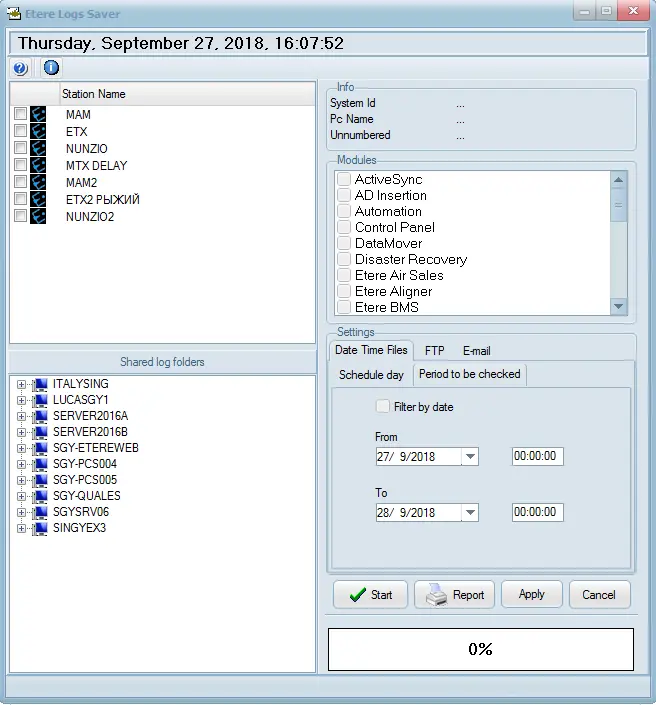
Under the main window, it's possible to specify which logs must be saved and the criteria with which they will be saved. In the following form, the user has to fill in the parameters on which the log saving will be based:
Etere_logs_saver_interface
Station Name - List all the stations managed by the Etere system, allowing one to select one or more stations for which log data will be saved.
Shared Log Folders - List all logs shared by the Etere workstations, allowing one to select the one(s) from which log data will be retrieved. Shared folders must have the "EtereLog" prefix (e.g. \\MTX3\EtereLog.UserName.DomainName).
Moreover, the "Info" area (at the top right) displays all the information related to the currently selected workstation.
Modules - List all the modules installed in at least one Etere workstation, allowing one to select the one(s) for which logs will be saved. For instance:
ActiveSync - Includes records on Active Sync performed operations.
Resources and remote - Include logs on automation devices (resource directory) and initialization parameters (auremote.ini)
SNMP Console - Include logs on the Monitoring Console gathered information.
Time Receiver - Include logs on the Time Receiver recorded functioning.
Note 1: Each selected module will be created (compressed as a ZIP file), thus allowing us to quickly identify which ZIP file belongs to the previously chosen module.
Note 2: In case module names are displayed as "null", perform a "System Maintenance" for "Licenses Update". If the problem persists, it may be due to the module name missing in the LogsSaver.ini file.
Settings - During the logs saving procedure, it will be necessary to specify other information as:
Date Time Files - Select one of the methods to retrieve the log data:
•Schedule day: Select a scheduled date from the calendar to retrieve the log data.
•Period to be checked: Use this method to retrieve log data within a specific date range; you could also specify the time within the date range to filter the log data.
•Filter by date: Enable this option to cooperate with the date range specified in the "Period to be checked" setting. If this option is disabled, all log data assets created for selected Etere modules will be saved into log files regardless of the date and time the log data assets were created.
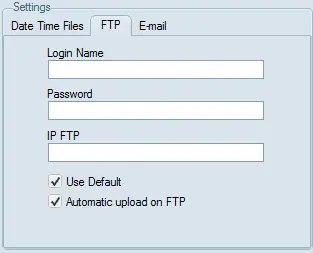
FTP - Specify all information regarding the FTP uploading procedure; in the FTP section, the following information is required:
Etere_logs_saver_ftp
•Login Name: The FTP user name.
•Password: The password to authenticate the login user name.
•FTP IP: The IP address of the FTP server.
•Use Default: Logs Saver will upload the logs to the default Etere FTP if enabled.
•Automatic Upload on FTP: if enabled, Log Saver will automatically zip and save the logs on the FTP, and an email will be sent to Etere support. If this option is unavailable, the user must perform the uploading procedure manually.
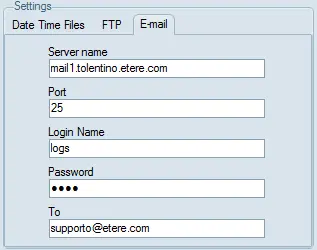
Email - Indicate all information regarding the email delivery procedure; in the Email section, the following information is required:
Etere_logs_saver_email
•Server name: SMTP Mail server (e.g. mail1.etere.com)
•Port: The port number used to communicate with the SMTP mail server (e.g. 25)
•Login Name: The user name for the mail service (e.g. logs)
•Password: The password to authenticate the user name (e.g. 1234)
•To the Email address of the receiver (e.g. supporto@etere.com)
Press the [Apply] button to save the new settings into the system.
When saving logs data in the current station, the Logs Saver reads the Logs File list directly from the "LogsSaver.ini" file in the Etere program folder (\Program Files (x86) \ Etere) and saves the logs data of Etere Modules listed in the file. You can refer to the Configuration File chapter to view the file structure of "LogsSaver.ini".
Launching the save process
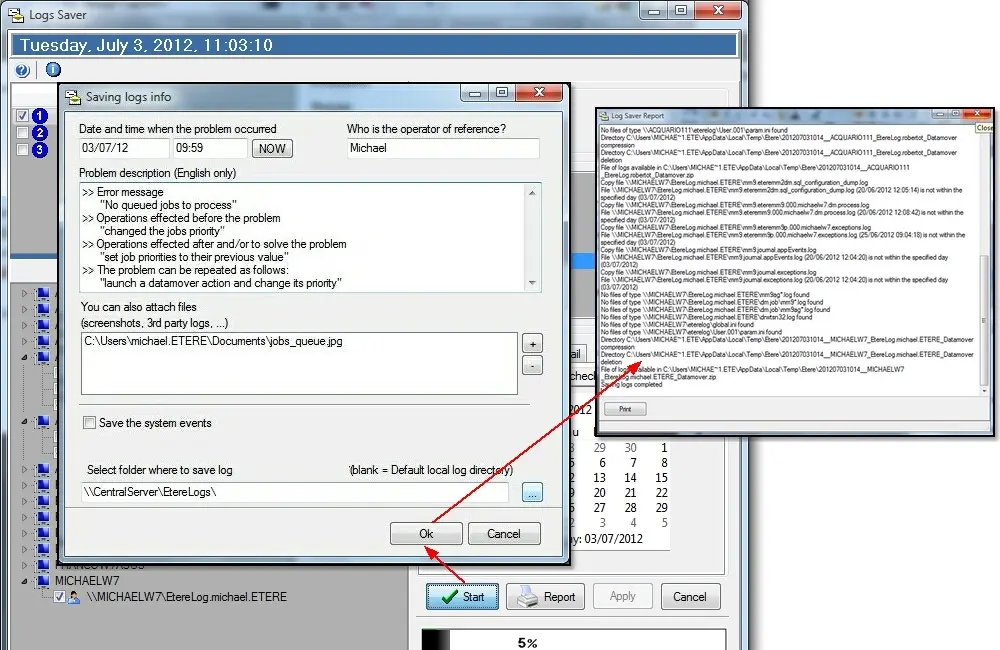
Once stations, logs modules and dates have been selected, press the [Start] button to launch the saving procedure. The "Save Logs" application will be displayed to detail the logs to be sent with the following information:
Launching_the_save_process
Date and time - If the problem occurred today, press the [Now] button to load today's data; otherwise, specify the date and time.
Reference operator - Indicate the operator using Etere when the problem occurred.
Problem description - Provide more information on the problem specifying eventual "error messages", "prior operations", "subsequent operations", and "problem recurrences".
Attached files - Browse and select files to be optionally saved along with the saved logs.
Save system events - If enabled, saved logs will include events logged by the operating system.
Saved logs folder - By default, logs are kept in the current workstation's logs folder, being, however, possible to specify a different location.
Finally, press the [OK] button to save all logs according to set parameters.
 Etere_logs_saver_ftp
 Launching_the_save_process
 Etere_logs_saver_email
 Etere_logs_saver_interface