201.15.2 Creating Music Formats
A Music Format is a group of musical assets with specific common properties. Music formats allows scheduling operators use permits scheduling assets automatically according to their "music formats" characteristics (e.g. genre).
Music format saves time in the scheduling process, you do not have to search data each time you schedule it; through 'music format' you can create some 'music formats' containing all the required filtering parameters and Music Format will automatically select all the data you had required.
The difference between creating one or more filters for each music format are:
•If you create only one filter for the current music format, and you set on it for example two categories, Rock and Pop, 'Music Format' will filter all the media with Rock and Pop;
•If you create two different filters, one for Rock and another for Pop, 'Music Format' will filter all the media which is either Rock or Pop.
How to create a new 'music format'?
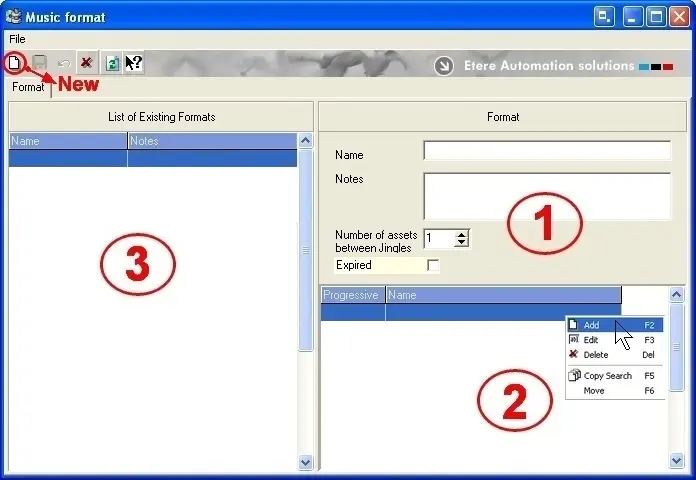
Launch the Music Format, a window displaying all the existing formats on the left panel and their relevant details on the right panel.
1.Create the music format
From the top right panel, click on the 'New' button and enter the required parameters.
Musicformat_newmusicformat1
Main data
Name - Enter an appropriate name that identify the characteristics of the music format itself. For example, if the format is to be assigned to all morning segments, the name could be 'Morning'.
Notes - This field allows you to input any other relevant information.
Number of assets between jingles - For instance, if the value is "1", after every musical track, Air Sales will automatically insert a track interval jingle. These jingles need to be pre-configured in 'Etere Configuration > Settings > Air Sales > Jingle'.
Expired - If the format is no longer supported but user wants it to remain in the file, by enabling the 'Expired' field Etere Air Sales will ignore this format.
2.Define the music format
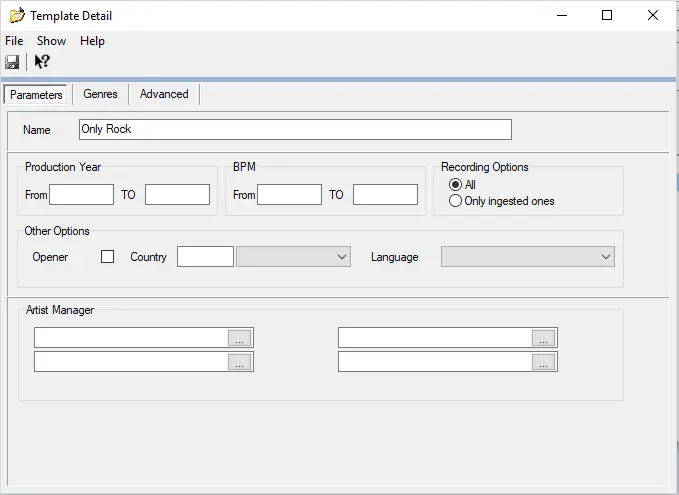
Once the format outline has been created, the filters need to be specified. Right click at the bottom right field and select 'add' from the drop down list to assign format criteria that will be adhered to in the scheduling phase. These criteria will dictate what kind of tracks can be scheduled.
Musicformat_newmusicformat_tab1_new
Parameters tab
Name - Assign a name to the new format.
Production Year - Dictates the production year of the tracks (e.g. the station has a program called 'The 90's hour' where only the media produced between "1990 - 2000" are transmitted, for improving the scheduling of this program just enter this range (1990-2000) and Music Format will automatically filter the required media).
BPM ( Beats per Minute) - The beats per minute of a track are defined in the Asset form under the Properties/Music Data. It define the 'type' of music that will be scheduled in the particular segment. For example, Hip Hop music uses a BPM tempo of 80-100 whereas House music is usually around the 120-135 mark.
Recording Options - Allows you to specify that only tracks that already have media assigned can be scheduled or to consider tracks (asset forms) that do not have media support.
Opener - By selecting this option, all the tracks which property 'opener' enabled will be filtered (an opener track is usually a well-known song used at the beginning of a program or immediately after commercials).
Country - This parameter allows you to specify if you only want tracks produced in a certain country to be filtered.
Language - The language type of a particular track is defined in the asset form under Properties/Artist Data (see above image). Allows you to specify a particular language classification the scheduled tracks must be part of.
Artists Manager - This section allows you to specify certain artists when tracks are scheduled. i.e. the program would assign tracks played by the artists listed as a priority. Artists data must be input in the Etere Artists Manager application, the data is then associated to a musical track in the track's Asset Form under the Info tab.
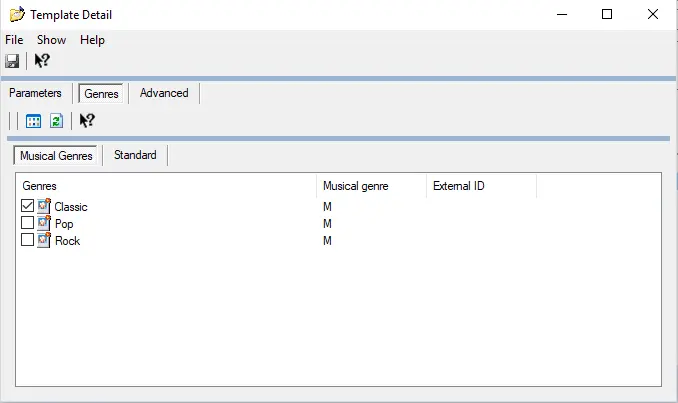
Genres tab
This section allows you to specify certain genres of music that should be taken into account when tracks are scheduled, i.e. the program will assign tracks of the genres selected here as a priority; in the following example only the 'Classic' music will be filtered.
Musicformat_newmusicformat_tab2_new
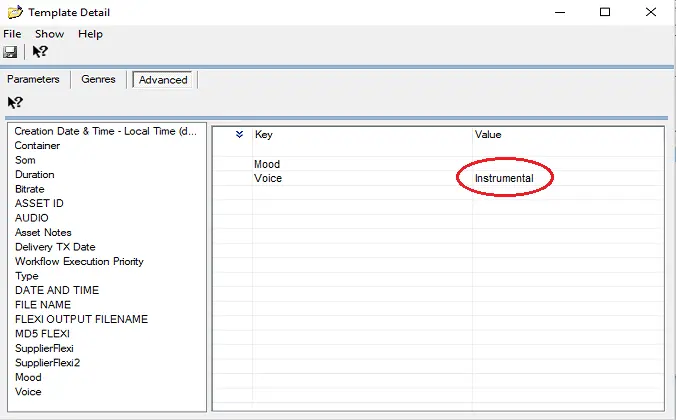
Advanced tab
In this tab the user can define search filters based on the SMPTE Media Properties previously defined for each asset type, in the example below all the assets having the 'instrumental' metadata specified will be filtered.
Musicformat_newmusicformat_tab3_new
3.Save the music format
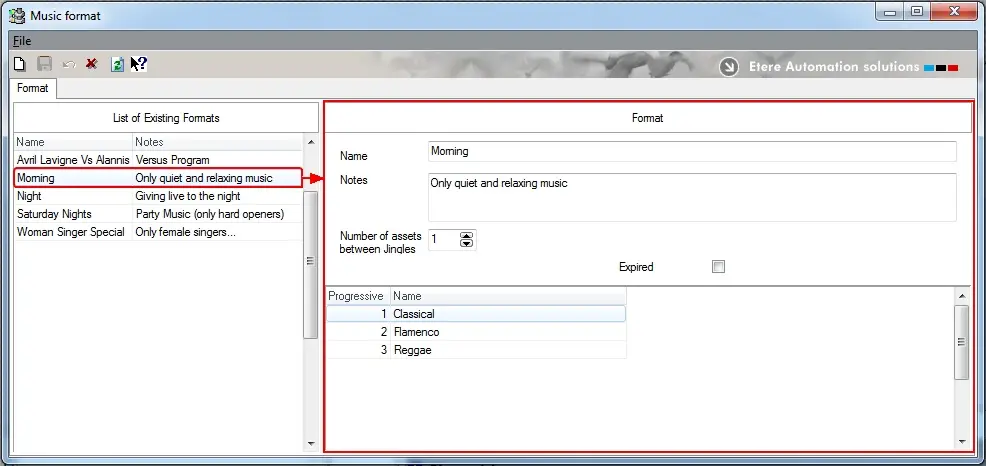
Finally, when the 'music format' are defined and saved, it will be displayed alongside with other formats indicating that it is ready to be used for automatic music scheduling.
Musicformat_newmusicformat1_new
The example above listed 4 different 'music formats' ('Morning', 'Night', 'Saturday Nights' and 'Woman Singer Special'); each music format is based on its own filters, for example, the 'Morning' music format is based on 3 selection filters (Classical, Flamenco and Reggae) for retrieving music only of the selected genres.
 Musicformat_newmusicformat1
 Musicformat_newmusicformat_tab3_new
 Musicformat_newmusicformat_tab2_new
 Musicformat_newmusicformat_tab1_new
 Musicformat_newmusicformat1_new