66.4.11 Ticker
- Select ETX CG Editor
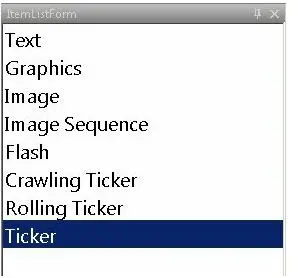
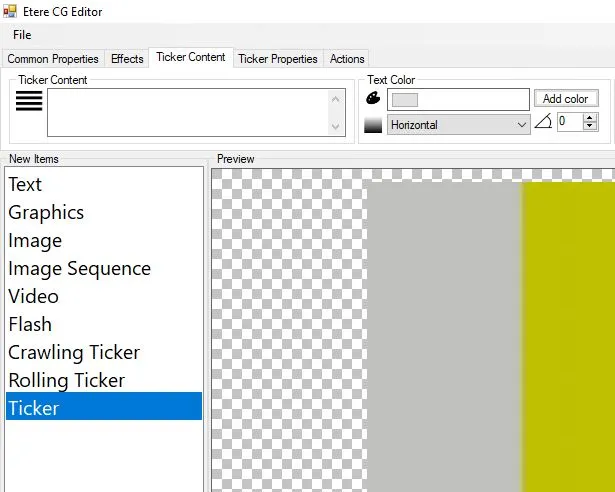
- To input Ticker, go to ItemListForm.
cg_new_items
- To create a trailing message that moves, select 'Ticker' and drag and drop it into the Preview space.
- You may edit the fields of the 'Ticker Properties' toolbar to customize the parameters. The features in each tab are self-explanatory. cg_ticker_props
- How to create a horizontal ticker
- Check ETX CG Enabled and click ETX CG Props.
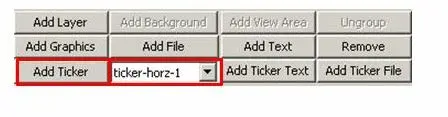
- Select the ticker option and click 'add ticker.'
add_ticker
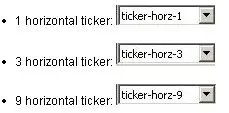
- There are three options for horizontal ticker:
cg_ticker_types
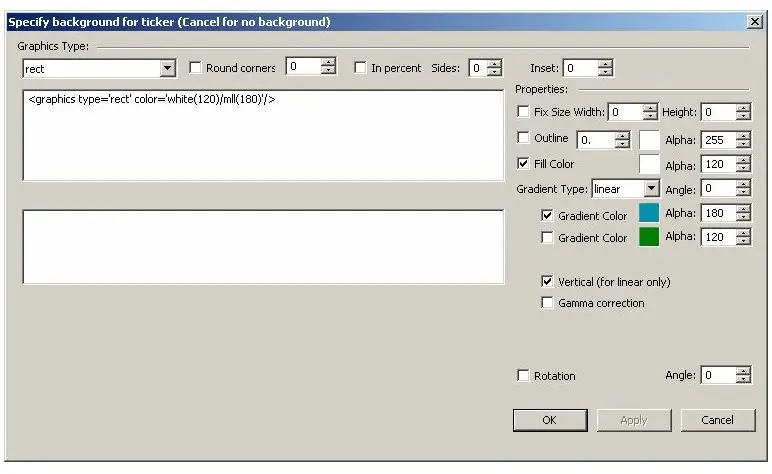
- Specifying the background for the ticker (optional) toolbar allows you to modify ticker background properties. You can also edit the background later in ETX CG Editor.
cg_ticker_background
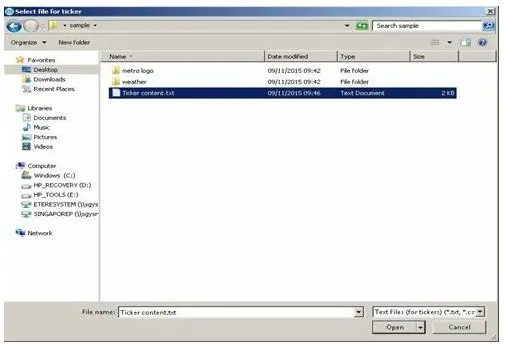
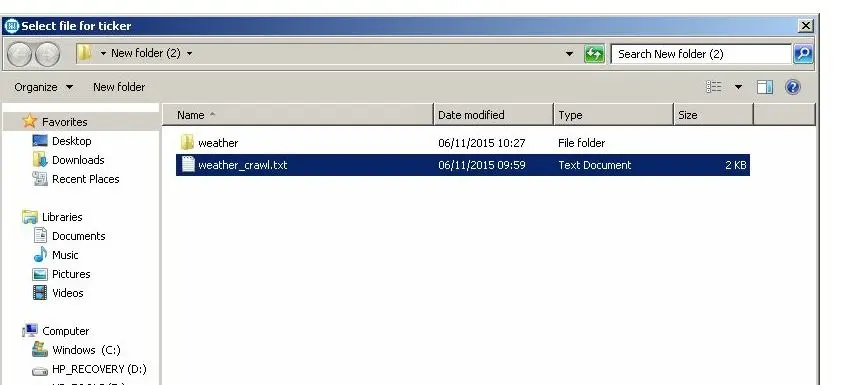
- After clicking <OK>, you can select the text file that you created from the folder:
save_2_file
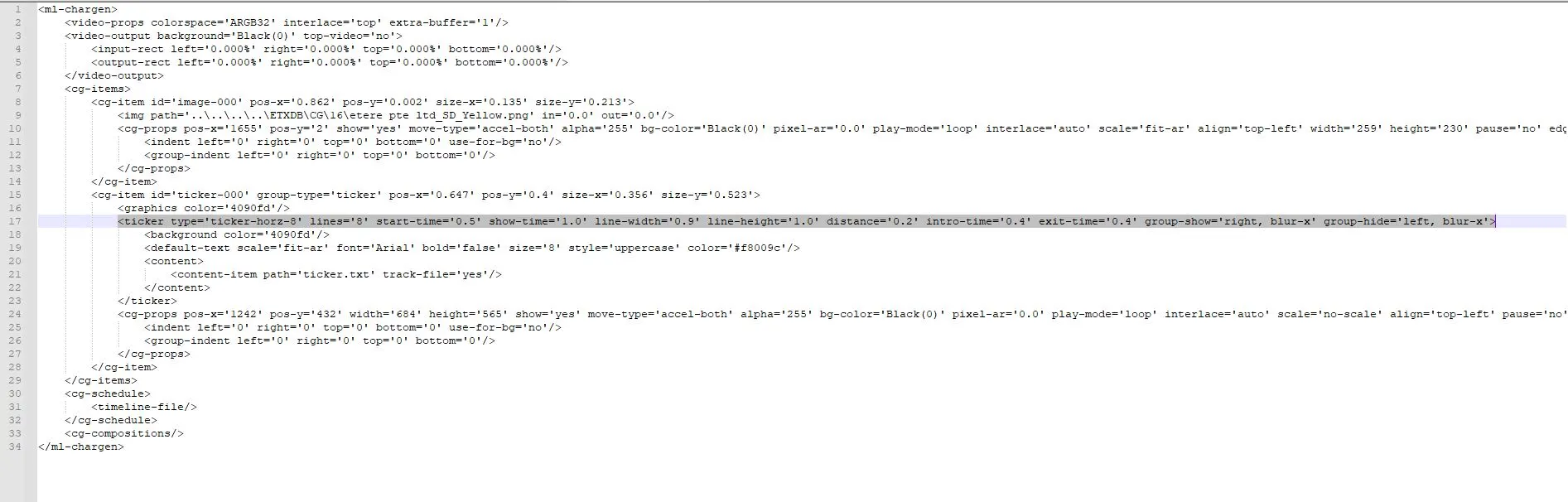
- XML Description:
You can also edit several lines that you wish to create from the XML description in the ETX CG editor.
For example, in the image below, there are five lines created: <ticker type='ticker-horz-9' lines='5' start-time='0.5' show-time='1.0' line-width='0.9' line-height='1.0' distance='0.2' intro-time='0.4' exit-time='0.4' group-show='right, blur-x' group-hide='left, blur-x'>
xml_horz_8_lines
WARNING: If you want the ticker content to appear exactly when you enter the ticker text (UPPERCASE/lowercase), you might delete the "style=’uppercase'" statement in the XML file.
- Preview
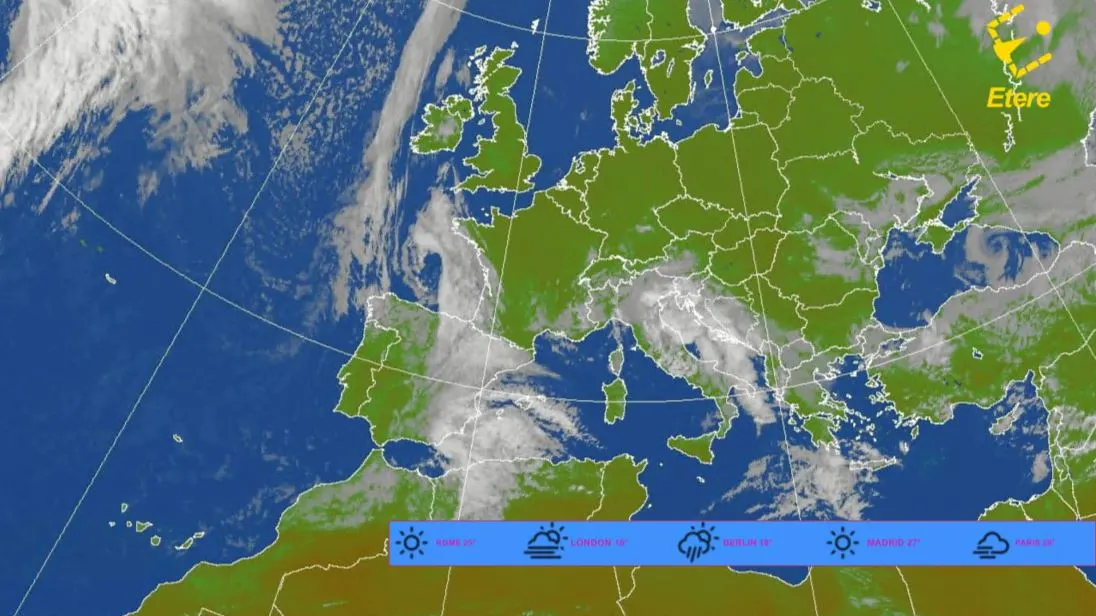
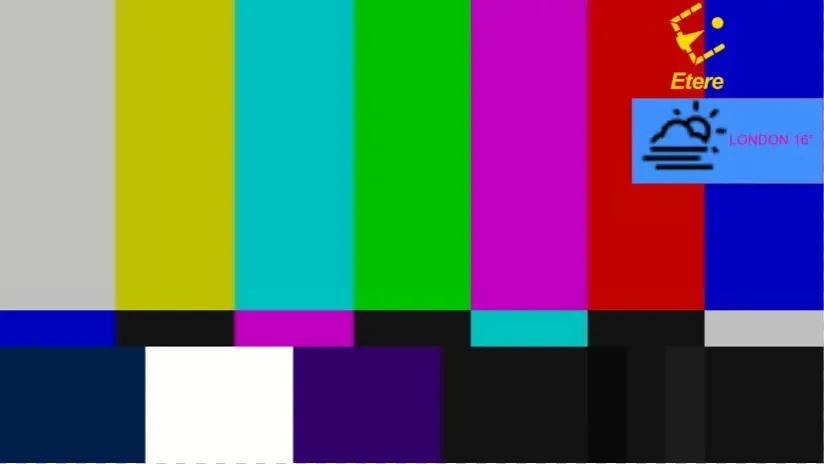
- One horizontal ticker:
gc_ticker_hor_1
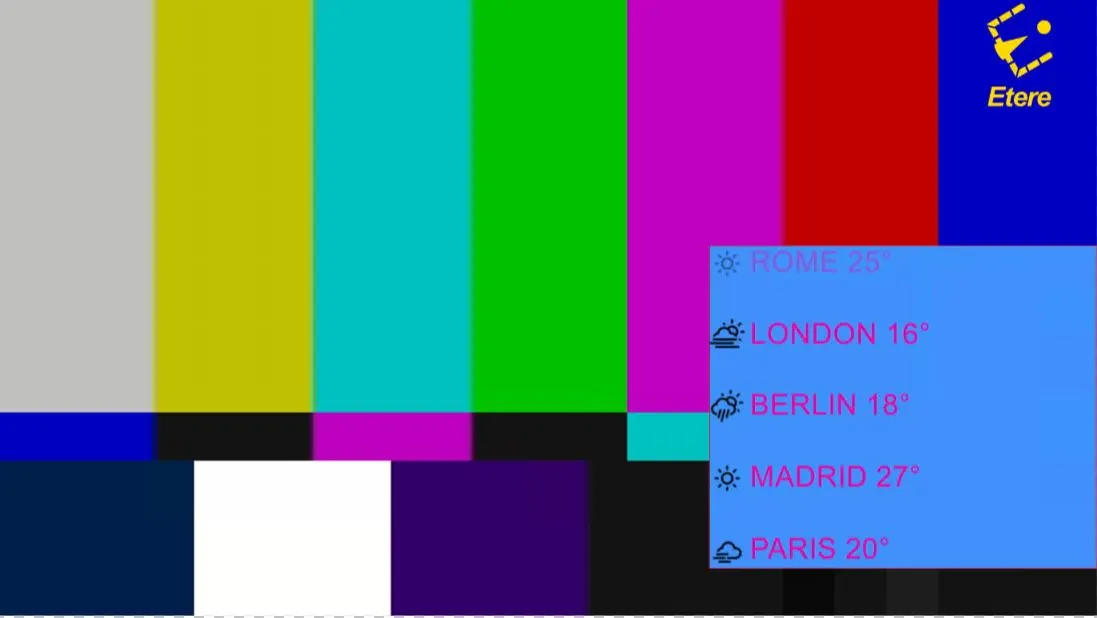
- Three horizontal tickers:
gc_ticker_multi_hor_3
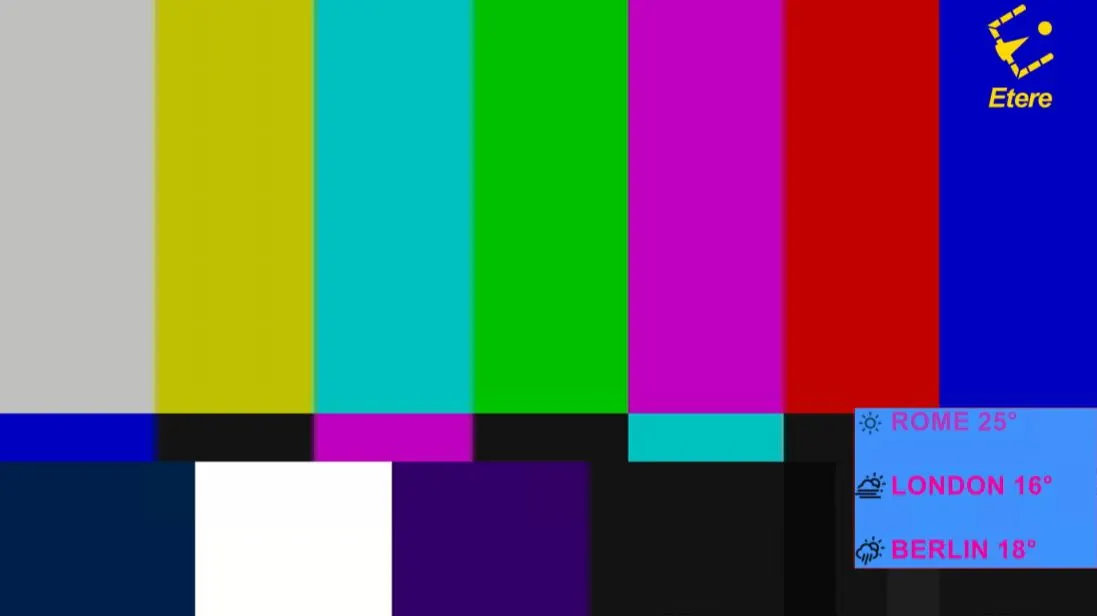
- Five horizontal lines:
gc_ticker_multi_hor_5
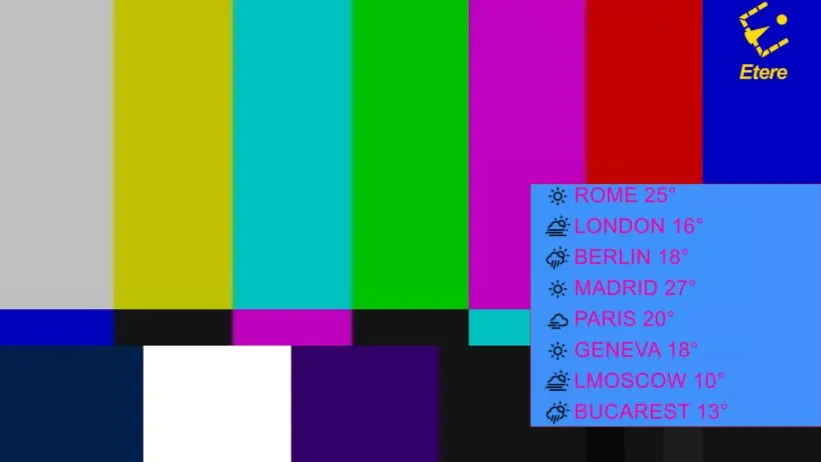
- Eight horizontal tickers:
gc_ticker_multi_hor_8
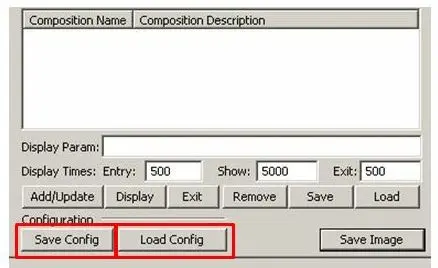
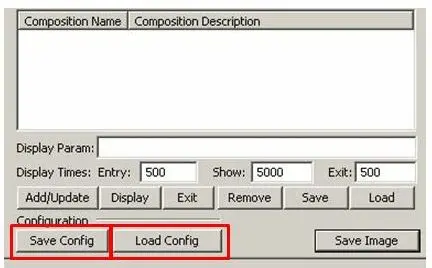
You can also save & load the configuration that you had created:
save_load_cfg
- One horizontal ticker:
- How to create a 'Vertical' ticker:
Check ETX CG Enabled and click ETX CG Props
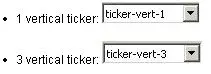
Select the ticker option and click 'add ticker'; there are two options for vertical ticker:
ticker_type
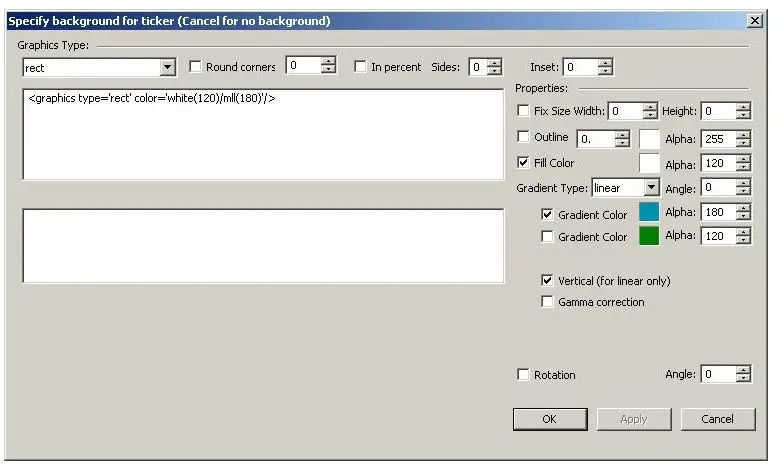
Specifying the background for the ticker (optional) toolbar allows you to modify ticker background properties. You can also edit the background later in ETX CG Editor.
ticker_background
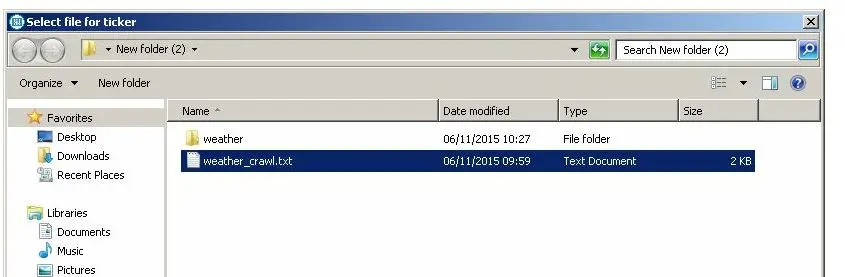
After clicking <OK>, you can select the text file that you created from the folder:
save_file
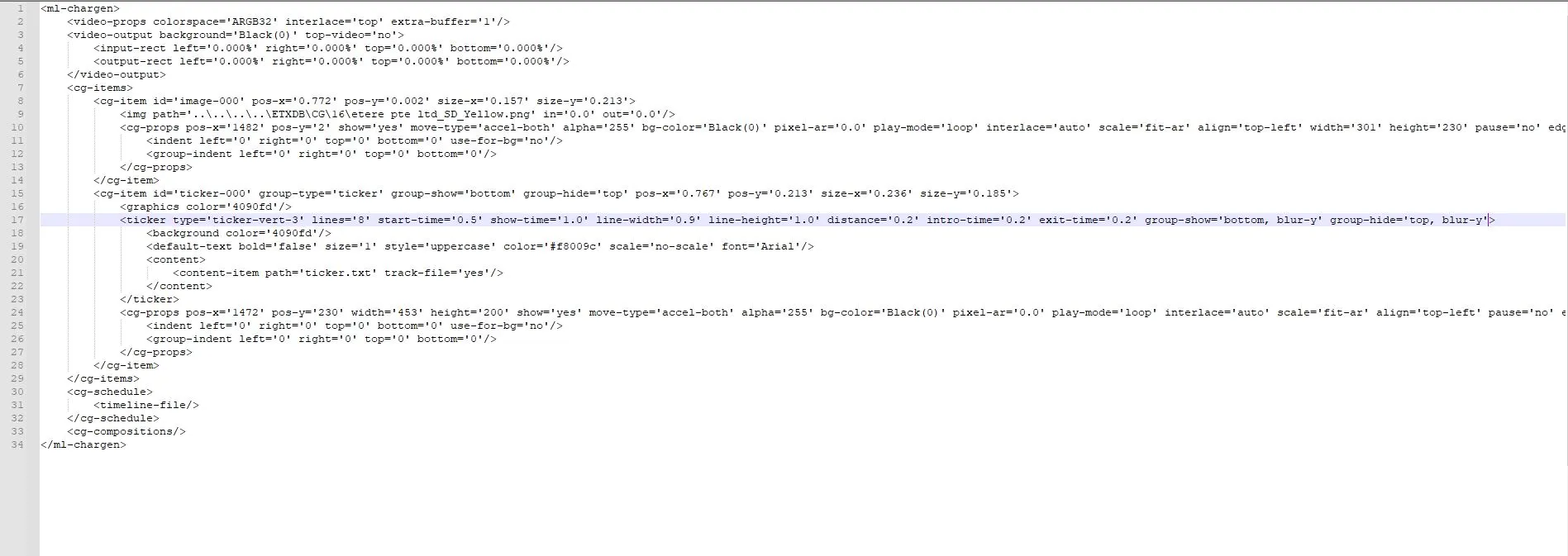
- XML Description
You can also edit several lines you wish to create from the XML description in the CG editor.
For example here I created 8 lines: <ticker type='ticker-vert-8' lines='8' start-time='0.5' show-time='1.0' line-width='0.9' line-height='1.0' distance='0.2' intro-time='0.2' exit-time='0.2' group-show='bottom, blur-y' group-hide='top, blur-y'>
xml_vert_8_lines
NB: If you want the ticker content to appear exactly when you enter the ticker text (UPPERCASE/lowercase), you might delete the "style=’uppercase'" statement in the XML file.
- Preview
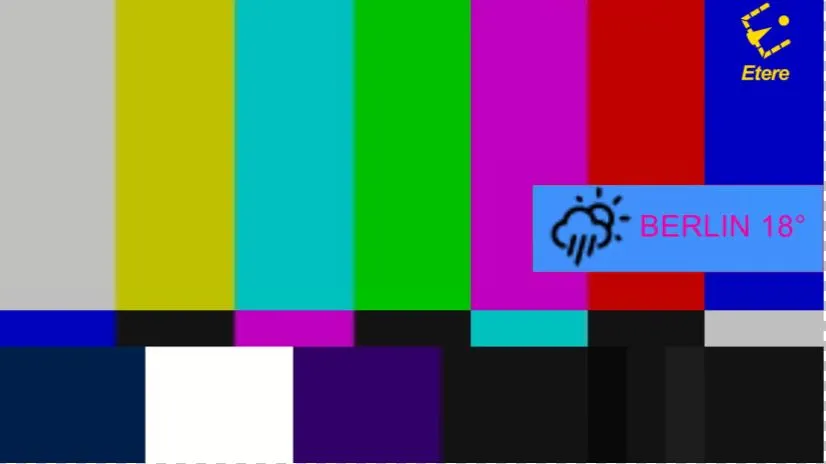
- One vertical ticker:
gc_ticker_vert_1
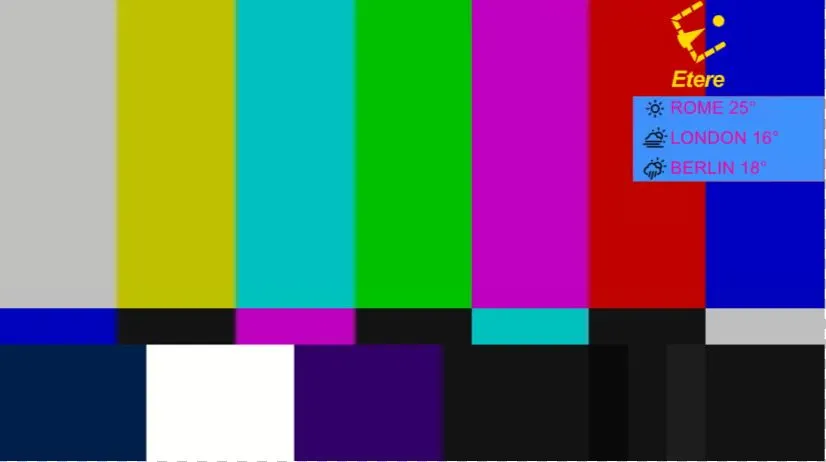
- Three vertical lines:
gc_ticker_multi_vert_3
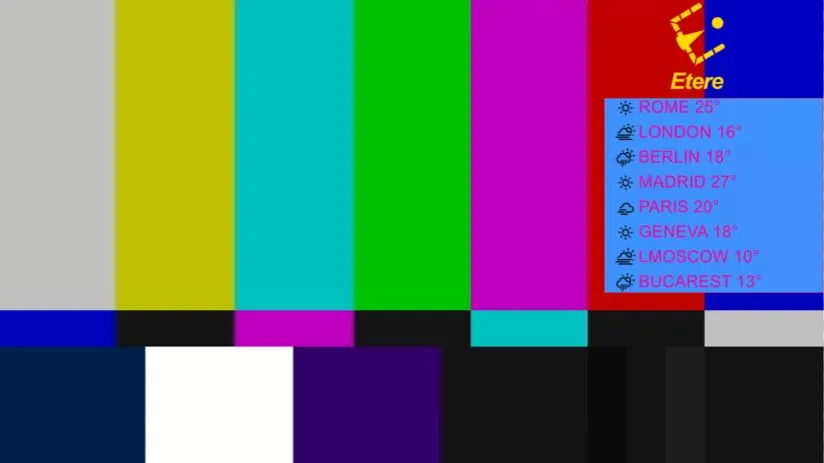
- Eight vertical lines:
gc_ticker_multi_vert_8
You can also save & load the configuration that you had created:
save_btn
Edit ticker content by selecting "New Content" and filling in input.
ticker_prop
cg_ticker_text
- One vertical ticker:
- How to update ticker content
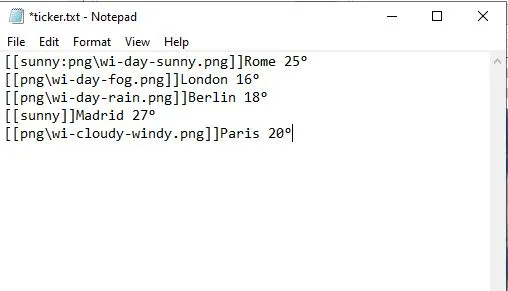
Create the original content for the ticker:
Ticker_file
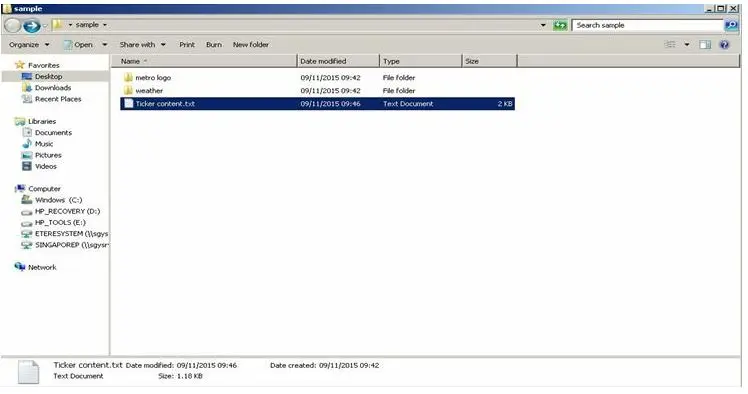
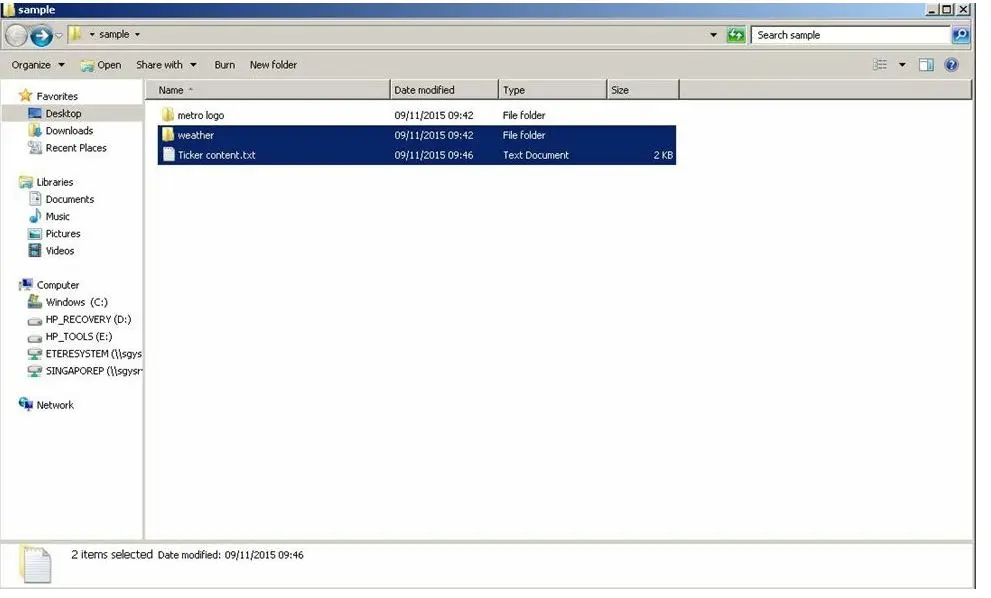
Next, save the content text file with the image files in a single folder.
Test421
From the Etere ETX platform, check ETX CG enabled and click ETX CG Props.
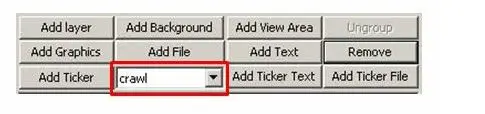
Select ticker type:
Test423
Select the txt file that you had created:
Test424
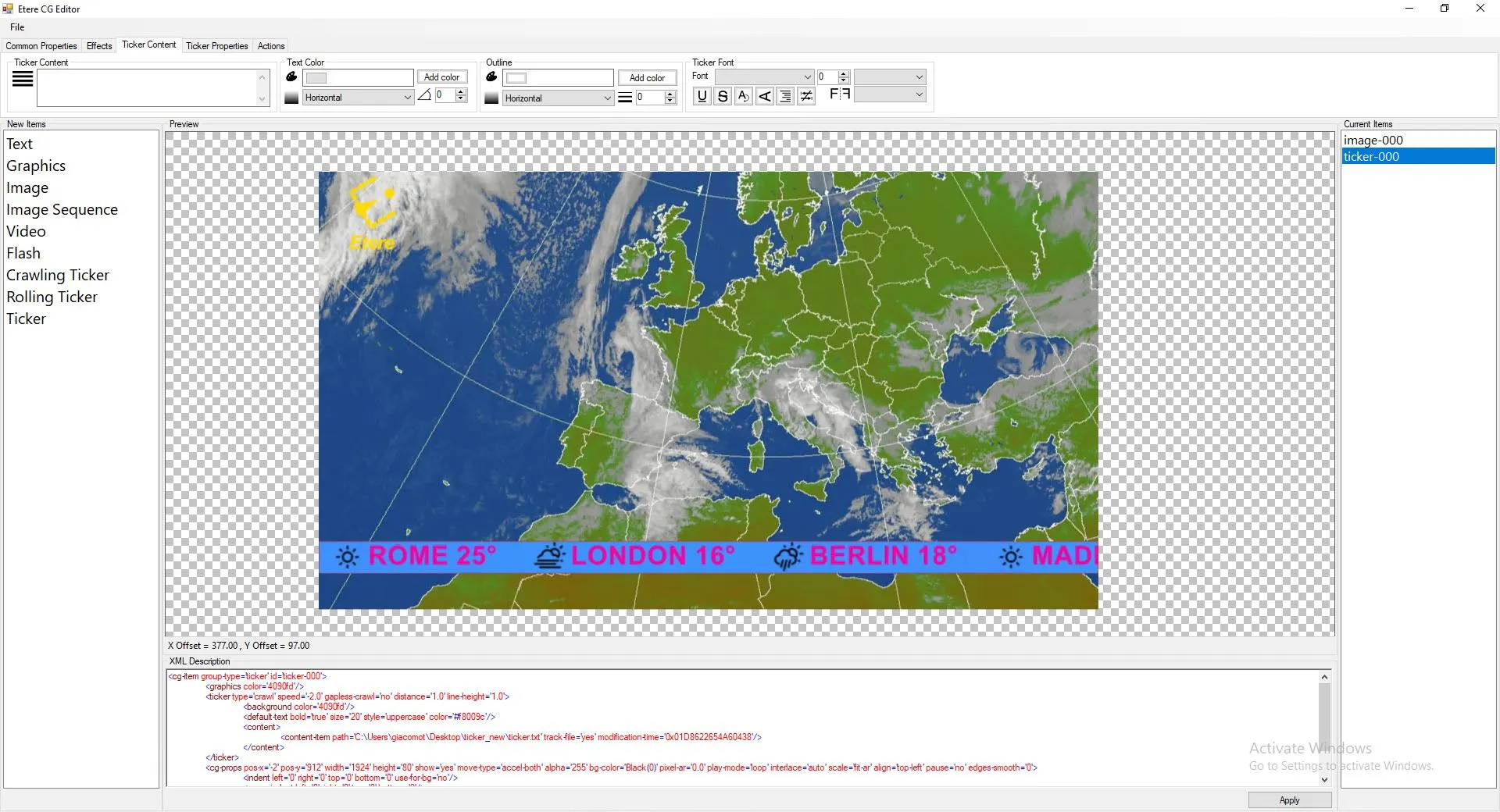
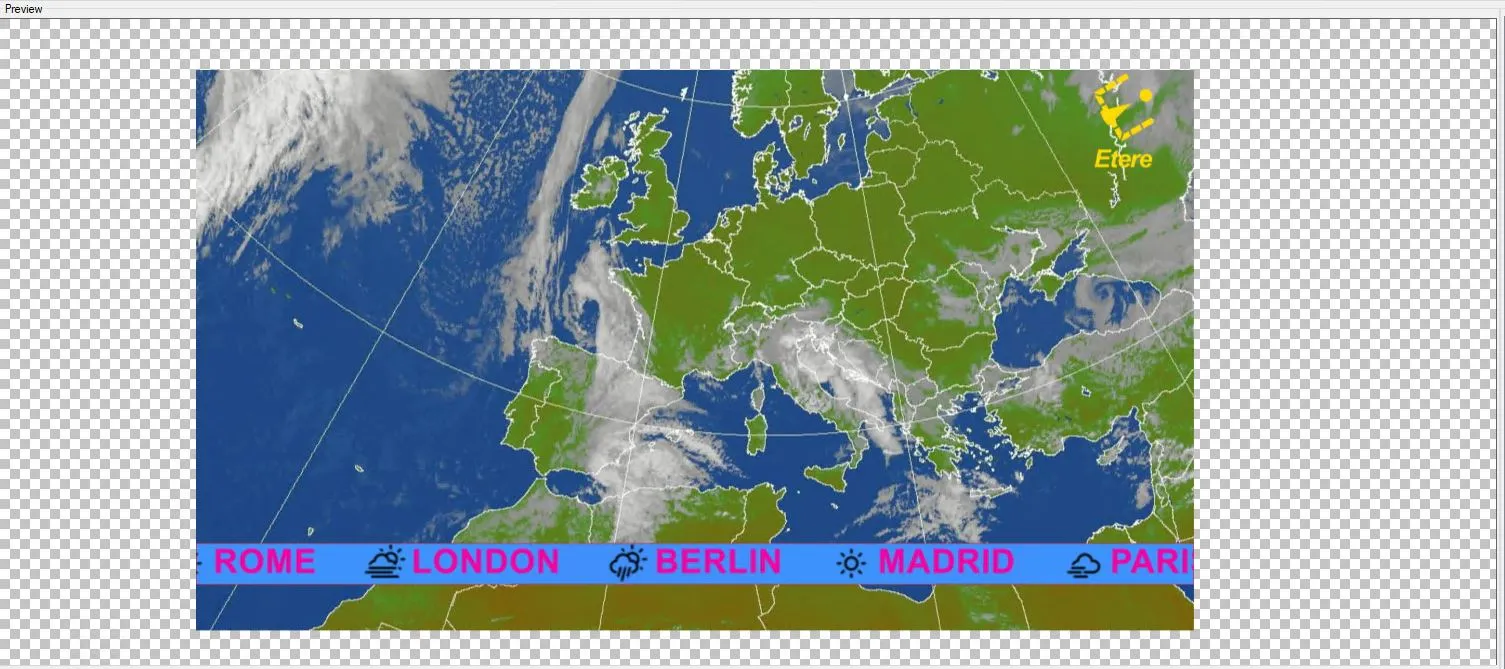
Preview for the first ticker content:
Ticker_meteo
Ticker_meteo_2
By default, the ticker updates its source (if it is an external file) ("track-file='yes'" attribute in XML configuration), so you can save it in the same txt file, and it will be updated later:
xml_vert_8_lines
Open the existing text file that you had created for the first content:
Test427
Create or edit new content with the existing file. For the second content, news content with different images has been created:
Test428
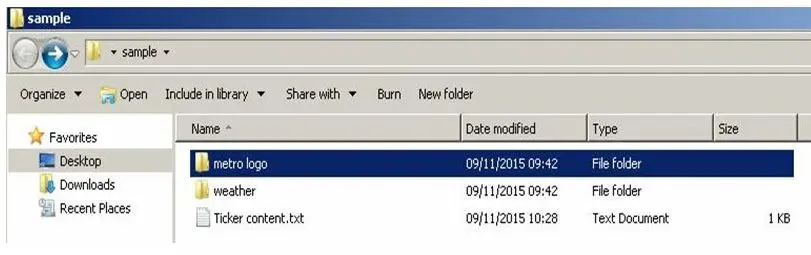
Different image path : [[metro logo\01.png]]
Test429
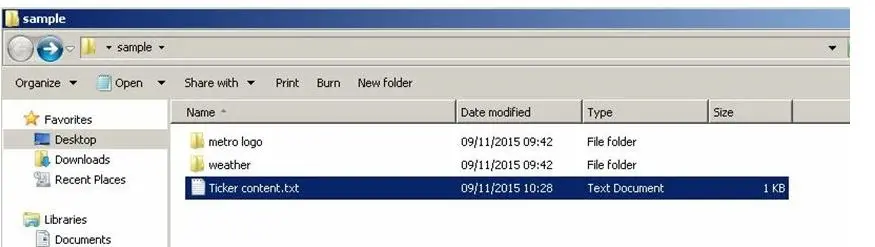
Save the text file; the content will automatically update the source file:
Test430
Different image path for the second content:
Test431
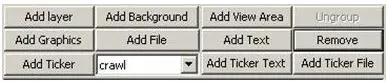
From the application, check ETX CG enabled and click ETX CG Props
Select ticker type:
Test433
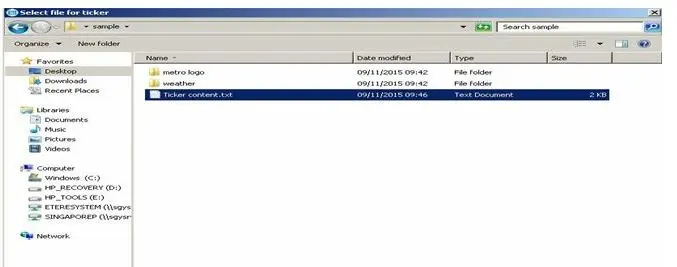
Select the Txt file that you had created for the second content.
Test434
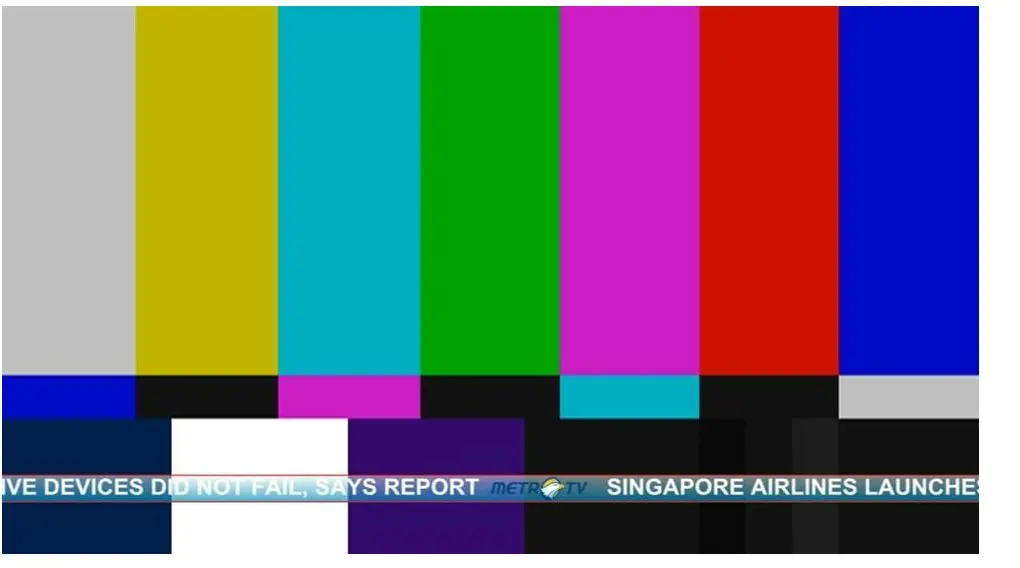
Preview for the second content
Test435
Note: The second content will update after you save the txt file:
Before (first content) :
Ticker_meteo
Ticker_meteo_2
After (second content) :
Test437
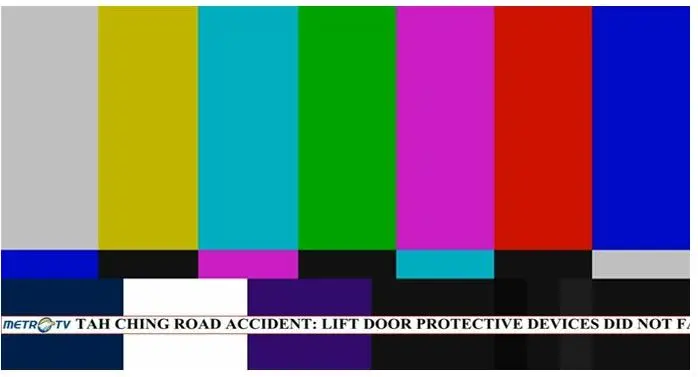
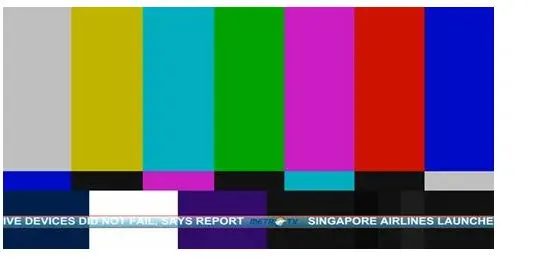
You can change the text font and colour by adding this code to your content :
<text font='Times New Roman' color='Black'>text content</text>
Test438
Preview:
Test439
- Group
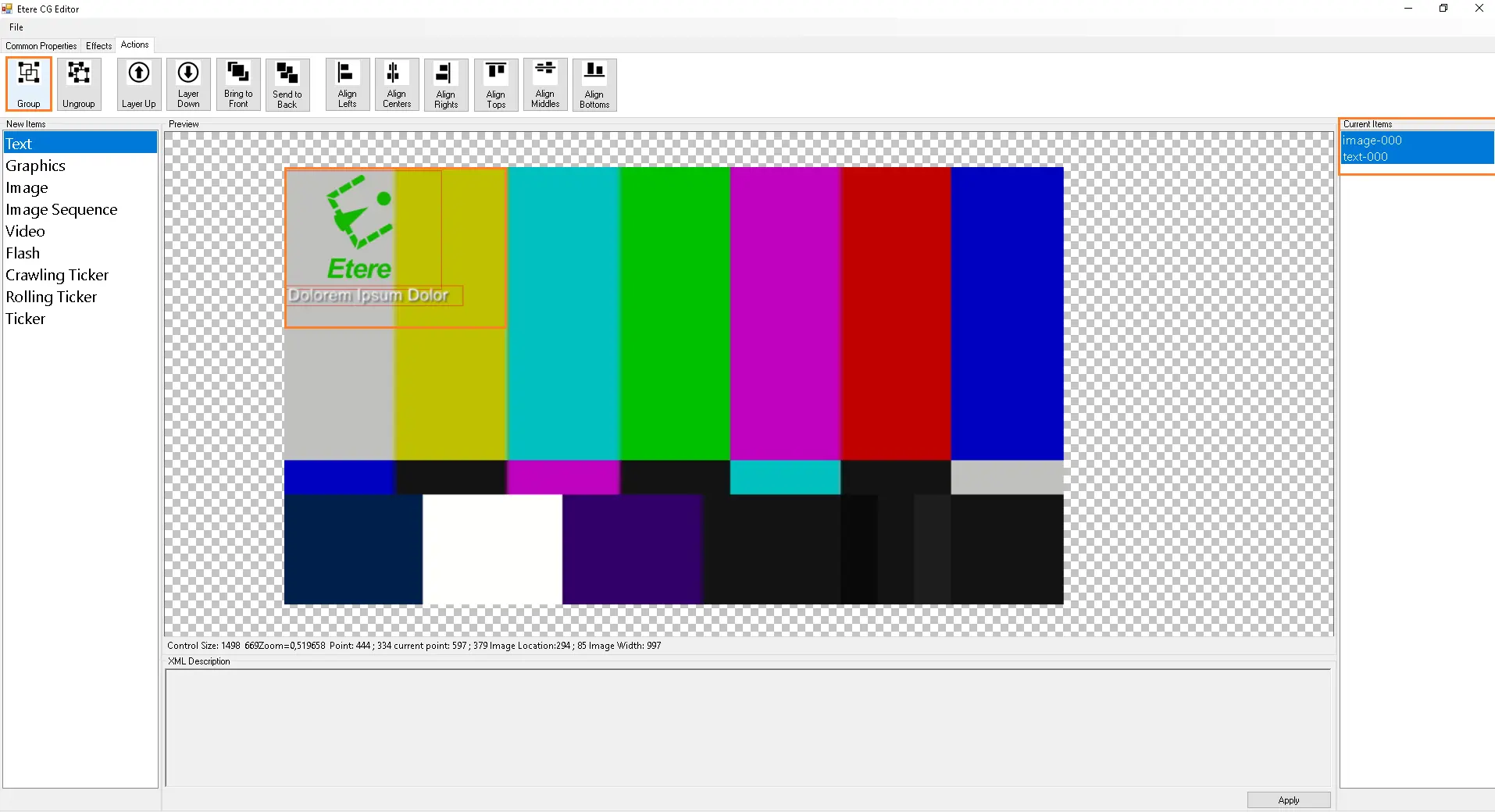
The group button allows you to group more than one item type as one selection. Item type can be text, graphic, image, flash, image sequence or tickers. Grouping of items allows you to modify them with a single action.
To group items, select "Group" on the Actions taskbar. Next, click and drag your mouse cursor to create a selection box over the items.
The first time you group a set of items, you will be able to make modifications to the selected list, but the items will still be displayed separately under the Properties toolbar; see below:
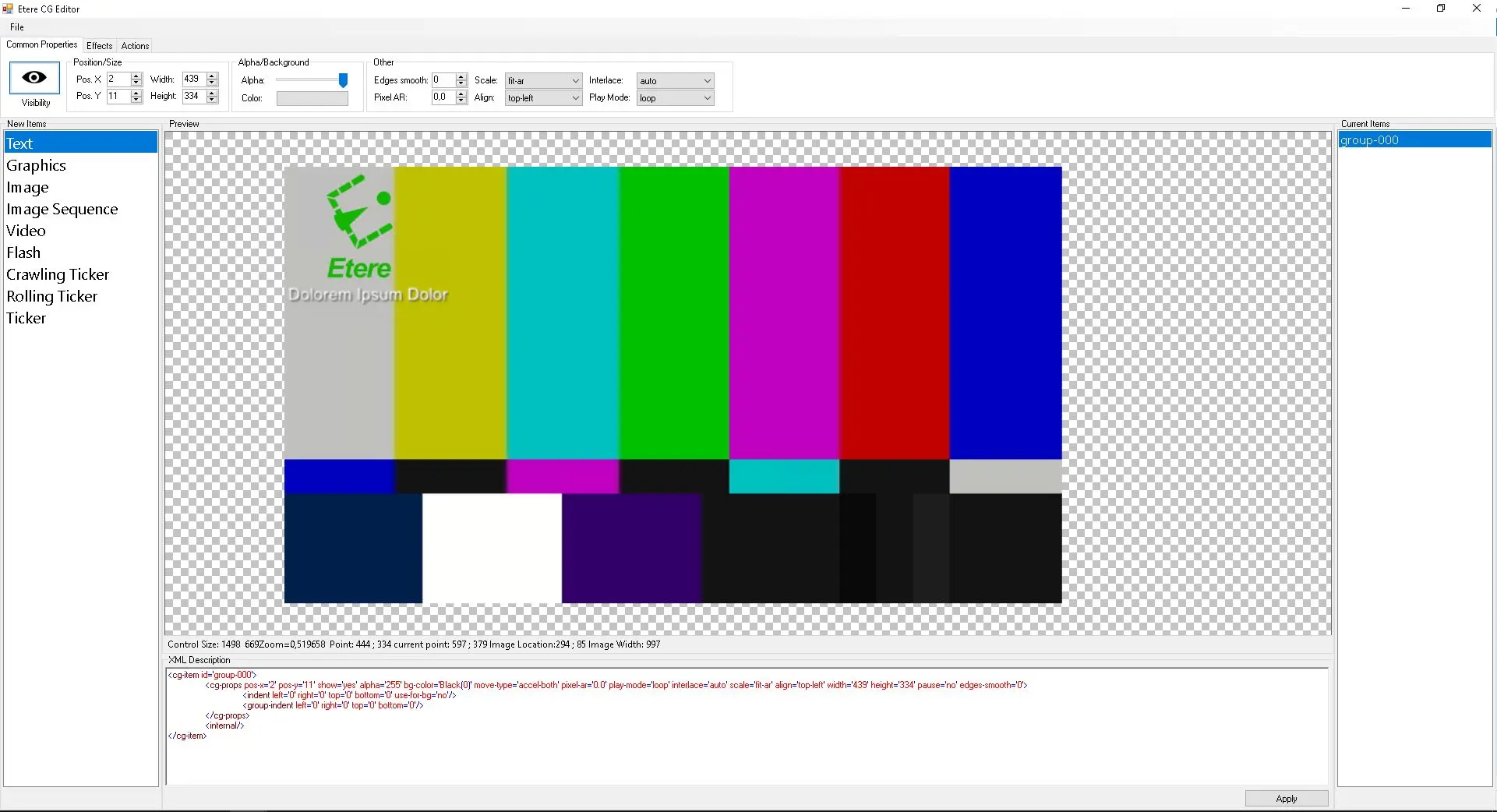
To merge the selected items as a group, select the "Group" button again.
group_btn
Once the selected items are grouped, they are displayed as a single item under the Properties toolbar. You can modify the group by selecting the required group under the Properties toolbar.
grouped_layers
- Ungroup
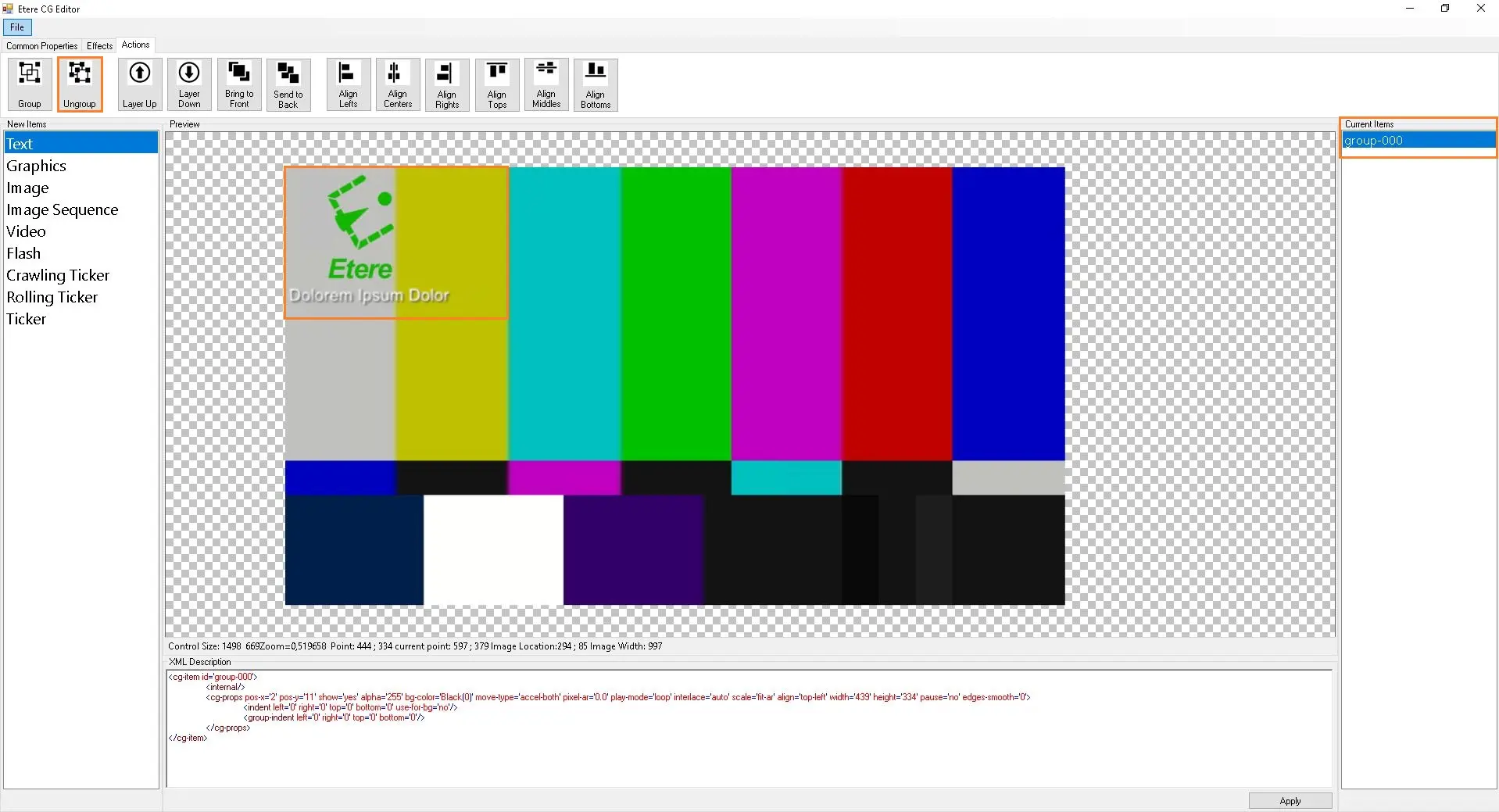
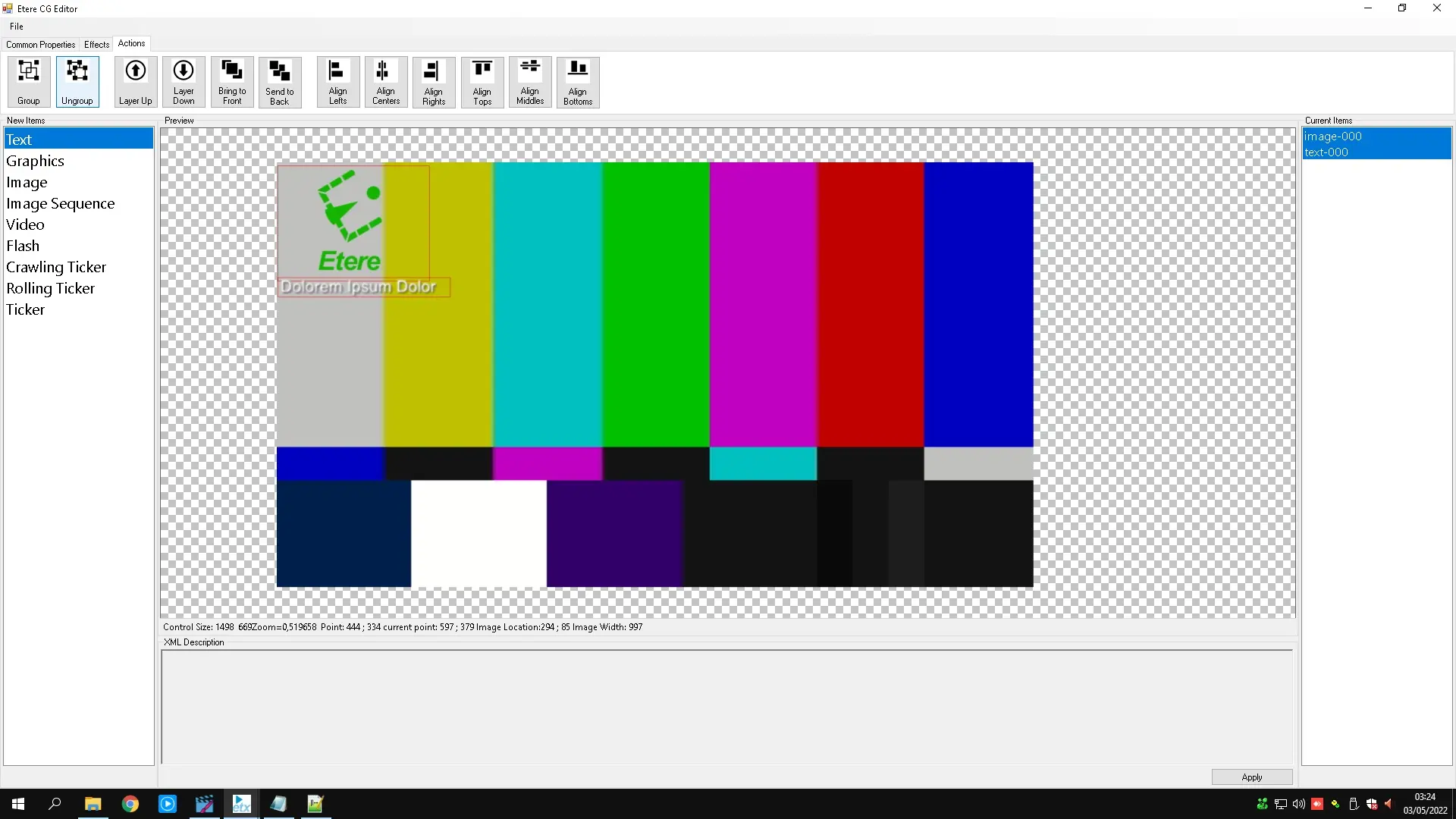
The ungroup button allows you to separate items inside a merged group. Ungrouping of items will enable you to modify the items individually.
To ungroup items, select "Ungroup" on the Actions taskbar, click and drag your mouse cursor to create a selection box over the group.
ungroup_btn
Once the items are ungrouped, you can modify them individually under the Properties toolbar.
ungrouped_layers
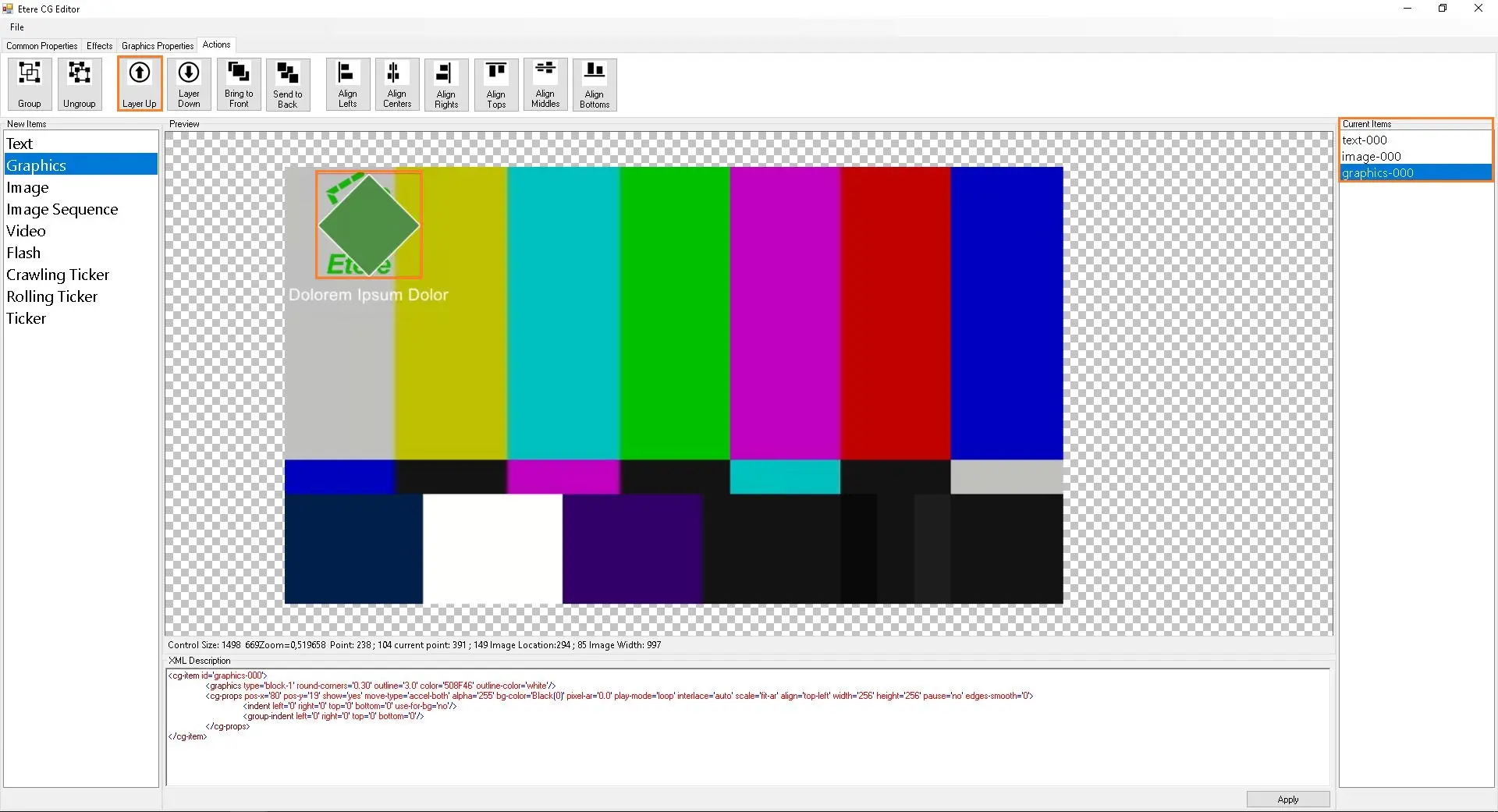
- Layer Up
The layer-up button allows you to move items up to the next Layer when there are more than two layers.
To execute the Layer Up feature on an item, select Layer Up on the Actions taskbar. Next, click and drag the mouse cursor to create a selection box over the item. Select Layer Up to move a selected item on top of the following Layer. Continue this step if you would like to move another layer up. The diagram below shows the Layer effect on the text item.layer_up_btn
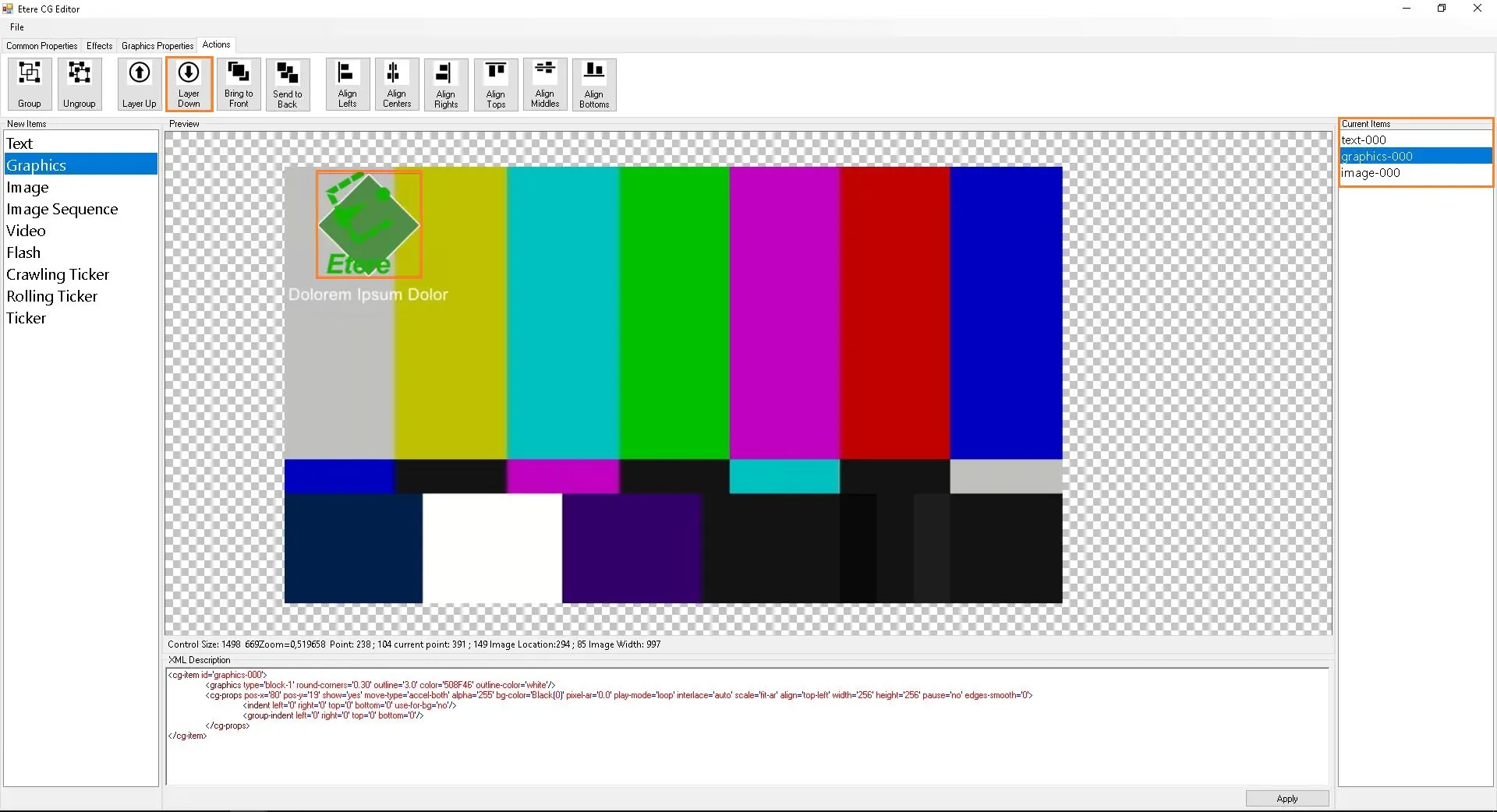
- Layer Down
Layer Down button allows you to move items down to the next Layer when there are more than two layers.
To apply the Layer Down feature on an item, select Layer Down on the Actions taskbar. Next, click and drag the mouse cursor to create a selection box over the item. Select Layer Down to move a selected item on top of the following Layer. Continue this step if you would like to move another layer down. The diagram below shows the layer-down effect on the text item.
layer_down_btn
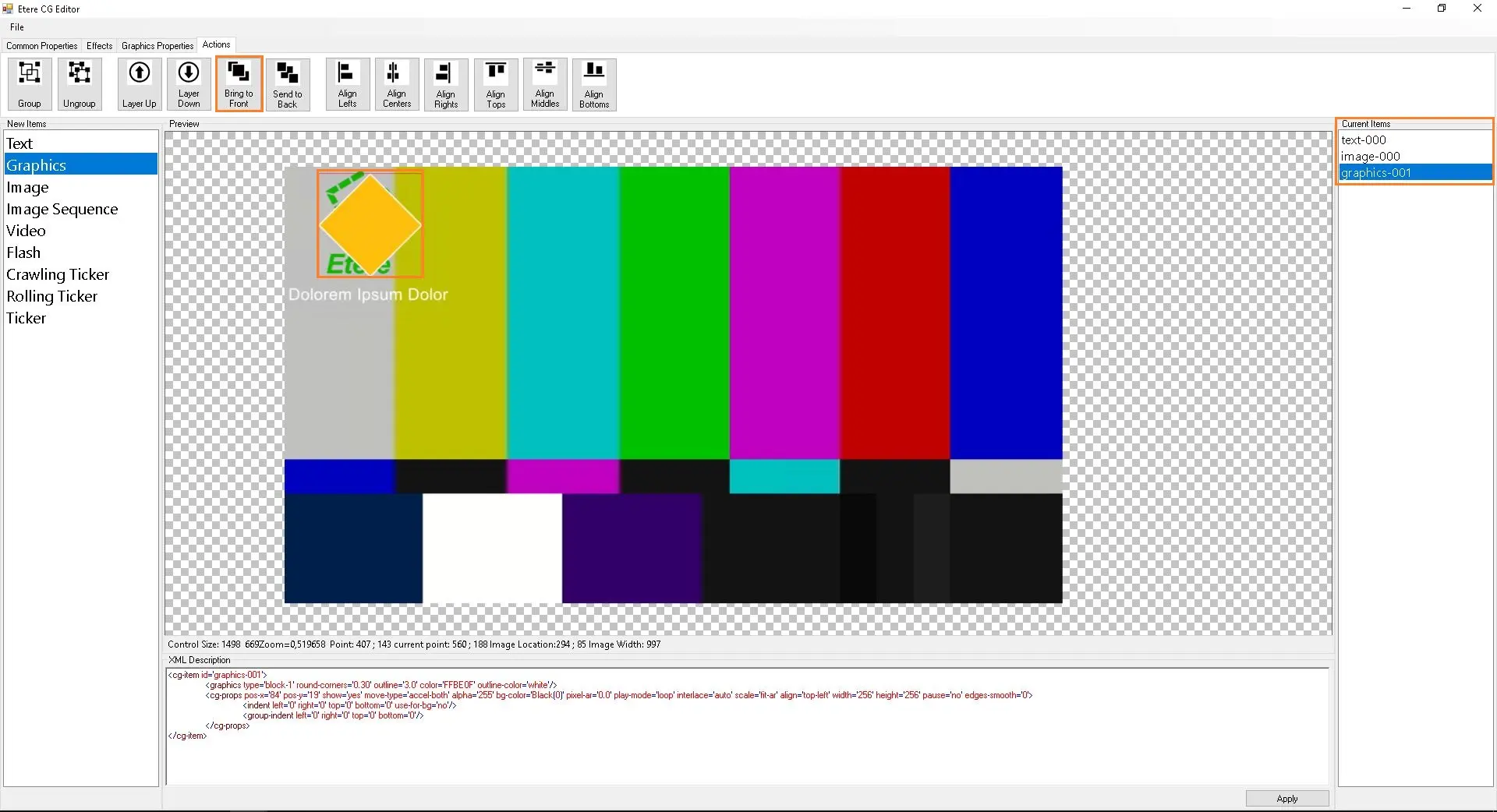
- Bring to Front
Bring To Front button allows you to move items to the topmost Layer. The difference between this feature and the Layer Up feature is that this feature only allows you to drive items to the top Layer and not to the next available Layer.
To execute the Bring To Front feature on an item, select Bring To Front on the Actions taskbar. Next, click and drag the mouse cursor to create a selection box over the item. Select Bring To Front to move the selected item to the topmost Layer. The diagram below shows the Bring To Front effect on the text item.
bring2front_btn
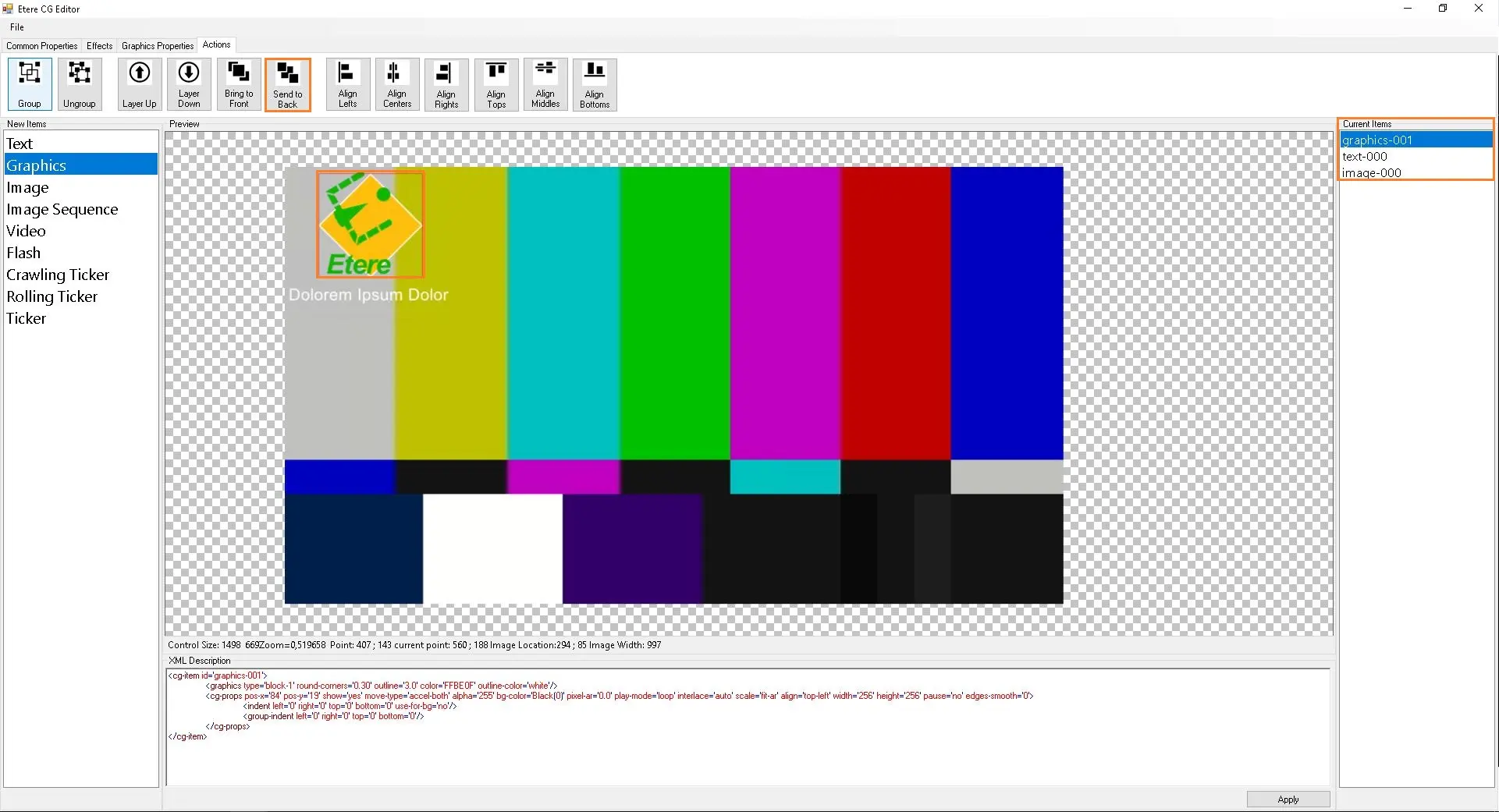
- Send To Back
The Send To Back button lets you move items to the bottom Layer. The difference between this feature and the Layer Down feature is that this feature only allows you to drive items to the bottom Layer and not to the next available Layer.
To execute Send To Back feature on an item, select Send To Back on the Actions taskbar. Next, click and drag your mouse cursor to create a selection box over the item. Select Send To Back to move the selected item to the bottom-most Layer. The diagram below shows the Send To Back effect on the text item.
send2back_btn
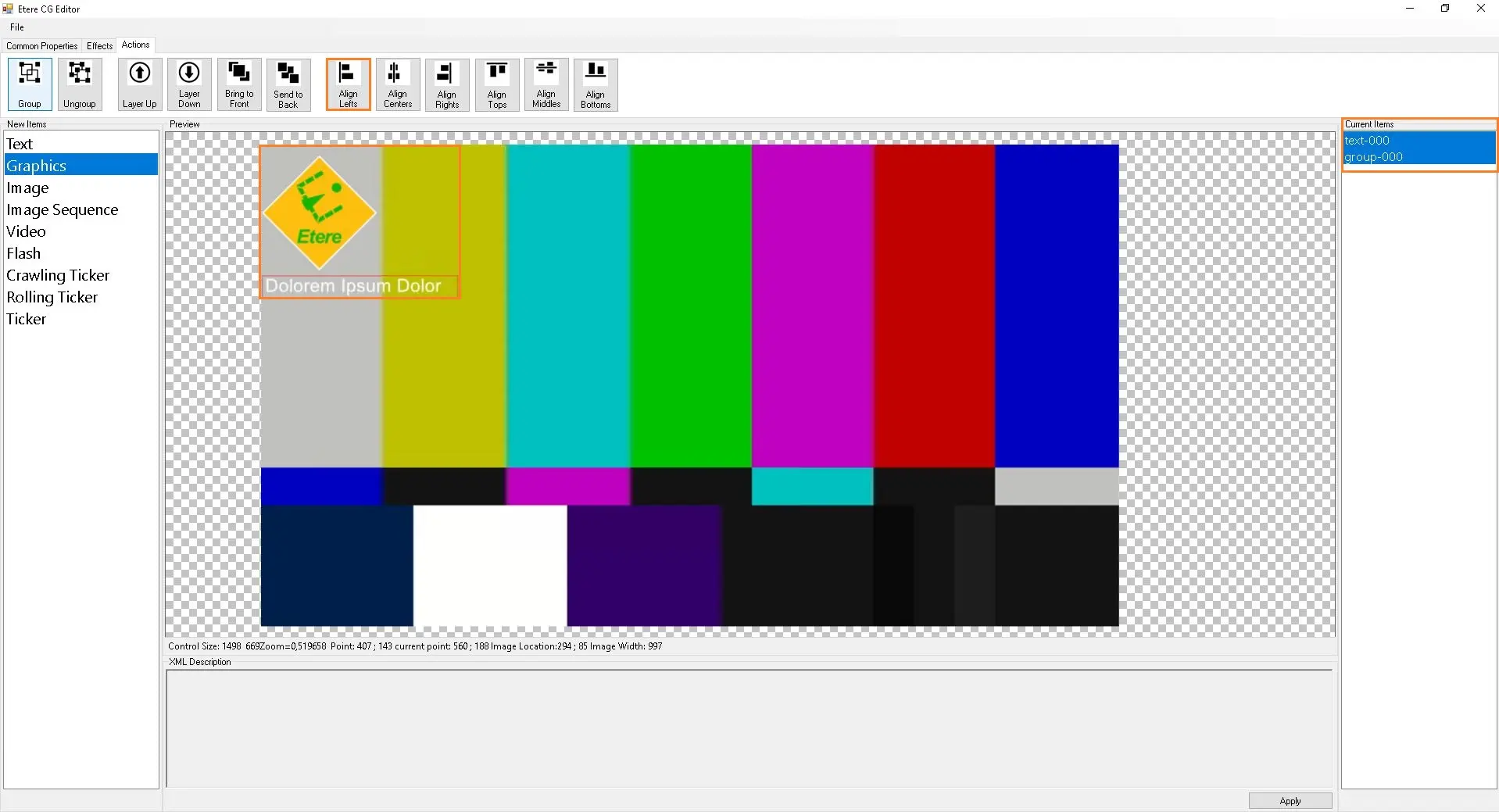
- Align Lefts
The align Lefts button allows you to adjust the alignment of selected item(s) to the left of the frame. The diagram below shows the Align left effect on the text and graphic items.
align_left_btn
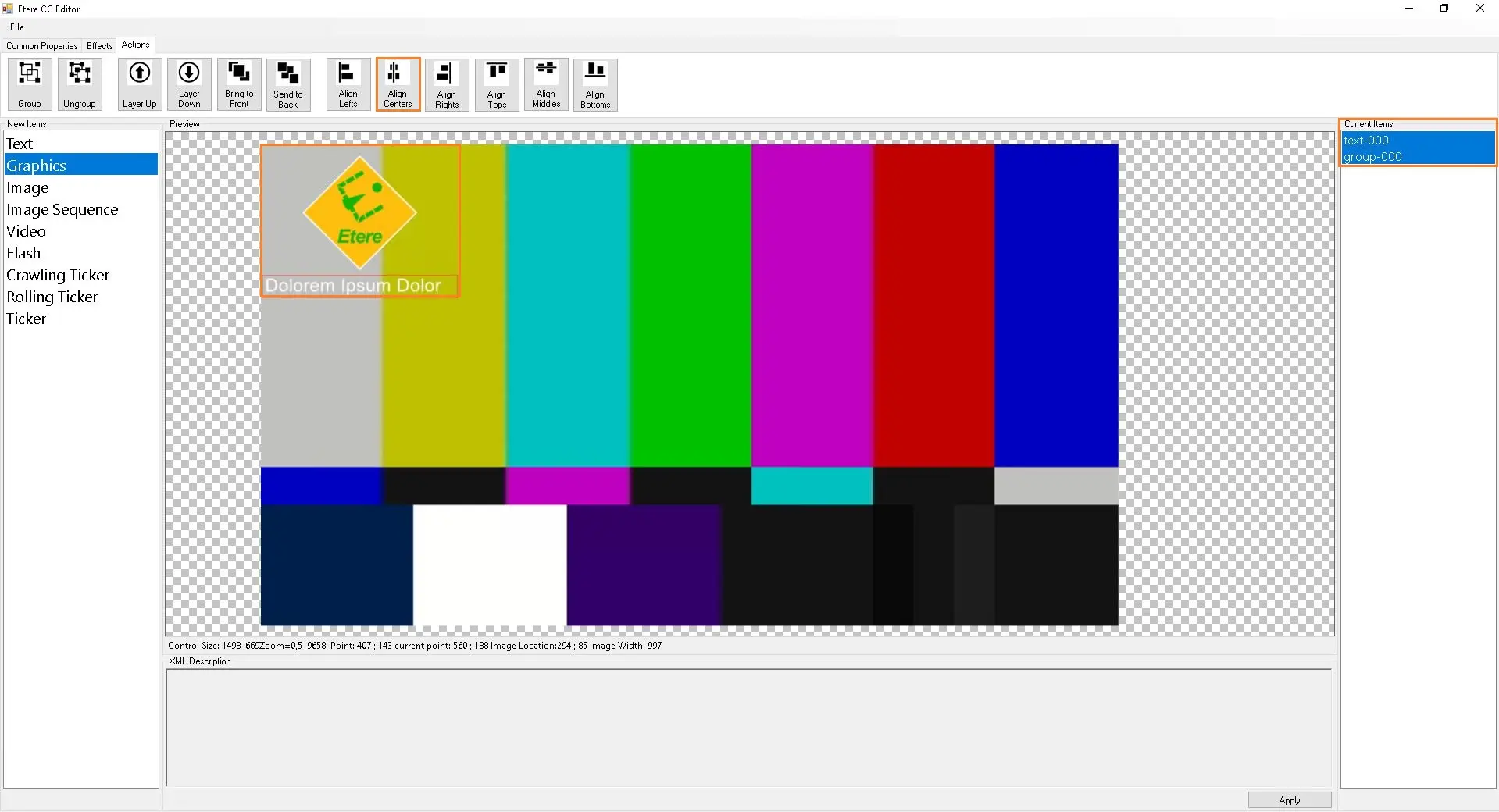
- Align Centers
The Align Centers button allows you to adjust the alignment of selected item(s) to the Center of the frame. The diagram below shows the Align Centers effect on the text and graphic items.
align_center_btn
- Align Rights
Align Rights button allows you to adjust the alignment of selected item(s) to the Right of the frame. The diagram below shows the Align Rights effect on the text and graphic items.
align_center_btn
Alternatively, Text selection can also be modified using the XML Description, and click the <Apply> button to import changes.
 Test435
 Test433
 Test434
 Test429
 Test430
 Test439
 Test438
 Test437
 Test431
 Test427
 ticker_background
 ticker_type
 save_load_cfg
 Test423
 save_btn
 Test424
 Test421
 Test428
 cg_new_items
 cg_ticker_types
 cg_ticker_background
 add_ticker
 save_2_file
 group_btn
 grouped_layers
 ungroup_btn
 ungrouped_layers
 layer_up_btn
 layer_down_btn
 bring2front_btn
 send2back_btn
 aligne_left_btn
 aligne_center_btn
 cg_hor_ticker
 gc_ticker_hor_1
 gc_ticker_multi_hor_3
 gc_ticker_multi_hor_5
 gc_ticker_multi_hor_8
 gc_ticker_vert_1
 gc_ticker_multi_vert_3
 gc_ticker_multi_vert_8
 ticker_file
 ticker_meteo_2
 ticker_meteo
 xml_vert_8_lines
 cg_ticker_props
 xml_horz_8_lines
 save_file
 cg_ticker_text