84.2.4 Secondary Events
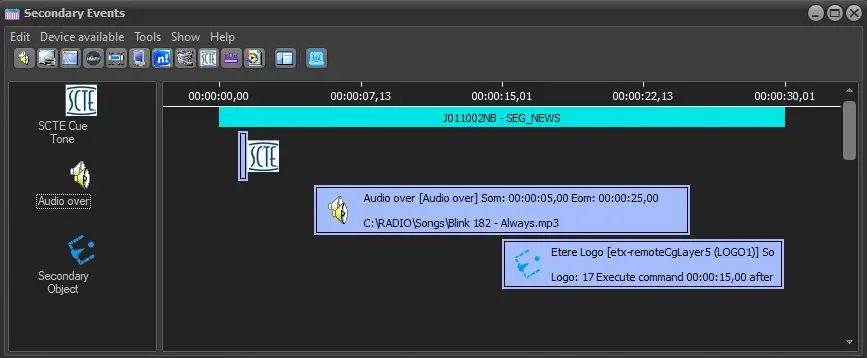
Etere allows assigning to scheduled events a wide range of multi-layer secondary events that will be managed by Etere STMan. Secondary events includes graphical elements (logos, crawls, fades, etc) as well as commands for on-air devices (e.g.: logo generators, video routers, subtitlers, etc). The Secondary Events Form is a user-friendly graphical tool that permits to easily add/remove/modify secondary events assigned to scheduled events (also called "Primary events"):
secondary_events
✓ In the left side are listed all secondary events associated to the primary event; in the right side secondary events are sequentially ordered in a timeline representing the duration of the primary event.
✓ Graphically change the duration of events by dragging their left and right sides to modify their start and end time respectively (see figure above).
✓ Two secondary events cannot start at the same time, that is, have the same SOM (since they must be part of a chronological script), otherwise, the last inserted secondary event will be marked with a red triangle indicating that it has some errors.
Edit menu
The Edit menu allows to perform the following actions:
• Add: Insert a new secondary event, choosing from the "Device available" list.
• Add Macro: Assign one of the macros already created to the primary event. Macros must be first configured in Etere Configuration > Settings > Macro Secondary Events.
• Add secondary events from orders: Add a secondary event that is linked to a contract. For more details, see chapter 84.2.4.33 Other insertion methods - insert a logo or graphic object from order line.
• Delete: Remove the secondary event.
• Edit: Modify the properties of the selected secondary event.
• Find scheduling conflicts: Manually check if the secondary events are wrongly scheduled (e.g.: 2 secondary events with the same SOM). Once the errors have been corrected, launch again this function in case the warnings have not disappeared from the form yet.
• Change AsRun: This function allows to manually change the selected secondary event onair data and asrun status.
Actual Transmission Time: You can change the transmission date and time of the selected secondary event, making reference to the start time of primary event.
AsRun Main: Change the transmission status of the secondary event in the Main Server in cooperation with the changes in actual transmission time.
AsRun Clone: You can also change the transmission status of the secondary event in the Clone Server.
Click <Apply> to confirm changes and click <OK> to exit from the Change AsRun function. You would need to refresh the Secondary Event form to update the changes in the schedule.
Note: This function is only accessible for user with Supervisor / Administrator privileges. Moreover, when changing AsRun for manual secondary events the option “This secondary event will be sent on-air by the operator” must be enabled.
• Copy, Cut, Paste, Select all: Execute clipboard operations on the scheduled secondary events. A secondary event can be copied or cut from a primary event and pasted on itself or on a different one. Please note that in case copying and pasting on the same primary event, there will be secondary events with the same SOM, which is not allowed. Correct the conflict manually on the pasted secondary events to solve.
• Big icons/Details: Choose what to display on the left side of the form. The first option shows only the secondary event's icon and type, the other option shows a table with the secondary event's details.
• Sort by: Choose the displaying order of the secondary events in both sides of the form.
Device available
The Device available menu will be listed all available secondary events that can be associated to the current event and which are explained across the following chapters.
Note: Secondary events are managed and inserted, besides from the Executive Editor module, also from the following modules:
❑ Etere Configuration > Settings > EE > Secondary events: Select which secondary events will be available for use.
❑ Media Library > Secondary events: Define layouts of secondary events for specific assets.
❑ Configuration > Settings > EE > Macro secondary events: Create preset macros for quick assignment of multiple secondary events.
❑ Configuration > Settings > EE > Schedule parameters: Define the secondary events to be automatically attached to commercial (and non) events.
 secondary_events