14.2 Tasks
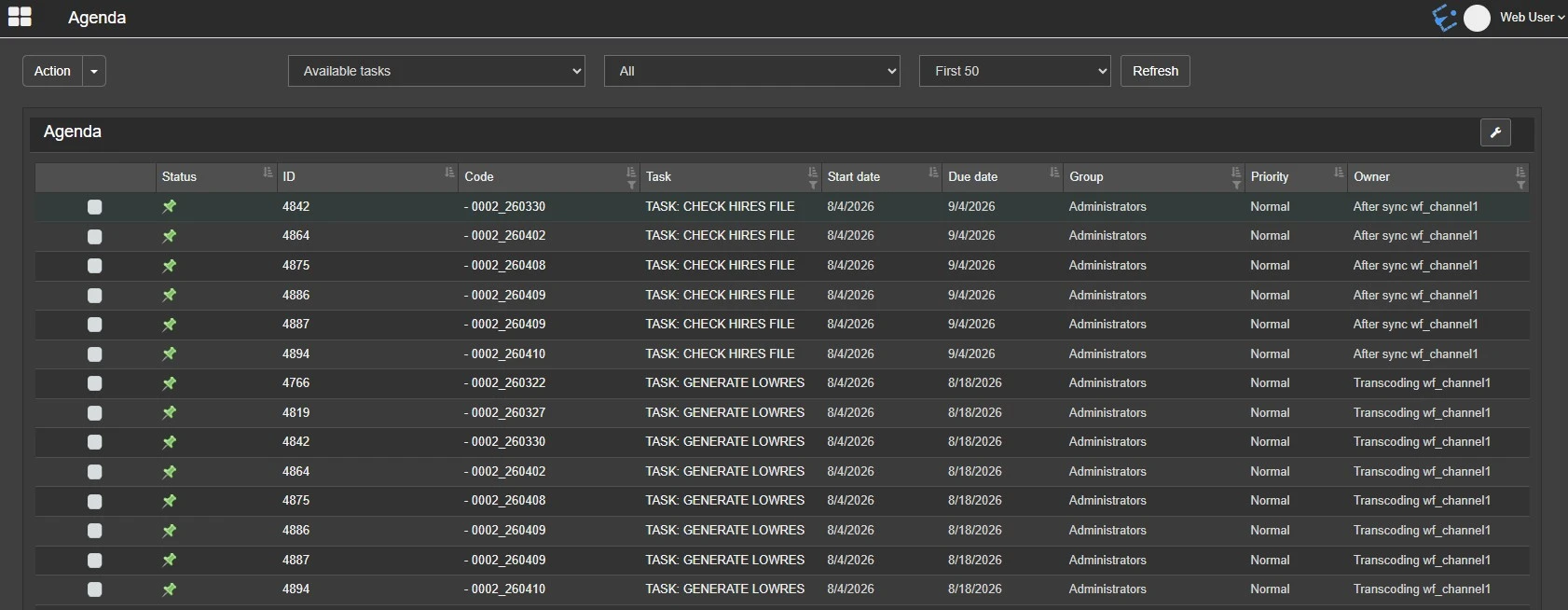
Etere Agenda View provides an interface for managing available tasks assigned to users and groups.
AGENDA VIEW
agenda_view
The Agenda view, provides a set of filters which help the user to find the needed tasks:
• Status: Filter the search for all the tasks in one of the following statuses:
- Available: The task is assigned to the current user and is waiting for being taken, or it's in progress (running).
- Not available: Expired tasks
- Completed: Tasks completed by the operator
• Period: The period of time within which the task validity falls (time included between the start date and the due date).
• Amount: The number of rows to display. First 50, First 100 or All.
Click the Refresh button to apply the filters and start the search.
The button Columns settings, at the right of the page, appears only if a template has been created for the group which the current user belogs to (see 59.2.49.13 Web Task List), and allows to show, hide and arrange the columns of the tasks list table.
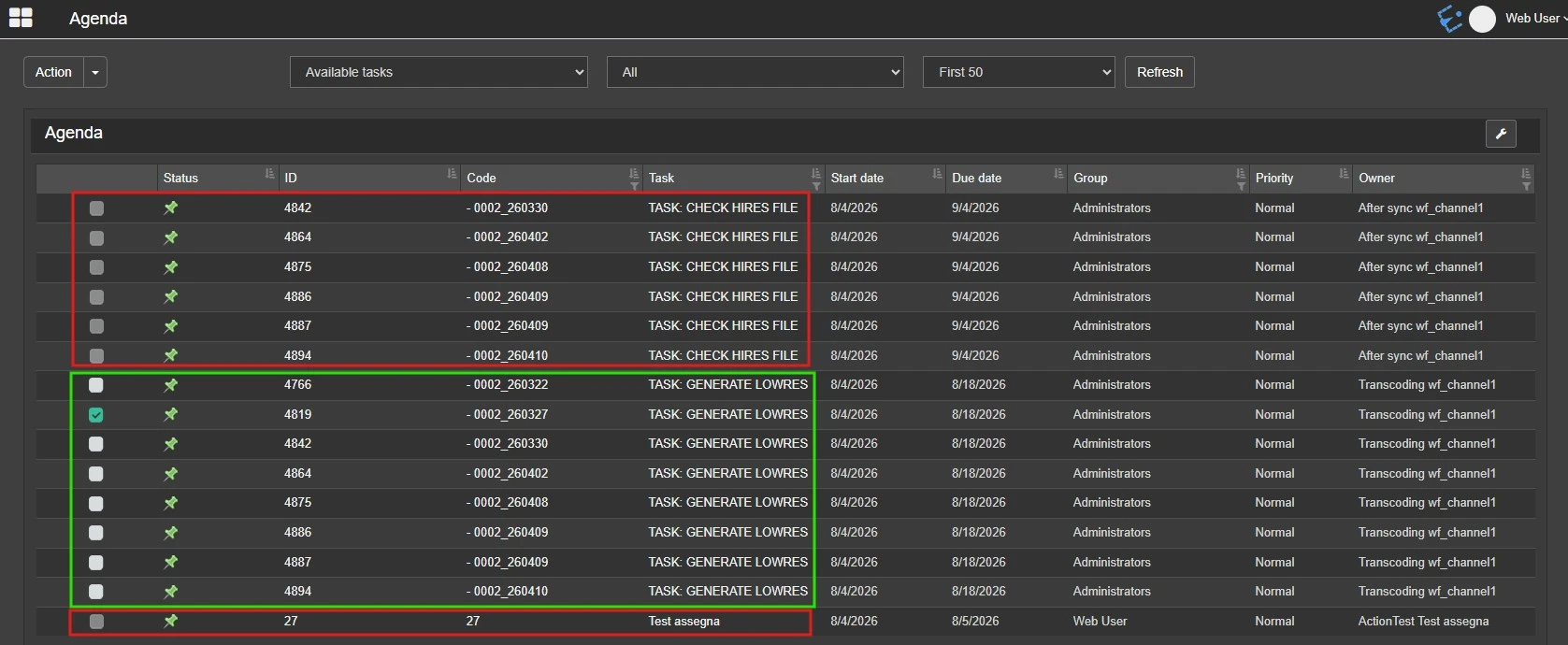
The Action menu on the left, allows to select a specific result for multiple task, each one selected with its own checkbox from the list. Only the tasks assigned using the same workflow action are allowed for the multiple selection. See image below as an example: since the first task selected is assigned by the action "TASK: GENERATE LOWRES", only the ones from the same action are selectable (in green), the other checkboxes are disabled (in red).
tasks_multiple_selecton
To take a specific task and view its properties, click on its name under the Task column.
TASK DATA
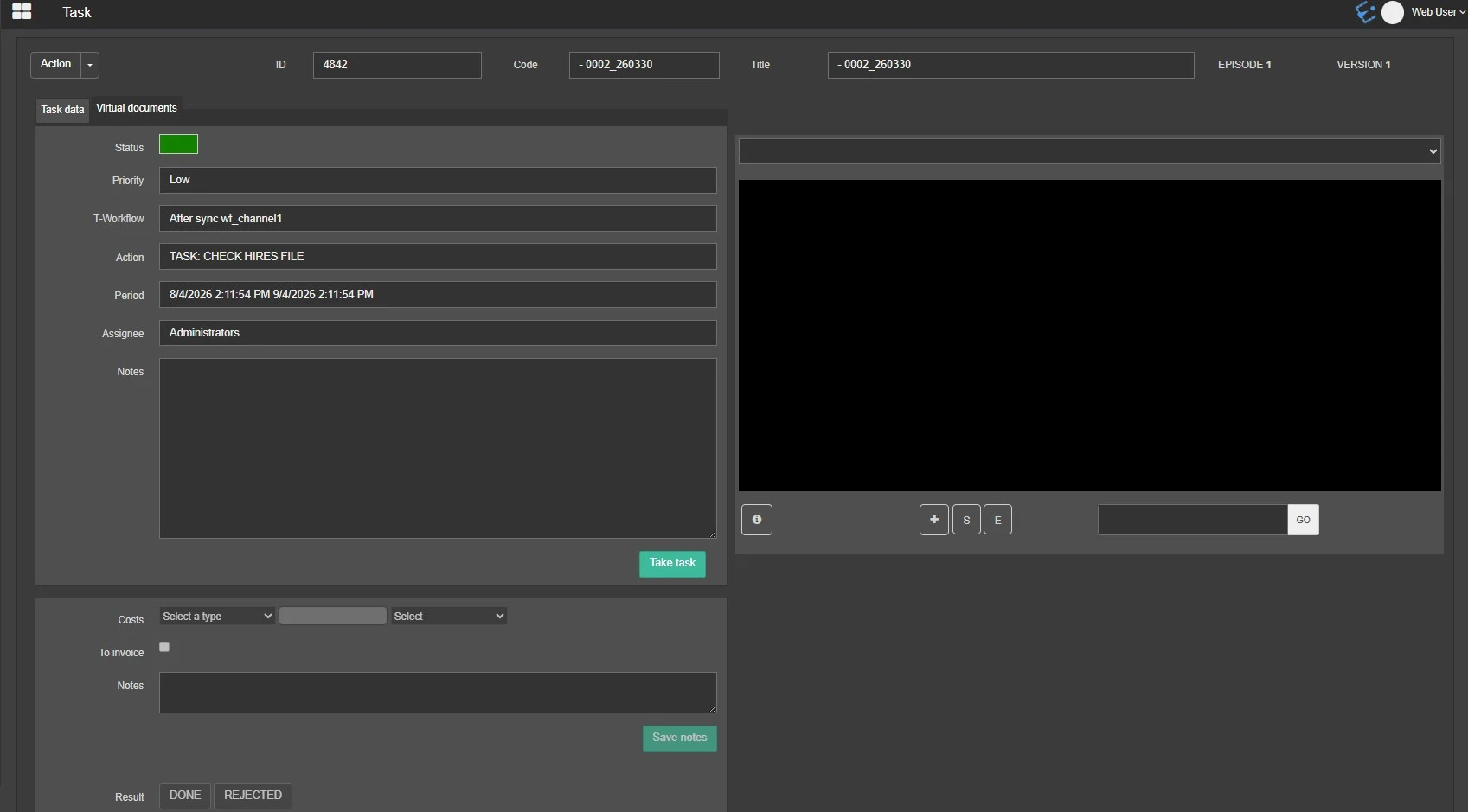
In the Task Data view, the following properties are shown:
task_data
• Status: GREEN if the task has not been taken yet, YELLOW if the task is in progress, RED if the task is completed.
• Priority: Priority level defined in the workflow action.
• T-Workflow: Name of the workflow where the task action has been inserted.
• Action: Name of the task action.
• Period: Validity of the task.
• Assignee: User or group which the task is assigned to.
• Notes: Additional notes specified in the action.
• Costs: Potential costs required to carry out the task.
• To invoice: Select if the expenses have to be invoiced.
• Notes: Additional notes about the beared costs.
Note: These 3 fields are visible only if the right WEB/Task cost and notes is allowed.
On the right, if a lowres videofile is linked to the asset, it will be possible to preview it and create segments.
In addition, the following actions are available in the Action menu on top-left of the page:
• Open asset: This action opens the asset associated with the task. It's possible to open the asset from the tasks list as well, clicking on the asset id or code.
• Flexi-metadata: It displays, in a new window, the list of flexi-metadata associated with the asset, for a quick view and edit without opening the whole asset page.
• Videofile flexi-metadata: Use this option to edit or set the flexi-metadata of the current metafile.
• Job info: The Job Info action displays the general information of the task, defined in the workflow action.
• T-Workflow instance: It provides a graphical view of the T-workflow instance where the task action has been inserted. You can click on any action block to view its properties and restart the workflow from there.
• Previous task info: Here you can view the general information related to previously submitted tasks. Information includes:
- Task Name: The name of the last tasks.
- Status: The task status, whether the task was completed successfully, terminated by the user, or the task was aborted due to a specific reason.
- Message: Any system message associated with the previous tasks.
- Username: The name of the user who completed the previous task.
- Hostname: The name of the workstation where the user signed off the task.
- Execution: The date and time when the task was executed.
If two users access the same task simultaneously without refreshing the Task list, the second user will receive a message indicating the selected task has been assigned.
Message
In the Task view, the user would also notice that the ID of the specific task has been changed to "0" to prevent access to the task.
VIRTUAL DOCUMENTS
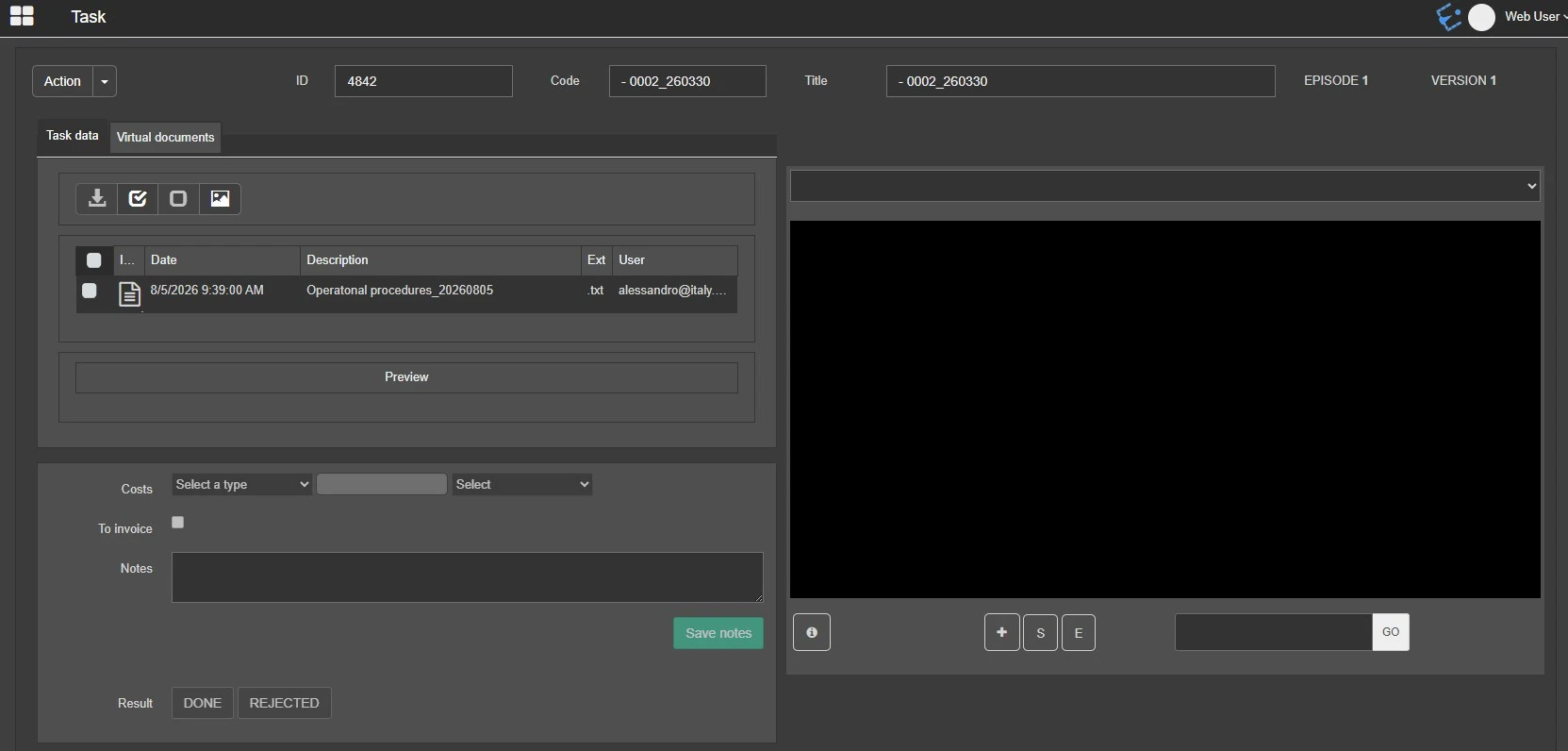
In the Virtual documents tab it's possible to see and download any file inserted in the workflow action.
task_virtual_document
 agenda_view
 tasks_multiple_selecton
 task_data
 Message
 task_virtual_document