71.4.1 Configuration
Under the Config tab there are various parameters that can be set to achieve a fully customized ingestion of media files, those parameters are:
General tab
Multichannel_ingest_config
• Timeout Scheduled Ingest (sec.): If a scheduled ingest is set to start at a fixed time, this option defines how long in advance it will be set to CUE.
Instead, if the scheduled ingest is set to use a GPI signal, this option will have the following effects:
- If Start by GPI, it defines an interval of time for the reception of the GPI signal. This interval goes from the scheduled time minus the timeout to the scheduled time plus the timeout.
- If Stop by GPI, this parameter defines how long to extend its duration in case of non-arrival of the GPI signal.
Note: The value cannot be set below 15 seconds, it is a minimum time required for resource registration.
• Channels to manage: Define the total number of channels to be managed during ingest. You can define up to 40 channels to be used by multiple servers. The default channels number is set to 10.
The number of channels defined here would be reflected in Planning tab where you can plan new Scheduled Ingest.
Note: If the value is set higher than 10, the channels must be utilized by Scheduled Ingest and its related services.
• Start before scheduled time (sec.): This option is valid only for live ingests and indicates how many seconds before the scheduled start of the ingest the recording will take place. The scheduled end will be shortened so the real duration will be respected.
Note: The value cannot be set below 15 seconds, it is a minimum time required for resource registration.
• LIVE code prefix: With regards to the ingest of LIVE events (see below) this prefix will appear before the scheduled code description to create a new code that contains the LIVE ingest (e.g. if the scheduled LIVE code was LIVE01 then the newly created code post-ingest will be LRLIVE01).
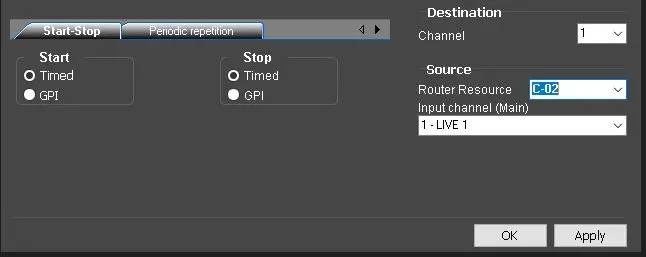
• Use the BK resource in order to create copy into a different asset: You can use a single channel configured with resources as Main and Backup. The schedule live ingest is capable to record from one channel and ingest into 2 asset records, one record in dirty feed with graphics (1st copy) and one in clean feed without graphic (2nd copy) or a video file. The 2nd copy asset record can be configured to have different asset suffix, specified in the field Suffix to be added to the copy. In order to fulfill the generation of 2nd copy asset record, a virtual router must be configured and specified during the schedule live ingest as indicated below:
- Router Resource: Specify the virtual router.
- Input channel (BK/Copy): Select virtual router from the list.
Router_Resource
• Suffix to be added to the copy: If parameter “Use the BK resources in order to create copy into a different asset” is checked, the 2nd copy asset record created would be assigned with a different asset suffix from the 1st copy asset record.
• Default Duration: This is the duration that will be attributed to the Scheduled Ingest, if in the editing stage it's not specified.
• Start in advance (frames): If enabled, this parameter allows you to anticipate the PLAY of events with a set TimeDelay (secondary event).
For example, if an event with a 'Time Delay' is scheduled in the playlist at 09:15:00.00 and you have set this parameter at 25 frames (1 second in PAL), Play will start at 09:14:59.00 (one second before). Further information regarding Scheduled Ingest and TimeDelay can be found in the chapter 71.4.3.4 Delay a Live ingest.
• Use alternative Resources: By enabling this parameter, each time you will try to ingest from a channel that is currently busy. Scheduled Ingest will automatically try to use any of the other channels also configured for Ingesting. Only those channels correctly configured in the new resources will be used.
• Do not allow to start ingest operations: If it's enabled, schedule ingest is not allowed to start from this workstation. However, you are allowed to plan schedule recording. The resource must be configured in local workstation.
• Use the encoder optional configuration: If enabled, the backup encoder channels will be used as main.
• Proxy download from XDCAM: You can browse and select the media folder where are XDCAM proxies are stored. Only those paths set for 'download' in media folders will be listed.
• Do not delete already ingested assets: If enabled, allows to not delete video files linked to the asset to be ingested, and also to skip it. If disabled (default), asset's already ingested files will be deleted.
• Use the alternative channels: If enabled, select a preconfigured alternative channel to be used instead of a channel with overlapped recordings.
For instance, the Channel01 has 2 consecutive LIVE events to be recorded, the second LIVE event could not be recorded, therefore, another alternative channel is searched to route the recording to it.
Note: The alternative channel must be configured as a resource and must be available (i.e. without recordings scheduled on the period in question).
• Report ingest operations scheduled for the same asset: If enabled, the user will get a visual warning every time he attempt to schedule a single/periodical ingest for an asset that already has one.
• Activate Preview during Rec (only ETX): When ETX resource is used for preview, enable this option to preview the asset during recording.
• Leave the driver open between recordings (only ETX): If enabled and an ETX resource is used for recording, in case of subsequent recordings, the resource will be kept open until the end of the last recording, thus reducing the workstation's resources consumption and improving the application stability. If disabled, the resource will be opened at the start of each rec and closed at each end.
Note: If there are no input video signal detected when ingest starts, a black screen would be present in Preview with message “Input signal lost” during recording. Moreover, the asset been ingest would be marked as “Not ok to broadcast”.
Open the resources tree with the [Resources] button, then drag and drop them to the proper field, according to how each resource should be used.
 Multichannel_ingest_config
 Router_Resource