72.2.2.55 Secondary events - Router/MC
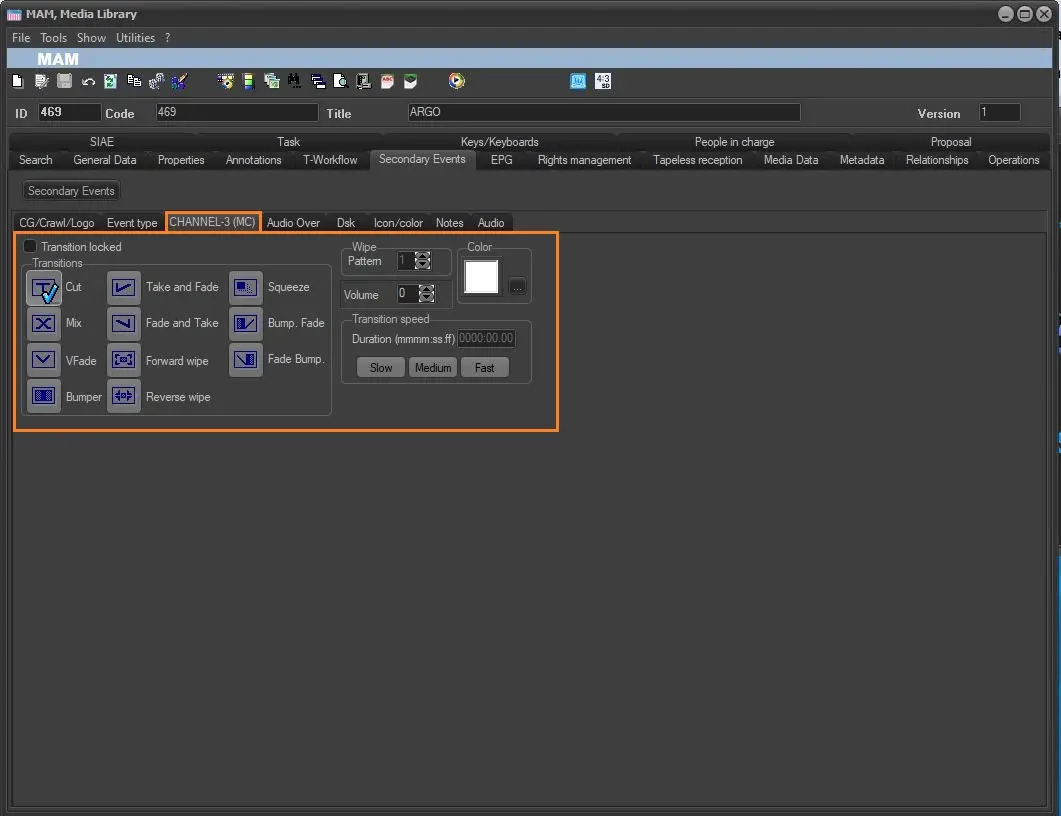
Select and set the transition type (cut, v-fade, etc) to be used between events, being also possible to lock the transition. Available transitions include:
• Cut: This transition allows to add a Cut between events.
• Mix: This transition adds a Crossed fading.
• V-Fade: Use this transition to add a Cue and Head fading.
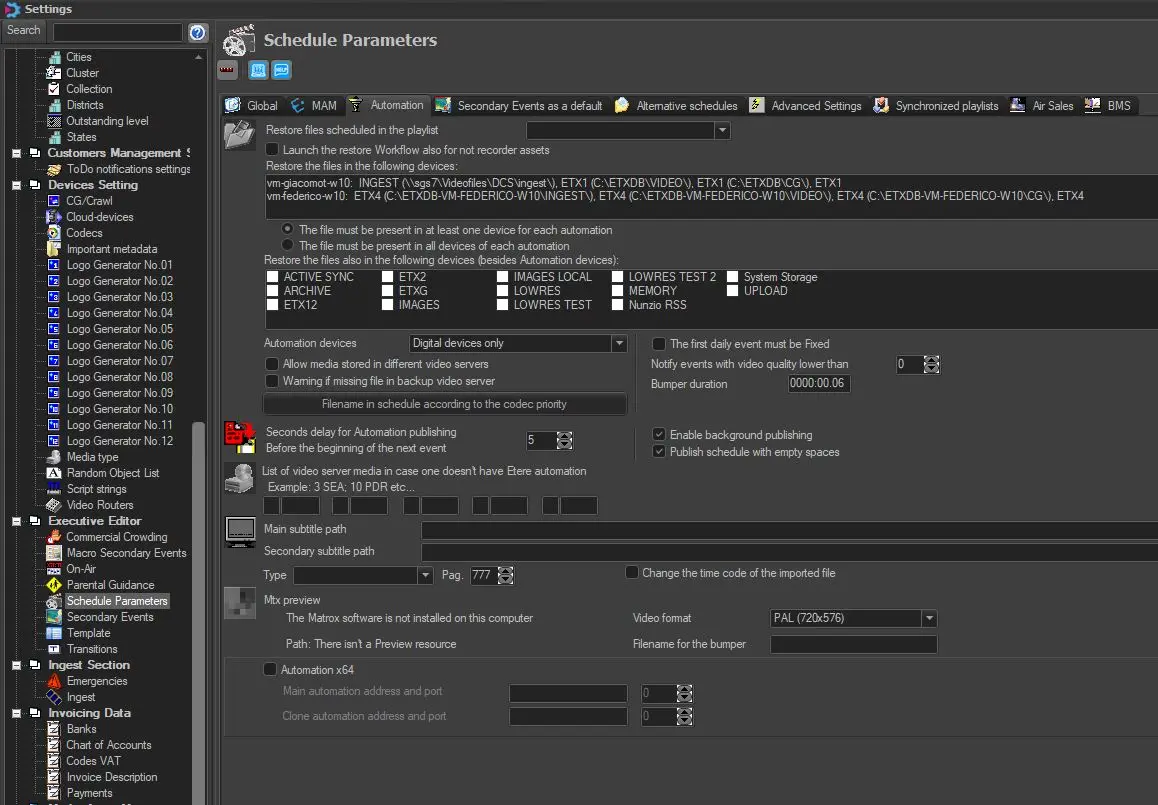
• Bumper: This transition (available only for timecode events) adds a blank video file to the event cue, as a Cut transition. When a Bumper transition is used, the duration of the Bumper file is added to the event duration, therefore the event in question will have mark-In and mark-Out as inserted in the asset, but the duration will be extended with the bumper file duration. Is possible to set a custom Bumper duration in Etere Configuration > Settings > Schedule Parameters > Automation > Bumper Duration.
ml_bumper
bumper_duration
• Take and fade: Use this transition to add a Final cut and Starting fade.
• Fade and take: This transition adds a Final fade and Starting cut.
• Forward wipe: This transition adds an Explosion.
• Reverse wipe: This transition adds an Implosion.
• Squeeze: This transition squeezes (scales down) and expands (scales up) the event horizontally or vertically,
• Bump Fade: Use this transition to add blank video to the event cue and then a Final fade.
• Fade Bump: Use this transition to add a Starting fade and then blank video to the event cue.
Moreover, depending on the selected transition, it will be possible to customize it by setting the following parameters:
- Wipe pattern: Set the code of the pattern type (e.g. top to bottom, left to right, etc) to be used to Explode (forward wipe) and Implode (forward wipe) effects,
- Color: Set the background color of the transition,
- Volume: Set the volume (0-12) to be set while the transition takes place.
- Transition Speed: Enter here the duration of the transition manually or select a standard durations (i.e. slow, medium or fast). The maximum duration allowed for transitions is 3 seconds and 24 frames (i.e. 0000:03.24).
NB: Please note that transitions take place only if the two events are on two different Master Control inputs and if the transition has been enabled as for the second event.
 ml_bumper
 bumper_duration