72.3.12 Creating Season Order
Should be moved to BMS chapter, seasons orders is not present in MAM
Once a season has been created through 'Season Manager', its licensing rights are defined and a valid schedule structure is created, the next step is to schedule the season. In order to do so you must first create a season order, simply open the Season Order application from the left menu to launch the Search function, in this tab you can search for existing orders using various search criteria such as code, description, agency, producer.
Otherwise, to create a new order, click on the 'New Order' button in the upper left panel, the 'Order tab' will be automatically activated, the schedule process is performed through the compilation of all the tabs present on this module.
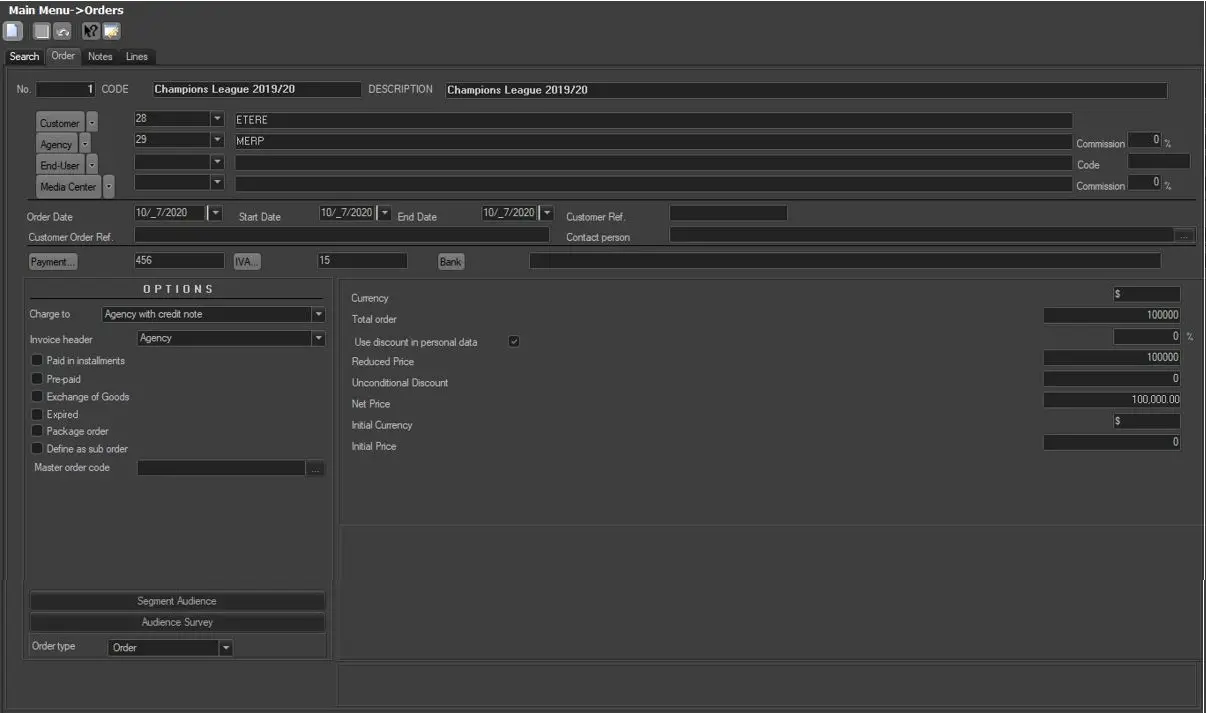
The ORDER tab allows to start inserting the order's information in the related fields:
Season Order
•Code: Assign a code to the order, this code is user-defined and can be composed of alphanumeric characters.
•Description: Insert a brief description for the order.
•Agency: Specify the commissioned agency who liaises between the station and the producer.
•Producer: Select the producer of the asset(s) referred on the current order, click on the field name would calls up the Personal Data database configured in 'Etere Configuration -> Personal Data'.
•Order Date: Insert the date the order was generated. This date has no bearing on the actual scheduling period.
•Payment: You can specify your method of payment for this particular order by selecting from a list of user-defined payment types (Etere Configuration -> Invoice Archives -> Payments). This information help to manage the timely payment of the order.
•VAT: Allows you to specify the type of VAT on the order. Select from a list of user-defined VAT codes (Etere Configuration -> Invoice Archives -> VAT codes).
•Bank: Allows you to select from a list of user-defined banks (configured in either Personal Data or under 'Etere Configuration -> Invoice Archives -> Banks) the bank through which the payment of the order will take place.
•Gross Price: Insert the expected gross price of the order.
•Discount in Personal Data: In 'Etere Configuration -> Personal Data', you can assign a discount % to a company or person. By checking this box in Commercial Orders the assigned discount will automatically appear on the commercial order.
•Reduced Price: This calculates as the Gross Price minus the Discount as described above.
•Unconditional Discount: To assign a further discount or a one-off discount not linked to Personal Data, insert the amount here.
•Net Price: The price of the order is calculated based on Gross Price minus the various discounts assigned.
•Reference Currency: If the order currency is different from the home currency, input the order's foreign currency here.
•Value: Insert the value of the order in the foreign currency.
•OPTIONS: In this field, there are two additional parameters:
Expired: If an order is marked as expired, it would not be included in Search results. Usually an order is marked as expired when the 'End Date' has already passed.
Workflow: Allows managing the T-workflow of the Commercial Orders Process.
Once the general order lines is completed, in the NOTES tab you can insert additional descriptions as well as virtual documents (e.g. the scanned order) through the Etere DoMa application (Documents Management).
 Season_Order