65.1.2.12 Licenses management
Generally, Etere queries the database at the startup, to check if the license to run a certain module is available (e.g. license not expired or not used up).
In the most recent modules, and more specifically with the introduction of client-server infrastructure, to improve its versatility it's possible to choose the workstation which a module or a service will be assigned to (this is not possible for any module, please refer to the chapter about the configuration of the related module).
This can be done in the resource properties form, to indicate that the resource being edited is the one where a specific module will run.
For example:
I purchased 4 Etere Ingest service modules (EA1378, licence codes can be found in user reserved area) and 4 Etere Ingest client modules (EA1376), because i want to run 4 service instances on one server and 4 ingest clients on 4 workstations where the operators will launch the recordings from.
In this case i have to:
- Open the server's resource properties from Etere Configuration > Resources editor and type "EA1378,EA1378,EA1378,EA1378" in License assigned field
- Open each client's resource properties and type "EA1376" in the same field.
In case i want to replace one of the clients, i simply would have to remove "EA1376" from the old resource and type it in the new one.
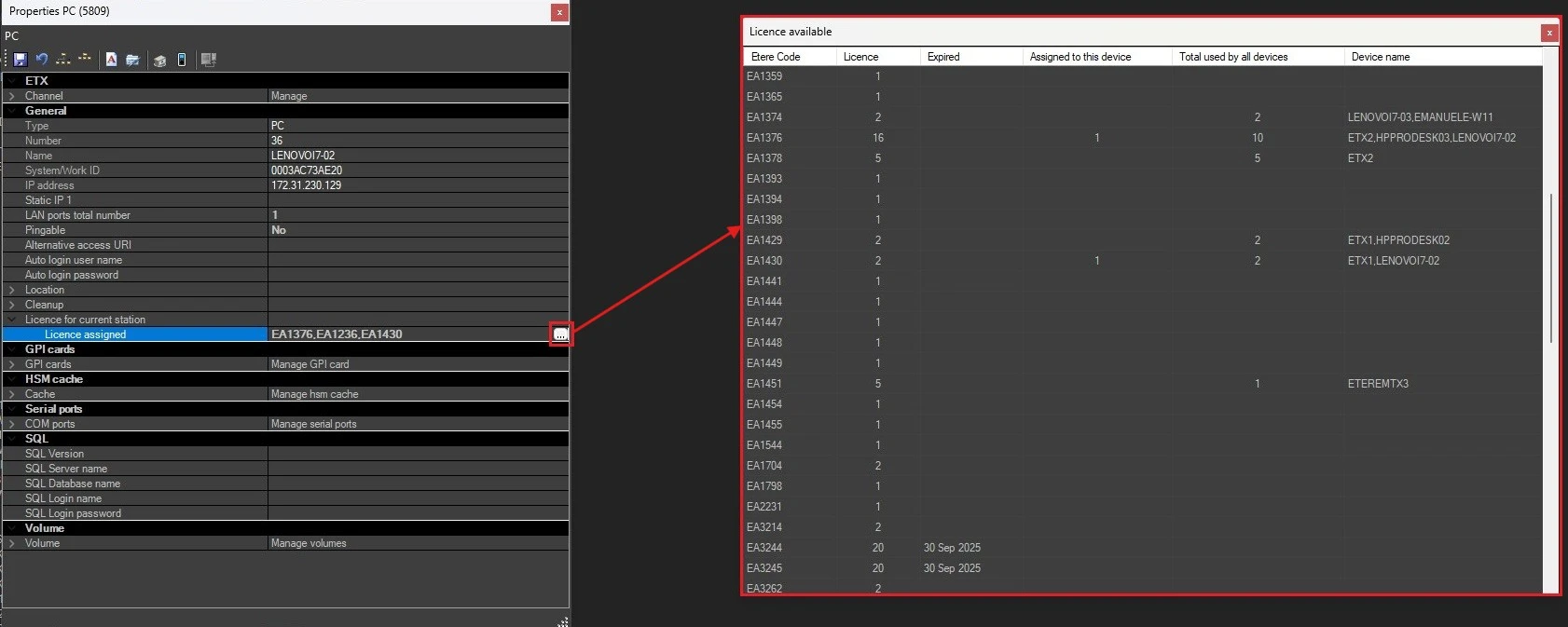
Of course, several modules can be typed in the License assigned field and a dedicated form helps the user to manage them.
license_assignment
Clicking on the button on the right side of the field, the table will show the following data for each module purchased:
• Etere code: The code of the purchased module, included in the Etere license, which is imported in the Etere Database.
• License: The number of modules purchased.
• Expired: This field is empty if the module doesn't expire (it's unlimited), otherwise it contains the date when the module expires.
• Assigned to this device: The number of modules assigned to the current resource.
• Total used by all devices: The total number assigned to all the resources.
• Device name: The names of the workstations which the module has been assigned to.
Also, right-clicking on a row, the contextual menu will show the following options:
• Add to list to be saved: Assign 1 module to the current resource.
• Add to list to be saved x2: Assign 2 modules to the current resource.
Notes:
- In case a module has been used up or is expired, these 2 options are not selectable.
- Licences are station dependant, so licences added to a station won't be avaiable in another.
 license_assignment