71.5 Media and Quality Check
The "Media Check" menu item provides access to a set of modules specifically developed to check the availability, consistency and integrity of media ingested into an Etere system.
QUALITY CHECK
Note: Besides the media check modules mentioned in this chapter, it's also available the "Operations By Workflow" module to check the file length of video files stored on specific metadevice(s) and associated to certain assets. See chapter 71.7.0.0 Operations by T-Workflow.
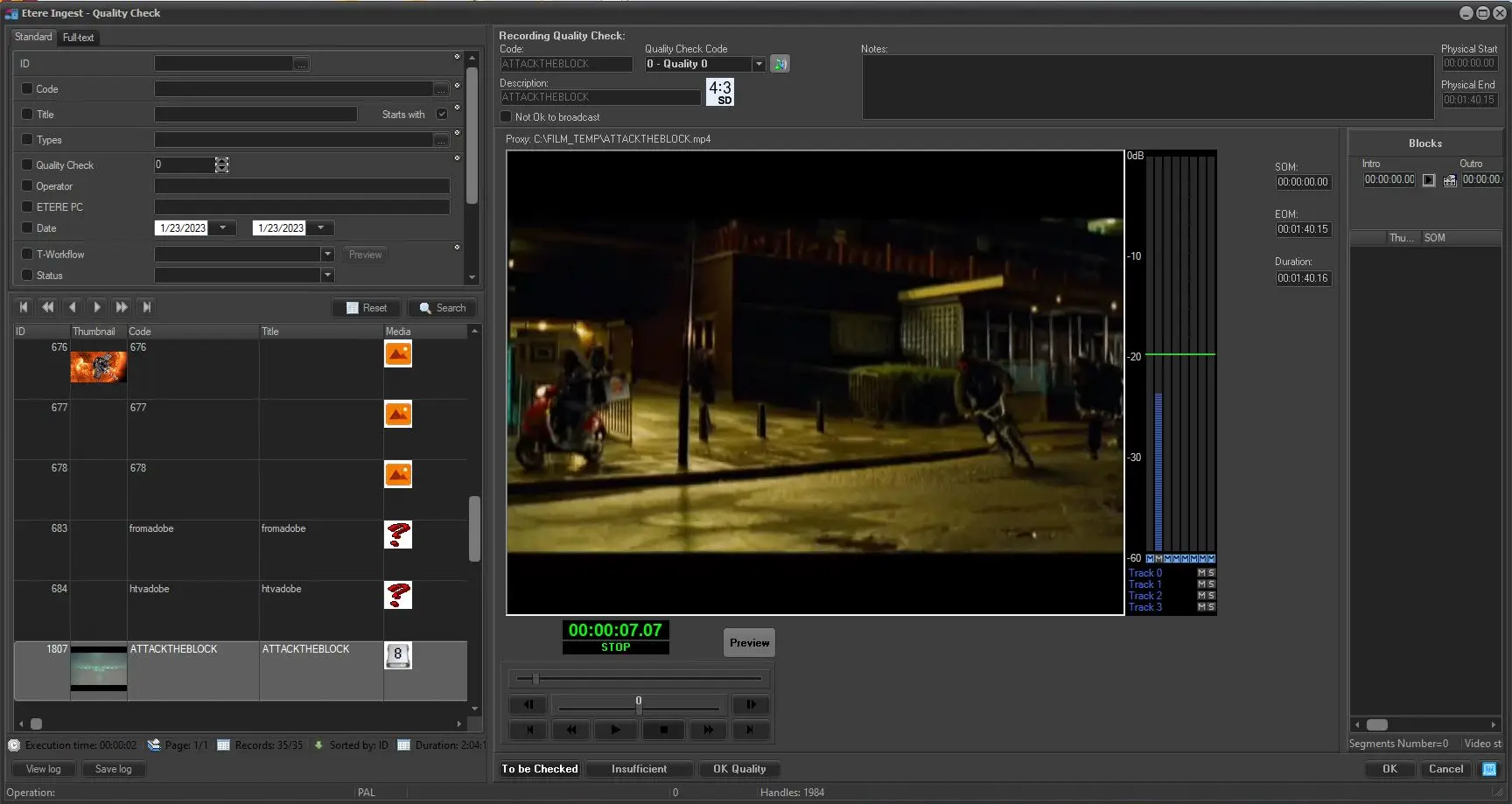
As suggested by the name, this feature has the purpose of manually checking the quality of ingested media. At first you need to configure this application in the ingest Settings (see chapter 71.16.2.13 Quality Check). Once you have been set those parameters, you can launch the Quality Check module, from the Etere Ingest menu, a window divided in three sections will be opened as shown below:
Ingest -Quality Check
This quality check is intended to be performed on HiRes files on Video Server resource with a preview channel configured. In asset EDL, it is possible to modify the asset's SOM and EOM. If Video Server resource is not available, you can use the preview function in Media Library.
Moreover, the Quality Check is unable to view the subtitles present in the media file. You can use the Subtitles Tools in MAM to view and edit the subtitles.
During preview, if the Shuttle Pro Contour is inactive, the following function keys are available if focus on the video track bar:
Shift+> -------> move forward 5 seconds
Ctrl+> --------> move forward 10 seconds
Shift+< -------> move backward 5 seconds
Ctrl+< --------> move backward 10 seconds
Home key ----> move to SOM
End key -------> move to EOM
NB: The Quality Preview is performed by Windows Media Player, for quality preview on MP4 video file you must change the preview player to Etere Player.
NB: During the QC, in case the physical duration is different from these marks, a warning will be displayed telling the operator to check the logical marks. Moreover, in case an asset has a quality=0 the logical marks will be automatically set as the physical ones.
WARNING: During the quality check is possible to have the Audio Meter displayed along with the Video preview. Is it possible to activate\deactivate them on the fly in order to have the possibility to select the desired audio track.
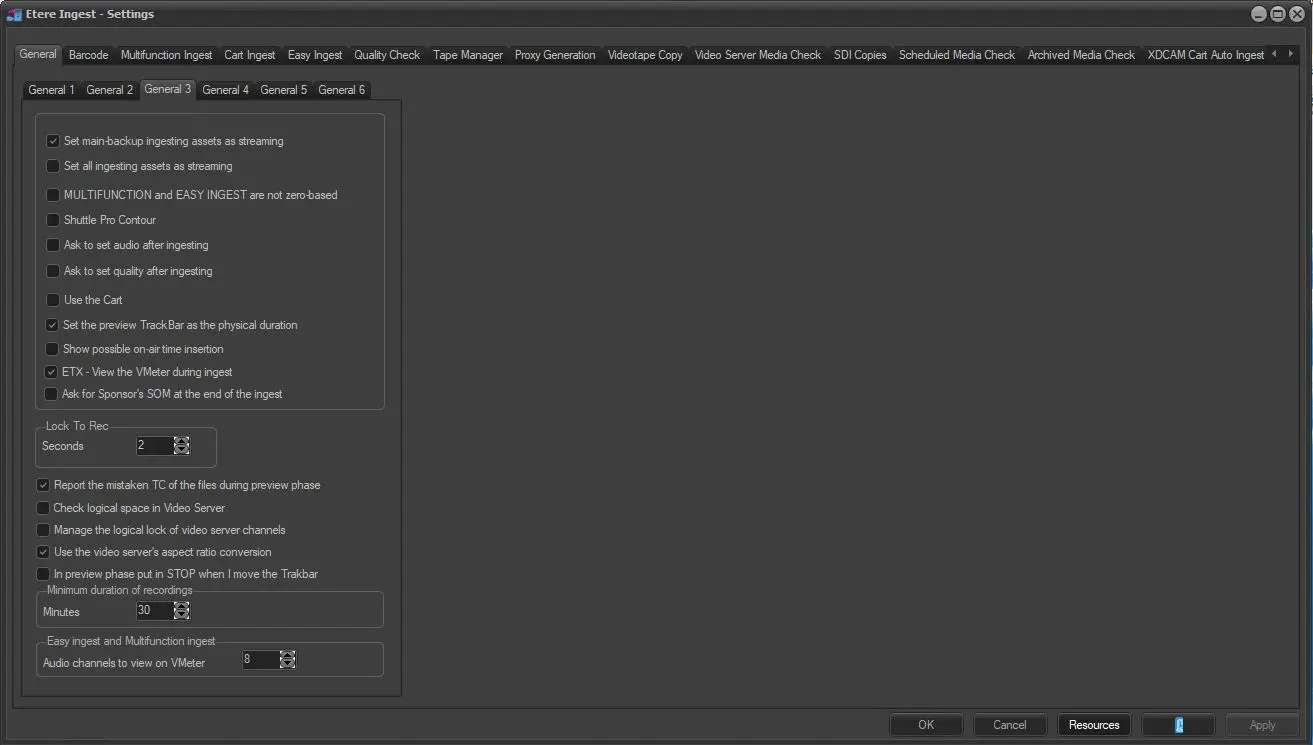
Is possible to configure the numbers of the Audio Track to be displayed in:
Etere Ingest > Settings > General > General 3 > Easy ingest and Multifunction ingest > Audio channels to view on Vmeter
vu_meter_channels
ingest_qc_v_meter
Search Panel
The search panel is located at the left side of the panel when the quality check function is launched. The standard search parameters available are:
•ID: Search by specific ID or all IDs in the list file
•Code : Search by specific code of a list of all codes
•Title: Search by specific media title or title starting with specific characters
•Type: Filter the assets by theirs object type
•Quality Check: Select an integer value from 0 (to be checked) to 9 (excellent) to determine the level of checking
•Operator: Specify the name of operator
•Etere PC: The quality check is triggered from Etere PC
•Date: Search for assets scheduled for the selected date range
•Workflow: Search the name of specific T-workflow
•Status: Specify the status of the T-workflow
The search begin after input the above parameters and click the <Search> button. A list of assets marched the search criteria will display on the left bottom window. Double click the asset you intent to select to start the quality check.
Set the Quality
Once you have selected the code corresponding to the video file you wish to check the quality, the video file is displayed on the middle portion of the window (if the proxy file check is activated) and on a dedicated monitor (if the high quality check is activated). When you have finished checking, decide the quality you want for the video file, you can select it in two ways:
Quick Select: Click on one of the three settings buttons located at the bottom of the middle window. Once selected, changes will take effect immediately.
•<To be Checked>: the video file must be checked again.
•<Insufficient>: the video file hasn't passed the quality check.
•<OK Quality>: the video file has passed the quality check.
There is combo-box at the top of the window, you can set the quality of the media by selecting a specific integer value from 0 (to be checked) to 9(excellent), you are also able to set the audio type of the media (mono, stereo, dolby, etc), as well as inserting a remark / comment regarding the quality of the media.
If you are using ETX resource for Quality Check, you must deselect "Lowres" file to avoid unnecessary error.
NB: When the Quality Check is in progress, the asset been checked would be logically locked to prevent access from other users and prompt warning message to notify users. The locked asset would be automatically unlock after a successful Quality Check.
Blocks Panel
Define in the right window is the asset's EDL (Edit Decision List). You can insert eventual breaks on specific segments, mark either video faults or garbage segments to avoid them to be played, set the visible segments to be played.
At the end of the check, press OK to confirm the process or Cancel to abort the performed changes.
 Ingest_-Quality_check
 vu_meter_channels
 ingest_qc_v_meter