72.19.6 Benchmark and Recommendations
This chapter provides some recommendations of hardware specification for installing Advanced QC and operations guidelines to ensure a smooth operation during analysis.
Advanced QC perform a deep analysis of audio and video objects in real time, it make extensive use of CPU resources. Advanced QC is designed to work on Windows platform (Windows 7 or later) and optimized to run on Google Chrome Web browser.
The analysis process is determined by parameters, the analysis parameters are organized in parameter groups. You can enable/disable different groups to meet your objective. The parameters in each group are interrelated, it is not advisable to disable only one parameter in a group during the analysis process.
The Parameter Groups are organized as follow:
Format_check
Frame_statistic
Baseband
Video_content
Video_quality
Audio
Loudness
Benchmarking – For all file formats
Several benchmarking performance tests had been performed in physical machines and virtual machines (VM) on Windows platform with following criteria:
•The tests were performed using different machine profiles, with different processors and memory characteristics.
•All machines were running on Windows 7 with Google Chrome web browser.
•The evaluation was done for different file types to benchmark the analysis speed.
•All tests were conducted by enabling all parameters and disabling some of them during the speed analysis.
•The tests involved analyzing single file and simultaneous files.
In the following test examples, color code are used in the tables to identify the parameters settings for self-explanatory.
Colour_code_for_benchmarking
Test # 1
Machine Profiles: Intel Core i7-4770 processor @ 3.4 GHz. 1 file
•File duration: 00:09:56.0
•Resolution: 1920x1080p
•Processor: i7-4770 @ 2.4 GHz
•RAM: 8 GB
•HDD: SATA Drive
•Simultaneous file: 1
The analysis results is shown in the table below.
Analysis results 1
Test # 2
Machine Profiles: Intel Core i7-4770 processor @ 3.4 GHz. 2 files
•File duration: 00:09:56.0
•Resolution: 1920x1080p
•Processor: i7-4770 @ 2.4 GHz
•RAM: 8 GB
•HDD: SATA Drive
•Simultaneous file: 2
The analysis results is shown in the table below.
Analysis results 2
Note: The speed is calculated considering the total process time for all files and comparing with the time it takes to process all files in parallel.
Test # 3
Machine Profiles: Intel Core i7-4770 processor @ 3.4 GHz. 3 files
•File duration: 00:09:56.0
•Resolution: 1920x1080p
•Processor: i7-4770 @ 2.4 GHz
•RAM: 8 GB
•HDD: SATA Drive
•Simultaneous file: 3
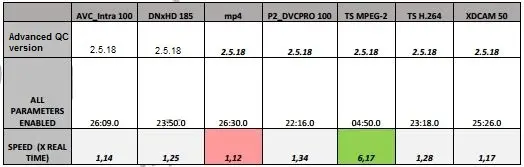
The analysis results is shown in the table below.
Analysis results 3
Note: The speed is calculated considering the total process time for all files and comparing with the time it takes to process all files in parallel.
Test # 4
Machine Profiles: 2 x Intel Xeon E5-2620v3 @ 2.4 GHz. 3 files
•File duration: 00:09:56.0
•Resolution: 1920x1080p
•Processor: 2 x Intel Xeon E5-2620v3 @ 2.4 GHz (6 Cores/processor)
•RAM: 16 GB
•HDD: SATA Drive
•Simultaneous file: 3
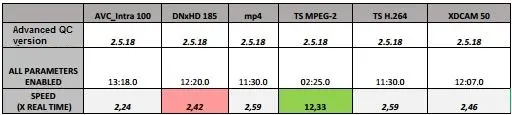
The analysis result is shown in the table below.
Analysis results 4
Note: The speed is calculated considering the total process time for all files and comparing with the time it takes to process all files in parallel.
Test Conclusions:
•The P2_DVCPRO 100 produces the slowest analysis speed for any parameter selection.
•The TS-MPEG2 produces the fastest analysis speed, up to 12 times Real-time speed for 12 Core machine.
•Using a 12 Core machine (2x6 Core Processors), opposed to 8 Core machine, provides real advantage when analysing 2 or more simultaneous files.
•When only 1 file is being analysed, the gain of using 12 Core instead of 8 Core machine is not significant, since the analysis of one file would not use 100% of the processor power.
•An 8 Core machine give advantage of simultaneous analysis with respect to sequential analysis, although the gain is low compared to a 12 Core machine.
•Only Baseband analysis (and audio) provides the fastest analysis speed.
•Disabling audio parameter does not give a real advantage with respect to video parameters in term of speed.
Benchmarking – MP4 and Transport Stream (TS) format
The tests focus on MP4 and TS file formats with H.264 codec. The tests were performed on different machines and different resolutions to determine the effect on analysis speed.
** For these tests, only Video Content parameters and Audio parameters were active. **
Test # 1
Machine Profile: Intel Core i7-4910MQ Processor @ 2.9 GHz (8 Cores)
•File duration: 00:15:42.0
•Processor: i7-4910MQ @ 2.9 GHz (8 Cores)
•RAM: 16 GB
•HDD: SATA Drive
•Parameters: Only Video Content (blockiness, blurring, freeze, etc) and Audio parameters enabled
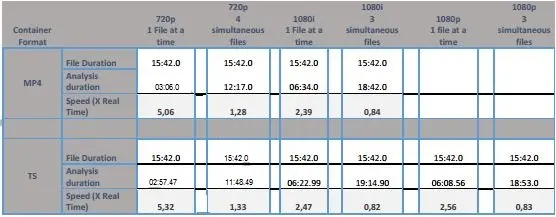
The analysis result is shown in the table below.
Analysis results 5
Note: The speed is calculated considering the duration of one file, thus calculating the speed of analysing all simultaneous files is with respect to one file.
Test # 2
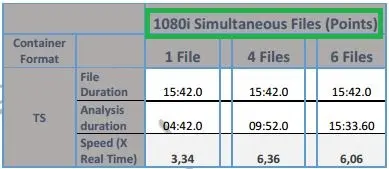
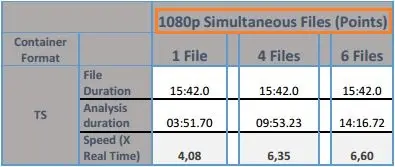
Machine Profile: VM Machine 16 Core Zeon ES-2698Bv3 @ 2 GHz
•File duration: 00:15:42.0
•Processor: Microsoft Azure VM 16 Core Xeon ES-2698Bv3 @ 2GHz
•RAM: 224 GB
•HDD: SATA Drive
•Parameters: Only Video Content (blockiness, blurring, freeze, etc) and Audio parameters enabled
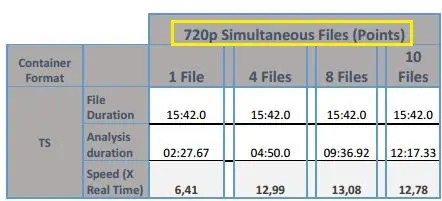
The analysis result is shown in the table below.
Analysis results 6
Analysis results 7
Analysis results 8
Note: The speed is calculated considering the accumulated time of all simultaneous files being analysed vs the total time to analyse all files.
Test Conclusions
•Fastest speeds are achieved when 720p format is used.
•Speeds between H.264 in TS and MP4 are similar.
•Speed with a 16 Core machine is more than twice faster than speed with i7 machine when several simultaneous files are analysed.
•More than 10 files can be analysed at the same time with a 16 Core machine when 720p format is analysed, keeping overall duration of all 10 files below duration of one file.
•Analysing one file at a time with a 16 Core machine does not have significant increase in speed of analysis due to decoder limitation.
•1080i is the slowest format to be analysed in these tests.
•More than 6 1080 files (1080i and 1080p) can be analysed simultaneously at a time using a 16 Core machine, with overall analysis time (all 6 files) shorter than the duration of one file.
Recommendations for speed analysis
•Ensure no other processes are running in the background at the same time.
•To optimize the speed, adapt the parameters to the T-workflow stage that you are at. For example
•If you are not analysing content coming from tape ingest process, you should disable the Digital Betacam Channel Condition Error, and Digital Dropouts parameters in Video Quality parameters group.
•If you are analysing the content coming from encoding, you should disable BASEBAND analysis (luminance/chrominance analysis) provided that they were already checked for after production/postproduction/edit phases.
•If you are not analysing the frame statistics such as frame types of key frames, you should disable all frame related content.
•Set analysis tasks to high speed.
•Higher processing power machines (12 core or above) would effectively save time in analysis of several simultaneous files, but not so much for sequential analysis of one file at
a time. So, make sure that you run simultaneous (concurrent) analysis when you have more than 8 cores in your processor.
•SSK Disks are preferred.
•RAID Disk configuration is recommended. You could also use NAS or SAN.
•When running Advanced QC on 8 Core of less machines, it is advisable to use more than one node for simultaneous analysis of several files.
•If several nodes are used, it require a high speed network connections, e.g. GB network.
 Audio
Audio
 Video_quality
 Baseband
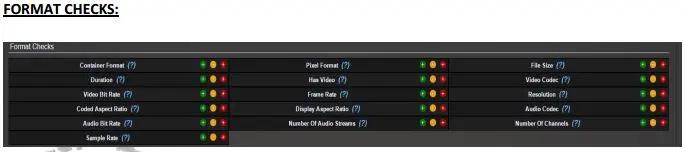 Format_check
 Video_content
 Frame_statistic
 Loudness
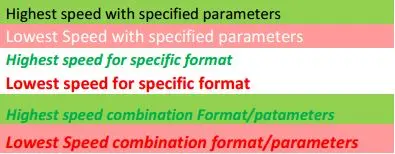 Colour_code_for_benchmarking
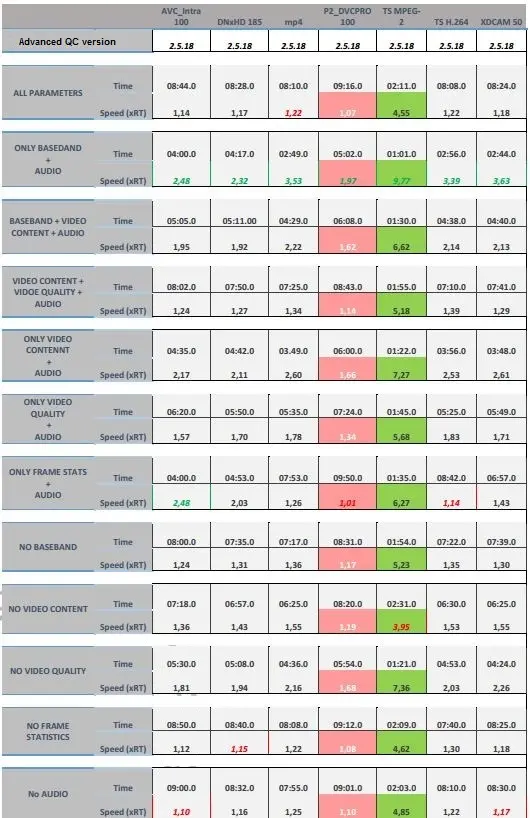 Analysis_results_1
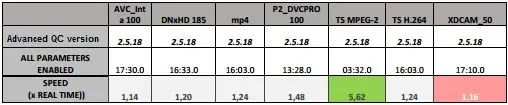 Analysis_results_2
 Analysis_results_3
 Analysis_results_4
 Analysis_results__5
 Analysis_results_6
 Analysis_results_7
 Analysis_results_8