59.2.40.29 Transitions
The Transitions section allows the station to view, set and modify the transition effects, logos/crawls, and GPI signals to be executed at each transition between two scheduled events of either the same type or different types.
Transitions
As shown in the figure above, the transitions table is based on the "event types" configured in the system, where each cell represents the transitions between a previous event and a next event.
NB: Please note that transitions set here will only occur if the two events are transmitted through two different Master Control inputs.
Selecting cells
The user-friendly interface of this section allows operators to easily select one or more cells by following the steps below:
•Select one cell: It is possible to select a single cell just by making click on it
•Select multiple cells: Click on one cell and select multiple cells while holding the [Shift] key.
•Select a column/row: Click on the heading row or column automatically select the entire row or column.
•Select all cells: Click on the [Previous / Next] heading label.
Use the [PgUp] and [PgDn] keys to move to the first or the last cell of a column, respectively; Use the [Home] and [End] keys to move to the first and last cell of a row, respectively.
Contextual functions
To define transitions between asset types, double-click on certain cell(s) and select the secondary events displayed during the currently selected transition. Additionally, by selecting and right-click on a certain transition cell, it is possible to perform the following actions:
Edit (INS / Double-click): Configure and use up to four Logo Generators for the selected cell(s). This function is described in the "toolbar" section below.
Copy (Ctrl + C): Use this function to copy all transitions set on a certain cell (to be pasted into another cell.)
Paste (Ctrl + V): Insert all transitions previously copied into the selected cell(s) using the copy (Ctrl + C) function.
Reset selected cells (Del): This function remove all transitions (effects, logos and GPI) set for the selected cell(s).
Copy to another station: Use this function to copy the selected transition(s) into another user-defined station.
Transitions: All transitions supported by Etere are available under this menu; it includes the shortcut key for each function.
NB: In case a transition between events has not been defined, the 'Cut' function would be applied by default when these events were scheduled. For detailed information on the various transitions supported by Etere, please refer to the "Secondary Events > Devices" section of the Media Library chapter.
Toolbar functions
The toolbar at the top panel of the window provides the user with the following functions for transitions management:
Edit: Opens the "On-air properties" form, which allows configuring:
• Logos: Set up to 4 logo generators to be executed at the selected transition.
The duration needs to be set; if a third logo is required, its duration would be calculated automatically. The first logo starts at the beginning of the event and remains active for the duration set. After which, the second logo is activated for the expected duration, and finally, the third logo starts and lasts until the end of the event. If you don't wish to use the logo, set this parameter to zero (0).
NB: The list of logos can be modified in Etere configuration > Settings > Basic > Logo Generator N. X and routed in Etere's Configuration > Resources.
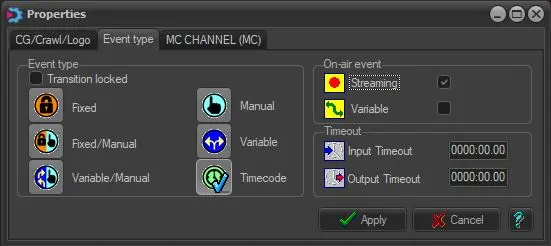
• Event type: Specify the changes to be performed on "event types" properties at the selected transition:
Event_type
Moreover, if the "transition locked" option is enabled, no changes are allowed to transitioned events' "event type" property.
• Routers: Select and set the transition type (cut, v-fade, etc.) for the selected transition.
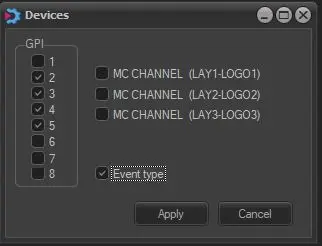
Parameters: Set the criteria to be applied for the selected transition. Available parameters are:
selected_transition
•GPI signals: Dictate the GPI signals, which should be activated at the selected transition.
•Logos: Mark the logos to be activated at the selected transition.
•Event type: If enabled, the properties of transitioned events would change according to the parameters set in the "Edit > Event type" section.
NB: If the "transitions locked" flag was enabled for the event, the event type could not be changed.
 Transitions
 Event_type
 selected_transition