71.4.2.1 Search tab
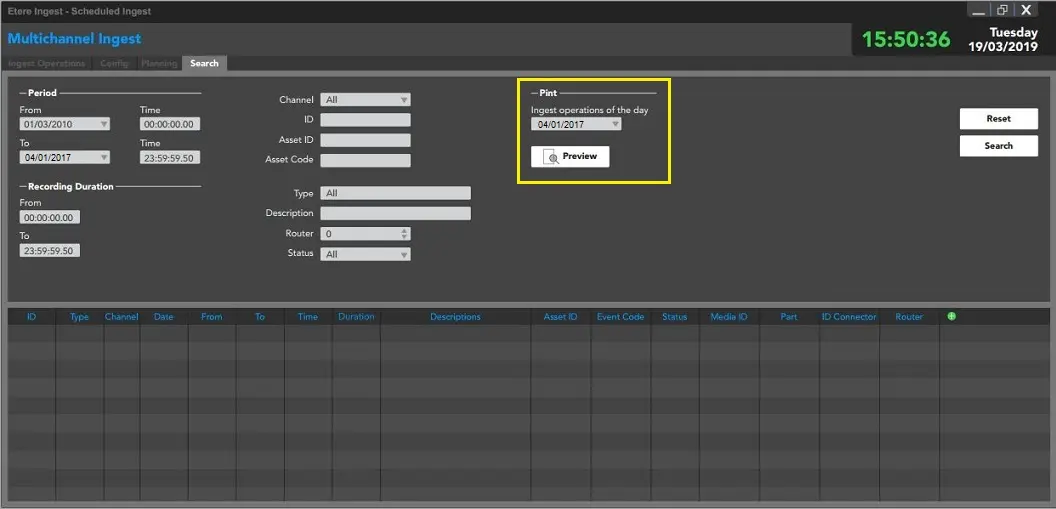
The Search tab allows you to seek scheduled ingest operations matching a particular set of filters (e.g. dates, times, duration, channel, description, etc.):
Dates, time, duration, channel, description
Period: Filter by range of dates and times.
Recording duration: Look for all the ingests which duration is included between the value in From field and the value in TO field.
Channel: Filter by the channel which the recording was configured for, or leave ALL set to include all channels.
ID: Search by the recording ID.
Asset ID/Code: Search by the asset ID or Code associated to the operation.
Type: Look for all the recordings of a specific type (single, periodical, scheduled-live ingests, completed). Otherwise set ALL to include all recording types.
Router: Filter by the router channel set in the recording configuration.
Status: Search all the ingests in a specific status. Possible values are ALL, To execute, Performed (D), Wrong (E).
Description: Filter the search by recording description.
The found recordings will be displayed in the table below, along with their details, and a double click allows to see how the selected ingest operation has been configured.
You can also generate a report listing for distribution from the Search results, capturing all the ingest operations scheduled on a specified date.
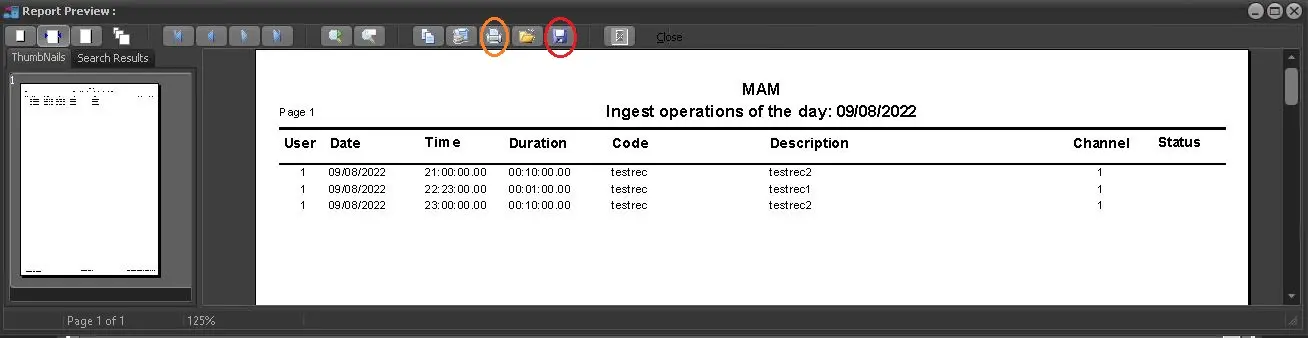
From the Print section, select a date from the calendar where the ingest operations were scheduled, and click the <Preview> button to display the captured data on screen.
Report Preview
You can save the report as a soft copy from the Preview page or print a hard copy for distribution.
 Dates,_time,_duration,_channel,_description
 Report_preview