Prerequisite
In order to import ETX graphics object and preview with logo, one of the following criteria must be fulfilled:
1.Create / add an asset with asset type “ETXG” to the workstation.
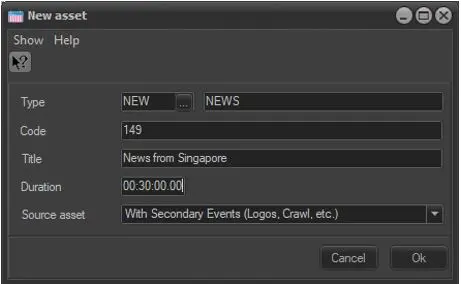
In the screenshot below, specify asset type as “ETXG” when adding a new asset, this would enable the asset to perform preview with logo for ETX graphics.
New asset
2.Use an existing asset with “ETX Graphics” specified in the properties settings.
Using the Resource Editor under the resources configuration, you can modify the type of properties for an existing asset as “ETX Graphics” in order to import and preview ETX graphic objects. The following displays an asset with “ETX Graphic” defined in its properties settings.
Modify type
3. The import of graphics objects require Etere license EA3213 to be installed in workstation.
Import ETX Graphic objects
1.To import ETX graphic objects, launch Media Library module from the workstation where ETX-G is installed, from the Media tab, select “Graphic file import” from the contextual menu to import graphic objects.
During import of graphic object, ETX-G default codec would be assigned to graphic object to be upload into the asset form.
Graphic file import
Important note: A valid ETX-G license must be installed in the station where ETX-G in running. Without a valid license, various functions related to graphic operations cannot be performed.
2.When importing a single graphic object into Media Library, the media name of the object is the asset ID. A list of file extension for selection are: .ml-cgc, .tga, .jpg, .png, .mov, .avi, .bmp, .swf and .ctm.
3. When importing multiple graphic objects into Media Library, the group of files must contain a file with extension *.ml-cgc, else the importation process would failed with error message “Graphics project not supported by ETX-G”. When importing a single ml-cgc file containing multiple graphics files, a project would be created to contain the single ml-cgc file and launch Etere CG Editor dialogue box for editing the project and graphic file. The ml-cgc file would be removed from project after the project is saved into a directory. The content in the directory would be updated to metafiles in database.
4. After imported the graphic, there is only one repository for graphic object. Each graphic is stored under its ID in the metadevice path (e.g. \metadevice\xxxx, where xxxx is the graphic ID), each graphic used a single directory, and user can create as many subdirectory as required under the single directory.
During Playout and preview, it must call the graphic asset in \metadevice\id media name.
5. After import, the default T-workflow “After asset graphic file import” would be launched to trigger the Data Mover action to move the imported graphic objects to the on-air station as defined in the T-workflow.
6. When a new graphic is created, it is flagged automatically as “not to be broadcasted”. When a new version of graphic is created, the old graphic would be copied under the new directory.
7. When link graphic to asset, only one graphic is allowed to be linked. The linkage can only be done from a Windows Client machine.
Note: When ETX-G is active in Automation, generator device such as Logo and CG are no longer in used. The graphics are managed by Etere’s STMan application, which require EA3213 License to be acquired.
Create Graphic in Asset Form
In Media Library, you can also launch the ETX-G Graphic Editor and create a graphic project from within the asset form.
First, launch the Media Library module and access to Media tab, right click on interface and select “Graphic project creation” from the contextual functions menu.
Graphic project creation
The “Graphic Project Creation” function would open the graphics editor where you can design the graphic project. The created graphic project would be added to the asset form.
Edit ETX Graphic Object
After import the graphic file, you can edit the graphic file by right-click on the graphic and select “Edit” to launch the editor function.
Edit
The edit function is only enabled if the graphic is not to be broadcast. If the graphic is for broadcast, the ‘Edit’ function is disabled.
Modify Graphic Background
It is possible to modify the default graphic background provided by Etere with a custom background. You can edit the custom background with any graphic editor, and save the edited custom background objects into Etere Installation folder (C:\Program Files (x86)\Etere) as shown in the image below.
Etere Installation folder
The edited custom background objects must be saved in a correct file name in order to replace the existing files.
When you launch the ETX CG Editor to edit the graphics object, the saved custom background files would be available for selection.
ETX CG Editor
Import ETX-G Schedule as Secondary Events
When import ETX-G Schedule as secondary event, if the asset property type is graphic, the following applied:
-the asset is flexi metadata only
-there are no SOM/EOM in the asset, only contain duration
-If there is media attached to the asset, its duration can be edited
-The asset contain no segment.
MAM etx-g secondary event