84.2.4.19 Secondary Event Replacement
From Executive Editor, is possible to lunch Secondary Event Replacement tool:
4960_Secondary_Event_Replacement_1
In the form below, you are able to filter the information by date, range, time range and day of the week.
4958_Secondary_Event_Replacement_2
Under the "Script to replace" section, you can search through the script strings or logo generators to locate and replace the secondary events.
Filtering by scripts might not seamlessly locate the specific graphic objects, due to same script used on multiple graphics. In view of this, the "Parameters" filter was introduced to enhance the replacement of secondary event:
1. Once the script has been selected, enable the "Parameters" flag and click on the button beside it.
2. Insert the LAYER and LOGO data, related to the script that needs to be replaced.
3. Repeat the steps 1 and 2 for the new script and start the search.
It would only replace the graphics that match the value in the parameters.
It is possible to replace the ctm by assigning new parameters or by keeping the existing parameters by checking the parameters checkbox.
When searching for secondary events with the “Parameters” filter, the following criteria are applied:
• In the event when the “Parameters” filter was used without any data indicated, the Search function would only retrieve those scripts where the parameters are not populated.
• If the “Parameters” contain specific search value (e.g. “1”), the Search function would retrieve those secondary events matched the exact value specified in the parameter, for example, secondary events with parameter string “SPK_123” or “SPK_3125” are not retrieved.
• In Search form, secondary events matching the above filters, are displayed in the “Parameters” column.
4959_Parameters
The "Parameters" filter is not available when searching a logo generator graphic. In that case, there's no need to specify any parameter since they are not used for a fixed logo.
In addition, it is possible to replace a ctm with a logo and vice-versa.
When a secondary object with an order line is scheduled in a primary event not linked in the Air Sales structure, a warning message stating "Assets not linked" is displayed.
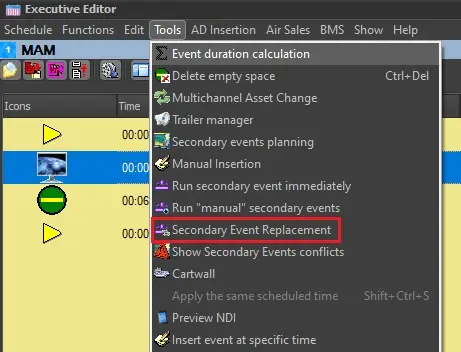 Secondary_event_replacement_1
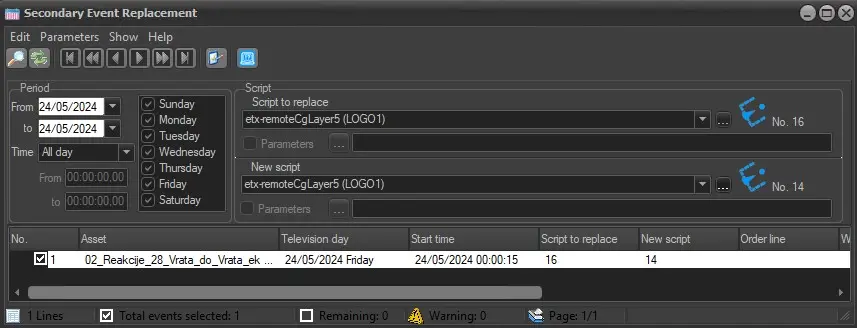 Secondary_event_replacement_2
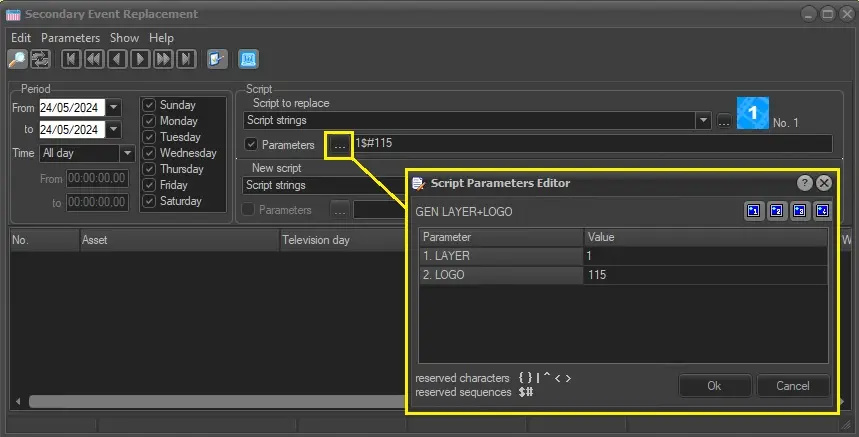 Parameters