Lines Data
4.5.2.7 Virtual Document
The Virtual Document tab manages the virtual documents attached to the asset; you can add a new document to the asset, view the content of existing documents, or delete the attached virtual documents.
- First, click the <Add> icon to open a dialogue to insert a virtual document to an asset;
add_new_document_to_the_asset
- Click the <Add files> button to locate the path to the document, or drag-and-drop the file directly from its folder;
Add_files
- Select a file inserted and click <Open> to confirm your selection. The selected file would be added to the dialogue;
confirm_your_selection
- Next, click the <Upload> button to upload the file to EtereWeb, or remove the attached document by clicking on the <Clean> button. You can repeat the step to add more virtual documents to the list and click the <Upload All> to upload all files in one go;
- After upload, the file(s) appear in the Virtual Document tab;
Upload_button
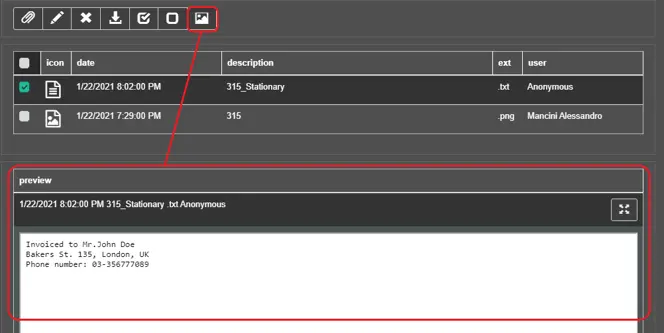
- You can check on the document and click the <Preview> icon to view the content of the virtual document
Preview
The previewed file can be displayed in full-screen mode in another browser tab by pressing the button at the top-right of the preview panel.
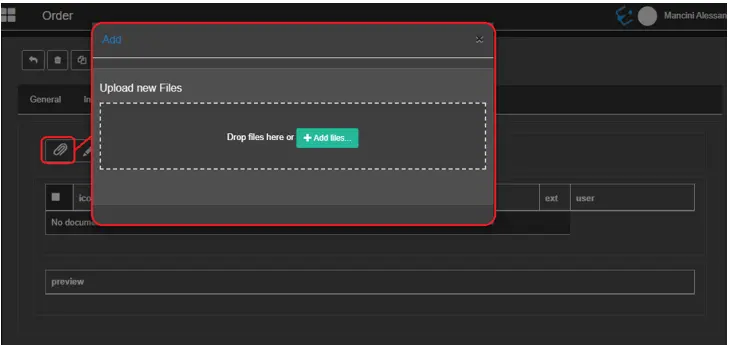 add_new_document_to_the_asset
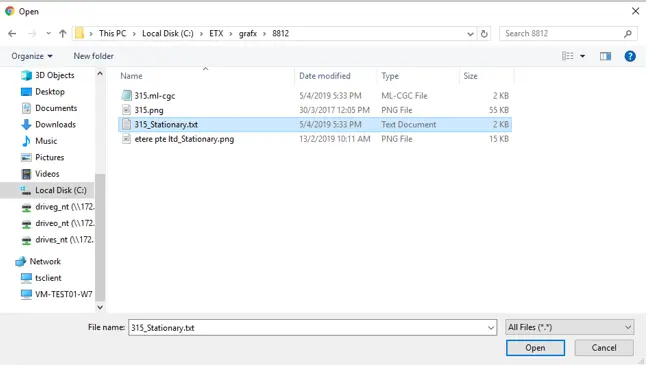 Add_files
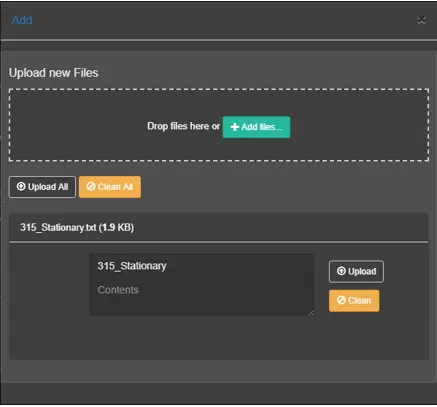 confirm_your_selection
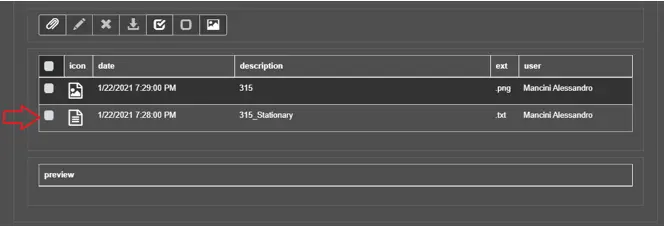 Upload_button
 Preview