6.2.2.1 General tab
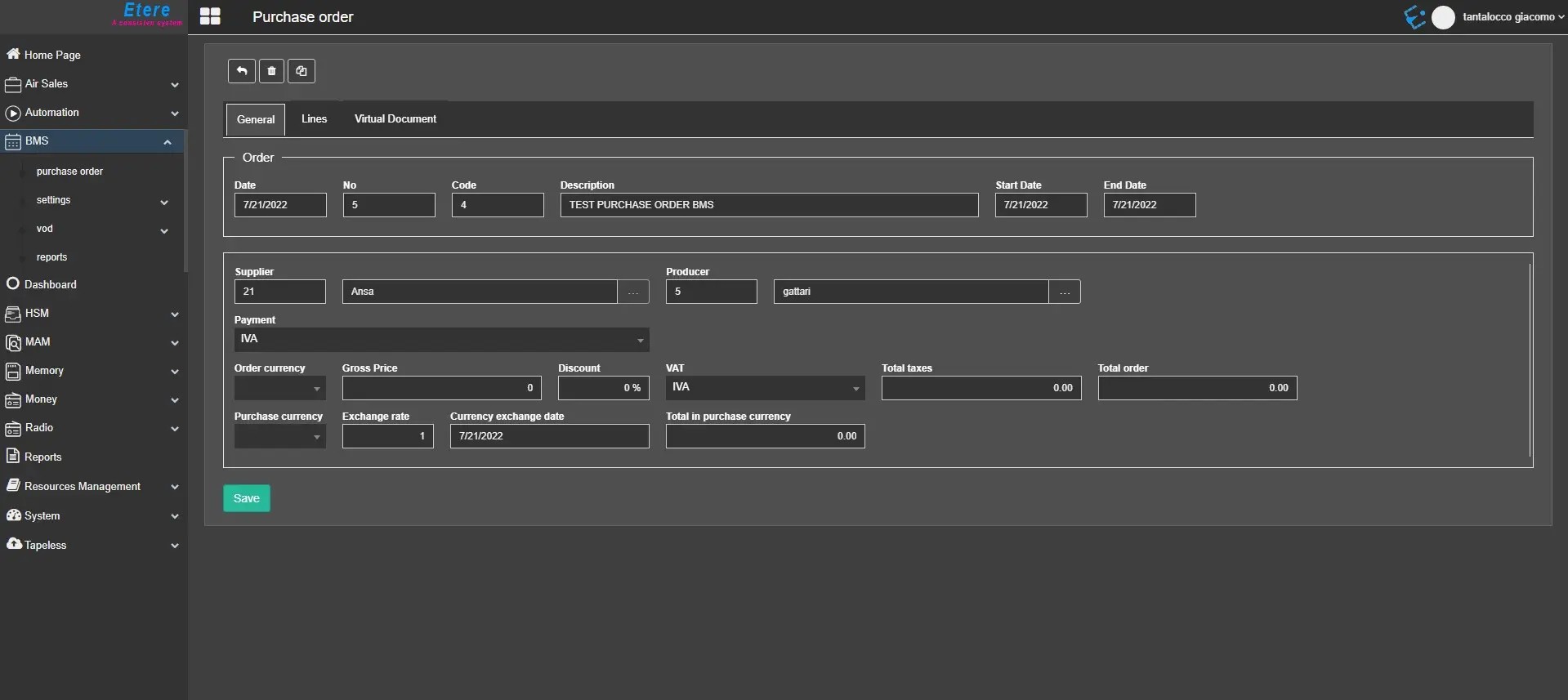
In the General tab are displayed all the main information of the contract. Information like Date, Order No., Code, Description, Start/End Date, Supplier and Producer are automatically retrieved when the Order is created.
new_purchase_order
Other information includes:
Payment: Select the method of payment from a list of predefined payment types in Etere Configuration > Settings > Invoicing data > Payments for this specific purchase order. This information is then used to manage the timely payment of the rights featured in the purchase order.
Order currency: This parameter is defined in the Settings of your PC in Control Panel > Regional and Language Options; it can be customized if necessary. At the bottom of the window, you can view the order's amount in different currencies, which is particularly useful for international orders. Input the foreign purchase currency, the exchange rate, the date of said rate, and the respective Total Purchase Price. This does not calculate automatically, as commissions are often considered on top of the basic calculation.
Gross Price: Insert the expected gross price of the purchase order.
Discount: Insert the deal you wish to assign to the specific purchase order.
VAT: VAT code (Value Added Tax) in percentage needs to be assigned to the purchase order. VAT codes are pre-configured in Etere Configuration > Settings > Invoicing data > Codes GST.
Total taxes: The amount of taxes applied to the contract, calculated from the Gross price parameter.
Total Order: The total price of the Order, calculated by adding the total taxes to the gross price.
Purchase Currency: If the purchase order has been established under a different currency, insert the specific currency accordingly.
Exchange rate: Specify the agreed currency exchange rate.
Currency exchange date: Indicate the operational date of the rate of currency exchange.
Total in purchase currency: Manually input the approved purchase order price in the foreign currency. The program does not calculate the amount automatically, as there are often commissions to be included. This parameter needs to be input manually.
Once the information is fulfilled and saved, proceed to the Lines tab and provide further information for the new contract.
 new_purchase_order