84.5.3 Verifying Schedules
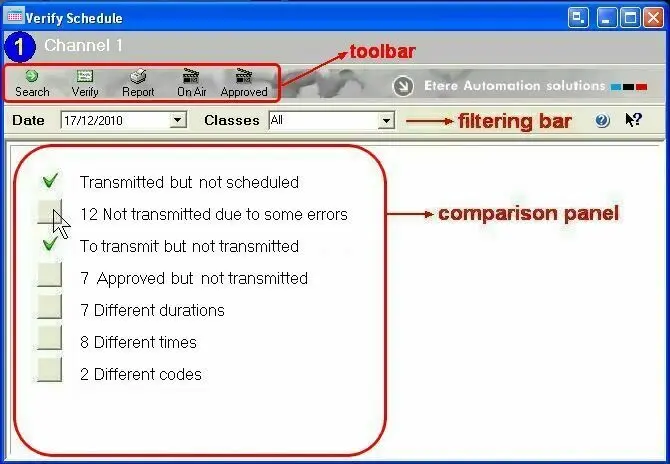
Once all required configurations have been set (i.e.: classes and parameters), the Verify Schedule module is ready to be used, its user-interface consist of a simple form divided in a toolbar, a filtering bar and a comparison panel:
Sched_verifyschedule
Toolbar functions
❖Search
It will compare the approved schedule of the selected date (if available) against the on-air schedule of the same date, filtering only those events matching the selected 'class'. Results will be displayed in the panel below, indicating:
•Transmitted but not scheduled: Transmitted events present in the on-air schedule but not in the approved schedule (e.g.: last-minute inserted events).
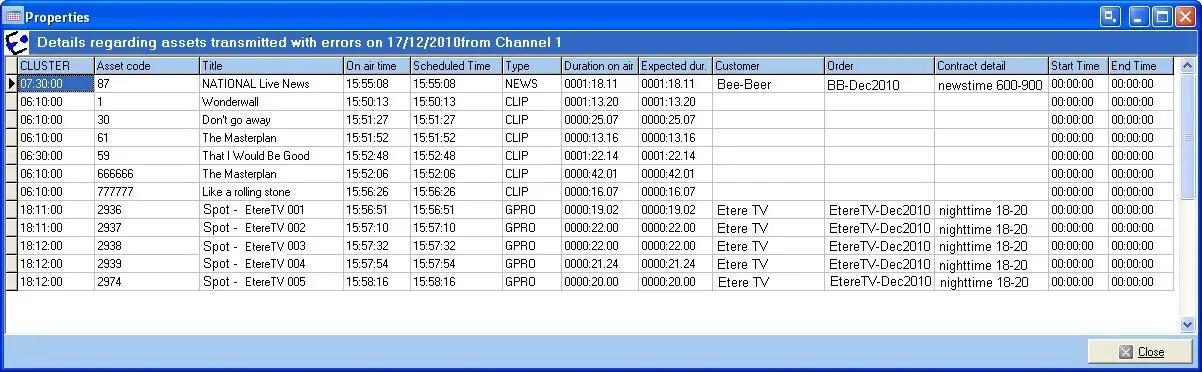
•Not transmitted due to some errors: Transmitted events present in the on-air schedule which presented some abnormal issues during their transmission (e.g.: skipped events),
•To transmit but not transmitted: Events present in the on-air schedule either in a different cluster respecting to the approved schedule or in the same cluster but in a different position (e.g.: a shifted commercial break).
•Approved but not transmitted: Events present in the approved schedule but not in the on-air schedule (e.g.: because they have been manually deleted).
•Different durations: Events present in the approved schedule with a different duration respect the one of the on-air schedule (e.g.: skipped events with shorter durations). The maximum durations difference allowed by the program can be set in Etere Configuration, as explained in the previous chapter: See required configurations.
•Different times: Events present in the approved schedule with a different time slot from the one detailed in the transmission schedule (e.g.: commercial events aired out of its allowed time range). The maximum times difference allowed by the program can be set in Etere Configuration, as explained in the previous chapter: See required configurations.
•Different codes: Events present in the approved schedule with a code which differs from the one present in the on-air schedule (e.g.: it was manually modified by the operator, it belongs to an imported event, etc).
Encountered issues listed in the bottom panel are complemented with an icon indicating the result of the comparison between the approved schedule and the on-air schedule, these icons are:
• any of the above mentioned issues have been found when comparing the approved schedule against the on-air schedule,
• the operation has not been performed due to the lack of either the approved schedule or the on-air schedule,
• : some issues have been found when comparing the approved schedule against the on-air schedule. Making click on the gray box will display the issue details, for example:
Sched_verifyschedule_1
❖Verify
It sets the schedule as verified, that is, indicates that the on-air schedule meets the initially approved schedule.
❖Cancel
In case the schedule of the selected day have been already verified, this button will permit to remove its "verified" status setting it as "unverified".
❖Report
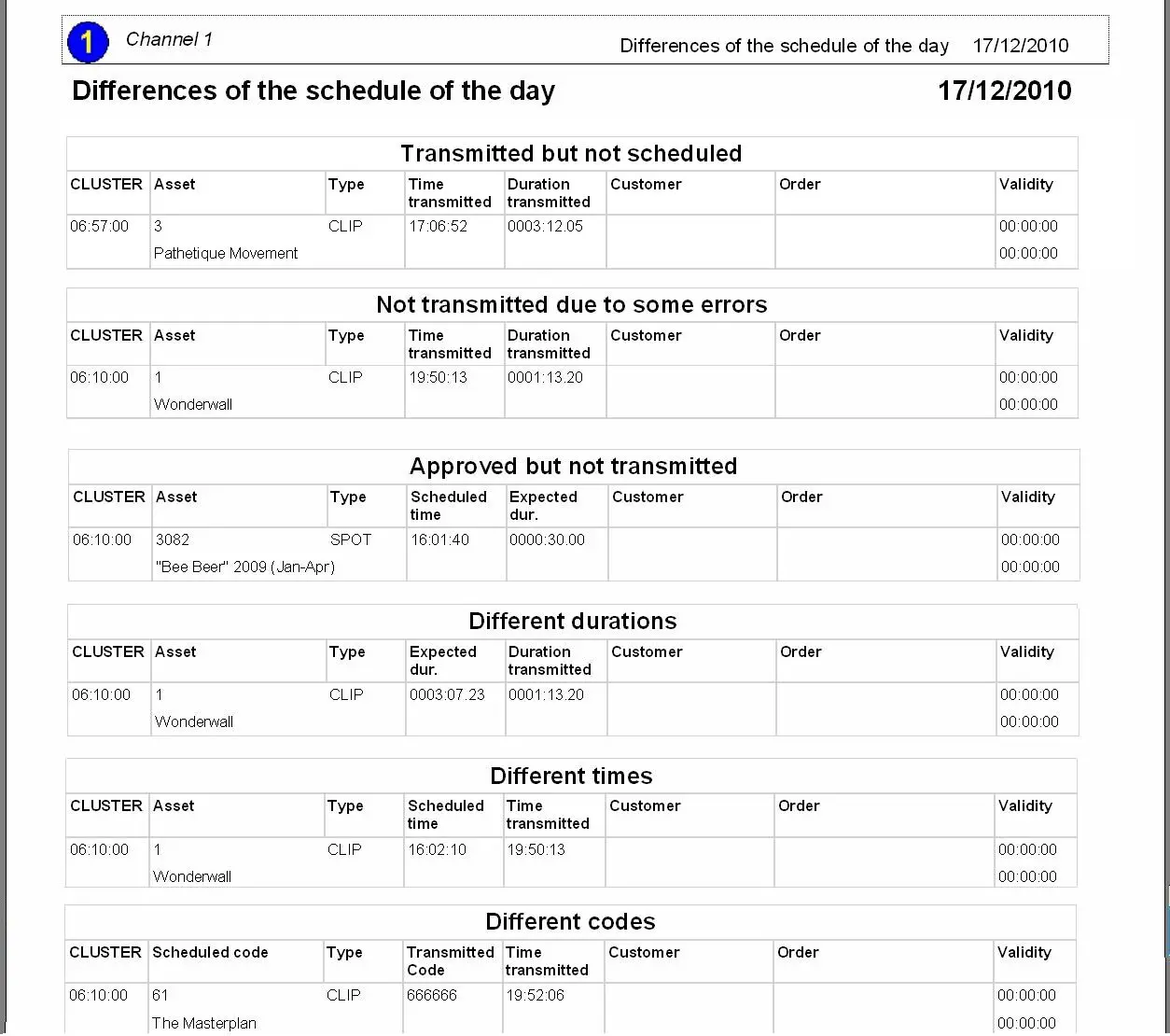
The Report button will permit to generate a printable document containing all the issues present in the selected daily schedule:
Sched_verifyschedule_2
❖On Air
It opens in Executive Editor the on-air schedule of the selected date,
❖Approved
It opens in Executive Editor the approved schedule of the selected date.
Verification procedure
Verifying a schedule is an easy task, it is enough to follow the procedure described below:
1.Select the DATE for which an approved schedule has been saved using the 'verify schedule' option of Executive Editor, indicates also the CLASS to be used to filter events (e.g.: all, only commercials, etc). If the “Classes” parameter is left blank, the schedules for all asset types would be verified.
2.Click on the SEARCH button from the toolbar to compare the approved schedule against the on-air schedule and show all encountered issues in the bottom panel,
3.Make click on the displayed icons to see in detail all the results of a particular comparison; it is also possible to print the entire comparison by hitting the REPORT button.
4.Use the APPROVED and ON-AIR buttons to view the approved and on-air schedules of the selected date. If the user determines that the approved schedule corresponds to the on-air schedule, by pressing the VERIFY button the schedule will be in the database as verified.
 5321_Sched_certification_01
 5320_Sched_verifyschedule
 5319_Sched_certification_02