59.3.9.116 Web Request
Action Description
A web request action allows handling requests received via T-workflow from web users who ask for temporary permission to perform a particular task (e.g. download a file linked to a specific asset).
Once the request is evaluated, web users will automatically receive an email notification containing the information (e.g. ID, codec, fixed note and an evaluation note) about the asset for which the request has been performed. The email notification will be sent to the email specified in the personal data of the web user who performed the request, depending on the entity type:
•Company: the notification will be sent to the marketing or contact email.
•Person: the notification will be sent to the office or personal email.
NB: Please note that currently, Etere manages a unique "web request" action; therefore, each time a new "web request" action is created and saved, it will replace/overwrite the already existing action (and remove the replaced action from all T-workflows on which it was present).
Action Parameters
This kind of action needs the following parameters to be compiled to be created:
•Name: Give a name to the action (e.g. 'Request file download').
•Select the right type: Select the action allowed for the web. Currently available operations include the 'download metafile' right.
•Enabled days: indicate the number of days that will determine the validity of the previously selected right (0=unlimited).
•Select Email Profile: Select here the SQL Email Profile to be used for sending the email (see How to create an email profile in SQL).
• Email additional text: Enter a fixed text to be appended at the end of the email.
•CC: Sends a carbon copy of the email showing the email address in the recipient list.
•BCC: Sends a blind copy of the email message to a recipient whose email address won't appear in the message.
How to use it
The way 'web request' actions are used within Etere is explained in the following procedure:
1. The system admin creates the 'web request' action and includes it into a T-workflow; this, under the Etere Configuration - T-Workflow designer:
web_request_action_into_a_T-workflow
2. The system admin sets the T-workflow to be used for 'Requests for file downloads' under the Etere Configuration - Web Settings section:
Requests_for_file_downloads
3. A web user attempts to download through an EtereWeb file and requests permission to perform that task (i.e. download one file or all linked files):
download_one_file_or_all_linked_files
It is important to mention that "web requests" T-workflows are not attached to the asset form but directly to the requesting user's data:
Request_for_download
4. The system admin searches for all the assets with pending requests using the 'Requests' filter on the Media Library search form:
requests_filter_during_the_search
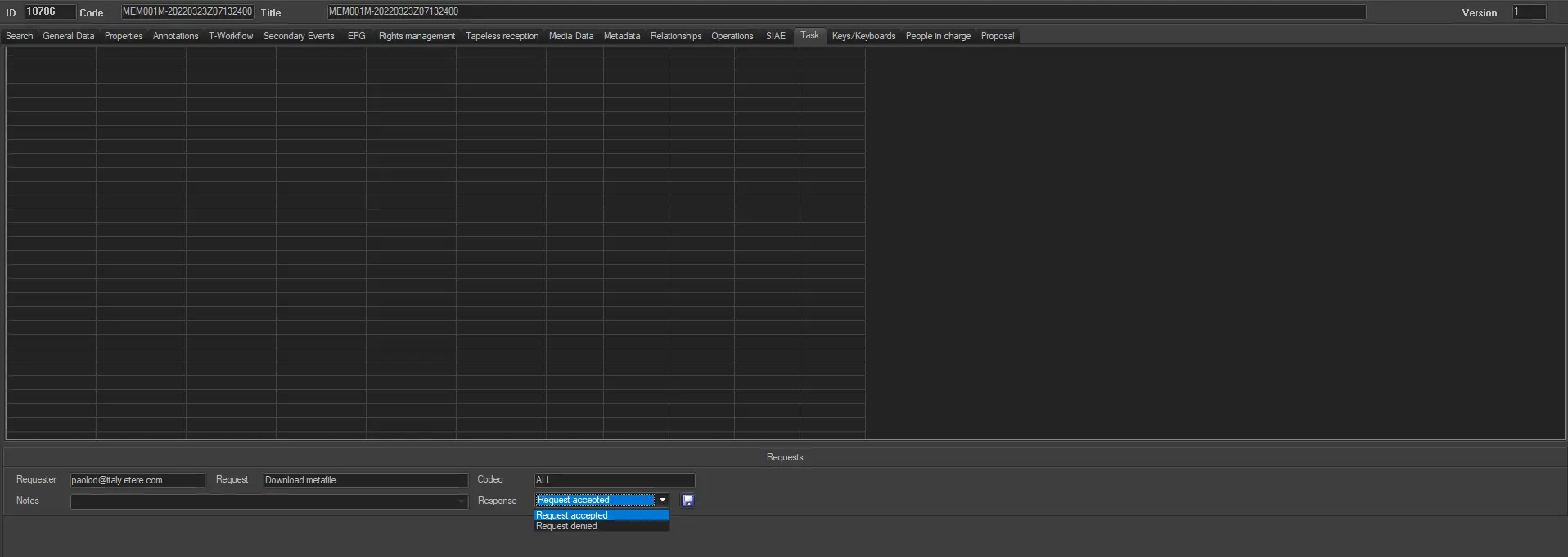
5. The system admin opens the asset form for which the request will be settled and, under the Asset Form - Tasks section, accepts or denies the request:
Worksheet_section_accepts_or_denies_the_request
NB: Please note that only operators with rights over the "web request" action will be allowed to respond to the web request.
6. An email message will inform the web user who requested the download about completing the request. For example:
From:
supervisor@mystation.tv [system-profile email account]
To:
wuser5@lagency.com [personal-data email account]
Subject:
Web request: download metafile [request type]
Body:
Web request: Download metafile [personal-data code]
Asset code: 22 [code of the requested asset]
Asset tile: Bee-Beer spot 2012 [description of the requested asset]
Codec: ANY [media codec requested for download]
Response: Request accepted [answer about the request approval/denial]
Etere has automatically delivered this system. [email additional text]
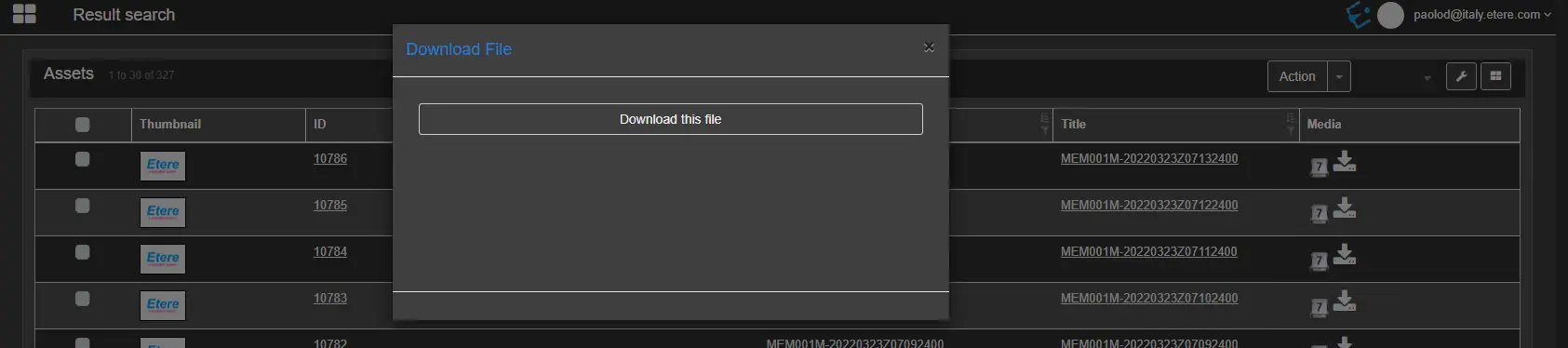
7. In case the request is accepted, the web user will be now allowed to download the requested file(s) through EtereWeb:
- From the media tab:
click_to_download
8. Information about pending, accepted and denied requests is available for operators under the Asset Form > Operations tab.
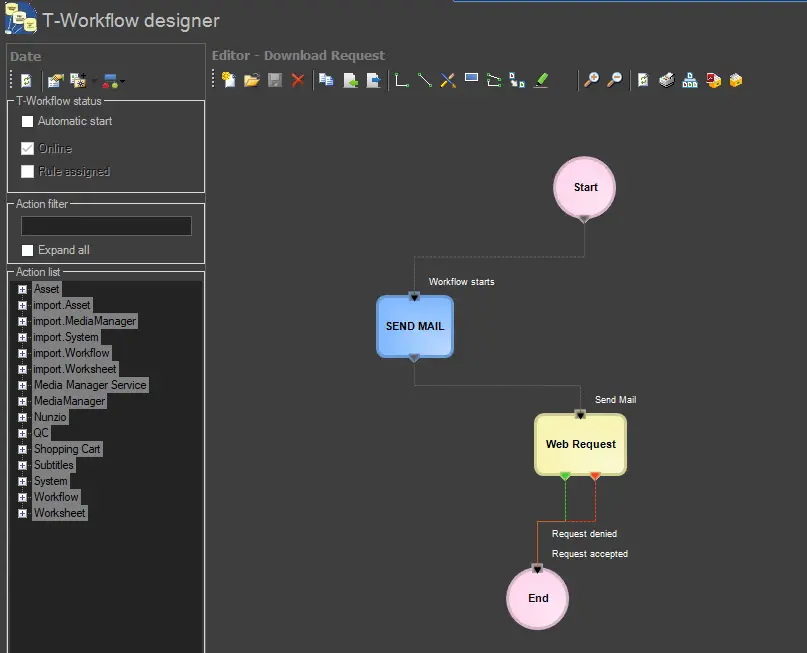 web_request_action_into_a_T-workflow
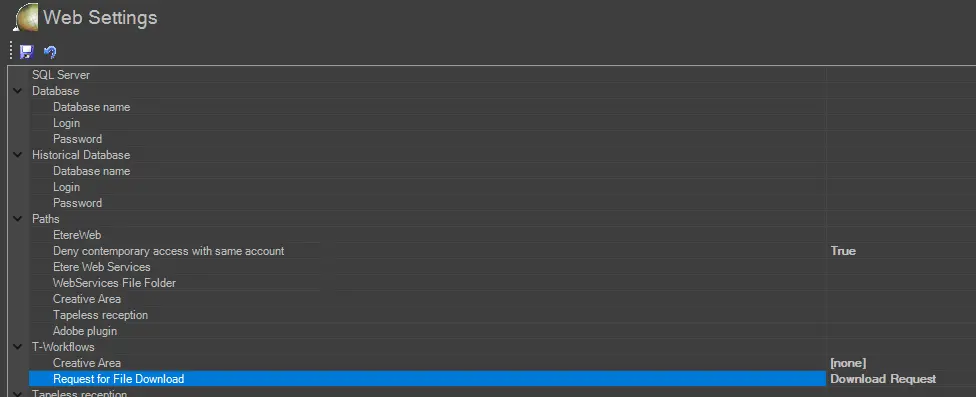 Requests_for_file_downloads
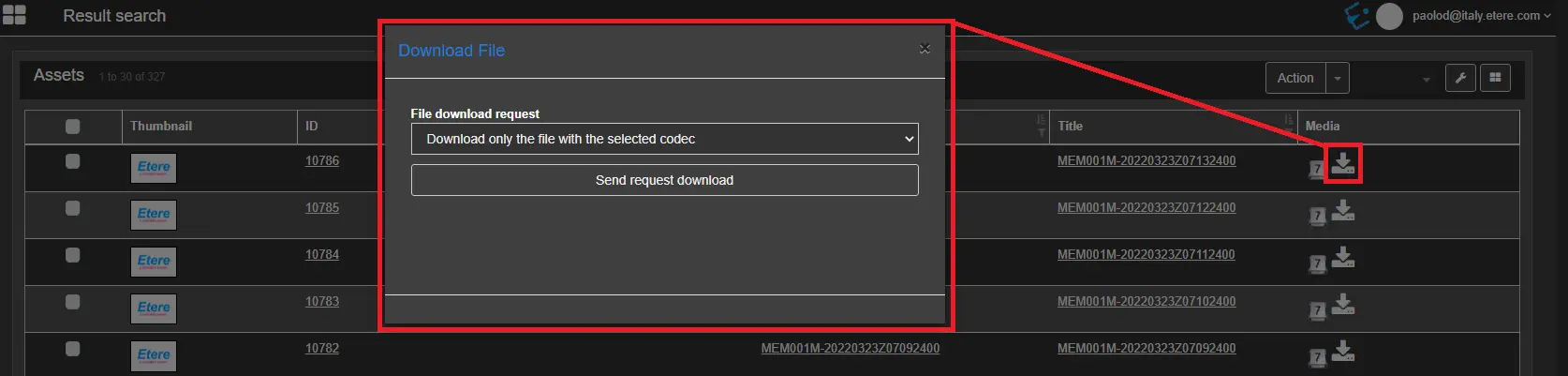 download_one_file_or_all_linked_files
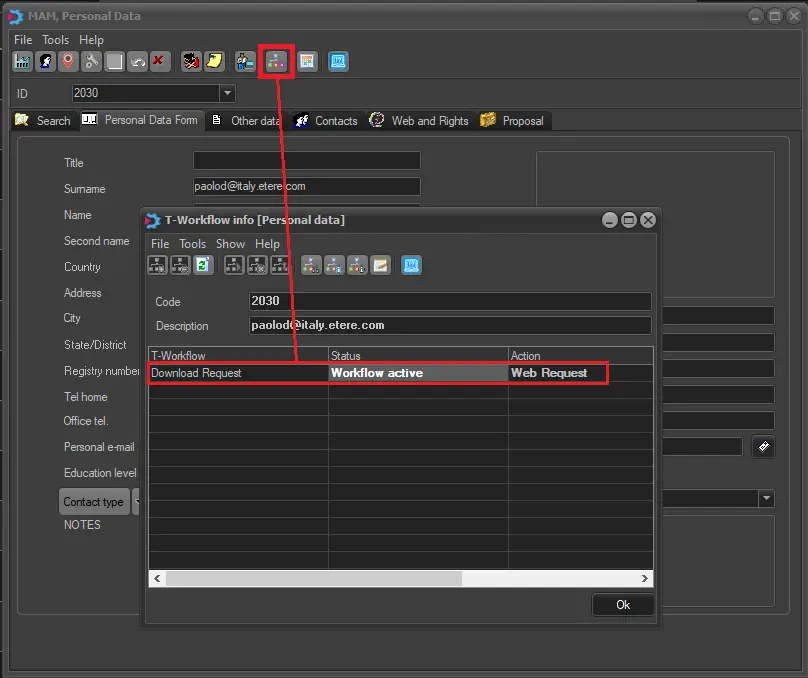 Request_for_download
 requests_filter_during_the_search
 Worksheet_section_accepts_or_denies_the_request.
 click_to_download