59.7.3.6 Use a metadevice via workflow
Once you have created a meta device that combines various volumes within the system as a single logical storage device, you can develop T-workflows to define how the storage would be used.
Go to Etere Configuration > Configuration Editor > Datamover section; you can create several actions to include the meta device in Etere's workflows.
Follow the procedure below to create a simple T-workflow that copies the files from a specific meta device (e.g., 'Lowres') to another one (e.g., 'ArchiveProxy'):
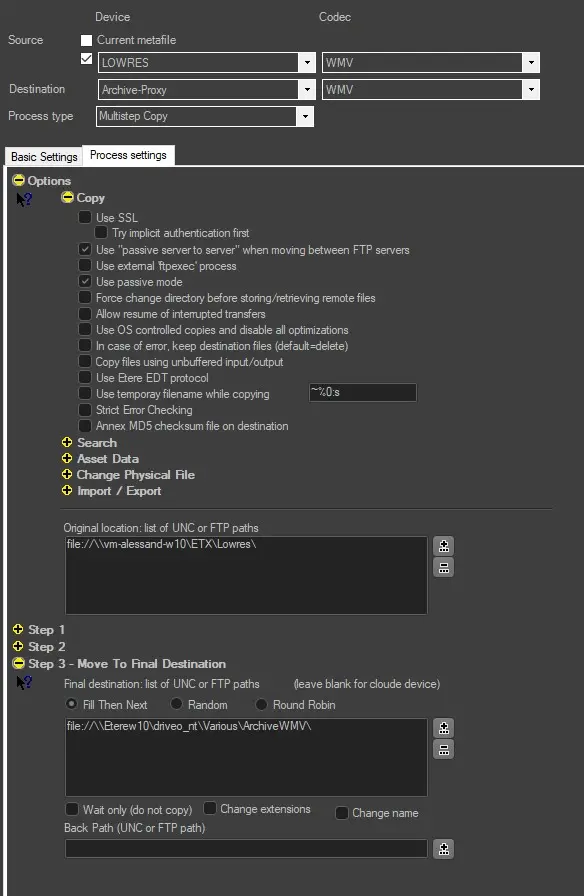
1. Go to the Copy section and create a new 'multistep copy' action (see the Multistep Copy chapter for detailed information); you are required to compile the following fields:
• General action settings - Source: the source device where video files would be retrieved (e.g. 'Lowres') and their codec.
• General action settings - Destination: the target meta device where video files would be copied (e.g. 'ArchiveProxy') and the codec Etere should assign to the destination metafiles.
• General action settings - Process type: specify the copy type to be used; in this case, the 'multistep copy' suits the current process.
• Process settings - Original location: by clicking on the '+' button of the Options node, you can force the path from which video files would be copied. Otherwise, the first path in the source meta device will be used.
• Process settings - Final destination: clicking on the '+' button of Move to the final destination node makes it possible to force the path on which video files would be stored. Otherwise, the first path in the destination meta device will be used.
Datamover_copies
2. Repeat step 1 on those volumes you intend to copy, creating a data mover action for each volume in the copy process and changing source and destination devices and paths according to the specific needs.
3. Optionally, in Etere Configuration > Configuration Editor > T-workflow > Actions section, it is possible to create a new Cloud Balancing action with the policy that better fits your needs (see the Load Balancing Actions chapter for further information).
This action would determine (each time a copy is requested) which volume stores the copied video file based on the given policy, thus performing a balanced copy operation.
4. Once all the needed actions are created, navigate to the T-workflow Designer and start a new T-workflow containing the previously mentioned actions as shown below.
example_archive_wf
5. Next, launch this T-workflow on the asset(s) that reference the files to be processed and that you intend to store into the chosen meta device.
NB: For more detailed information, please refer to the proper T-workflow chapter of this guide, where all workflow features are explained in detail.
 datamover_copies
 example_archive_wf