4.5.2.1 General
The General Tab contains general information of the Lines data.
General
• From date / To date: Specify in which dates range the current line have to be scheduled.• Exclude dates: With this button, it's possible to exclude the contract line from the scheduling for one or more days within the date range specified.
• View free space: This button allows to see how much free space is available in each of the days specified in the range. The table shows the total, used and free space expressed in HH:mm:ss, while the last column shows the free space expressed in percentage. The rows are highlighted in green when the free space is 100%; in orange when the free space is less than 50%.
• Start time / End time: Specify the expected start and end times of the event to schedule.
• Line Logo type: Enable this option to link a logo to the contract.
• Description: A brief description to identify the order line.
• Scheduled station: Select the station (or stations) where the order line will be scheduled.
• Spot code: Define a booking code to associate with the order line. The supervisor defines spot codes in Air sales (desktop app) > Sales > Configuration > spot code.
• Duration: Specify the duration of the asset linked to this contract line in hh:mm:ss:ms format.
• Total to schedule: The total times the event should be aired within the given time range.
• Max daily run: Specify the maximum number of times the event can be scheduled in a day.
• Max week: Specify the maximum number of times the event can be scheduled in a week.
• Type: Select the type of the asset linked to the contract line.
• Product: Select from the list of Nielsen categories the one that better meets the the product to be be advertised. Once the product code is selected from categories the product name on the product description would be imported. .A correct categorization of commercials will allow to perform an effective scheduling where commercials with the same product code will be avoided to be performed nearly (i.e. in the same segment).
Note: Product categories are defined in Etere Configuration > Settings > Product categories
• Compensation: Set the ledger account for posting transactions related to the current order line. This account will be used even if compensation accounts are set for the order's line and customers/agencies.
• Dubbing: Specify the cost of dubbing the asset. The amount would be included in the total price of the contract.
• Production: Define if there is a production cost occurred.
• Invoice Desc.: A short description to describe the invoice. Invoice descriptions can be created in Etere Configuration > Settings > Invoice description (see chapter 59.2.42.3 Invoice descriptions for more information).
• Scheduled days: Select the weekdays when the order line is allowed to go on-air.
• Price mode: Select one of the price options:
- Calculate unit price> The cost of the order line would be calculated based on the unit price list of the assigned block.
- Calculate unit price and fixed > If the allocated space changes, the unit price calculation (based on the unit price list of the assigned block) remains unchanged.
- Unit manual price > The unit price would be used to calculate the total amount of the order line, multiplying the unit price by the number of runs specified in the order line.
- Free >If enabled, no charges would be imposed on airing the event.
• Scheduling type: Select one of the following scheduling types:
- Priority > Based on user-defined parameters, the event would be scheduled consistently in the same segment position.
- Rotation > The event would be scheduled across all segment positions rotating.
- Optimization > The event would be scheduled based on the emptiness in the segment.
- Fixed time > The event would be scheduled at a fixed time if space is available; otherwise, the event would be skipped.
- Top > The event would be scheduled at the top segment of the block if available else, it would be scheduled in the block closest to the top.
- Bottom > The event would be scheduled at the bottom segment of the block if available else, it would be scheduled in the block closest to the bottom.
- Top and bottom > The event would be scheduled at the top and bottom of the segment. In addition, one of the following can be enabled:
Exclusive Top/Bottom: If enabled, the event would always be scheduled at the top or bottom of the segment, even in the subsequent scheduling operations.
Middle: If enabled, a third event would be scheduled in the middle segment besides the top and bottom segment. If three assets are associated with the order line, this option would be enabled automatically.
• Priority (event priority): The priority parameter determines the position of the scheduled event in the scheduling phase. The priority can be defined from 1 (highest) to 1000 (lowest). This parameter changes according to the scheduling type.
Priority 1-2 - Jingles
Priority 3 - Top
Priority 500 - Default (a random priority would be assigned)
Priority 501 - Middle
Priority 997 - Bottom
Priority 998 - Integration filler
Priority 999 - Split filler
• WL (white list priority): It is the criteria that allows to decide what to do in case the pre-assigned space of a currently scheduled event is occupied by another one already scheduled. This can be set as follows:
0 - The use of white list is disabled (default)
1-100 - Etere will try to schedule events into their assigned space even if it's occupied by another event with a lower priority.
Notes:
* If the line is "Free", it will be able to replace only other "free" contractual events (with a lower white list priority).
* If the line is "Top & Bottom", the white list priority must be zero to avoid receiving a warning message.
• Hide from Air Sales Scheduler: Lines with this option enabled are hidden from the scheduler's search. Enable this option if this line is intended to be manually scheduled.
• Filler type: Filler lines fill up the remaining schedule space. Available options are:
- None: The current proposal line is not a filler.
- Filler: The current proposal line is a filler. It would fill up the remaining space as per scheduling restrictions.
- Add to filler list: The current order line is a commercial, but it will be also available from the Segments Filler tool, which allows to fill the remaining empty spaces unlimitedly (i.e.: without scheduling runs restrictions).
• Note: A short description or instructions to notify the user.
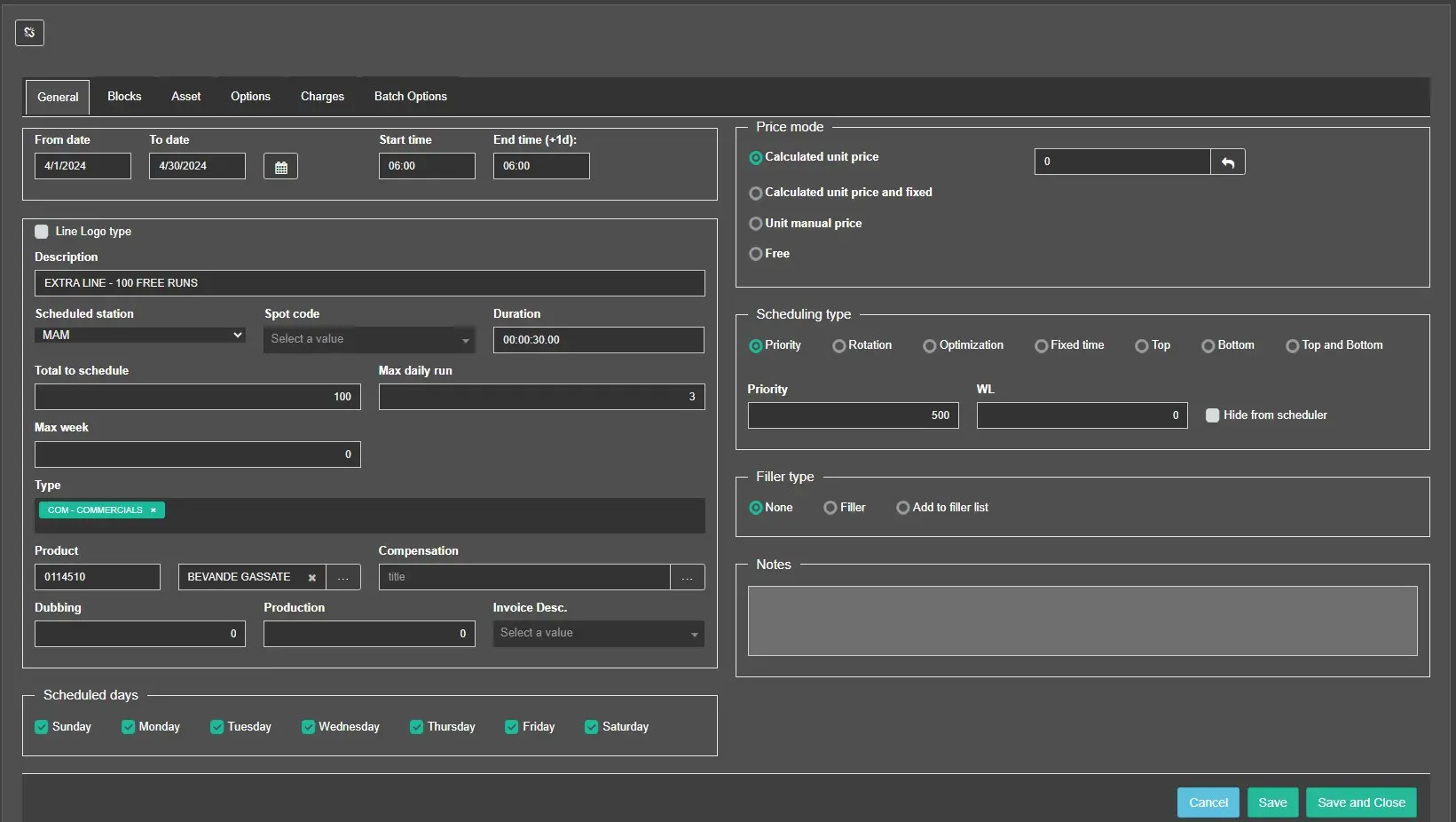 AirSalesWeb_Line_General