91.4.6 Player Playlist
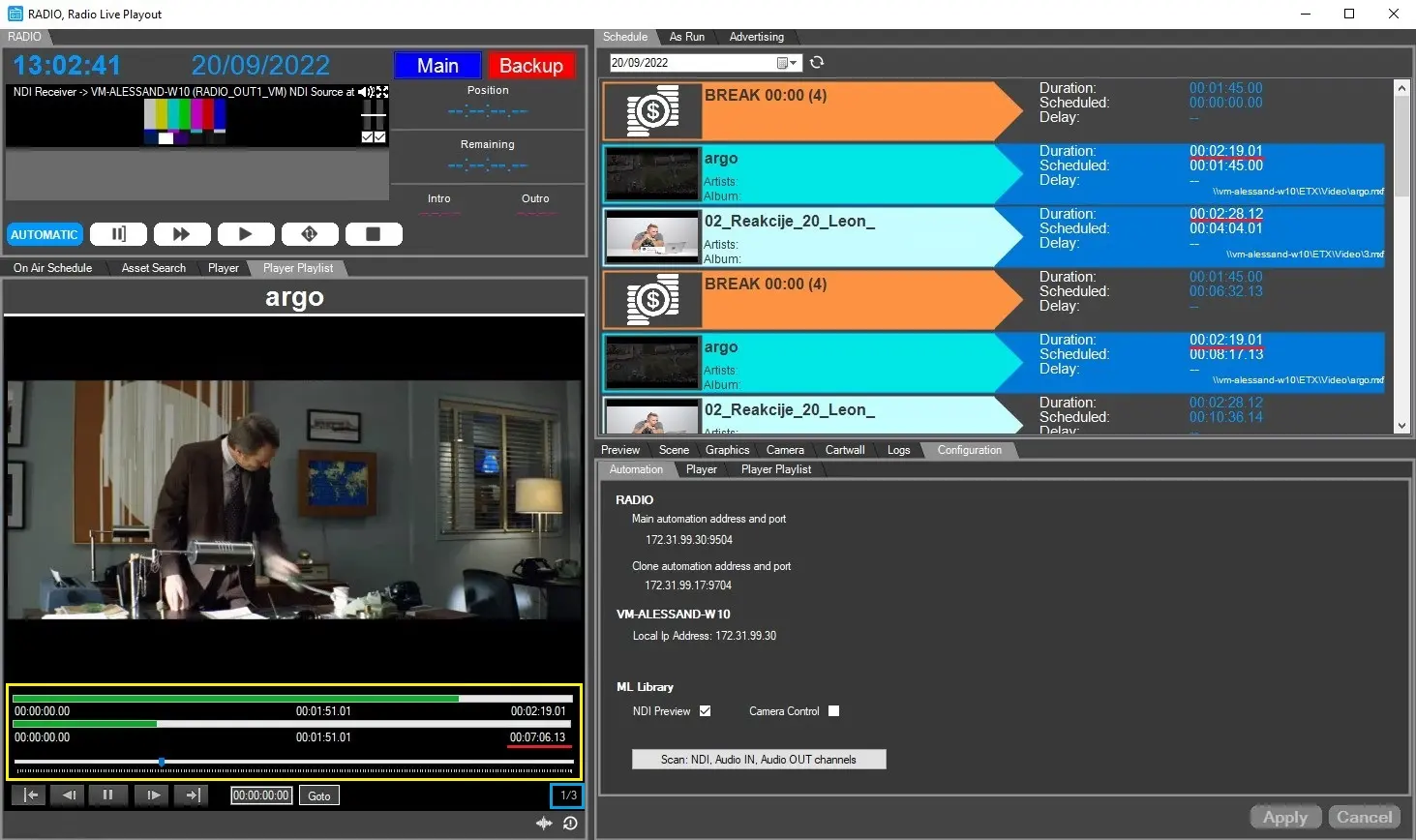
Radio Live Player Playlist allow to play a list of scheduled files and, according to how it's configured, allow to preview the first and last seconds for each one of them.
player_playlist
The player consists of several elements placed below the preview window:
- progress bars and track bar (yellow square): The first progress bar shows the progress of the currently playing file, while the second one shows the progress of the whole list of files. As you can see underlined in red, the total duration of the files shown in the player is the sum of the durations of the single files.
The track bar allow to navigate within the playlist to select a specific frame.
- playlist files counter (blue square): This counter shows how many files there are in playlist and which one of them is currently in play. The files are counted according to their scheduling order.
E.g.: "2/5" indicates that there are 5 files in the playlist and the 2nd one is currently in play.
- Player controls: The classic player commands allowing to play\pause, move 1 frame forward\backward, skip to the next file, go back to the previous file.
- Go to: Allow to bring the cursor to a specific timecode, typing it in the box and clicking on "Goto" button.
- Waveform: This button, placed at the bottom of the window, allow to enable\disable the waveform of the currently playing file.
Note: Since the function reads the file every time to create the waveform, it could take some time to be displayed after the file has been loaded.
- Reset: Unloads every file in the playlist and resets the player.
How to select and preview the files
To load the files in playlist and start the preview is simple and intuitive.
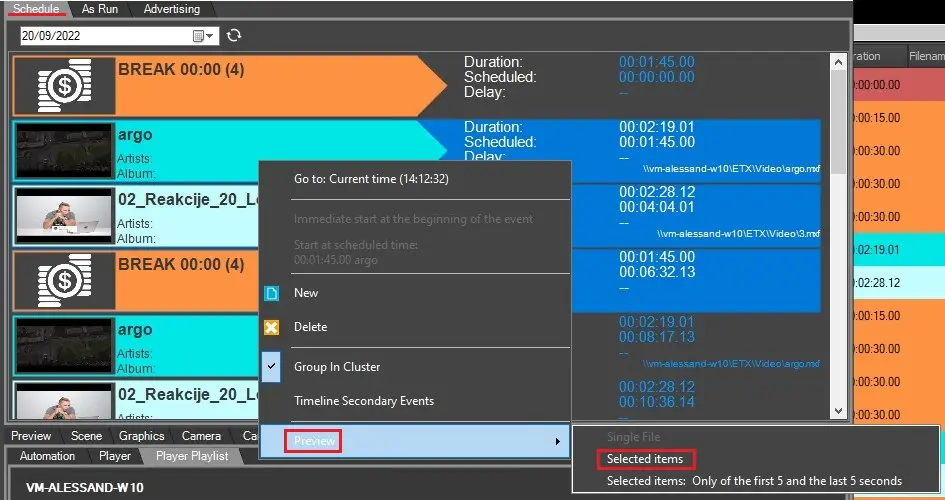
Simply select the files with CTRL+click or SHIFT+click from either Schedule tab or OnAir Schedule tab.
Right-click on them and select Preview > Selected files.
preview_selected_items
Partial preview
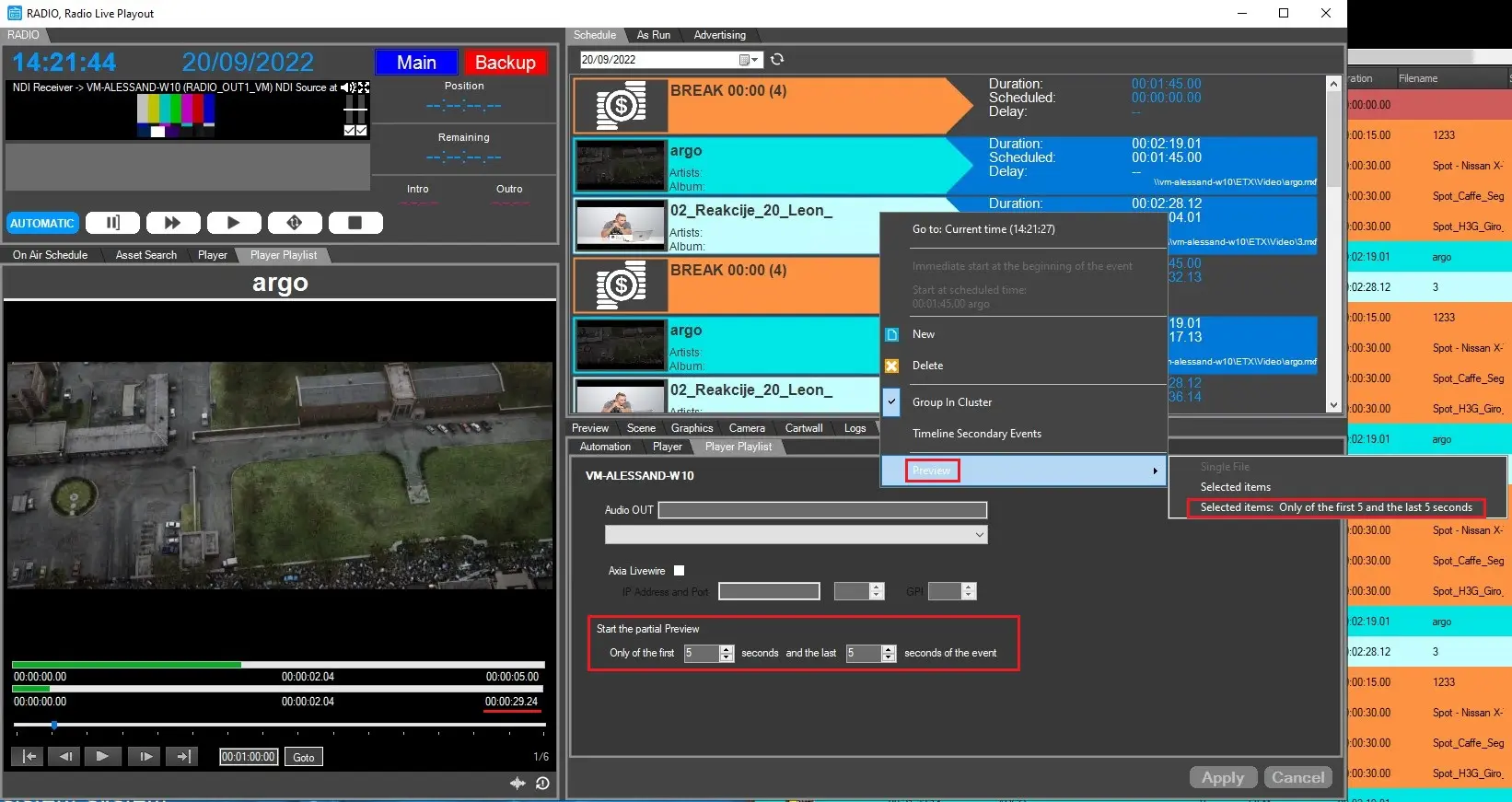
This function allow to play the first and last seconds of each file, according to how many seconds are set in the Configuration tab > Player Playlist > Start the partial preview.
partial_preview
As shown in the image above, by default this function is set to preview the first 5 seconds and the last 5 seconds.
The total duration shown by the player changes according to the seconds to play. In the example above, there are 3 files in the playlist and the portion to be played is 10 seconds each (5 sec at the start and 5 before the end of the file). Therefore, the total duration is 30 seconds.
 player_playlist
 preview_selected_items
 partial_preview