79.4.1 Toolbar
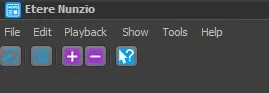
Once Etere Nunzio is launched, its main user interface allows to start managing News Stories through the functions available in the Toolbar Menu :
Etere Nunzio
- File Menu
o Exit - Close the application.
- Edit Menu
o New story: Create a new story based on a existing story template. It will be possible to specify the "station", "category", "Template", "title",
"Journalist" and "Workflow".
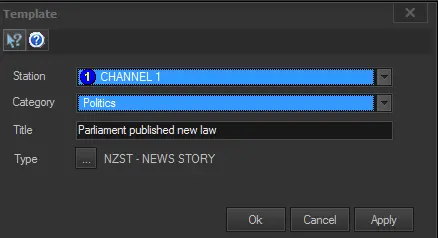
o New story template: Create a new story template (e.g. parliament published laws) to be used to quickly create new stories:
New story template
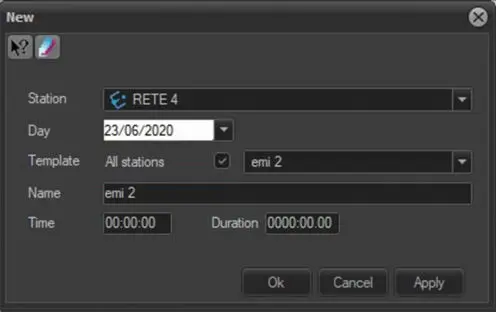
o New rundown: Create a new rundown based on existing rundown.
§ Station: Select the station name
§ Day: Select a calendar date.
§ Template: Select the template of the selected station, or select “All stations” to list all templates from all stations, the selected template can be used in any station.
§ Name: The rundown name.
§ Time: Specify the time code for the rundown.
§ Duration: Specify the duration of the rundown.
Click <Apply> and <Ok> to create the new rundown.
New rundown
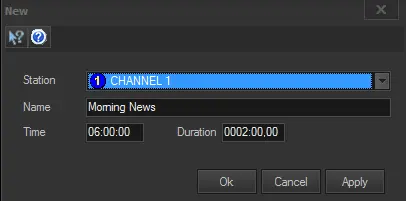
o New rundown template: Create a new rundown template (e.g. morning news) to be used to quickly create new rundowns:
New rundown template
The new rundown template allows adding stories without adding placeholders, in this manner, when the template attached to the rundown the stories are set as "Ready".
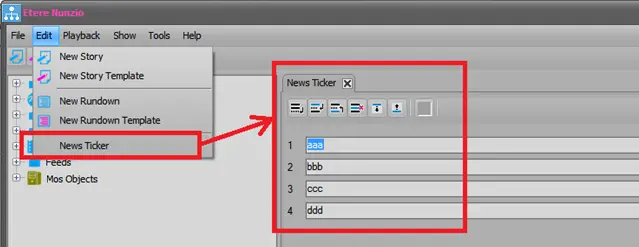
o News Ticker: Editing of News Ticker.
News Ticker
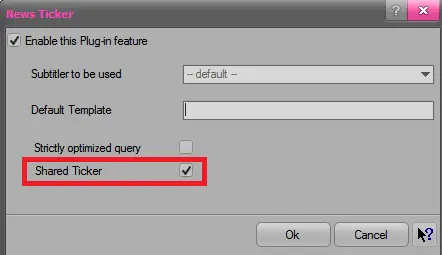
The one edited within Nunzio is a “singleton” shared among all stations.
Shared Ticker
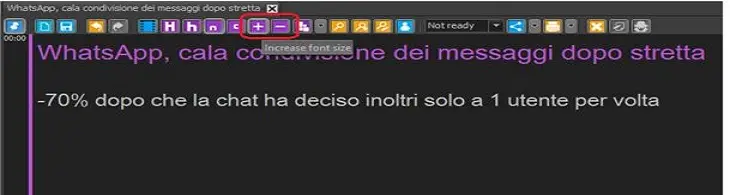
o Increase / Decrease Font size: You can modify the font size for normal text and comment using the “plus” and “minus” buttons as indicated below.
9962_EtereNunzio_ToolbarButtons
The adjusted font size would also be applied to the panel object font size in Nunzio tree view.
Editing ETX-G News Ticker
In order to start editing the News ticker of ETX-G text object:
1. click on the “Asset” tab in the “News Ticker” dialogue box;
2. search for the graphic asset (text file) to be opened for editing in the same dialogue box.
Editing ETX-G News Ticker
After edit, click the <Save> button to save the changes.
- Playback Menu
o Show device panel: Activates/deactivates the panel for the playout decoders.
o Configuration - Show the decoder resources set to be used for "News playout". Please refer to the Initial Playout Configuration chapter for detailed information on decoders resources.
- Show Menu
o Bottom panel - Activates/deactivates the bottom panel (e.g. for stories display).
o Lowres preview - Activates/deactivates the panel for the video preview of stories.
o Configure layout - Select the interface layout between:
§ System layout 1: Default arrangement with horizontal panels (players on top, stories on bottom, tree and rundown on center)
§ System layout 2: Default arrangement with vertical playback panel (tree on left, players on right, stories and rundown on center)
§ System layout 3: Best for story and rundown editing (players and stories on bottom, tree and rundown on center)
Please note that all system layouts allows to freely change the position (main editing area or bottom editing area) of Rundowns, Stories, Agenda and other items.
Moreover, the "reset metrics when confirm" option allows to bring all items (i.e. rundowns, stories,etc.) to their default state, that is, disable all of them automatically.
o Show Notifications: you can see the notifications.
o GPI Configuration: Open the GPI Settings window.
o Show GPI Status: Activates/deactivates the visualization of the GPI status in the title bar of Nunzio.
o Configure clock: Activate up to 3 clocks to display different timezone times in the window upper right.
o Camera Controls: enable it to allow the user to use the cameras.
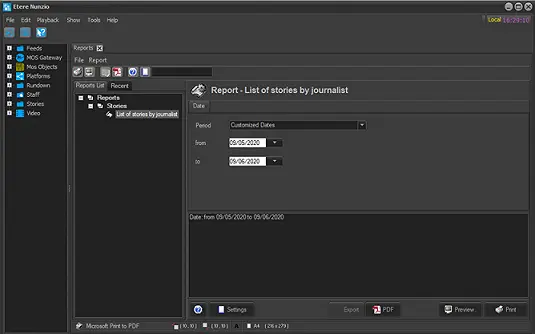
o Reports: This function launch the Nunzio Reports module to view the available reports.
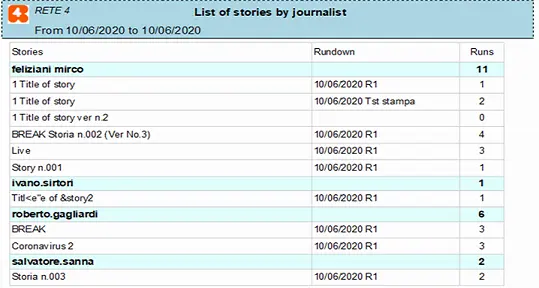
§ The “List of stories by journalists” report you can generate a report capturing all stories files by journalists on current date. You can also include all stories submitted by journalists within a specific period of time by selecting the start date and end date to include all stories in the report.
In following example, the report capture all stories files by each journalist in specific day.
The Rundown column display the stories scheduled by journalist, the Runs column capture the number of stories broadcast by each journalist.
Nunzio Reports
List of stories by journalists
o Toolbar Menu: Select the buttons displayed in the toolbar (standard, flat or custom).
o Status bar: Activate/deactivate the display of
- Tools Menu
o Application events: Shows detailed information on the playback channels used by Nunzio.
o Debugging zone - Open the "Nunzio Debug Tools" window which allows you to:
§ Trace: Tracing the application activity
§ Playback: Controlling the playback devices
§ Info: Consult information on the current workstation and assigned resources
§ Toy: Change the colors of the graphical user interface
o Debugging on/off - Sets Nunzio in debug mode, that is, all actions performed by the application will be logged and displayed in a debugging console.
o Save logs - Opens the "Log Saver" application for sending logs regarding the current module (e.g. Data Mover) to the Etere's customer support service.
o Etere folders - Gives quick access to the various Etere directories; (e.g. Install, Data, Log, Temp).
o Help Menu: The "Help" option opens the html version of this user guide.
 News_Ticker
 Etere_Nunzio
 Shared_Ticker
 New_rundown
 New_story_template
 List_of_stories_by_journalists
 Nunzio_Reports
 New_rundown_template
 Increase__or_Decrease_Font_size
 EtereNunzio_ToolbarButtons