59.2.40.26 GPI Configuration
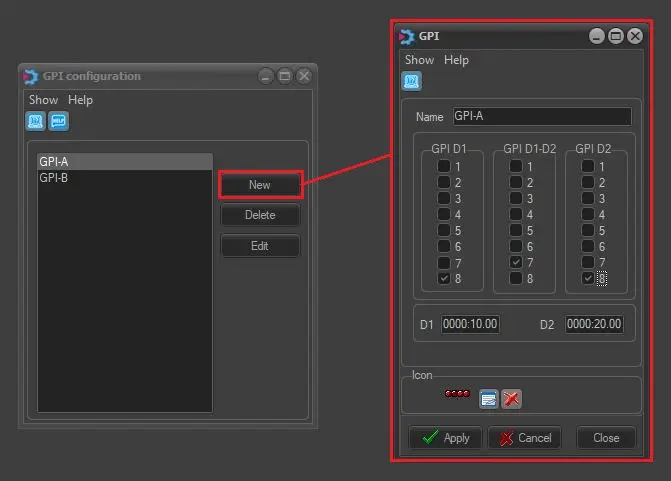
The GPI Configuration function allows operators to activate commands (e.g. Skip, Still, DStill, Restart) through signals from a GPI input card. The following steps describe how to configure a predefined GPI configuration.
1. Click on the [New] button to create a new predefined GPI configuration:
GPI_configuration
Give the GPI configuration a name and optionally change its default associated icon with another system icon or a customised icon.
2. The "GPI" form determines when and which GPI signals (1-8) to activate at three different points of each event:
GPI_signals
•GPI D1: The GPI signals to be activated at the event's start for "D1" mmmm: ss.ff (minutes, seconds and frames).
•GPI D1-02: The GPI signals to be activated between the "D1" and "D2" mmmm:ss.ff (minutes, seconds and frames).
•GPI D2: The GPI signals to be activated at "D2" mm:ss.ff (i.e. minutes, seconds and frames) before the end of the asset.
NB: It's important to note that, to activate a GPI for the entire duration of an asset, the GPI signal(s) must be selected under the "GPI D1-D2" column, and the D1 D2 durations must be set to zero.
3. The GPI input card must be assigned to Etere Scheduling in the Etere Legacy Resources module.
NB: Detailed information on predefined GPI configurations can be found in the Media Library > GPI chapter.
 GPI_configuration
 GPI_signals