56.2.2.1 Remote Control Panel
The Remote Control improves the broadcasting workflow and makes the management of commercials much more accessible; this Counter is a crucial feature of the playout system, which can be accessed from anywhere in Automation and Executive Editor to give the operator overall control of the playout.
It can also be installed as a stand-alone module, using the Etere Installer, by selecting remote control from the features list.
During programs, the remote control counts down the time to the next scheduled commercial break, whereas, during breaks, it counts down the time to the end.
The Remote Control panel, which is also available from other modules such as Executive Editor, indicates the state of the Automation and additionally shows up to three counters; the main window is shown below:
Remote Control
Automation status
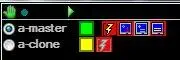
At the left are listed the Master and Clone (if activated) automations; the currently active one is ticked, and the names will be complemented with a small box beside them; this box will indicate the state of the automations:
•Green: Running (currently working)
•Blue: Idle (because closed, ready)
•Grey: Not valid (if it's not connected)
•White: No backup used (disable from the automation settings)
Additionally, in case Etere Automation is currently running (green box), and the next event in the queue is an emergency, the Master/Clone Indicator name will blink in red, as shown in the image below:
Master-Clone Indicator
Available functions
Among the buttons which are present in this panel and which allow operators to interact with the Automation, the following can be mentioned:
Playback
Set of buttons that allows to control the playback of events.
NB: Please refer to the Automation Commands chapter for detailed information on supported playback functions.
Playback
OAR
Set of buttons that allows to change the Original Aspect Ratio of the next on-air event.
NB: Tick off the "Show OAR panel" contextual option to show this panel and the "Customize ORC panel" option to configure it.
OAR
ARC
Set of buttons that allows to change the Aspect Ratio Conversion of the next on-air event.
NB: Tick off the "Show ARC panel" contextual option to show this panel and the "Customize ARC panel" option to configure it.
ARC
Contextual options
Etere's Remote Control panel counts with various features which can be enabled and configured just by making right-click on the panel and selecting one of the following options:
Option: Counter 1 / Counter 2 / Counter 3
Description: Here, you can set the process that the Counter will count:
- none: disable the Counter
- countdown: show the time remaining to the next event
- elapsed: display the elapsed time of the current event
- live: show the remaining time to the next live
- fixed: display the remaining time to the next fixed event
- intro: show the remaining time to the next intro
- timecode: display the timecode of the current event
- current time: show the current windows time
- types break: If the next event has a type which is different from the currently on-air event, it will display the remaining time to the first event of the next group; otherwise (if the next event has the same type of the current on-air event), it will display the remaining time till the end of the entire group of events of the same type (types are selected in the Settings | Parameters tab).
Option: Show commands echo
Description: Enable/disable the display of echo commands (Play, Still, D Still, Skip, etc).
This function must be enabled in a multiple-user environment for all remote control panel users.
Option: Show commands panel
Description: If enabled, playback commands (i.e. still, d-still, skip, stop, etc.) will be displayed. Otherwise, they will be hidden.
This function must be enabled in a multiple-user environment for all remote control panel users.
Option: Show the VTR panel
Description: If enabled, the control panel will show a new section containing the VTR's current state.
Option: Show OAR panel¹
Description: If enabled, the Original Aspect Ratio panel will display all buttons available using the "Customize ORC panel" option.
Option: Show ARC panel²
Description: If enabled, the Aspect Ratio Conversion panel will display all buttons available using the "Customize ARC panel" option.
Option: Change the "still" channel:
Description: Set here a router channel (different from the default one) to which the router will be automatically switched each time an event is "stilled" in the current transmission.
This function is useful, for example, when transmitting commercial breaks within a live event (e.g. a football game); in this case, the "still channel" will allow operators to immediately return (e.g. from the commercial break) to the live event (e.g. due to a recent goal) just by pressing the "still" button.
NB: Please note that the "still channel" set here can also be set (globally) under the "Automation > Settings > Router/timing" section in the "still switches the router" parameter.
Option : Change preroll
Description: Select and activate a preroll duration among the preset in "Automation > Settings > router/timing".
See also chapter: "Change the preroll on the fly".
Option: Change Original Aspect Ratio information¹
Description: Open a small form showing all OAR buttons to change the original aspect ratio of the next on-air event.
Option: Change Aspect Ratio Conversion²
Description: Open a small form showing all ARC buttons to change the aspect ratio conversion of the current on-air event.
Option: Text colour
Description: Set the colour of the counter title (e.g. Counter down, live, types, etc.).
Option: Light on colour
Description: Set the colour for highlights.
Option: Background
Description: Customize the background colour, which is black by default.
Option: Hide frames
Description: If enabled, only hours, minutes and seconds will be displayed in the counters.
Option: Safety lock
Description: This option, disabled by default (i.e. set as none), allows, in case of enabling it, to lock the echo controls (if active) to use them only if a pre-defined key is pressed (i.e.Ctrl+click, Alt+click, Ctrl+Alt+click).
Option: Transparent button
Description: If enabled, it won't be displayed in the background but only in the buttons' text, thus creating a transparency effect.
Option: Panels layout
Description: Select if panels will be displayed either stacked (i.e. separately and vertically aligned) or in a single line (i.e. grouped and horizontally aligned).
Option: Customize OAR panel¹
Description: Select the aspect ratios available in the ORC panel. Possible original aspect ratios include:
Customize_OAR_panel¹
Option: Customize ARC panel²
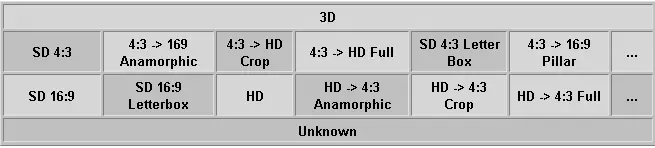
Description: Set the conversions to be available in the ARC panel here. Some of the possible aspect ratios include the following:
Customize_ARC_panel²
1: The OAR feature is supported only for TNTServer (Brio) video servers.
2: The ARC feature needs an "External converter" and GPI signals combinations to be set in the "Automation > Setting > Devices" section.
 Customize_OAR_panel¹
 Customize_ARC_panel²
 Remote_Control
 Playback
 OAR
OAR
 ARC
ARC
 Master-Clone_Indicator