72.7.4.12 Create a subtitles extraction project
The procedure for extracting subtitles using ProMedia Carbon is described in the following steps:
SOURCE tab
1. In the "SOURCE" tab, set the file from which subtitles will be extracted (e.g. XDCam_MPEG2_VANC708.GXF)
2. Go to the "Advanced" options
3. Click on Target -> Add and the select the video filter(s) to be used depending on whether you are extracting VBI or VANC captions:
CEA-608 (VBI) - Line 21 extraction
Teletext (VBI) - Teletext Data Extraction
CEA-708 (VANC) - Captions Ancillary (436M) to 708
+ Line 21 extraction
4. Additionally, you can include more video filters to, for example, imprint on video from VBI or VANC captions:
CEA-608 (VBI) - XML Titler
Teletext (VBI) - Teletext subtitle captioner
CEA-708 (VANC) - Captions convert Ancillary to 708
+ DVD Subtitle / 608 CC1 Imprint
TARGET tab
5. In the "TARGET" tab, select the profile with which the resulting file will be transcoded. For instance:
Profile - System\Closed caption exporter
Description : Creates an XML file containing 608-style closed captions
Profile - System\STL exporter from teletext input
Description : Creates an STL file containing teletext closed captions
CONVERT tab
6. In order to use the ProMedia Carbon project via T-workflow, press the [Save Project] button to export the project template as a .PCP file:
Save Project
NB: The project can be manually executed by pressing the [Conversion] button under the "CONVERT" tab.
Note
Please refer to the "Available Filters for Subtitling" chapter for a complete list of ProMedia's video filters for subtitling.
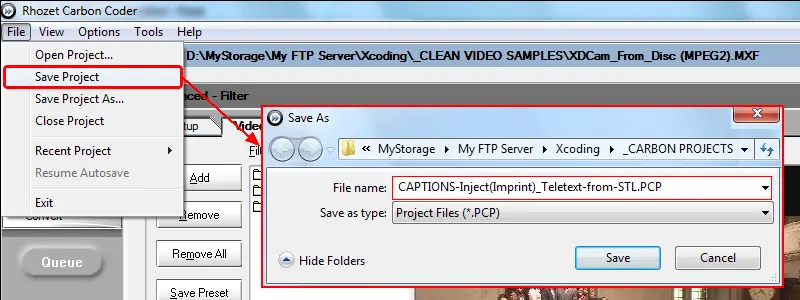 Save_Project