84.4.4.63 CUSTOM > DISCOVERY > ASSET XML 3RD-PARTY VENDORS
Export scope
The "Discovery - Asset XML 3rd-Party Vendors" export allows generating an XML file containing all data related to a particular asset.
Export process
Files will be exported according to the following naming convention:
[AssetCode].xml (e.g. 666~TIMB2.XML)
where:
▪Assetcode : Codec of the asset to which the exported file is related
The <Title> tag is inserted in the original format (e.g. 666 ~TIMB).
The asset physical SOM and EOM are non-editable fields, the fields are not checked during export.
The fields to be exported are seasons, episode number and title. Each field is separated by “|”.
e.g. Running wild | 8 | National Geographic
Export parameters
This export allows the following parameters to be set and then [saved]:
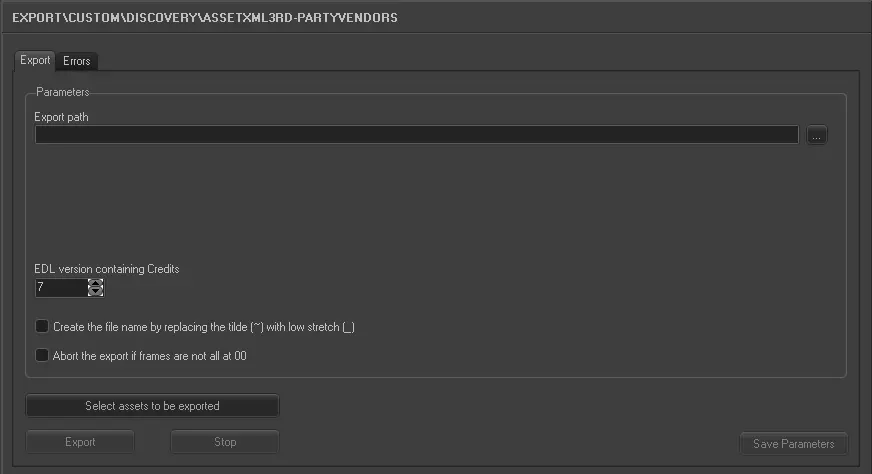
Export_custom_3RD_party
Export tab
Export path - Browse for the path to export files. Exported files are named as follows:
[AssetCode].XML (e.g. EHD~t875140I.XML)
EDL version containing credits - Indicate the number of the EDL from which credit segments will be retrieved.
Create the file name by replacing the tilde (~) with low stretch (_) - By enabling this option, you can rename the exported XML file by replacing the tilde (~) with a low stretch (_).
For example:
Export the file as “EDH_t8751401.XML” instead of “EDH~t8751401.XML”.
Abort the export if the frames are not all at "00" - When this option is enabled, if all the markings of the asset EDL segments duration is not set to frame “00” in SOM, the export would be aborted.
Despite the option is set to true, since that the EOM of last segment can be changed by user, the checking of frame (equal to “00”) in last segment is removed.
Select assets to be exported - Open the Media Library's search engine for selecting the assets intended to be exported. Assets can be searched using the filters listed below and pressing the [Search] button:
Filters groups
Base - Id, code, title, type, stations, sites, genre, artist, etc
Media - Duration, metadevice, codec, video file, workflows, worksheets, etc
Dates - Production, ingest, creation, arrival, scheduling, validity start, expiry, etc
Flags - Ok to broadcast, live, expired, ingested, archived, inactive, not tapeless, etc
With - Edl, video tape, data tape, subtitles, cad approval, detected blacks, etc
Full-text - Title, segments, artists, genres, roles, metadata, subtitles, documents, etc
Retrieved assets can be selected by clicking on them while holding the [SHIFT] key (consecutive selection) or the [CTRL] key (discontinuous selection), then double-clicking on the entire selection.
Launch the export
Once all parameters have been correctly set, just press the <Export> button to launch the export operation.
Sample exported file
<?xml version="1.0" encoding="UTF-8" standalone="yes"?>
<Asset>
<Id>CLIP0000000001</Id> <MetadataAvailable>TRUE</MetadataAvailable>
<Title>666 ~TIMB</Title>
<Seasons></Seasons>
<EpisodeNumber></EpisodeNumber> <DisplayAspectRatio>43</DisplayAspectRatio> <ContentAspectRatio>UNKNOWN</ContentAspectRatio> <ProtectAspectRatio>NONE</ProtectAspectRatio>
<SOM>00:00:00:00</SOM>
<EOM>00:05:52:19</EOM>
<Duration>00:05:52:19</Duration>
<VoecSuitable></VoecSuitable>
<QC>NOTQCED</QC>
<Segments>
<Segment>
<Number>1</Number>
<SOM>00:00:00:00</SOM>
<EOM>00:05:52:19</EOM>
<Duration>00:05:52:19</Duration>
</Segment>
</Segments>
<ClosingTitles>
<SOM>00:00:00:20</SOM>
<EOM>00:00:10:20</EOM>
<Duration>00:00:10:00</Duration>
</ClosingTitles>
<Titles>
<Title>
<Language>ENG</Language>
<EpisodeName>Oasis '94</EpisodeName>
<SeasonsName></SeasonsName>
<Synopsis></Synopsis>
</Title>
<Title>
<Language>ITA</Language>
<EpisodeName>Oasis '94</EpisodeName>
<SeasonsName></SeasonsName>
<Synopsis></Synopsis>
</Title>
</Titles>
<Audio>
<Language></Language>
</Audio>
</Asset>
 5162_Export_custom_3RD_party