87.1.4.1 How to use the Tape Manager
The Tape Manager application allows you to assign (or create) a tape to a selected asset and subsequently record its contents.
How to measure tapes?
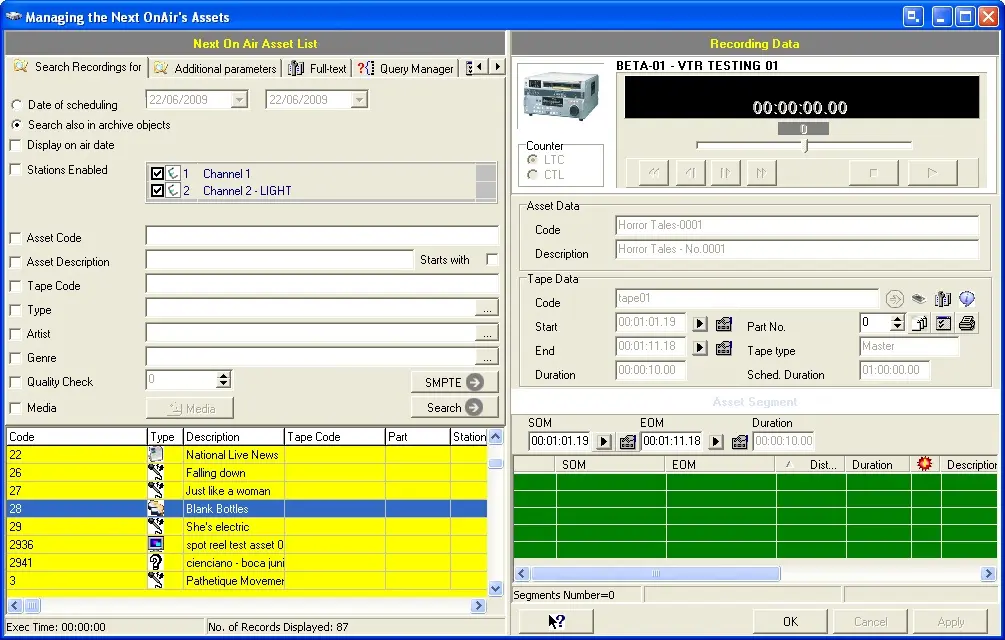
Once the Tape Manager application is launched, its main window will be immediately opened:
Tape_Manager
1.The left panel (Next On Air Asset List) allows to search for a specific asset making use of the Etere's search engine,
2.Once the asset has been selected (double-click), the right panel (Recording Data) will provide the operator with a "Remote VTR Control", the "Asset Data" (code and description) as well as the following "Tape Data" functions:
Icon -
Function : Tape database search
Description : In case no tapes have been associated to that asset yet, this function allows to search across all the tapes present in the system and select the one to be linked to the current asset.
Icon -
Function : Insert tape
Description : Linking new tapes to an asset is possible by using the "Insert tape" button and completing the information required by the Tape Library module.
NB: By default, when creating new tapes, it will be proposed to use the asset code as the tape code. When a tape code is entered in the “Tape Data” section, the tape asset related data (e.g. Start time, End time, Duration) would be automatically populated in the fields.
Icon -
Function : Part No.
Description : In case the asset is spread across two or more tapes, this function allows to specify the part contained in the selected tape.
Detailed information on the management of spread clips can be found in the "Ingest from Multiple Tapes" chapter of the Etere Ingest manual.
Icon -
Function : Create new part
Description : Creates a new part (e.g. part 2) from the current tape.As for the previous function, this function should be used only in case the asset is spread across multiple tapes.
Icon -
Function : Tape info
Description : Opens the "tape info" tool, which provides a detailed list of all media contained on it.
Icon -
Function : View scheduled days
Description : Show the days on which the selected asset is scheduled, this, using a "3 month" calendar view with details of the scheduling on the respective dates.
Icon -
Function : Print Sony barcode
Description : Allows printing the barcode related to the current tape.
Icon -
Function : Manage tape
Open the current tape in the Tape Library module.
Icon -
Function : EDL
Description : Once the tape is linked to the asset, the operator can insert the tape in the VTR and start marking the tape, that is, setting the physical start, physical end, physical duration, etc.
3.When the operation is completed, you need to confirm by using the [OK] button.
 Tape_Manager