59.2.35.6 Update ETX Logo to Multiple Paths
After creating ETX Logos, you can copy those logos to a different Server or Client machines where ETX is installed.
Right-click on the desired logo object from the Logo Generator main display and select the function "Update ETX Folders".
Update_ETX_Folders
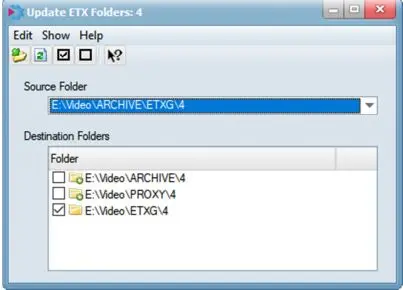
Next, select the source and destination folders to fulfil the update process.
update_process
Source Folder - Select the folder where the Logos or graphics objects are stored.
Destination Folders - It displays all available destination folders where you can copy and update the content in the folders:
•Folder indicates that Logos or graphics already exist in this target folder; the objects would be replaced if the folder is selected for update.
•Folder indicates that no similar objects exist in this target folder; those objects would be created if the folder is selected for update.
After selecting the source and destination folders, click on the "Edit" function icon and choose one of the actions to be executed.
Edit_update_folders
Update folders - Activate the update function to copy Logos and graphics files from the source to selected destination folders.
Refresh - This action reloads the paths list.
Select all - This action selects all available paths displayed in the Destination Folders.
Deselect all - This action deselect the available paths in Destination Folders where Logos or graphics files do not exist. (indicated by Configuration_Logo_Generator_Update_Folder_Icon02 icon)
 Update_ETX_Folders
 update_process
 Edit_update_folders