84.2.4.20 Secondary Object
The Secondary Object event (formerly called Asynchronous title) allows to send logos (fixed graphics), script files (command strings) or event information (current / next) through a certain device using specific parameters.
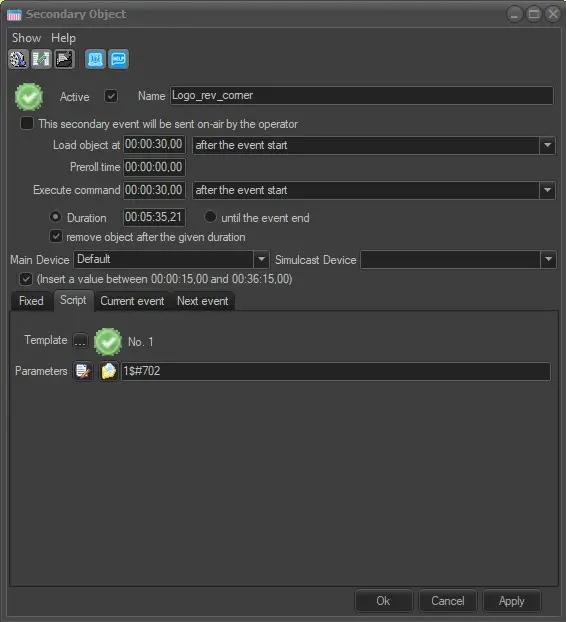
In order to create or modify a secondary object the following parameters needs to be set:
4970_Secondary_Object_1
Active: Check this parameter to enable the secondary event, leave it unchecked to disable it.
Name: Enter a brief descriptive name.
Icon: Make double-click on the default icon to change it with a more suitable one.
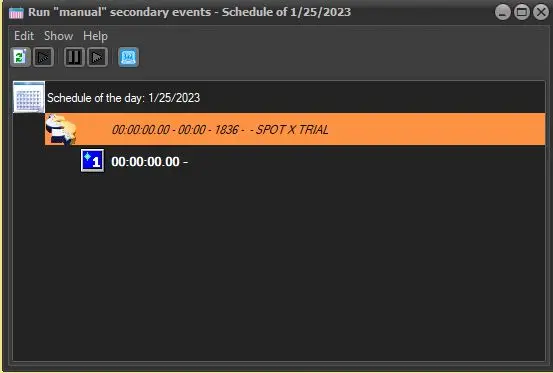
This secondary event will be sent on-air by the operator: If checked, the secondary object won't be automatically executed by the automation, it will require a manual user execution through the "Run manual secondary events" tool.
WARNING: This option is supported only for "fixed" and "script" object types. Enabling it will cause the "random" and "current event" types to be automatically unavailable for selection.
run_manual_secondary_events
Load object at: Indicate the time at which the secondary object will be sent to the device. See parameter "execute command".
Note: The trigger crteria (e.g. after the event start) is the same for loading and executing commands.
Pre-roll time: Specify the time taken by the pre-roll for sending the object (script).
Note: Please note that the "load object at" parameter changes automatically according to the following relationship: [LoadObjectTo] = [PreRoll] + [ExecuteCommand]
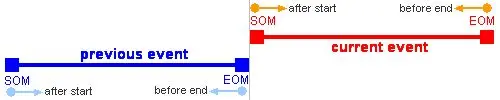
Execute command: Indicate the time at which the secondary event will start. Available times for triggering are:
4971__Secondary_Object_2
- Execute the command at "hh:mm:mm.ff'"...
- Before the current event end (EOM)
- After the current event start (SOM)
- Before the previous event end (EOM) ¹
- After the previous event start (SOM) ¹
¹ : Once a primary event is started the commands of its secondary events cannot be changed. If the "preset" event changes and the command scheduled on the previous event is removed, the "taken" event won't be changed (and the command will remain).
Note: The trigger crteria (e.g. after the event start) is the same for loading and executing commands.
Duration: If checked, the execution length of the secondary event will be the time set here.
Until the event end: If checked, the execution length of the secondary event will be the same as its related primary event.
Note: If associated to a "live" event (i.e. with manual duration), the object will be automatically removed at skip command.
Remove object after the given duration: If checked, the secondary object (e.g. logo) will be automatically turned off on the graphic device's layer when its set duration is reached. This parameter supports secondary events that are manually triggered from Executive Editor or automated scheduled events. When the given duration is reached, it will trigger the cleanup script, either manually scheduled or automatically scheduled, to remove the secondary object.
This parameter is useful to force the removal of objects associated to "live" events (i.e. with manual duration).
Note: This parameter is disabled if Snipes are used. See "Snipes" paragraph below.
Insert a value between "x" and "y": If checked, the system will prevent the insertion of a wrong duration, this, by allowing only a duration less or equal than the scheduled duration of the primary event.
If you want to insert a secondary event with duration less than 15 seconds, this option must be disabled.
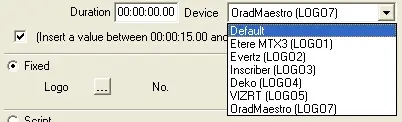
Main device: In case it is intended to send the secondary object (e.g.: Logo1, Logo2, etc) using a device different from the default one set on the global settings of Etere STMan, select here the device that should be used:
4972_Etere_STMan
This feature is useful to, for example, specify the layer to be used for sending the secondary object in case the station uses a device provided with multiple layers.
Note: Please remember that in order to be displayed here, devices must be paired to one of the up to twelve Etere Logos and assigned to be used by Etere STMan users, this under the Etere Configuration | Resources module.
Simulcast device: Select here another device (other than the main one) to which to send the secondary object. This function is useful to, for instance, simultaneously send scripts to two different graphic devices (e.g. SD and HD).
Object type: Fixed
Use it to select one between the fixed Etere Logos (i.e. virtual logos) associated to the previously selected device.
Object type: Script
Send a script file containing information (e.g. EPG, etc.) on the primary event:
• Template: Select the script to be executed.
• Code: This field indicate the type and content for missing graphics after the import. The information includes graphics title, program name and version number. This field is only visible for specific customer.
• Parameters: Set the variables (asset properties) to be transmitted to STMan.
Note: Refer to the chapter 59.2.38.0 Script Strings of the Etere Configuration user-guide for information regarding how to manage script formats.
Object type: Random
Select a Random Object List (i.e. a pre-configured scripts group) to be sent.
Note: Consult the chapter 59.2.37.0 Random Object List of the Etere Configuration user-guide for further information.
Object type: Current / Next Event
Same as the Script type, but allows to send information (e.g. title, synopsis, etc.) on either current or next scheduled event:
• Template: Select the script to be executed.
• Leave STMan's default parameters: Check this to allow STMan to use its own parameters.
• Parameters: Set the variables (asset properties) to be transmitted to STMan. These fields are editable only if the previous parameter is disabled.
Note: Refer to the chapter 85.2.15.3 Current/Next event setup wizard of the Etere STMan user-guide for information about how to use this option.
Object type: ETX-G
Add an ETX-G graphic as a secondary object.
When clicking on the [...] button, it is possible to search only for an asset with "ETX Graphics" property. By default, the type ETXG has this property enabled.
Once selected, it will be possible to preview the graphic in the panel at the bottom of the ETX-G tab.
Object type: ETX-G Current Event and Next Event
Configure the current and upcoming ETX-G secondary events scheduled by STMan. Keep the parameter "Leave the default parameters set in STMan" checked, if the secondary event parameters are defined in STMan (see chapter 85.2.15.3 Current/Next event setup wizard). If you need to specify different parameters, disable this option and click the [...] button. The setup wizard will be opened, allowing to configure the secondary event. The graphic can be previewed in these two tabs as well.
ETX-G Editor: This tab allows to modify some of the properties of the graphic, through the Etere Graphic Editor interface.
Notes:
- The 4 ETX-G tabs are visible only if the station has the license EA3213 enabled.
- The ETX-G global repository of all graphics are defined in global parameter “Destination folder where graphics will be stored” in the Etere Configuration > Settings > Executive Editor > Schedule Parameters section.
- From Etere version 36, it's possible to update the scheduled ETX-G secondary events using the t-workflow action "Notify asset changed". See chapter 59.3.10.22 Schedule for more information.
Further supplementary features can be consulted in the chapter 84.2.4.20 Secondary Object Show menu.
Snipes
In case of using the "Snipes" function in your system, the Remove object after the given duration parameter will be always disabled, as the duration of secondary events is automatically and internally managed by the "Snipes" tool.
Moreover, in order to ensure the correct functioning of the "Snipes" tool, the following conditions must be met:
• The "remove..." parameter is disabled on the macro of the "Snipe".
• The exploded parts of the scheduled event must not be contiguous, but separated by other objects.
 4971__Secondary_Object_2
 4972_Etere_STMan
 run_manual_secondary_events
 Secondary_Object_1