9.2.4.9 Import Images
In Etere Web, it is possible to have a working image gallery in which to store all the images a broadcasting company may need.
To start using it, we may need to perform some prior configurations.
The principle behind this is to load images directly into the Etereweb interface. The Etere T-Workflow assigned to the given process would process them and give them the proper codecs.
Preliminary Configuration:
Settings:
- on Configuration\Settings. Types and then Codecs
- Set types for images. Create a new Type or use an existing one and add the property Thumbnail.
- Create a new Codec or use an existing one with Content-Type: Image or set Content-Type: Imag. e
- Choose Player Etere Image for this codec.
- Set the workflow default on Configuration\Configuration Editor\T-Workflows\Default T-Workflows\ for After Asset Graphic File Import.
To Import:
- Login to Etere Web, open or create an asset form with type for Images (with thumbnail prop).
- Go to Import Images, select repository, drag and drop files and start uploading.
Extra Metadata
You can see the photo metadata written by the camera on the tab annotation besides the usual tab metadata.
WARNING: The Images Etere T-Workflow should at least read all the files and run Medianfo check to set the format automatically. Use action type Set current metafile List before MediaInfo.
import_images_workflow
This is the basic workflow, but obviously, you can add other steps.
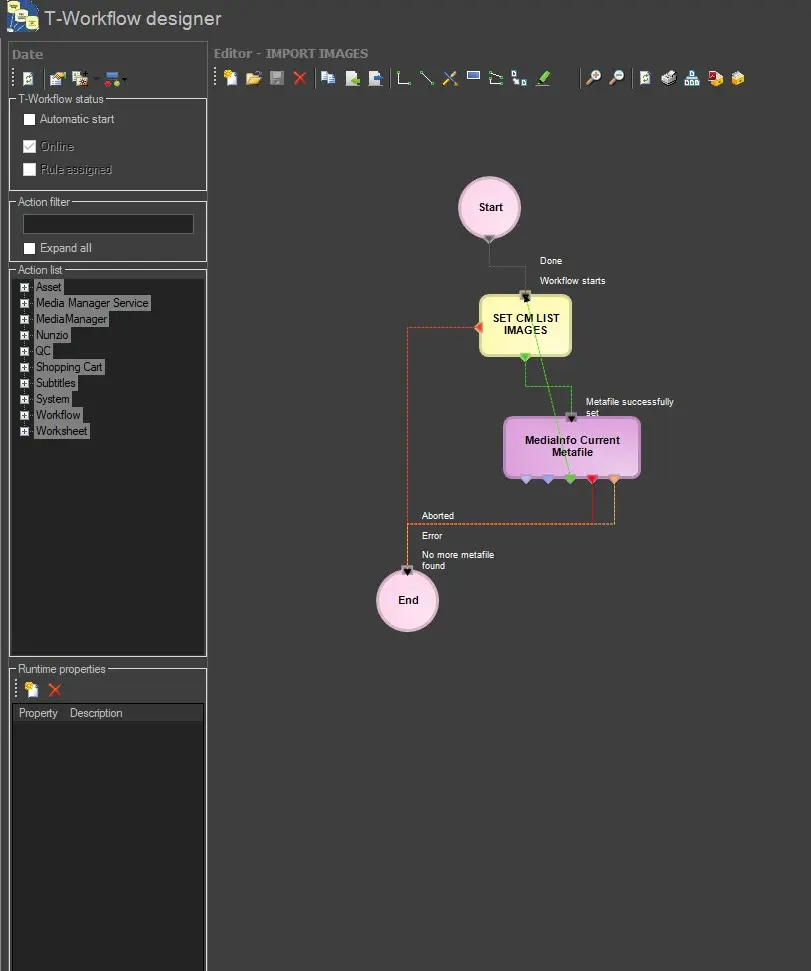 import_images_workflow