201.2.1.15 Assign Assets and Seasons
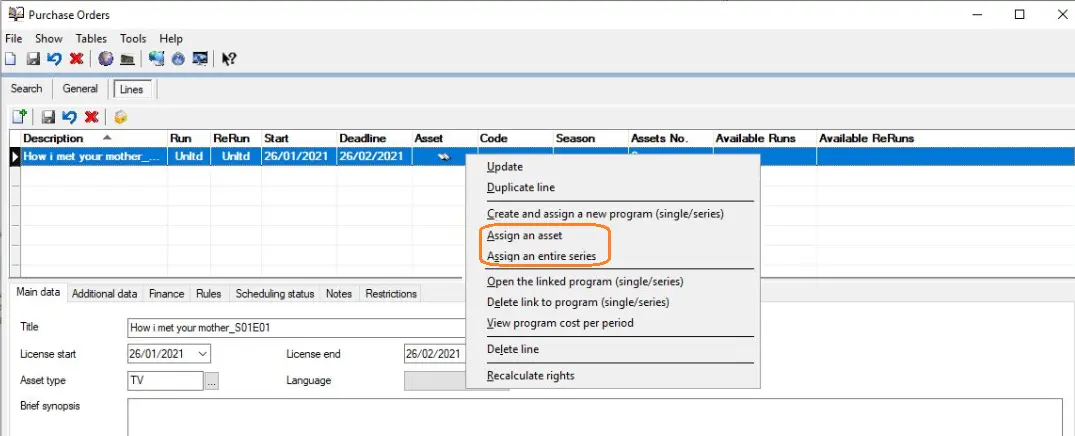
Once the purchase order has been created and the order line defined, it can be assign to purchased rights by using the "Assign an asset" or "Assign an entire season" functions available in the toolbar:
Assign_an_asset
Assign an asset - If you click on the Assign an asset button the Search Assets window will be prompted, you can perform a specific and detailed search, once you have found the desired asset, double-click to add it to the purchase order.
Use this option for assigning rights to single assets (i.e. Movies, Video Clips, Single Episodes, etc).
Assign an entire season - If we select the Assign an entire season button it open a Search season window where you are able to enter the description of the sought season to list all related season, double click on desired season to add to the list.
Use this option to easily assign rights to an entire season (Soap Operas, Cartoon season, Action season, etc).
Removing Assets From season - When user unlink an asset from the season, the new season will have the original season name and with added suffix '*'.
For eg, if you unlink 3 episodes you will have originalseason*, originalseason** and originalseason***.
Once assets are successfully assigned to the related purchasing orders, these assets are ready to be scheduled, see the Scheduling licensed assets chapter for information.
What is the difference between assets and seasons?
Assets are divided in specific types (f.e. movies, videoclips, season, news, etc), 'season' is a special asset type which should be managed differently from other because 'season' are composed by many single assets called episodes which are intended to be broadcasted over a long period of time with specific rights permissions; on the other hand, other types usually have a single related asset (if not, are managed as season).
 Assign_an_asset