Configuration
203.1.2 Set Parameters
Backup File Shared Directory
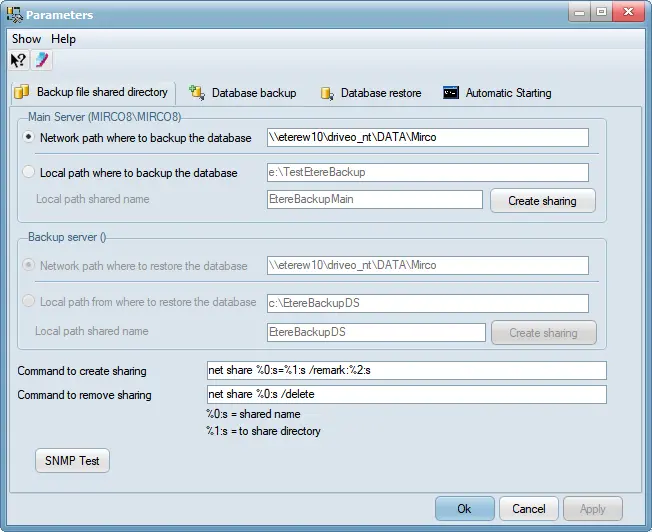
Create the shared folders from the Etere Clients where the SQL Servers (Main and Backup) are running. To do this, you have to launch Etere Backup from both SQL Servers and in the parameter windows (see figure below), set the following information:
backup_parameters
backup_parameters
Main Server
In Main SQL Server, select one of the following options to back up the SQL database:
•Network path where to backup the database:
You can backup the SQL database to a shared network folder on a local area network (LAN) by specifying the UNC (Universal Naming Convention) path to the network folder. The SQL Server must be granted access rights to the UNC path to perform the backup operations.
•Local path where to backup the database:
Enable this option to backup SQL database into local SQL Server and specify the folder name where the backup database file would be stored.
- Local path shared name: Specify the custom name for the local folder where the backup database file is stored. Use the <Create sharing> button to share the local folder over the network with a custom name, i.e. \\[SQLServername]\[SharedPathName]
Backup Server
In Backup SQL Server, select an option to define how the SQL database should be restored:
•Network path was to restore the database:
Select this option to restore the SQL database from a shared network folder on a local area network (LAN) by specifying the UNC (Universal Naming Convention) path to the network folder. The Backup SQL Server must be granted access rights to the UNC path to perform the restore operations.
•Local path from where to restore the database:
Enable this option to restore the SQL database file from the Backup SQL Server and specify the folder name in the Server where the backup database file is stored.
- Local path shared name: Specify the custom name for the local folder where the backup database file is stored. Use the <Create sharing> button to share the local folder over the network with a custom name, i.e. \\[BackupSQLServername]\[SharedPathName]
Command to create sharing: Enter the Windows "net share" command to create the sharing.
Command to remove sharing: Enter the Windows "net share" command to remove the sharing.
SNMP Test: If the SNMP services are installed in the local server, you can use this function to send a monitoring test message to the SNMP Console.
Database Backup
This section contains the Query (command string used to interact with the SQL Server) for performing the backup of the Main database on the specified file. It is automatically generated based on the parameters set by the user.
backup database %0:s to disk = %1:s with init
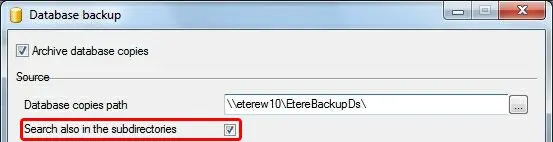
Moreover, you can set the maximum retention period that backups database could remain in your SQL server. Files older than the specified number of days will be automatically purged; use this option to avoid unnecessary archiving of backups.
database_backup
database_backup
Database Restore - This tab contains an SQL Query; the application uses the query for restoring the database on the Backup database; it is automatically generated based on the parameters set by the user.
use master
begin try
alter database %0:s set single_user with rollback immediate
restore database %0:s from disk = %1:s with replace
begin try
if (SELECT is_broker_enabled FROM sys.databases WHERE name = 'ETERE')=0
alter database %0:s set enable_broker
end try
begin catch
alter database %0:s set new_broker
end catch
end try
begin catch
alter database %0:s set multi_user
DECLARE @ErrorMessage NVARCHAR(4000);
DECLARE @ErrorSeverity INT;
DECLARE @ErrorState INT;
SELECT @ErrorMessage = ERROR_MESSAGE(), @ErrorSeverity = ERROR_SEVERITY(), @ErrorState = ERROR_STATE();
RAISERROR (@ErrorMessage, @ErrorSeverity, @ErrorState);
end catch
alter database %0:s set multi_user
Automatic starting
Here indicate the command to be used when Etere Backup is launched by other programs (e.g. for scheduled starting); the default parameters are:
Here indicate the command to be used when Etere Backup is launched by other programs (e.g. for scheduled starting); the default parameters are:
[drive]:\[EtereInstallionPath]\EtereBackup.exe /start , for example: C:\Program Files\ETERE\EtereBackup.exe /start
 backup_parameters
 database_backup