72.2.2.44 Annotations - Contextual Functions
Here below are specified the contextual functions available for each player:
Counter: Select the counter type used to display the timecode in the counter :
LTC (Longitudinal Time Code): Use it to display the linear timecode of each frame,
CTL (Control Track Longitudinal): Use it in case the played media doesn't have a timecode or it has discontinuous timecode.
The Reset button will allow to set the counter to zero at the current point to make the timecode starts at it.
Available for: EP; EP2022; DS; QT
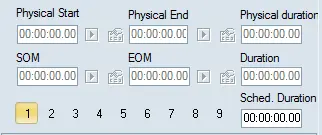
Details: Add a top panel displaying some useful information including:
Top panel
- Path: Path to the loaded media,
- Physical Start: Actual Start Time.
- Physical End: Actual Start Time
- Physical Duration: Actual duration
- SOM: Logical mark-in that determines the media start. Pressing the arrow button sets the current playback point as the new SOM.
- EOM: Logical mark-out that determines the media end. Pressing the arrow button sets the current playback point as the new EOM.
- Duration: Global duration calculated from the physical start to the physical end.
- Sched. Duration: Effective duration calculated from the SOM to the EOM.
Available for: EP ; DS ; WMP ; QT;
Info...: Show file's track information including audio/video type, language, format, etc.
Available for: QT
Audio output: Choose audio output device to be be used for the preview playback.
NB: Please note that only those windows's detected audio devices will be displayed.
Available for: DS
Audio: If enabled, some audio-specific features will be displayed in the upper part of the preview area:
- VuMeter: Show the monitor of the volume signal level for selected audio tracks
- Tracks: Select the file's embedded audio tracks to be played along with the video, this, by ticking them individually (e.g. checking up boxes) or coupled (i.e. checking the box below two tracks to select them as a couple):
Checking up boxes
In case of previewing MXF files, tracks will be always selected by couples:
Checking the box below two tracks
NB: By default, when the player is opened the first two tracks are selected.
- Volume: Increase, decrease or mute the level of sound of selected audio tracks.
In case an audio file was loaded, a separate volume control will be available:
Volume control
- L/R: Change the audio balance by selecting only the Left or Right track channel.
Available for: EP
Audio waveform: Adds a top panel containing the audio's waveform in the sequence timeline, allowing also to zoom either in or out the displayed waves.
This feature allows, for example, to quickly detect possible excessive noise on the clip.
From release version 27.5 onwards, this feature also support MXF video file format.
Available for: EP; EP2022; DS; WMP
Audio mixer: Change the audio balance (between left and right), volume (e.g. increase, decrease, mute).
Available for: DS
Audio channels: In case the media has multiple audio tracks (e.g. a proxy with multiple audio tracks), this button allows to select the tracks to be played by the left and right channels.
Available for: WMP
Audio Track: Select the file's embedded audio track to be played along with the video.
Available for: QT
Load an audio file: Select an audio file to be played along with the clip, replacing the clip's original audio. Available audio files linked to the asset will be identified by their codec name (e.g. wav_en, wav_it, wav_fr, etc.).
If the duration of the external audio file is longer than the video file, the audio would continue to play when the video has stopped.
NB: Only asset's linked files which codec is set as "audio content" are available for selection.
Available for: EP; DS; WMP
Full screen: In case the current filter supports full-screen mode, the preview will be played in the entire screen.
Available for: DS
Resize: Automatically adapts the video to the preview area.
Available for: WMP
Set proxy physical start: Set the current playback point as the SOM timecode of the proxy media.
Available for: EP; DS; WMP; QT
Step+1 with audio: If enabled, the |>Step+1 and <| Step-1 buttons will forward and backward, besides the video playback also the audio.
Available for: DS; QT
Subtitles: In case the asset has subtitles (i.e. they are displayed in the media list), the default asset's subtitle will be automatically overlaid to the video.
Use this menu tho select the subtitles to be displayed along with the video the main subtitles (e.g. english) and also secondary subtitles (e.g italian) in the bottom part of the preview browser. Secondary subtitles are useful to, for example, view original subtitles while translating them to a different language.
NB: For detailed information on how to add subtitles please refer to the how to set subtitles chapter.
Available for: EP; DS; WMP; QT
ShuttlePro profile: In case a "Shuttle Pro Contour" device is configured in the system, this option will allow to use it in the preview browser.
By right-click on video form and select this function you can access to a list of shortcuts to expedite the segment selection:
• Alt + F12 -> + 1 frame
• Alt + F11 -> - 1 frame
• Alt + F9 -> Play / Pause
• Alt + F8 -> Pause
• Alt + F7 -> Play
• Alt + F10 -> Fast Forward
• Alt + F6 -> Rewind
• Alt + F5 -> Go to MarkOut
• Alt + F2 -> Go to MarkIn
Available for: EP; DS; WMP; QT
Open file with...: Play the file using a player different than the codec's default one.
Supported players includes the one listed in the "Available Players" chapter.
Available for: EP; DS; WMP; QT
Alternative frame rate: If enabled, a second counter will be displayed below the main counter to display the timecode of the clip in one of the video standards below, either zero-based or not:
• PAL • NTSC drop frame • HD 50p • Telecine (24fps) • Telecine (23.97fps)
Available for: EP; DS
Show also NTSC: If enabled, a second counter will be displayed below the main counter to display the timecode of the clip in NTSC drop frame video standard.
Available for: WMP
Frame-by-frame with PLAY: If enabled, every time a command (e.g. go to SOM, go to EOM, etc.) changes the playback timecode, the player will automatically play (and stop at) one frame to update the frame preview of the current timecode.
NB: In case of using the WMP9 player this feature must be enabled to ensure a correct preview.
Available for: WMP
Seek average test: Perform an automatic test to calculate the time to seek for a frame (e.g. 32ms).
Available for: DS
Log: Choose either to either "View Log" or "Open the Log folder" to consult the execution records of:
- DS Player - mam.etrc_forms.[station].[username].preview_lr_DS.log
- QT Player - mam.etrc_forms.[station].[username].preview_lr_QTt.log
- WMP Player - mam.etrc_forms.[station].[username].preview_lr_WM9.log
- Etere Player - mam.etrc_forms.[station].[username].preview_lr_EP.log
Available for: EP; DS; WMP; QT
Subtitles position settings: Open a vertical track bar that allows specifying the vertical position to displaying subtitles on screen, then just press the button below to apply the set position into the video.
NB: This feature is available only when previewing media from the Subtitles Tool (Etere MAM).
Available for: DS
File Info: Open a small window displaying file's video information (e.g. duration, container, width, height, aspect ratio, frame rate, standard profile, afd) and audio information (tracks, format, rates, bits).
Available for: EP
Switch on 2nd monitor: In case the player detects that a second monitor is available on the computer, this function will be made available to allow easily switching to it to perform a full resolution preview.
Available for: EP
Flexi-metadata: View and modify the Flexi-metadata related to the previewing metafile (based on its codec's template). This information can be also set under the Technical Data tab.
Available for: EP
Aspect ratio conversion: This function allows to change the aspect ratio conversion from the last saved value.
Available for: EP
 Top_panel
 Volume_control
 Checking__the_box_below_two_tracks
 Checking_up_boxes