84.2.1.2 Columns
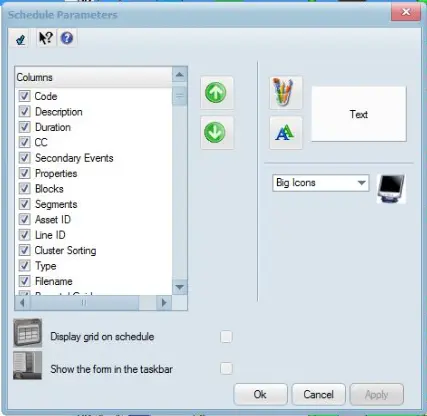
Using the “Customize Columns” function in the “Tools” menu you can customize the visualization of the schedule view.
4845_Columns
Schedule appearance
Background Color: Open the “Colors” panel where you can customize the background color of the Executive Editor schedule view. This change affects also the background of the station tile, in the station selection form that appears at the startup of each Etere module.
Font: Launch the “Font” panel where you can customize the text Font size, Font style, Font color and Font effects similar to the customization in Microsoft Word and Excel.
Icons: You can choose the size of the Etere icons to be displayed in the schedule view. Changing the icons size will change also the height of the rows.
Display grid on schedule: Enable this option to divide events and columns in the schedule view with a grid.
Show the form in the task bar: Enable this option to display the schedule view in task bar as separate application.
Columns
Air Sales ID: Shows the schedule ID for air sales elements.
Archive Status: Shows the asset archive status.
Artist: Shows the asset artists from asset's tab "properties".
Aspect: Indicates the aspect ratio for the selected event (e.g.: 4:3, 16:9, HD, 3D, etc).
Asset ID: The ID number registered for that Asset.
Audio: indicates Audio properties of the asset in "Secondary events - Audio"
Audio Over: Shows the state of Audio over in Asset - Secondary events - audio over tab.
Backup Server: Shows the clip on Backup server.
BKP Archive Path: Shows the archive path of the clip.
Blocks / Segments / Cluster Sorting: Indicate the block, segment and cluster on which commercial events have been scheduled.
Break in Live: Customer specific, don't add.
Break Minors: Customer specific, don't add.
Broadcast type: Specify if the event is either a premiere (the very first world/national/local on-air appearance), prime (the first schedule appearance), live (the event is a live) or a repeat (an event already broadcasted in past schedules).Code: The code of the event within the database.
CA: Shows the value set on asset "properties - CL" tab.
CC: Indicate that the program is closed captioned.
Checked: Flag used by Executive Editor.
Code: Code of the event's Asset.
Color: Shows the hexadecimal value of the color set in Secondary Events - Icon/color tab - color value.
Crawl Logo, active, text: Shows the logo used , the active status on both main and clone and the text present in asset's Secondary events - Crawl.
Credits Asset ID: Shows the corresponding ID.
Date: Shows the schedule date of the event.
Description: A brief information about the event.
Difference: It displays the difference between the current time and the last-published time of the events. Each time the schedule is published, this column is reset to zero.
Document Management: Shows the ID of document management.
Drown event: Customer specific, don't add.
DSK A, B, C: Shows DSK tab data content.
DSK 1-3, DUR: Shows which DSK is enabled and its duration
Duration: Shows the on-air lasting time of the event. Events with a lower duration with respect to their real duration will be displayed in gray since they will last less than expected.
EDL Version: Shows the EDL version (column value + 1)
Encrypted: Shows if encrypted function is checked.
Enhanced: Customer specific, don't add
Episode: If the event takes part of a season, it details the precise episode. If the column contain two divided numbers, e.g. 5/1, 2/2, 1/3, etc, first number indicate the episode number, and second number is the season number.
Event: Shows a unique value for each event , including exploded segments.
Event type: Shows the event type (Timecode, Manual, Variable ecc..)
Event_p: Shows a unique value for each event , excluding exploded segments (which will have the same value of the source event).
Expected I.S positioning: Customer specific, don't add
Expiry date: Shows the expiry date of the asset.
External code: Shows the external code.
External ID: Shows the External ID.
Filename: Indicates the event's linked media stored in the metadevice(s) assigned for the automation (or ad insertion in case it is enabled as the main automation).
Flags of asset: Shows flags field
Format conversion: Shows aspect ratio conversion.
GMT: Display the reference (local) time zone set in Etere Configuration | Settings | System.
GPI: Shows the GPI port.
GPI in: Shows the GPI state.
Icons: Enable it to display icons informing about the status, position, warnings, etc, of scheduled events. See the Event Icons section.
Import Notes: Show the imported notes.
Imported Aspect: Shows the imported aspect ratio.
Input Timeout: Shows the input timeout value set on asset secondary events - tab event type - timeout.
Intro: Shows intro duration.
Last Update: Shows when the last update has been performed.
Line ID: In case the event derives from Etere Air Sales, this column will display the identification number of the related order line.
Linked Event: Shows the linked event(s).
Logo 1-4, active, duration and effect: Shows on which logo layer is the graphic object present, its active status and its duration and transition effect.
Main Server: Shows the clip on main server
Media: Show the asset's media files supported by the automation playout. Double-click on the icon to launch the preview on the Etere Player.
Mediaset Break: Customer specific, don't add.
Mediaset Sponsor: Customer specific, don't add.
Network: Sow split number if split management is enabled.
Number of Events: Shows the number of events in a break when unexploded.
Operator Notes: Shows the notes inserted in "notes" form after double-clicking the event in the schedule.
Order number of clips: Display all clip number in the playlist in ascending order.
Output_M: Customer specific, don't add.
Output Timeout: Shows the imput timeout value set on asset secondary events - tab event type - timeout.
Outro: Shows outro duration.
Parental Guidance: Display an icon to indicate if the event is suitable or not for the time at which has been scheduled. Please note that in case a local and a main time is set for the system, the checking will be performed based on the local time.
Part: In case the event is exploded into EDL segments, it will be indicated the exploded segment number.
Production Date: The date when the asset was produced.
Properties: Show relevant characteristics such as aspect ratio, audio type, transitions, metadevice, etc.
Publishing Date: Publishing date of the asset.
Publishing Time: Publishing time of the asset.
Physical Start: Shows the start of the clip.
Quality: Quality value of the asset.
Sch Duration: The difference between the original EOM and SOM of the asset.
Schedule ID: ID of the event in the schedule.
Schedule ID (Air Sales): ID of the event according to the Air Sales schedule.
Scheduled Date: The date at which the event has been initially scheduled.
Scheduled Time: The time at which the event has been initially scheduled.
Secondary Events: Displays all STMan secondary events associated to events.
Season Title: If the event takes part of a season, it shows the season title.
Snipes: Customer specific, don't add.
Sort: Shows with an unique increasing value, the schedule ordering of the events.
Source: Indicates the provenance of the event (in case it has been imported).
Split ID (Memo), Length: Shows the ID and the length of AD insertion splits.
Sponsored Cee Promo, description, duration, SOM, type: Shows if the trailer is CEE, its description, duration, SOM and type.
Spot Code: Shows the code of the spot.
Status: Shows the on-air status (Y = on-air; D=played correctly).
Streaming: Shows if "Secondary Events - tab Event Type" Streaming option is checked.
Synchronized Playlists: Shows the synchronized playlists.
Tapeless Reception: Indicate the media asset would be upload via Web interface, information include the date and time of the upload, the name of supplier who would be uploading the media file, and name of person-in-charge for tracking the process.
When the supplier is no longer presented in the material sheet, the name of the supplier and scheduled arrival date would not be displayed in this column.
Technical notes: Brief text retrieved from the event's "notes" property.
Time: The time at which the event will be broadcasted.
Timecode In /out: The exact timecode position at which the event will start and end.
Transition, transition duration: Shows type and duration of the transition.
Transmitters audio: Shows the value on tab Audio.
TV Guide: Shows EPG and subtitles of DSK tab.
Type: Indicates if scheduled events are commercials, news, season, etc.
User 1: Asset notes stored on User 1.
User 2:Asset notes stored on User 2.
User 3: Asset notes stored on NOTE C.
User code: Shows value 1 if the warning indicated event cannot be transmitted on the station" is checked.
UTC: Display the reference (local) time zone set in Etere Configuration | Settings | System.
Variable: Shows if "Secondary Events - tab Event Type" Variable option is checked.
Warning Messages: Shows how many warning messages the event icon represents.
 Columns