91.7.2.2 News Playout
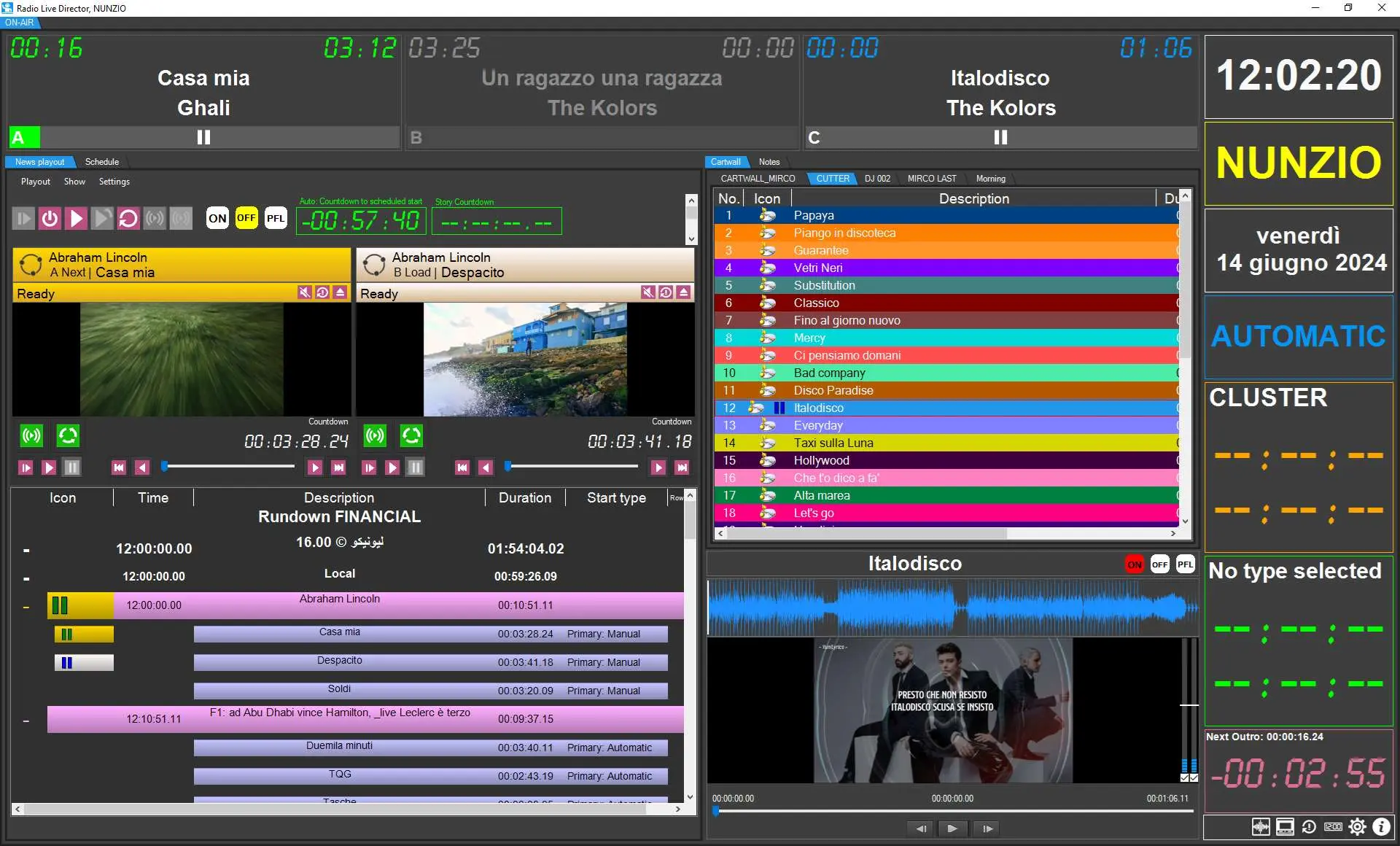
Radio Live Director can also visualize the playout of the stories from Nunzio (see chapter 79) with basic commands for managing the onair rundown
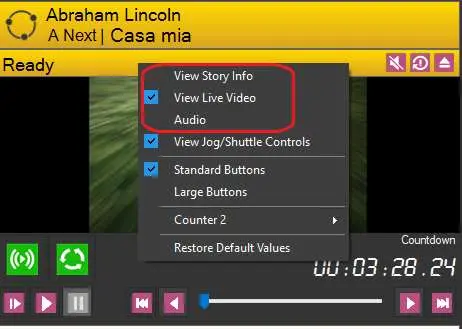
Story Context Menu:
- View Story Info: displays story text
- View Live Info: avaiable only if the station is TV, view video preview of the story onair
- View Jog/Shuttle Controls: enable the Shuttle bar right below the Playout Commands for any given channel;
- Standard Buttons: show playout controls icons as small;
- Large Buttons: show playout controls icons as large;
- Counter 2: will provide more option regarding the second counter to list right beside the Playout Controls for any single Video Channel:
- none: will not display the Second Counter;
- elapsed: will display the Second Counter with the Elapsed Time;
- duration: will display the Second Counter with the duration of the given Rundown.
The menus on the Toolbar will provide:
- Playout: the playout Menu contains the same command of the toolbar, and is basically the same as the old Nunzio Playout, which provide the following playout commands:
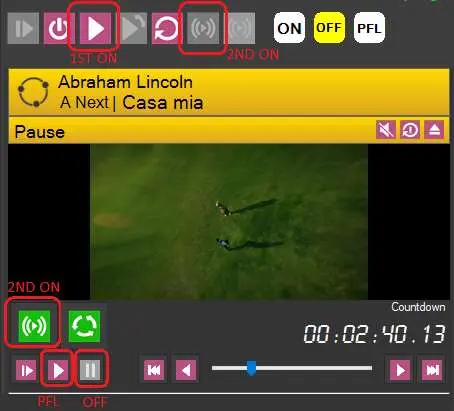
- Go On-Air: Load the current Rundown and all configured channels with the first sequence of clip of the story.
NB: Exiting Nunzio while a rundown is on-air is disallowed, it's required first putting it off-air.
- Put off-Air: Interrupts the current on-air Rundown.
NB: Exiting Nunzio requires putting all rundowns off-air, otherwise a warning message is displayed.
- Send on-air next story: Start the Rundown counter and load the next story in the list.
- Send on-air previous story: Load the previous story on-air.
- Load objects to playout: Reload every channel and CUE the available clips/objects in the story even if playing.
- Play on-air objects to playout: This function put on-air object to playout in Rundown.
- Play on-air Video Over to playout: This function put on-air video to playout in Rundown.
- Go On-Air: Load the current Rundown and all configured channels with the first sequence of clip of the story.
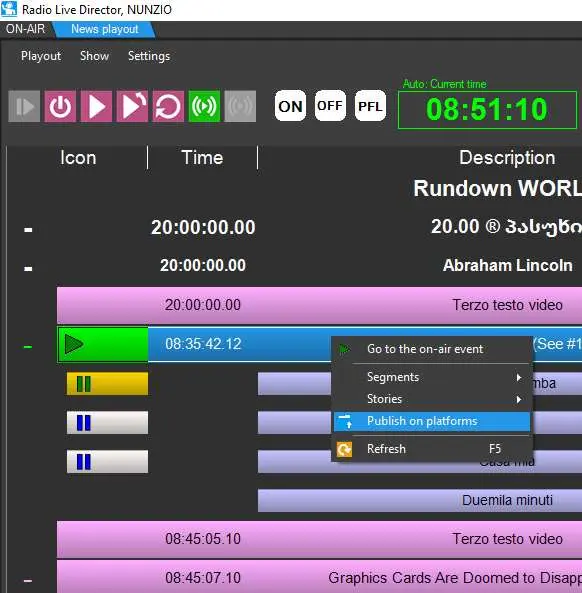
- Show: the Show menu would allows to perform some actions in the Etere Nunzio Rundowns such as:
- Go to the On-Air event: it will set the Rundown focus on the On-Air event;
- Segments: Rundown separators which separates stories in categories:
- Collaps all: would collapse all the Segments for the active Etere Nunzio Rundown;
- Expand all: would expand all the Segments for the active Etere Nunzio Rundown;
- Stories: Etere Nunzio Stories:
- Collaps all: would collapse all the Stories for the active Etere Nunzio Rundown;
- Expand all: would expand all the Stories for the active Etere Nunzio Rundown;
- Publish on platforms: select the given platform to publish the news
- Refresh: Refresh the Etere Nunzio Rundown
- Settings: this is the most important part of the Etere Nunzio Playout functions. The settings Menu would allows the full configuration of Etere Nunzio Playout:
- Toolbar: which contain the following option for the Playout Commands:
- None: will remove the Playout Commands toolbar from Etere Nunzio Playout GUI;
- Icon: will show the Playout Commands Icons toolbar in the top-left Etere Nunzio Playout GUI;
- Icon and Name: will show the Playout Commands Icons and Text toolbar in the top-left Etere Nunzio Playout GUI.
- Restore Defaults Velues: will restore the Etere Nunzio Playout toolbar to its Default Values.
- . Counters: It would allows to add, select or modify all the related Etere Nunzio Playout Counters, which are located right next to the Etere Nunzio Playout Toolbar:
- off:
- Current Time:
- Current Day:
- Station Name:
- Rundown Countdown:
- Rundown Elapsed:
- Countdown to scheduled start of rundown:
- Countdown to scheduled end of rundown:
- Rundown % Progress:
- Counter 4 > Difference from Total Dur vs Sch. Dur:
- Story Countdown:
- Story Elapsed:
- Auto:
- Studio Control Rooms: Select from which control rooms are fetched the Rundowns
- Playout Configuration: as mentioned ealry on this topic, Playout Configuration would allows to configure the related playout channels and their behavior.
- Players > Display Options: the given menu will provide several functions in order to enhance playout usability for each Video Channel previously configured. So if we've configured 4 Video Channels for instance, the related settings would be the same for each one:
- View Jog/Shuttle Controls: enable the Shuttle bar right below the Playout Commands for any given channel;
jog_shuttle
- Standard Buttons: show playout controls icons as small;
- Large Buttons: show playout controls icons as large;
- Counter 2: will provide more option regarding the second counter to list right beside the Playout Controls for any single Video Channel:
counter_2
- none: will not display the Second Counter;
- elapsed: will display the Second Counter with the Elapsed Time;
- duration: will display the Second Counter with the duration of the given Rundown.
Depending on the selected Channel mode and the provided Channel Description, they will be named as for instance:
Player: Channel 1 ABC A
where:
Player: > is the default naming convention which identify every created channel;
Channel 1 ABC > is the Channel Description provided during the Channel Association;
A > stand for the first Channel on the list.
playout_channels_config
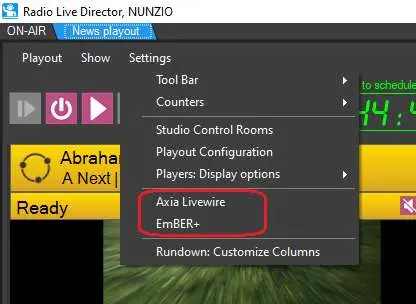
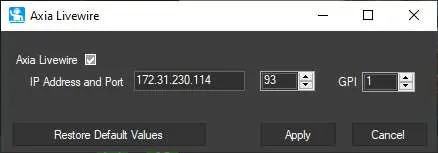
- Axia Livewire: Settings for Axia Livewire integration
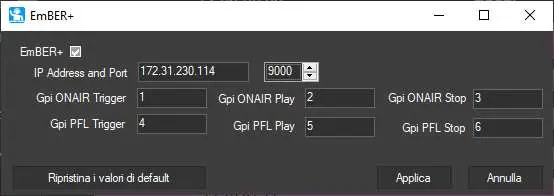
- EmBER+: Settings for EmBER+ integration
- Rundown Customize Columns: Columns customization in the rundown area
- View Jog/Shuttle Controls: enable the Shuttle bar right below the Playout Commands for any given channel;
It worth mention that Counters configuration is totally Customizable and counters can be added, removed and placed accordingly to one needs.
- Toolbar: which contain the following option for the Playout Commands:
- Settings: this is the most important part of the Etere Nunzio Playout functions. The settings Menu would allows the full configuration of Etere Nunzio Playout:
 audio_settings
 rundown_controls
 audio_settings_2
 audio_settings_3
 connection_status
 news_playout
 live_video
 publish_on_platforms