59.7.3.2 Create a storage cloud-device
Etere Resources Editor allows you to create and use storage meta devices to improve your system management; meta devices provide increased capacity and better system storage performance. Metadevices are typically utilised in archives as virtual devices representing several logical disks or disk systems. Under Etere, meta devices are configured by carrying out the following steps:
1. Add the resource related to the cloud-device
From Resource Editor, add a 'Generic Server Storage' as a resource from the list of 'Archive' resources. Compile all its properties (i.e. name, IP address, location, volumes, etc).
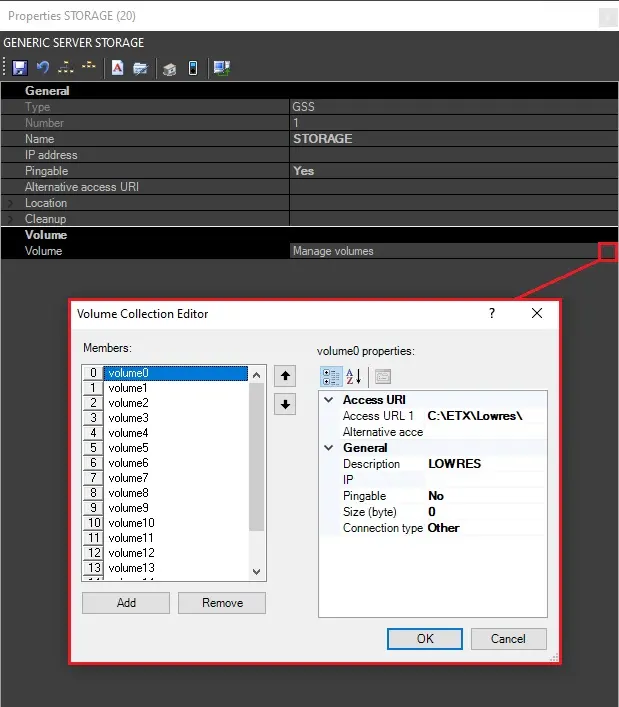
Volumes represent a grouping of discs; click on the [... Manage Volumes] button to access the Volume Collection Editor and add as many volumes as required, specifying their following connection data:
• Access URI: the path of the volume in question
• Description: the description of the volume
• IP and Pingable: the IP address and whether the device can be pingable
• Connection type: select the connection type from the drop-down list (Scsi, Fibre Channel or other)
NB: Volumes that hold the files to be played by automation must not be configured in the GSS but in the videoserver resource, as well as the volume where files recorded by ingest will be saved.
2. Set up the cloud-device
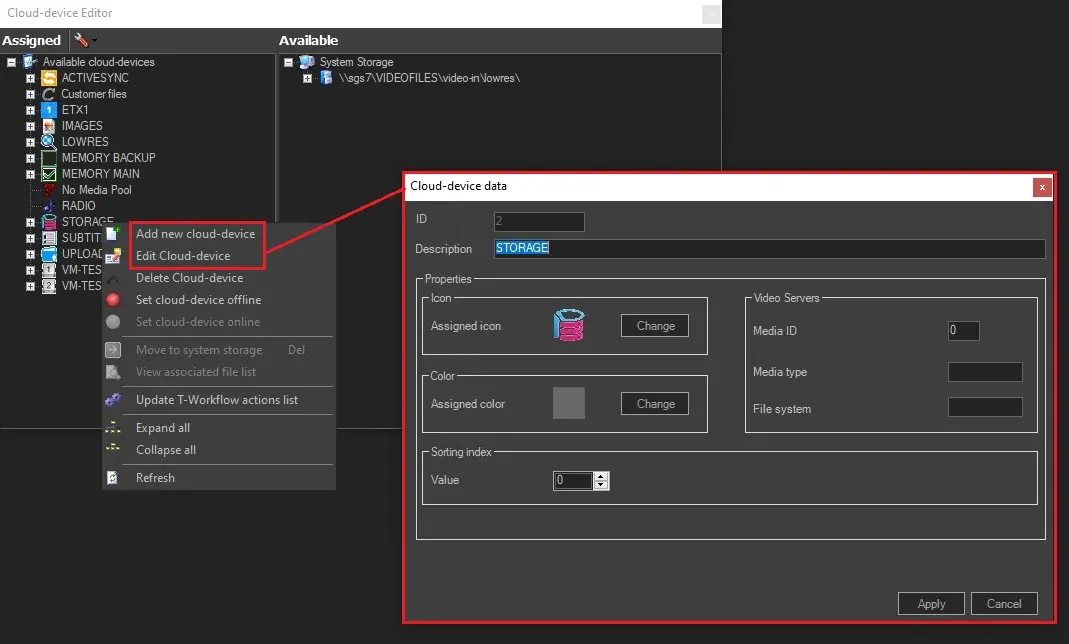
Open the meta device editor from the Tools > Configure > Cloud-device menu. Add or edit a meta device by right-clicking in the 'Assigned' section and selecting the related option. In the dialogue, set the following data:
add_or_edit
- Description: Give a brief descriptive name to the meta device.
- Icon: Indicate the icon that will be displayed to indicate that a media belongs to the current meta device.
- Color: Set a custom colour to differentiate the media files associated with this meta device from others.
- Sorting index: In case the meta device holds media files also stored in another device, indicate here the index that determines which should be used first, or set this value to '0' (zero) to indicate that devices should be used in alphabetical order (thus avoiding any index-based sorting), or set the value to "1" to display the cloud-device at the top of the list (for quick selection of cloud-device path during "Media File Link" process).
The sorting index parameter is used to, for example, display only one proxy icon in the asset form even if there are various -backup- copies stored and linked.
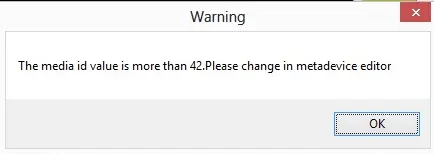
- Media ID: In case the meta device is related to a video server, and there is more than one of the same type configured in the system, indicate here the progressive number assigned to the video servers. If the Media ID assigned exceeds number 42, a warning message will be prompted to advise the user to amend the Media ID using the Metadevice editor.
warning_message
- Media type: In case the meta device is related to a video server, indicate the abbreviated name of the video server (e.g., ETX, OMN, PDR, etc).
- File system: If the meta device is related to a video server, indicate the file system used to store video clips.
3. Add volumes to the cloud-device
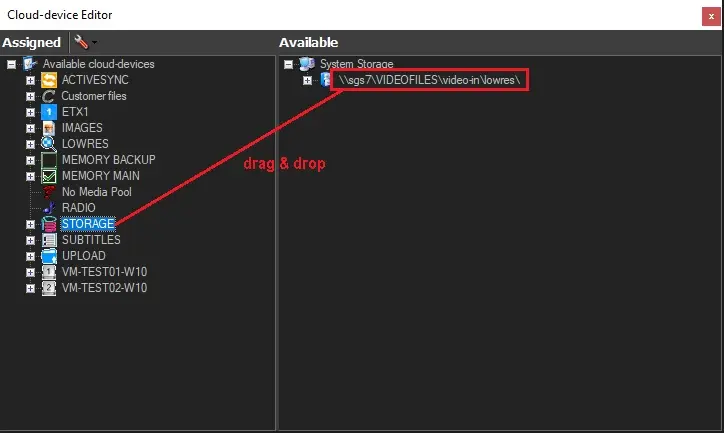
The left part of the Metadevice Editor screen lists those already assigned meta devices, while the right panel shows the available storage paths. Using drag & drop, system storage paths can be assigned to the meta devices on the left-hand side. To reverse the movement, select 'Move to system storage' (or press the 'DEL' key) or drag & drop the path again when an element of the meta device is selected:
Move_to_system_storage
Further operations
Monitor the cloud-device
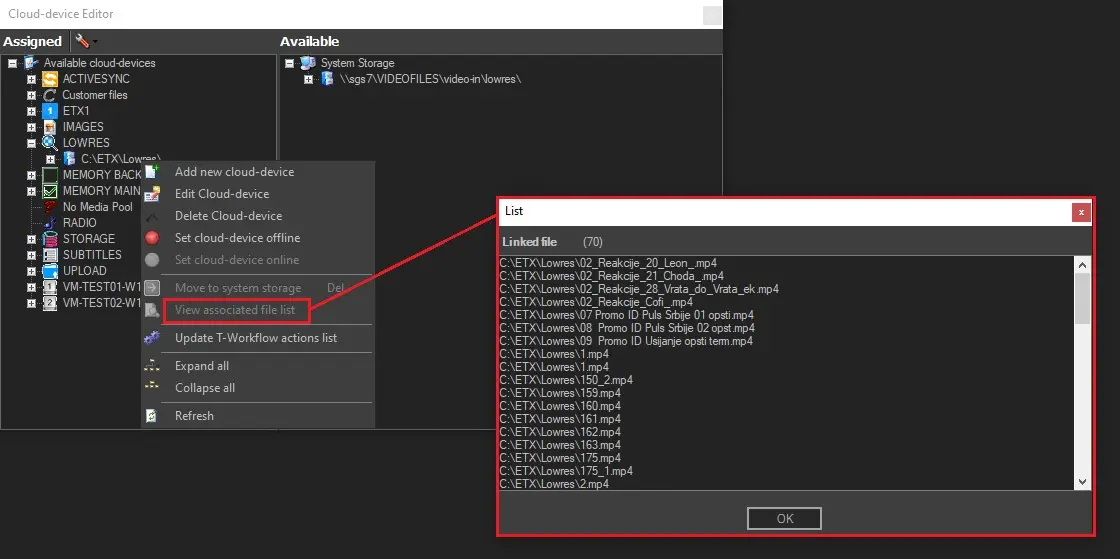
Media files associated with the meta-device can be viewed by right-clicking on an element and selecting 'View associated file list'.
NB: This function is useful, for example, when deleting a cloud device, since you must ensure there is no linked file associated with it. See chapter Deleting resources for more information.
View_associated_file_list
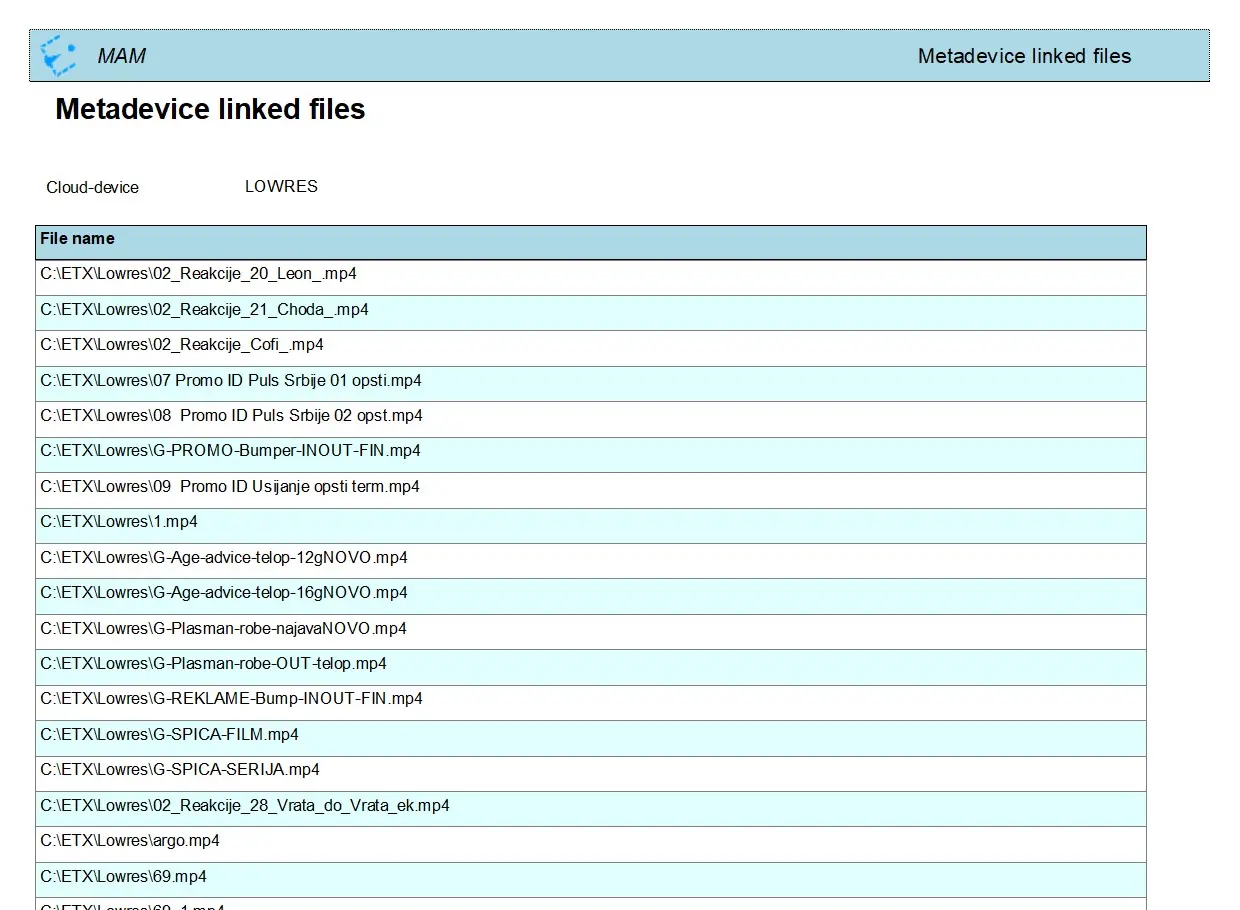
Print a list of files linked to a specific meta-device
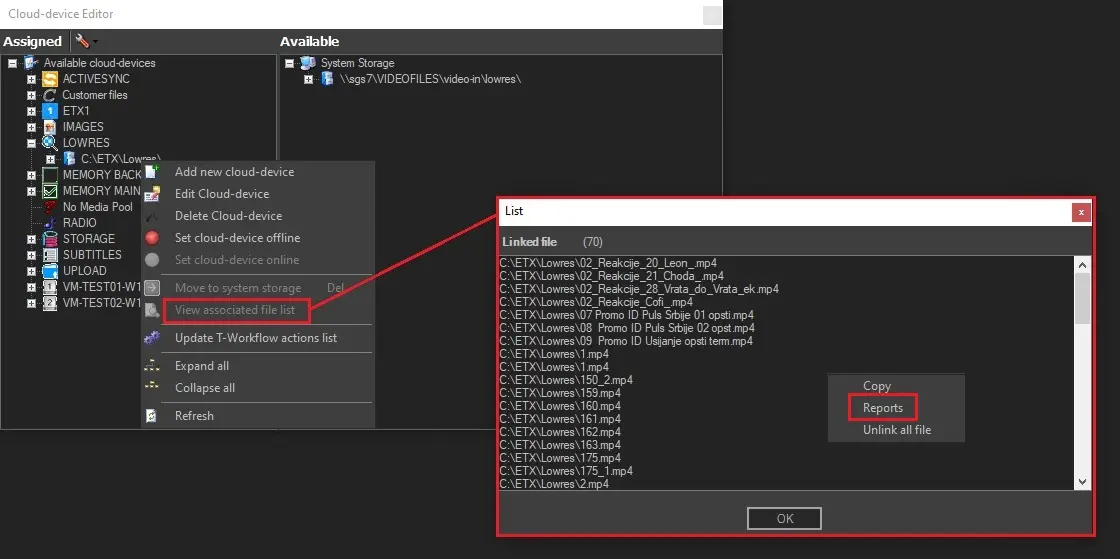
After the list of linked files is presented on the screen, a report can be printed by selecting the Report option and clicking <OK>
Report
Below, there's a sample report generated.
report_generated
 warning_message
 View_associated_file_list
 Report
 add_volumes
 add_or_edit
 add_paths_to_cd
 report_generated