80.1.2 Commercial Archive
The Etere Commercial Archive application allows you create a tape media of any video file ingested in the Videoserver. Before you start using it, Commercial Archive must be configured, this is done in the Archive Parameters application found in the main menu.
Once parameters have been correctly set, just launch the application and follow the next procedure:
1.Selecting Commercials to be Recorded
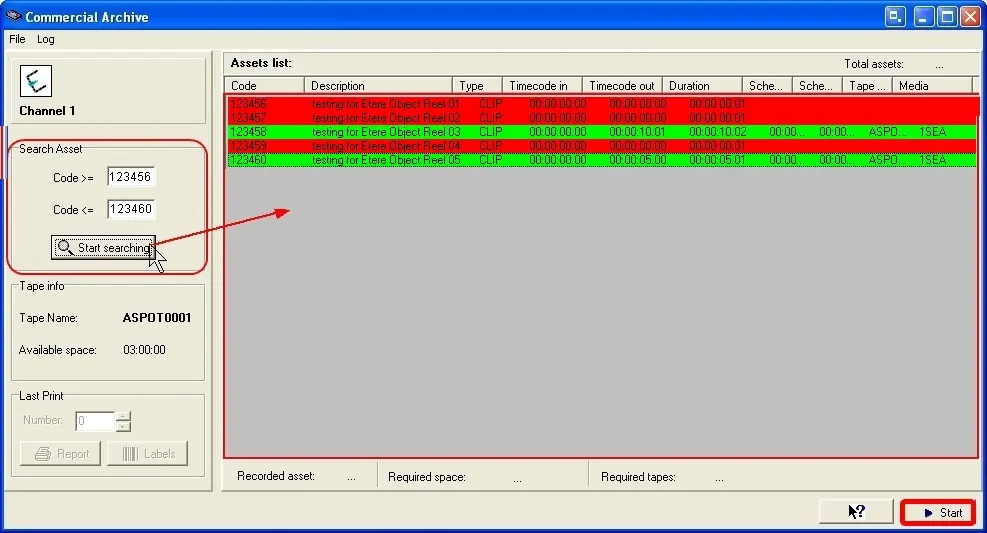
To select the videos to be archived to tape, under 'Search Asset' insert the first asset code of the sequence of clips and the end asset code and start searching. These codes must be 6 digits long and all numerical. In the right hand screen a list of all the codes in the range will appear with their description, type, time code in etc.
Rec_commarch1
All videos that are available in the Video Server will appear as a green line implying they are ok to be recorded onto a tape, whereas asset codes that perhaps are not present in the Videoserver or lacking media support, will appear in red. If a type is not assigned to an asset form, it will also appear but in red (in above example 123456 & 123460). At the bottom of this Asset List window the following information can be found:
•Recorded asset: Details how many assets will be recorded (all those in green).
•Required space: Calculation of the total duration of the chosen assets to be recorded.
•Required tapes: If the required space (duration of total recordable assets) is less than the available space (duration of the tape) then only 1 tape will be needed, however depending on the total duration of video to be recorded, the program calculates how many tapes are needed.
To the left of the window under Tape Info you can find the Tape Name. This is automatically generated. The prefix ASPOT is predefined and the numbers represent the tape number. For the first tape media that is recorded the number is 0001, the second 0002 etc. The available space is set up in the Archive Parameters configuration under 'Tape Duration'.
2.Archiving Commercials
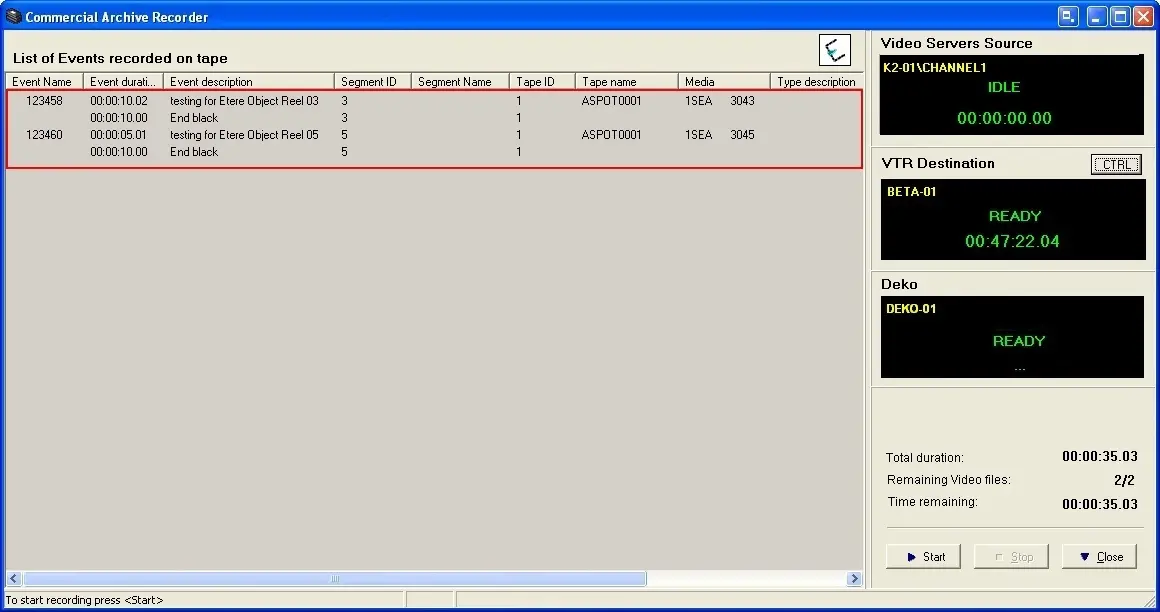
To start recording simply press 'Start'. The Commercial Archive Recorder window now appears listing which videos are to be recorded, the existence of any spacers or blacks, the source device and the end device. The spacers and black clips are configured in Archive Parameters .
Check the list of items to be recorded and the various spacers and black insertions and confirm the recording by pressing Start.
Rec_commarch2
During the recording process to the bottom right of the screen it shows a reminder of the total duration, how many videos are still left to record and the time remaining until completion. At any point you can manually press stop to break the recording.
3.REPORTS
Under the Last Print section you can also print a report of what was previously recorded to tape media (the number refers to the previous tape number) and also print tape labels for the current recording.
NB: Please note that assets, in order to be retrieved on this module must have a numerical code composed by 5 or 6 characters (e.g.: '12345', '123456', etc).
 Rec_commarch1
 Rec_commarch2