9.1.1 Etere Collection
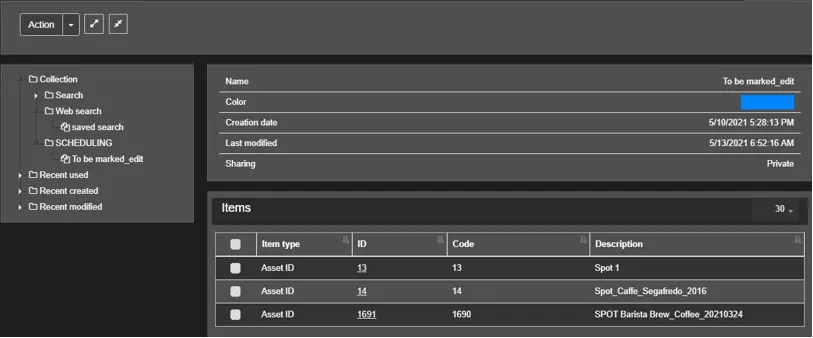
The first Collection category displays all collections accessible to the logged-in user, grouped into folders under the Assets Collections tree.
Collection
For each Collection, the following information is available:
Name: The name of the Collection;
Colour: Associated colour code;
Creation date: Date and time of creation;
Last modified: Date and time of the last update;
Sharing: Indicates the sharing status;
Assets within the Collection are shown in the bottom panel. You can select one or multiple assets and apply actions from the <Action> menu described later in this manual.
Action Menu
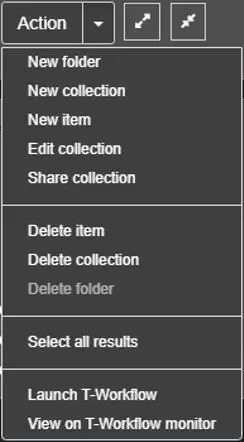
Within the Collection category, the Action menu provides functions to manage items:
Collection category
New folder: Creates a new folder with a specified name;
A folder must exist before creating a Collection.
New folder
New Collection: Creates a new Collection in the selected folder;
An existing folder must be selected.
New Collection
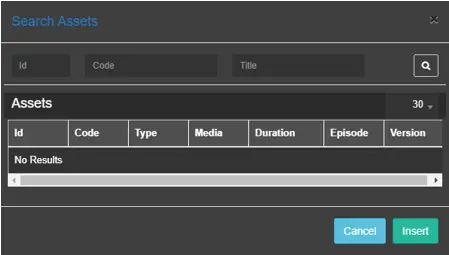
New item: Creates a new item under the selected Collection. Use the Search form to locate and add assets from results;
New item
Edit collection: Allows editing of the Collection style and sharing settings (e.g. Private, Public read-only, Public); Edit collection
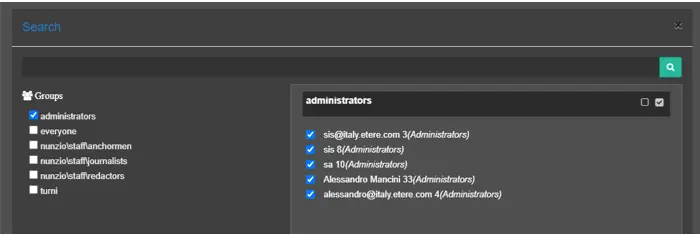
Share collection: Enables sharing with one or multiple user groups;
Share collection
Selected user groups from the left panel are added to the right panel. Adjust selections to include the correct users.
Click <Share> to confirm successful sharing.
Share button
Delete an item: Removes the selected item;
Delete Collection: Deletes the selected Collection;
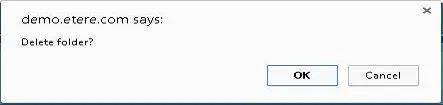
Delete folder: Deletes a folder after clicking <OK>;
Delete folder
A confirmation message appears after deletion.
Confirmation message
If the folder contains items, deletion is denied.
The following message
WARNING: The Delete Folder function is available from Etere version 30.1 onwards.
Select all results: Selects all items returned in the search form;
Launch workflow: Executes a T-workflow (e.g. Censorship Test) on selected assets;
Launch workflow
View on workflow monitor: Opens the T-workflow monitor for selected assets;
T-Workflow monitor 1
Assets can be monitored via the PopViewAsset icon.
T-Workflow monitor 2
Click <Refresh> to update the view, or rely on auto-refresh every 10 seconds.
When assets appear in the Assets Search results, you can select one or multiple items and add them to an existing or new Collection.
Assets Search
Select multiple assets and execute "Add to collection" from the drop-down list.
Add to Collection
In the dialog box, choose an existing Collection or create a new one to store assets in the Assets Collection folder.
Add to Collection
Add to Collection: Adds selected assets to an existing or new Collection grouping items of the same type or description via Search;
Add asset to seasons: Adds a selected asset to a season as a new episode; you can search existing seasons or create one inheriting the asset’s title, type, and properties.
Add to Collection: Adds selected assets to an existing or new Collection;
Add asset to seasons: Adds the selected asset to a season as a new episode. You can search for existing seasons or create a new one using the asset’s title, type, and properties.
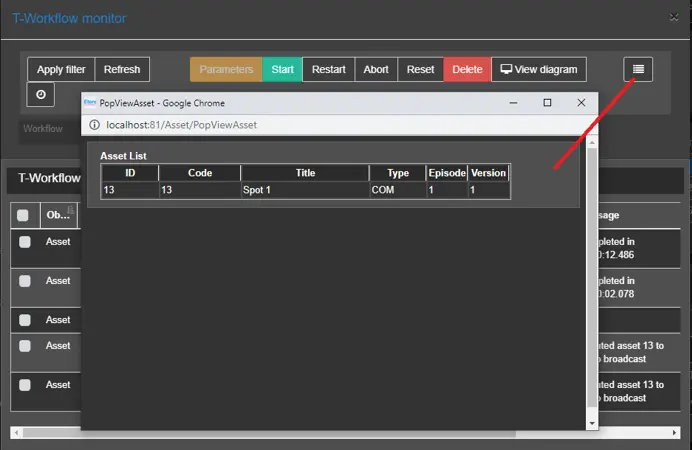 T-Workflow_monitor_2
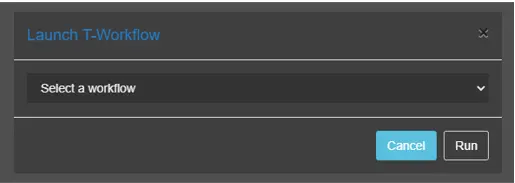 Launch_workflow
 Add_to_collection
 Following_message
 Confirmation_message
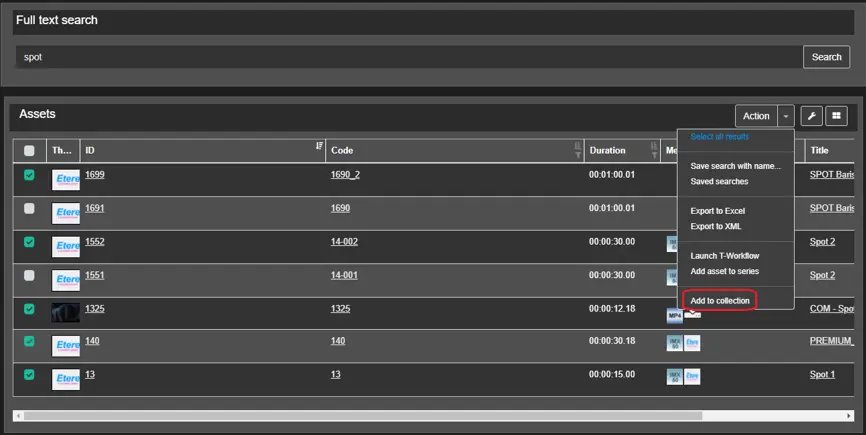 Assets_Search
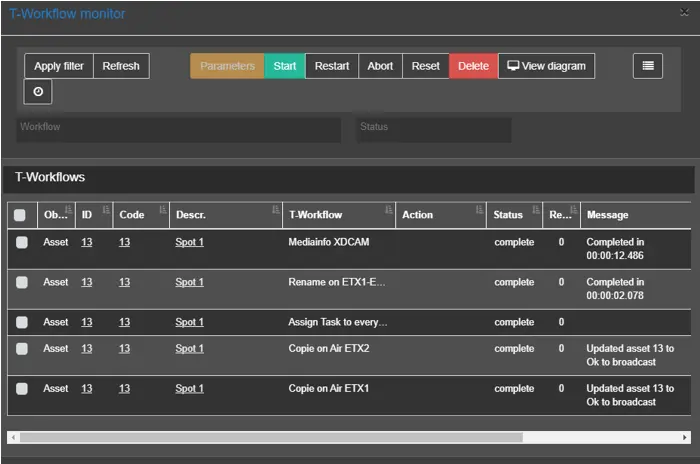 T-Workflow_monitor_1
 New_item
 Share_button
 Collection
 Share_collection
 New_collection
 Collection_category
 Edit_collection
 Delete_folder