64.2 Etere Router control Panel
Start Etere Router Control Panel utility
Etere Router Control - Settings
From the router control panel, select the router you want to switch to and click the <Save Parameters> tile button to confirm router selection. For this instance, you had to switch to router “C15 – Router Utah RCP 3” in the Master Control panel. The program would try to activate the selected router.
Next, you can decide how the router view should be displayed. In the example above, the selected router would be displayed in 2 rows: 1 row would display the source (input channels and channel name) and 1 row would display the routing destination (output channels and channel name).
In the control panel, all input channels and output channels would be displayed, regardless of the number of channels are different.
Note: When launched, the utility would default present 2 rows of input channels and 2 rows of output channels.
Etere Router Control
Now you can manage the router from the Router Control panel:
•The name of the selected router is displayed at the top left corner
• < UNK> The right bottom corner indicates the router status, e.g., Router active, Router not active.
•Use the forward arrow Etere_Router_Forward to view next channels
•Use the backward arrow Etere_Router_Backward to view previous channels
•Selected input/output channels are highlighted in orange, also indicated in the taskbar (e.g. Switched In 1 -> Out 2)
•The TAKE button will be activated (in green) after setting the IN and OUT channels; a single click on the TAKE button will make the switch. Upon switching, the TAKE button would be deactivated (in grey) to prevent unnecessary errors.
•When a new set of IN and OUT channels are set, the TAKE button will be activated again.
•Use the settings icon Etere_Router_View_Log to set parameters and view the log file
NB: If you use a Utah RCP 3 Router, it can only accept up to 6 active connections simultaneously.
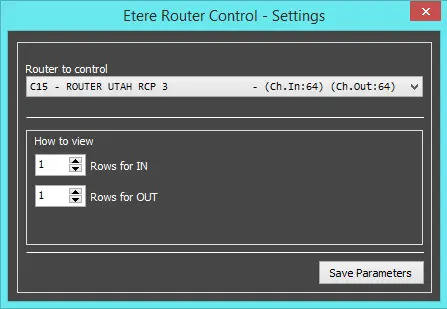 Etere_Router_Control_-_Settings
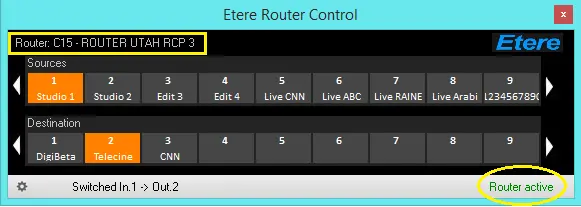 Etere_Router_Control