59.2.8 Etere PCs
The Etere PCs section displays a list of all Etere PCs present in the network and the specific information of each PC.
Etere_PCs
The maximum number of PC allowed in the network is displayed in the top row, along with the number of currently active PCs. Other information includes:
•The hostname of the registered Etere PC.
(Note: From version 31.2 or later, a workstation with a long hostname would be displayed. If there are workstation with new (long) hostname and old hostname (truncated at 15 characters) co-exist, the old hostname must be housekept from the list)
•IP address assigned to the PC.
•System generated identification number.
•A unique Work ID generated automatically by Etere based on computer MAC address.
If hardware changes on the PC or Etere applications have been reinstalled on the PC, a new Work ID would be assigned to the PC.
(Note: From Etere released version 28.2 onwards, no warning message would be prompt about the changes in Work ID.)
•The date when the PC joined the network.
•The user name that currently logs in to the PC.
•The Operating System installed on the PC.
•The reference to .NET Framework
You can manage the Etere PCs using one of the following functions:
•Delete: Remove the selected PC from the list. Before deletion, you must ensure that
There is no operation currently running on the PC
The PC resource is not locked in Resource Editor
There are no assets linked to metafile on the PC.
•Rename: Give a new hostname to the selected PC.
When a PC is renamed, the PC would be treated as a new PC. You must log in to the PC as Administrator, connect to SQL Server and verify all the configuration settings, including the latest PC name. After which, the PC can be accessed to Etere by the user.
Before launching any operation from this section, it's advisable to contact Etere Support team, in order to receive the proper guidelines and to be sure the operation won't cause any trouble to Etere system.
You can also transfer the existing license from an old PC to a new PC:
•In the new PC, import the license with Configuration > License Update feature.
•Next, delete the old PC from the list, as mentioned above.
When you remove any Etere PC from the list or add a new PC, the list would be updated automatically to reflect the current status, including any PC modification.
NB: From Etere version 28.2 onwards, the function <Export list of PCs to XML file> and <Import activation codes from XML file> for activating the licenses in Etere PCs are no longer required. The Etere Licenses would be managed by application modules as described in the chapter “Manage the modules expiry date".
Summary of PCs replacement
You can follow the summary steps described below to replace a PC or bulk of PCs:
1. Determine if there are files to be dismissed in PC. Those files must be backup before being removed from the PC if there are.
2. Disassociate the PCs from the cloud device and remove them from storage via Resource Editor.
3. In Resource Editor, remove the volume from system storage, including the associated media folders and paths.
4. Delete the cloud device in Resource Editor, where the PCs are associated.
5. Remove PCs from the list and add new PCs.
Manage the module's expiry date
The Etere PCs module has been enhanced; it allows you to monitor and manage the license expiry date of all the Etere modules installed in the Etere PC. The expiry date would be reflected next to the Etere license code, which you can view from the Etere PC.
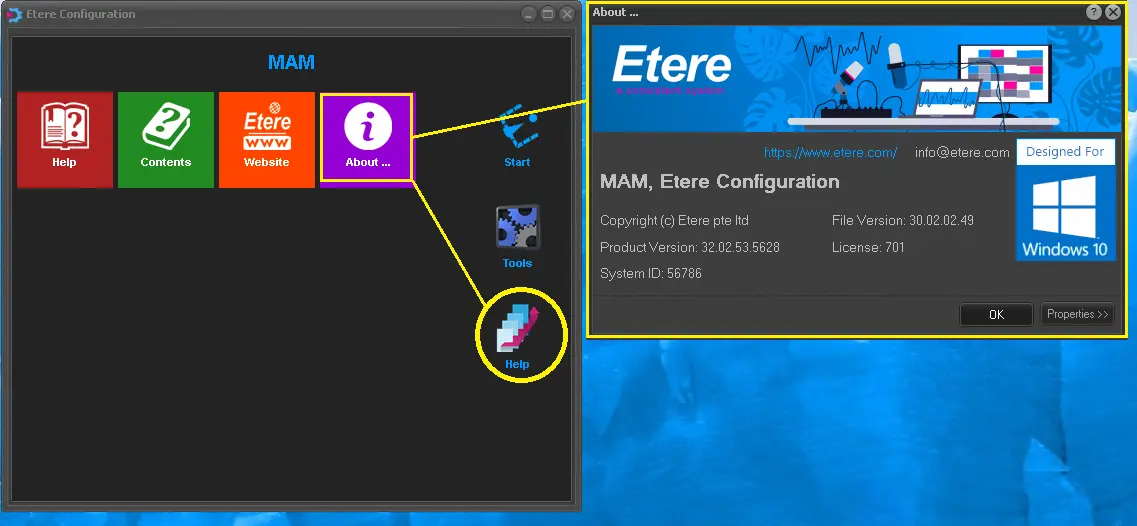
To view the license expiry date for all Etere modules, launch the Configuration module and select the Help menu instead of the Start menu.
In Help menu, click the <About> tile button to view the general information of the Etere PC.
Help
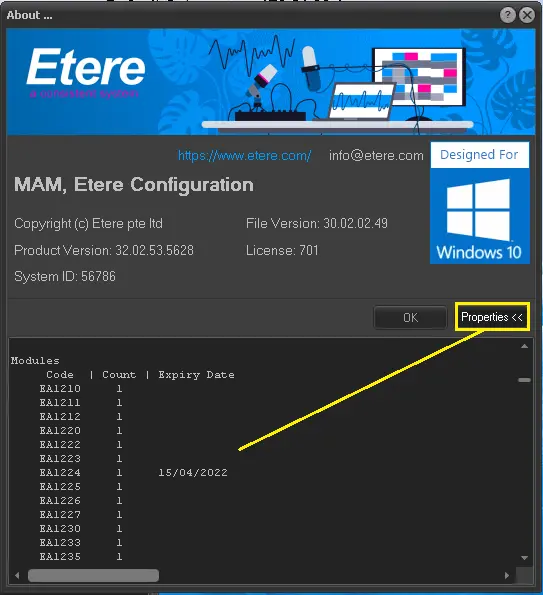
Click the <Properties> button to display all license codes of all Etere modules installed in the Etere PC from the general information page.
modules_installed_in_the_Etere_PC
From the display, any license code expiring shortly would be indicated under the "Expiry Date" column with a dedicated expiry date.
Every Etere license is generated with a unique identifier and validity date, it provides the customer with flexibility in license management, and no activation is required. For example, you can request a 3 months license for Automation and a 6 months license for Air Sales for migration test.
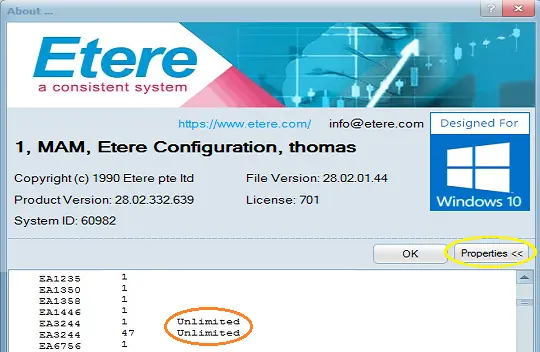
If the license expiry date is beyond 2099, the license would be indicated as "Unlimited” in this column.
license_expiry_date
NB: If you encounter a login error "Channel not enabled for the user", you can launch the Etere Configuration module and use the keyboard shortcut "Ctrl + Shift + 4" to open Etere Rights Configuration to verify the user permissions assigned. If the error “No station activated for the user" popup during login, use the keyboard shortcut "Ctrl + Shift + 1" to verify the authentication method in the System configuration
 Etere_PCs
 Help
Help
 modules_installed_in_the_Etere_PC
 license_expiry_date