72.2.2.58 Secondary events - DSK
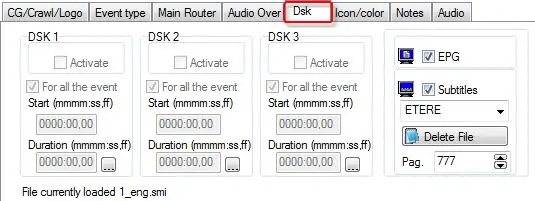
The "DSK" tab allows to set some crucial parameters for the use of the following graphics devices including:
DSK
DSK - Activate the DSK(1/2/3) and configure them to be used for the whole event duration or from a specific start for a set duration.
NB: If you are using Ross Video Master Control for Automation, keyers-1 (DSK 0) is reserved for manual use by design, keyers-2 to keyers-4 (DSK 1, DSK 2 and DSK 3) can be managed by Etere.
EPG - If the EPG is activated, the event in question will be visualized in the TV Guide. For more information on EPG see the STMAN > TV Guide chapter.
Subtitles - By selecting to activate Subtitles, the subtitle file needs also to be specified. For more information on subtitling see STMAN > Subtitles Management. Available subtitles protocols includes:
WINTV , EBU , TXT , ETERE , CAVENA , FAB - Pass to the -FAB- device the effect (fixed) and numeric template (asset code).
SCREEN SUB. SYS - Pass to the -screen subtitling system- device the effect (fixed) and numeric template (asset code).
Softel XAP - Pass to the -Softel- device a subtitle named as the [AssetID].
This option is enabled only if the “Configuration > Settings > Basic Configuration > Languages > Subtitles” settings in workstation is checked.
When inserting subtitles into schedule, you must specify the Asset ID retrieved from the Asset ID column in Schedule.
NB: The Subtitles function is enabled only if License EA1230 and EA1363 (Etere Subtitling System Driver) are present.
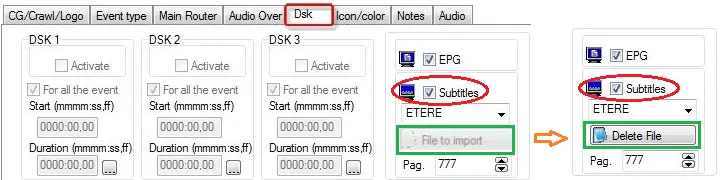
File to import / Delete file - Import files containing supported subtitles into the database, this, just by following the procedure below:
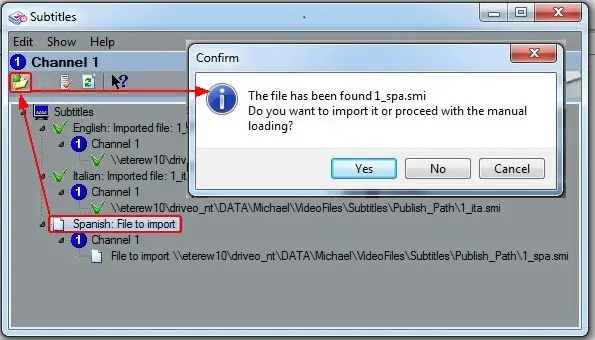
1. Select the "Language File to import" among the available languages, then, press the [Import] button (or hit CTRL + I),
2. Etere will search for all subtitles matching the model filename with any file extension (e.g. smi, txt, etc) present in the EE subtitles path (and the Language subtitles path), then, it will prompt for an action:
Import
Yes - The suggested file will be automatically imported for the selected subtitle language.
No - The user will be prompted to manually browse for the file to be imported for the selected subtitle language.
Cancel - No file will be imported for the selected subtitle language.
NB: In case the "EE > Change the timecode of the imported file" parameter is enabled, the subtitle timecodes will be shifted to be zero-based (i.e. to start at 0000:00:00,00).
3. Once imported into the database, subtitles will be added to the asset's media list and will be recreated in the STMan subtitles path for the on-air transmission.
NB: The import process would create a copy of the subtitles file to be import and store in the folder path defined in Configuration > Settings > Basic Configuration > Languages > Subtitles.
4. Upon import, the <File to import> button would change to <Delete files> to enable deletion of imported subtitles file.
Delete imported subtitles file
Important Note:
Before import, you are advised to disable Windows UAC settings to prevent user with non-administrator privilege execute the import as administrator.
NB: Please note that imported subtitles are managed along with the asset during copies and backups.
Page - Indicate the CG script to be used for positioning subtitles (default set at 777).
NB: Please note that once all subtitles have been loaded for an asset, in the bottom left of the window it will be specified with a message (e.g. "File currently loaded: 123_eng.smi").
 DSK
DSK
 Delete_imported_subtitles_file.
 Import