77.1 How to install a service in the SERVER
The configuration of the Etere Multi-Channel Ingest Server must be performed exclusively via the Etere Web interface. This is a mandatory requirement, as all ingest services are managed and configured via WEB interface.
Prerequisites
Before starting the configuration, ensure that:
The Etere system is correctly installed and connected to the SQL database
The required licenses are installed and active
The server is reachable via the network from a web client
Licensing Requirements
Each ingest service requires a dedicated license:
The EA1378 license is mandatory to run the Multi-Channel Ingest Server service
The system follows a 1:1 licensing model:
1 service = 1 EA1378 license
2 services = 2 EA1378 licenses, and so on
Without a valid EA1378 license, the ingest service cannot be started.
Service Installation (ETERE INSTALL)
Before configuring the server via web, the ingest services must be installed on the machine using the ETERE INSTALL tool.
Open ETERE INSTALL on the target server
From the available components, select “Service Ingest Server”
Choose the number of service instances to install:
Each instance corresponds to one ingest service
Ensure the number of instances matches the number of available EA1378 licenses
Configure the service execution account:
Click on “Set Log On”
Specify the domain user account that will run the service
Ensure the account has the necessary permissions (database access, network resources, storage paths)
Complete the installation and verify that all services are correctly created in the Windows Services panel
Notes and Best Practices
Each installed service instance corresponds to one ingest channel
Services are independent and scalable based on available licenses
Always ensure consistency between:
Number of installed services
Number of configured services
Number of available EA1378 licenses
Monitor system resources (CPU, RAM, disk, network) to maintain optimal performance
Summary
The Etere Multi-Channel Ingest Server requires a two-step setup:
Installation of service instances via ETERE INSTALL
Configuration and management via the Web interface
Each ingest service must be properly licensed (EA1378) and mapped to an installed instance. This architecture ensures scalability, flexibility, and centralized control of all ingest operations.
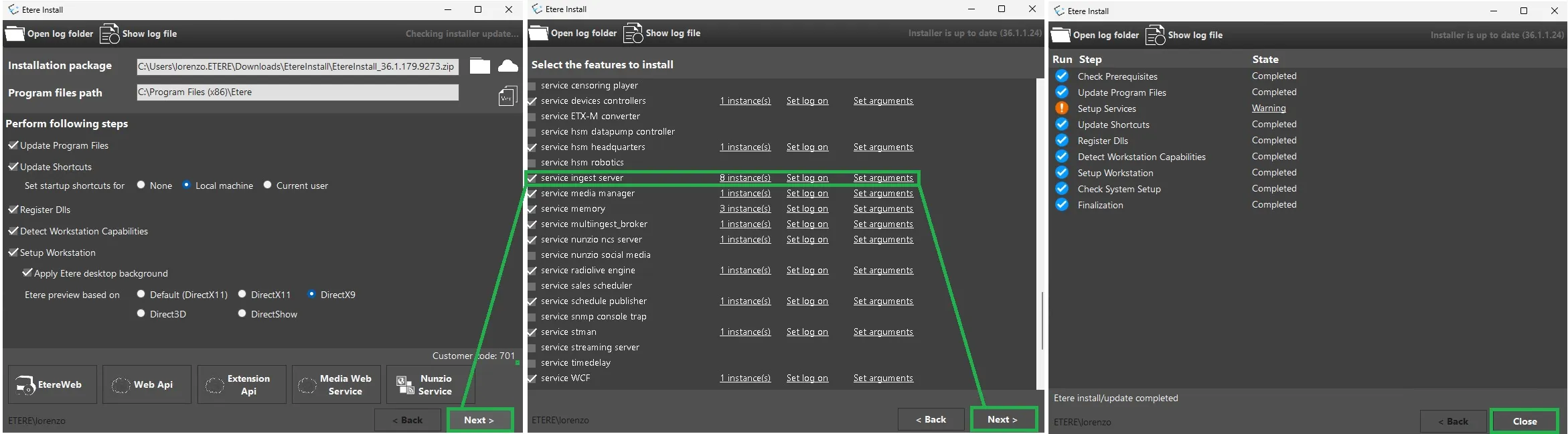 How_to_update_the_ingest_services
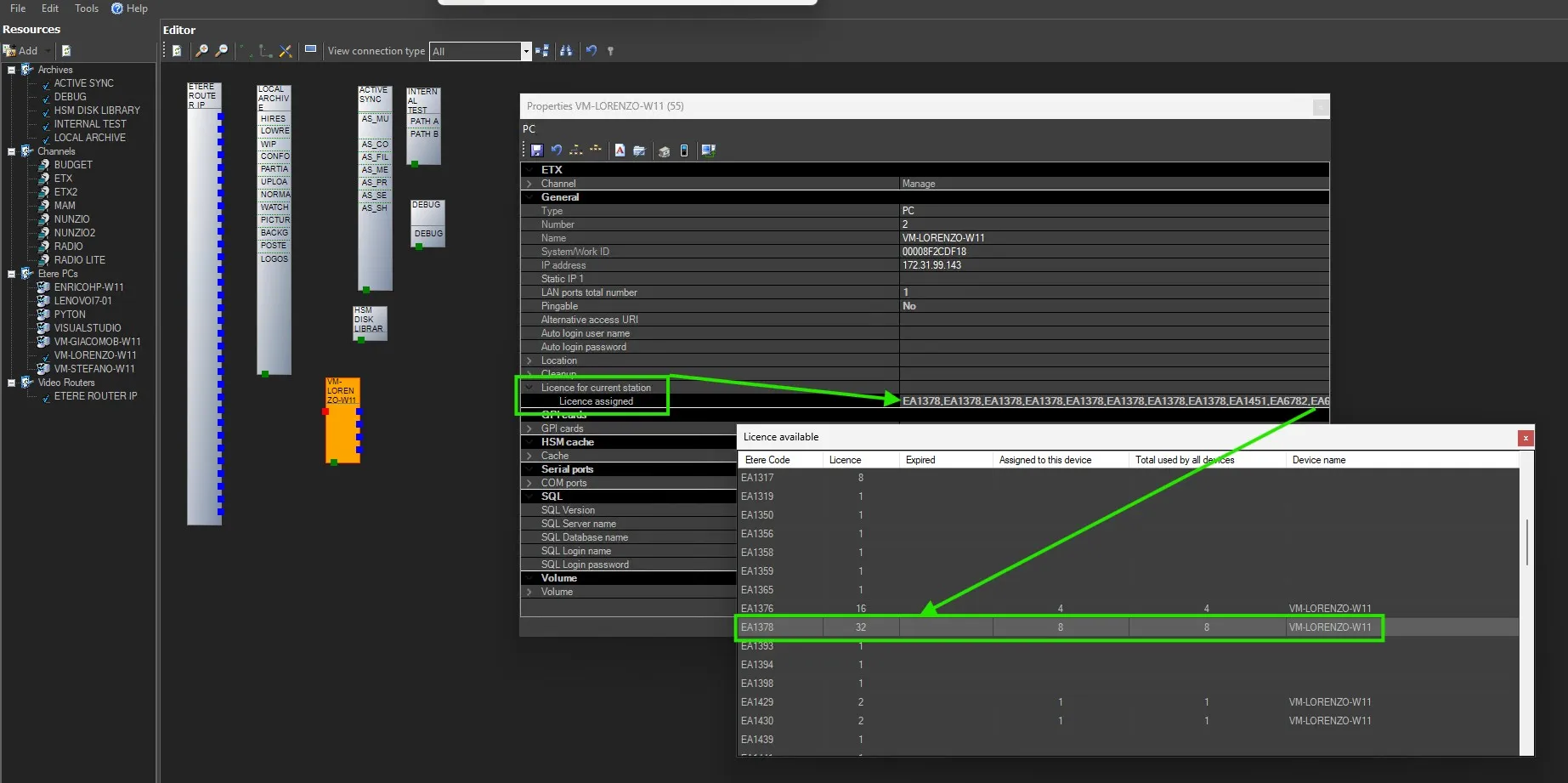 Assing_Licence_EA1378
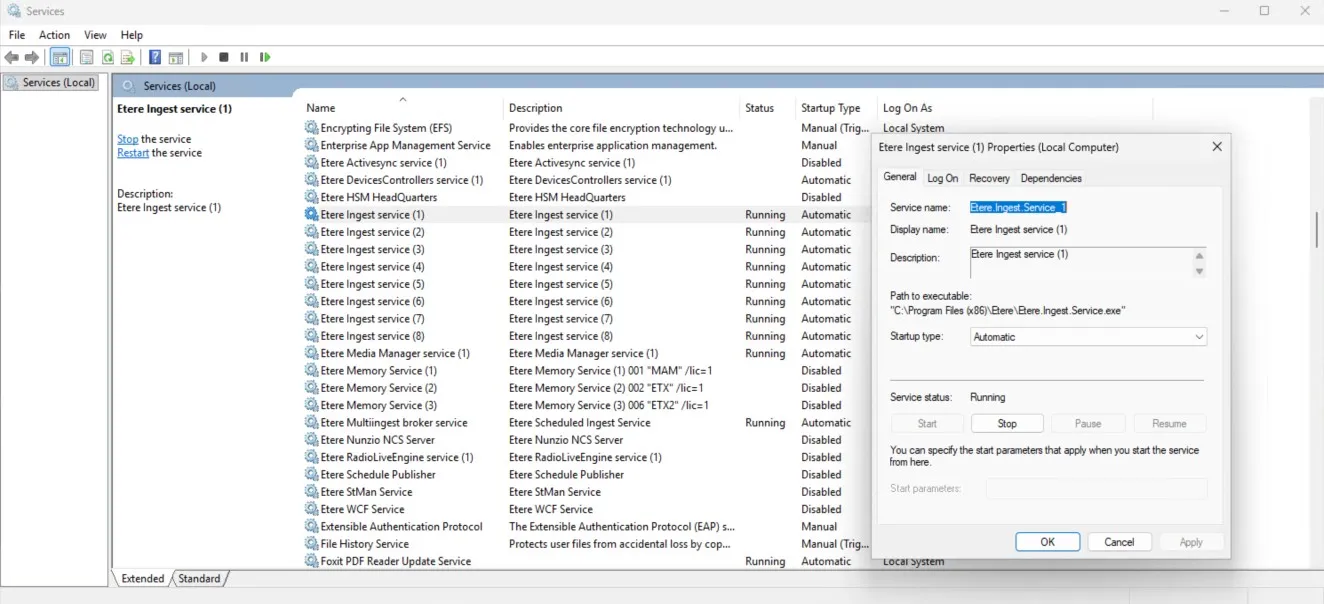 Ingest_Services_-_General
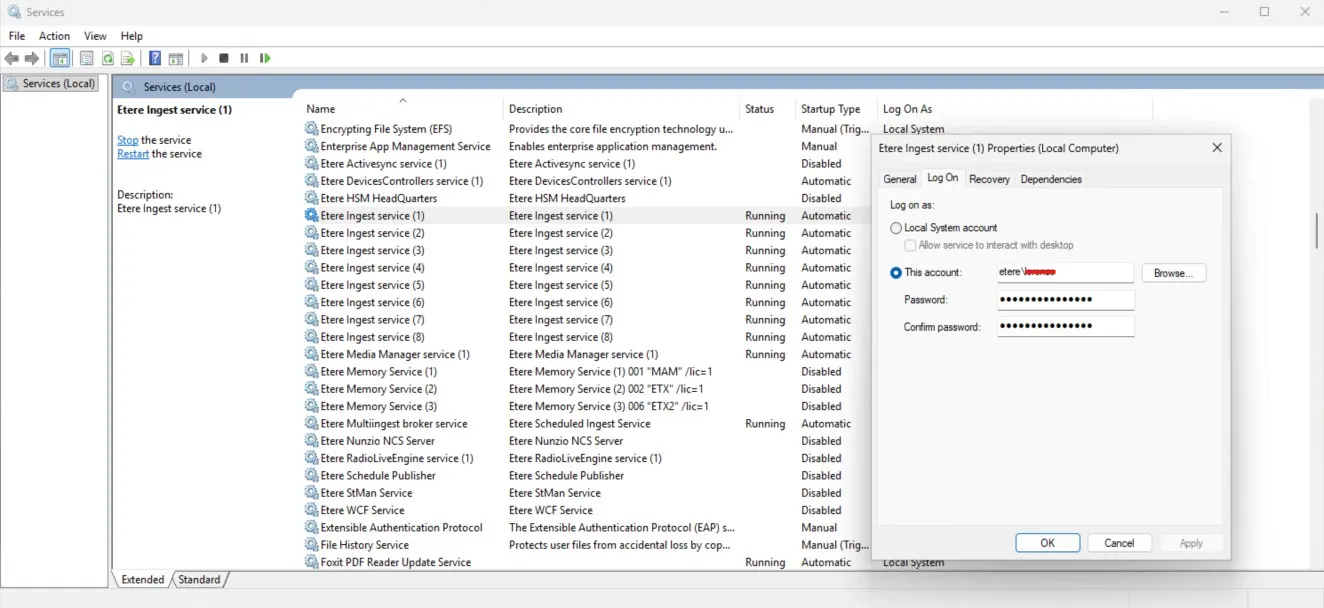 Ingest_Services_-_Log_On
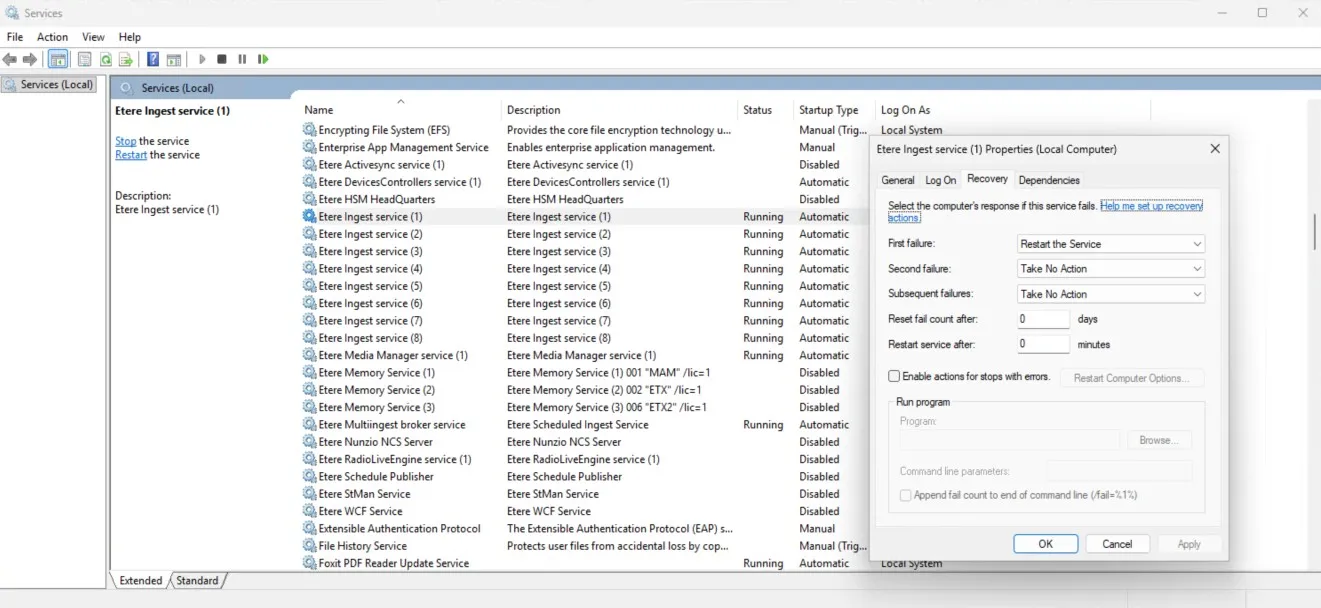 Ingest_Services_-_Recovery
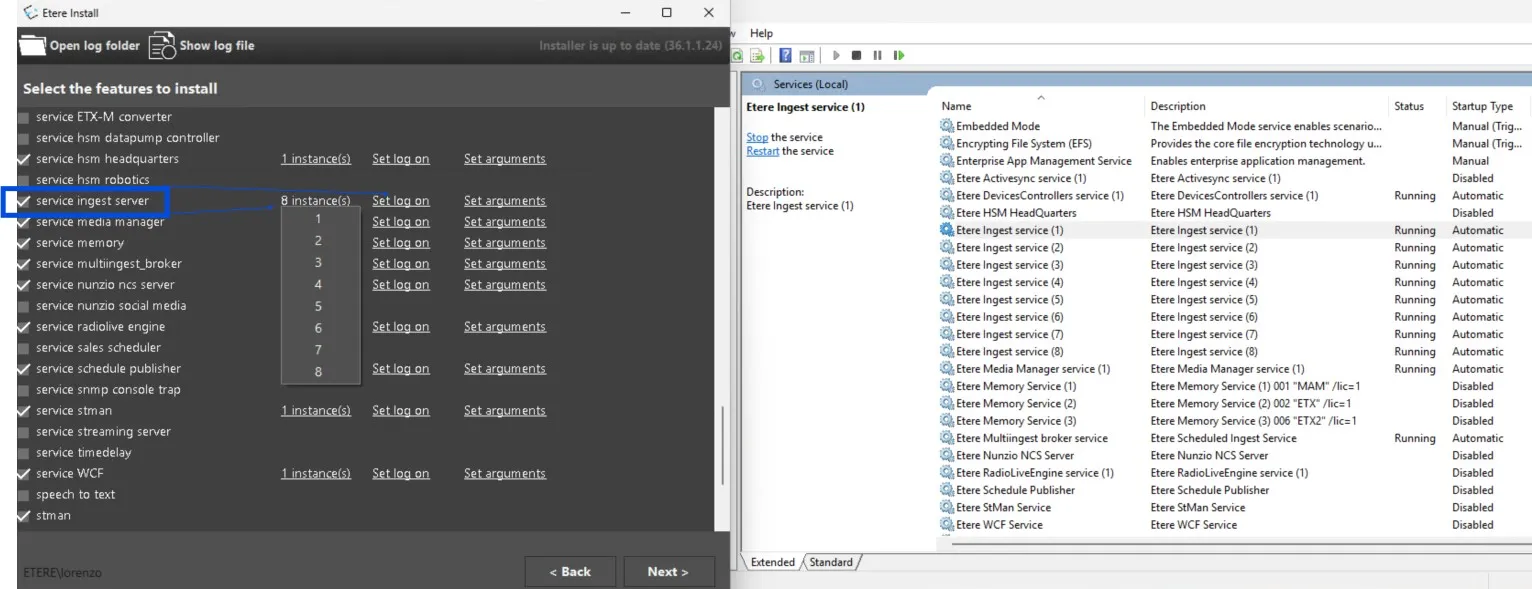 Install_Ingest_Services