71.18.16 Configure ETX Ingest Channel
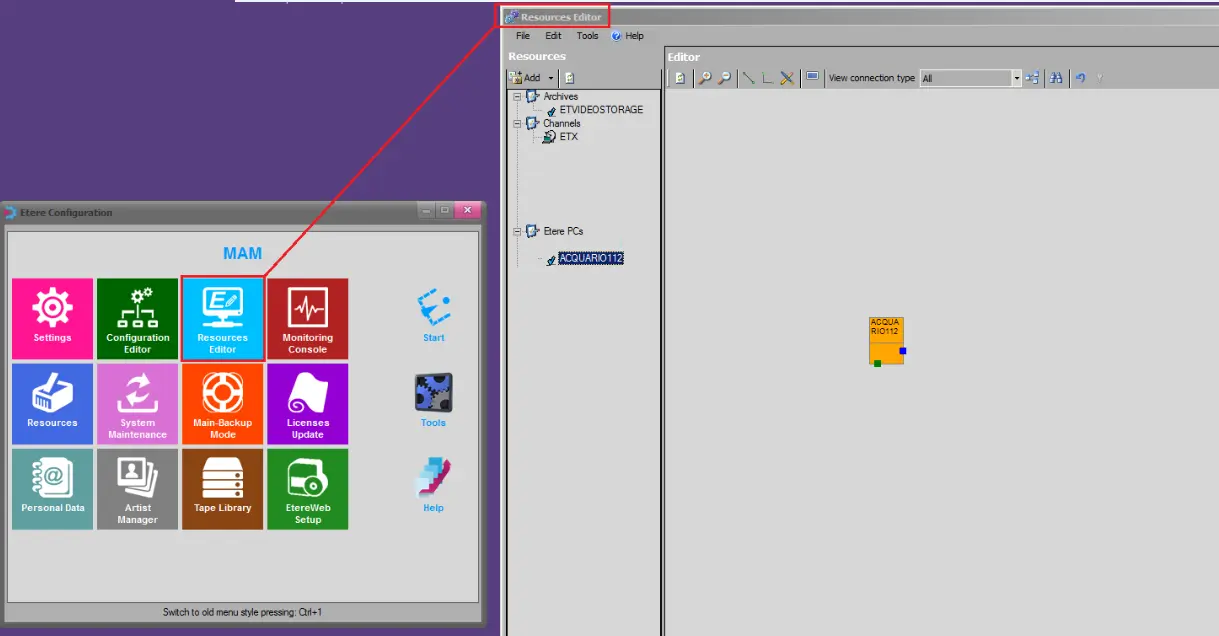
To start configuring an ETX ingest channel, launch the Configuration module from the PC where ETX card is installed and activate Resource Editor.
Resource Editor
Channel Configuration
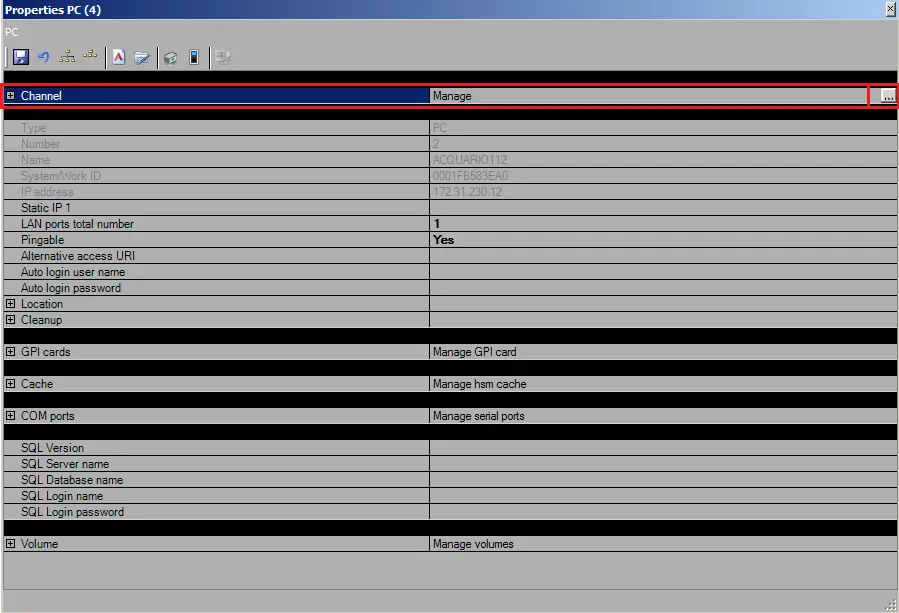
Select the Etere’s PC resource with the ETX card installed, right-click and select Properties to open the PC properties settings.
PC properties 1
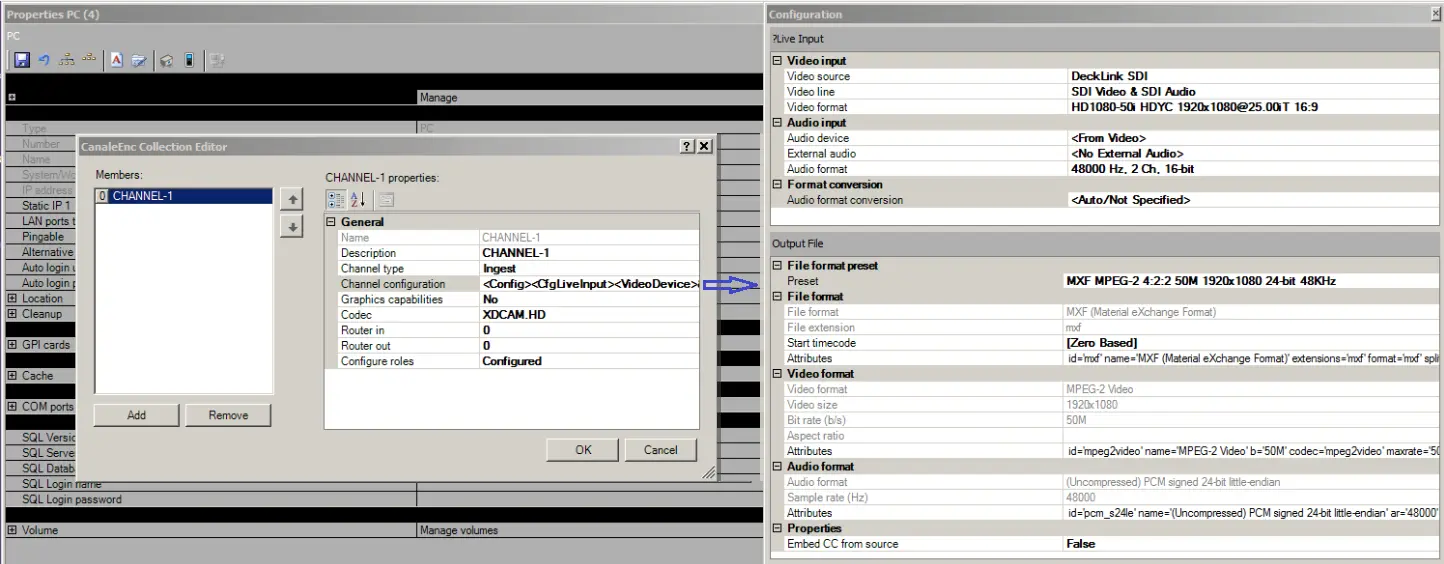
Click on the browse button at the right corner to zoom in the channel properties settings and fulfill the parameters.
PC properties 2
General parameters- Name
Settings: The channel name assigned by Resource Editor.
General parameters- Description
Settings: Enter a short name to describe the channel.
General parameters- Channel type
Settings: Select "Ingest" to configure it as ETX ingest channel.
General parameters- Channel configuration
Settings: Click on the browse button to open the configuration panel (as indicated in the image above) and configure the channel settings:
Live Input
- Video Input:
•Video source: select the input card installed for ETX ingest.
•Video line: leave as default
•Video format: select the incoming video format.
- Audio input
•Audio device: select an audio format, or default as <From video>.
•External audio: leave as default, if no external audio.
•Audio format: select the incoming audio format, i.e. frequency, channels, bit, etc.
Output FIle
- File format preset: Select a output file format.
General parameters- Graphics capabilities
Settings: Specify "Yes" enable creation of ETX logo for the channel. Else, specify "No".
General parameters- Codec
Settings: Select a codec from the list
General parameters- Router in
Settings: Specify the physical router port number used for preview. (Router port 1 is reserved for Master Control).
General parameters- Router out
Settings: Specify the router port in the target resource.
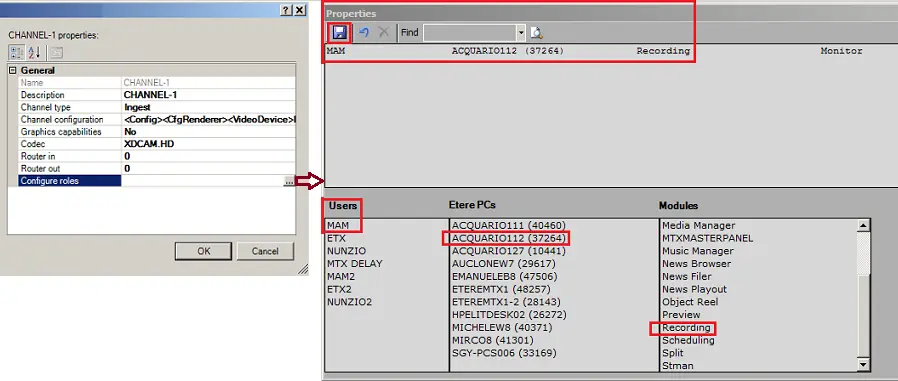
General parameters- Configure roles
Settings: Click on the browse button and define the roles when using the ETX resource.
Properties
From the lower panel, select:
User - Select "MAM" module where user intend to execute the role
Etere PCs - Select a physical workstation to execute the role.
Modules - Select "Recording" as modules assigned to the workstation.
Upon selection, the configured roles would be displayed on the top panel. Click the Save icon to confirm settings and exist from Channel properties.
Volume Configuration
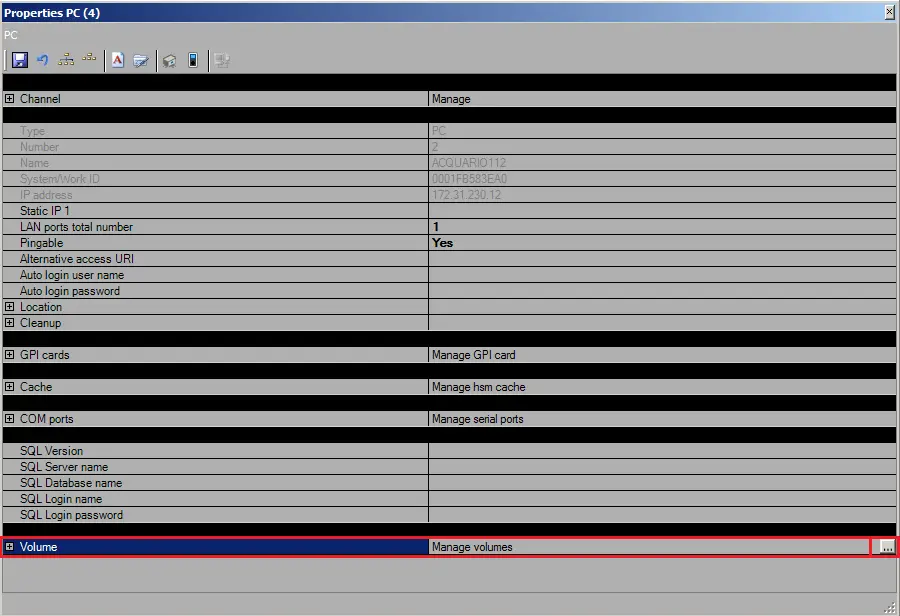
From the PC properties displays click on the browse button on the Volume parameter to zoom in Volume properties settings.
PC properties 3
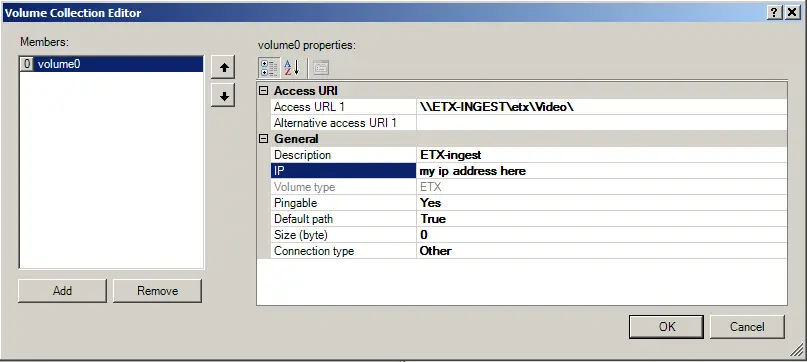
Change the Volume properties as follow:
Volume Collection Editor
Access URL 1 - Enter the path to the ETX ingest resource.
Description - Enter a short name related to the resource.
IP - Enter the IP address of the PC where resource is installed.
Upon completion, click <OK> to exist from Volume properties and return to PC properties page.
From PC properties, click “Save” icon to confirm all changes made to Channel properties and Volume properties and return to Resource Editor.
 PC_properties_2
 Properties
 PC_properties_3
 Volume_Collection_Editor
 PC_properties_1
 Resource_Editor