70.3.2.1 Headquarters GUI
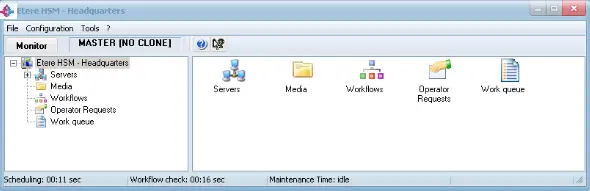
The Etere HSM Headquarters module is divided in different sections to permit operators to easily perform specific tasks under dedicated interfaces, sections present in this application are following described:
Etere HSM Headquarters 1
Main Menu
The main menu of the Etere HSM Headquarter menu provides access to the following options:
•File: See HSM reports.
•Configuration: See Headquarters Options.
•Tools: See Advanced Tools Operations.
Management Areas
The tree-like panel positioned at the left of the main window provides operators with the following working areas:
•Servers: View and configure all tape libraries, either online or offline, configured in the system.
•Media: Find and manage the media in a easy and quick way, view the files present in a single tape and manage the tape itself.
•Workflows: View the status of all the HSM actions launched for assets specifying the T-workflow on which they are contained.
•Operator requests: List all requested operations waiting for their related tape to be injected.
•Work Queue: View all the operations queued for being processed by Etere HSM, allowing also to manage them (e.g. refresh, cancel, delete, etc). Here are included those operations finished in error (i.e. backup or restore).
Status bar
In case Etere HSM Headquarters is already connected to a server, the status bar will provide information about the time (in seconds) remaining for the next time the following operations will be performed by the server:
Scheduling - Assign times and resources to all requested operations. This interval is set under the Configuration > Options > Scheduling section.
Automatic operations - Archive assets automatically according to the criteria set under the Tools > Automatic Archiving section. (no more available since Etere 22)
Workflow check - Check for T-workflows requesting an archive/restore task. This interval is set under the Configuration > Options > Scheduling section.
Maintenance time - Perform the maintenance tasks (i.e.: tapes defrag, library refresh, media pools realignment) set in the Tools > Maintenance Time menu.
Moreover, by making right-click on the status bar it will be possible to immediately run any of the above mentioned operations without waiting until their expected time arrives.
Monitor
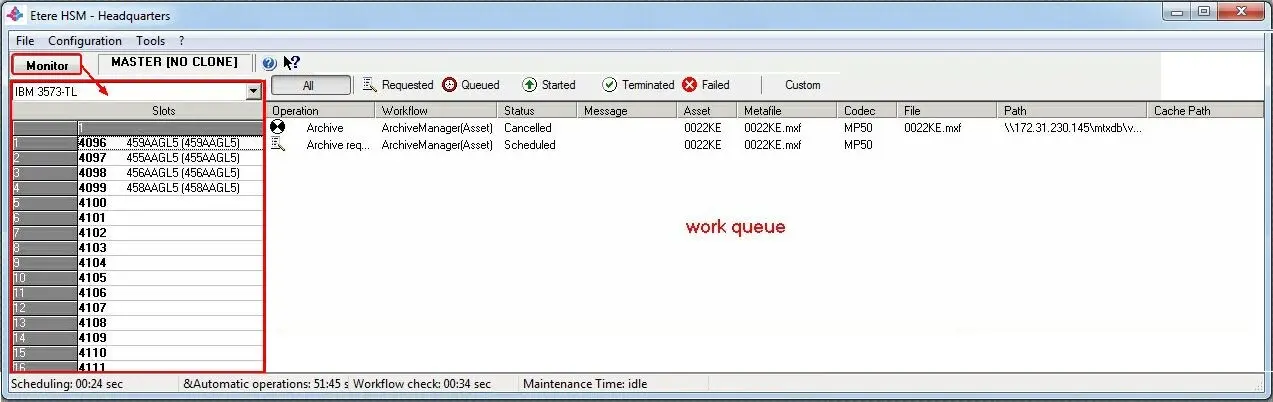
Additionally, the [Monitor] button provides simple "monitoring view" of the currently used library, allowing operators to see which tapes are present on it as well as consulting their content (double-click on the tape):
Etere HSM Headquarters 2
Please note that in case the "Monitor" mode is enabled, the "Work Queue" section will be automatically displayed in the right part of the window.
 Etere_HSM_Headquarters_1
 Etere_HSM_Headquarters_2